Collection · 38 prompts
Viral AI video effect prompts for Reels
Many of the AI videos that get millions of views on Instagram Reels use the same short list of effects: the camera zooms out from your photo to the whole Earth, a pair of wings opens behind you, money or colour rains down, or a flock of birds carries you into a new outfit. Higgsfield lists these as one-click "viral" presets. Each prompt here describes one of those effects in plain words, so you can get a similar result in Higgsfield, Kling, Veo or another video tool.
Use your own photo, or one where everyone in it has agreed. The result will be similar to the trend, not identical to a preset. Keep the face and clothes fixed in the prompt and change only one thing, which is what keeps these effects looking clean. Add a short "AI-generated" note when you post if the platform asks for it.
Last updated
Free reel hook generatorPlan the hook, script and scenes around an effect · scene prompts · hook card
All 38 prompts
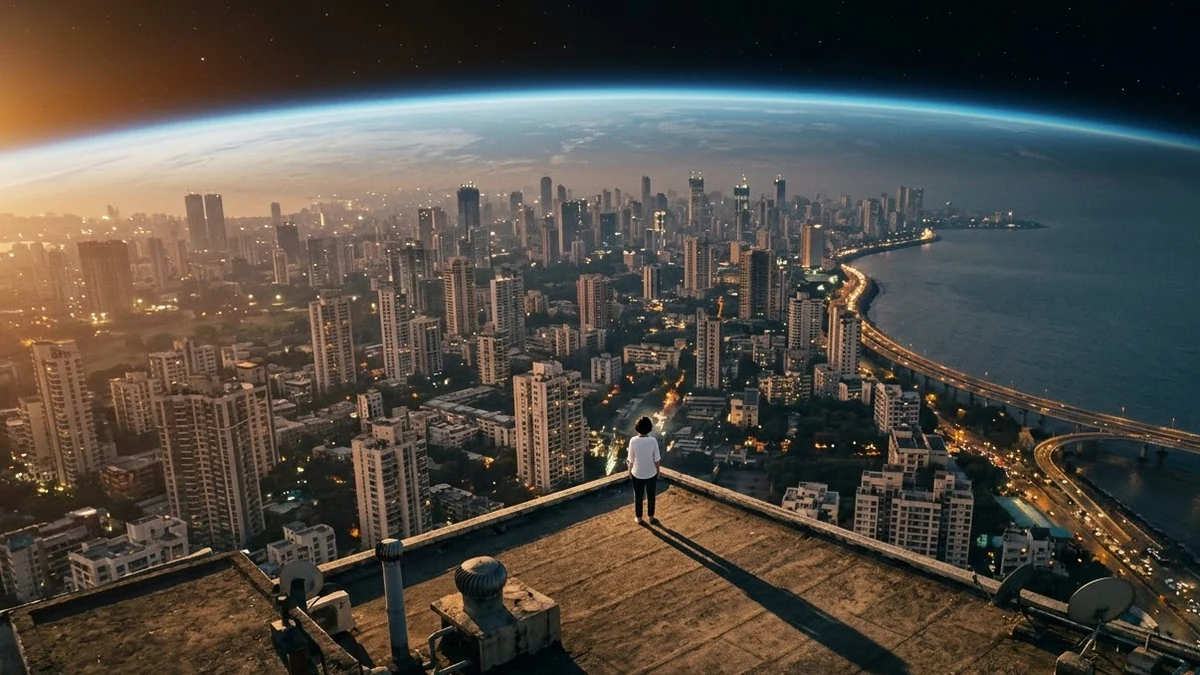 Earth Zoom Out video promptHiggsfield · Kling · Veo
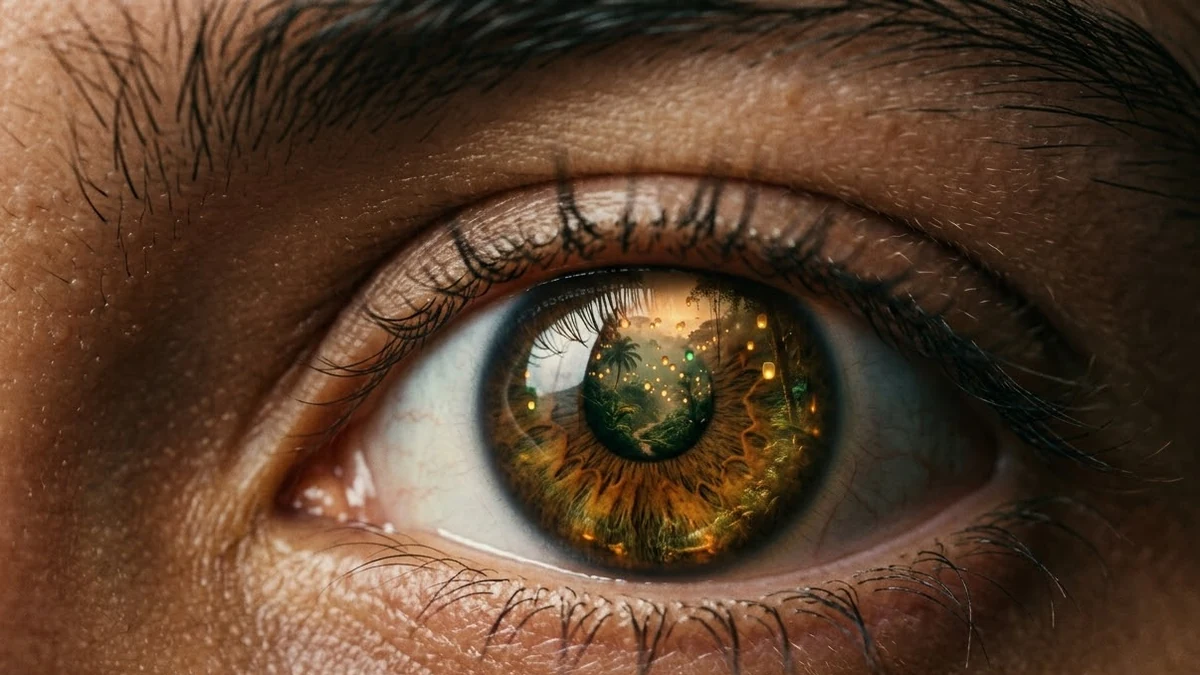 Eyes In video promptHiggsfield · Kling · Veo
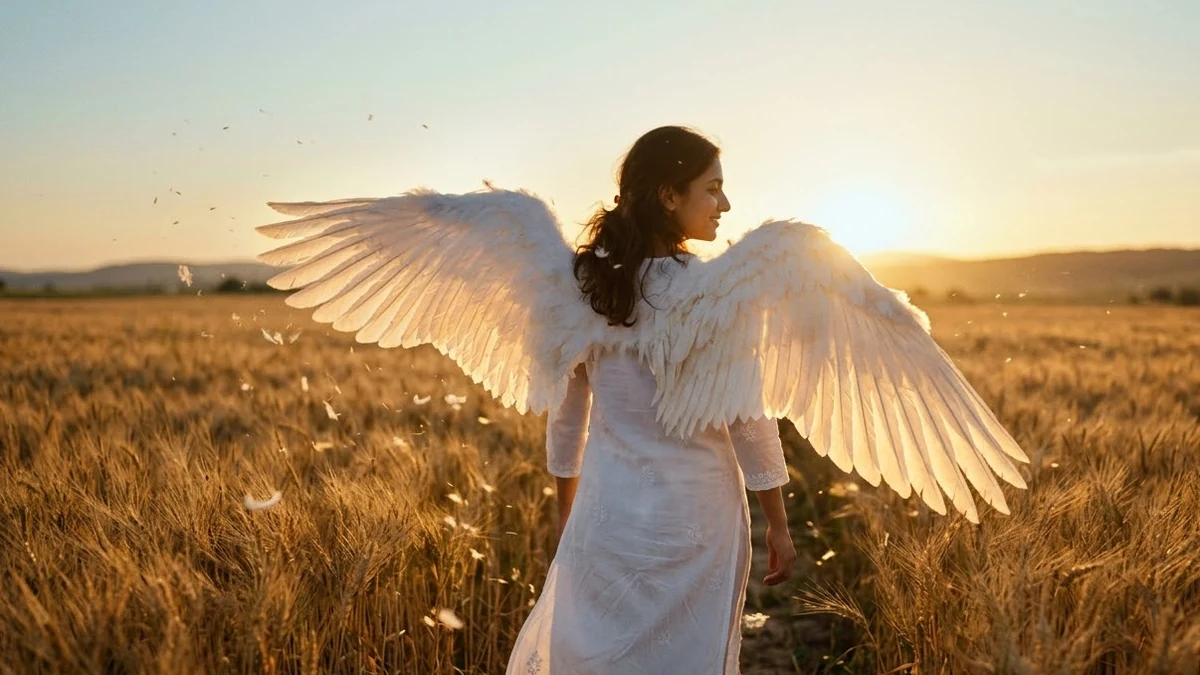 Angel Wings video promptHiggsfield · Kling
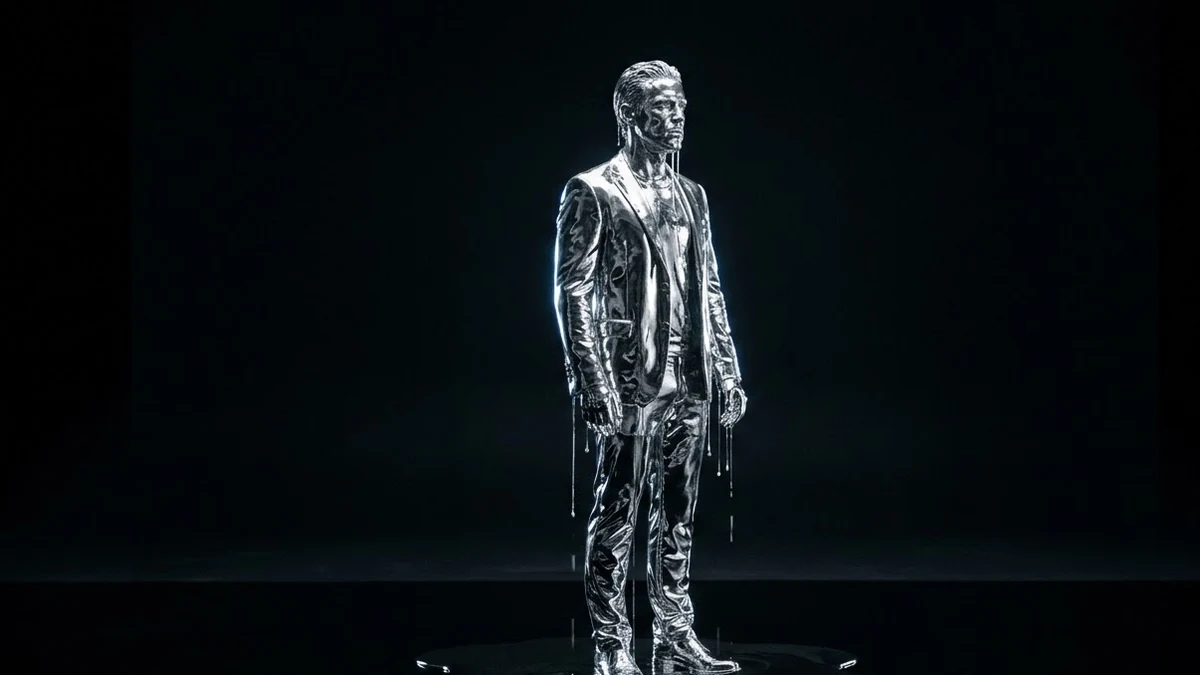 Turn to chrome, then melt promptHiggsfield · Kling · Veo
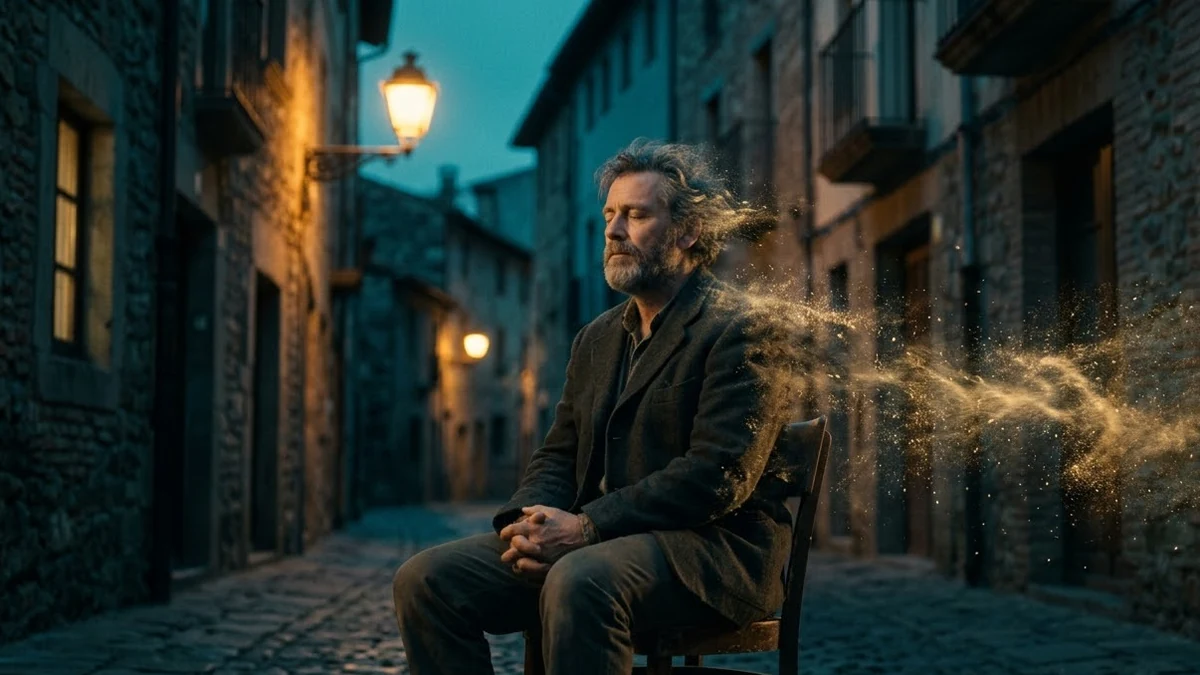 Disintegration video promptHiggsfield · Kling · Veo
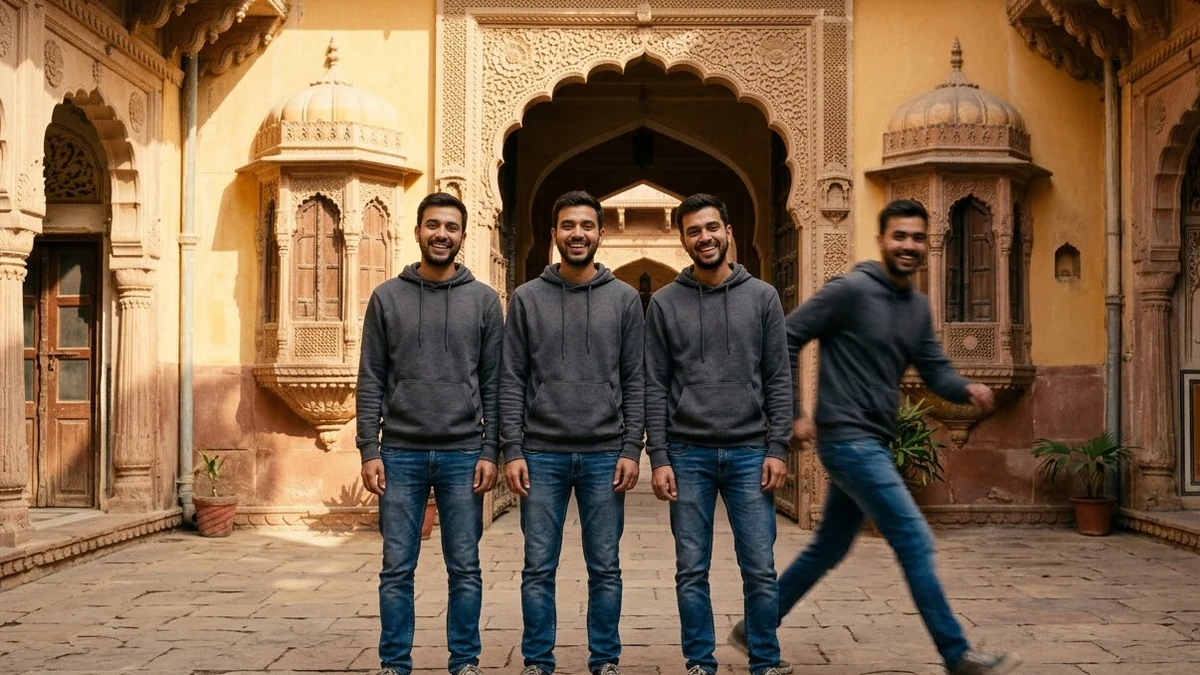 Clone yourself video promptHiggsfield · Kling
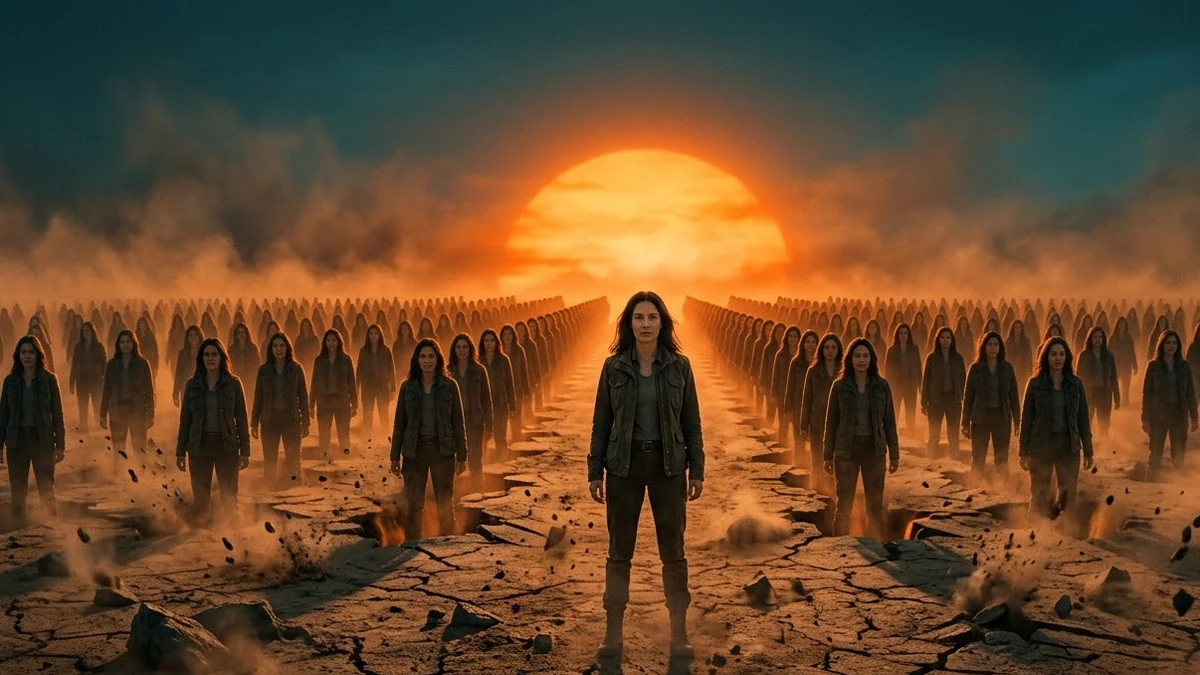 Attack of Clones video promptHiggsfield · Kling · Veo
 Money Rain video promptHiggsfield · Kling · Veo
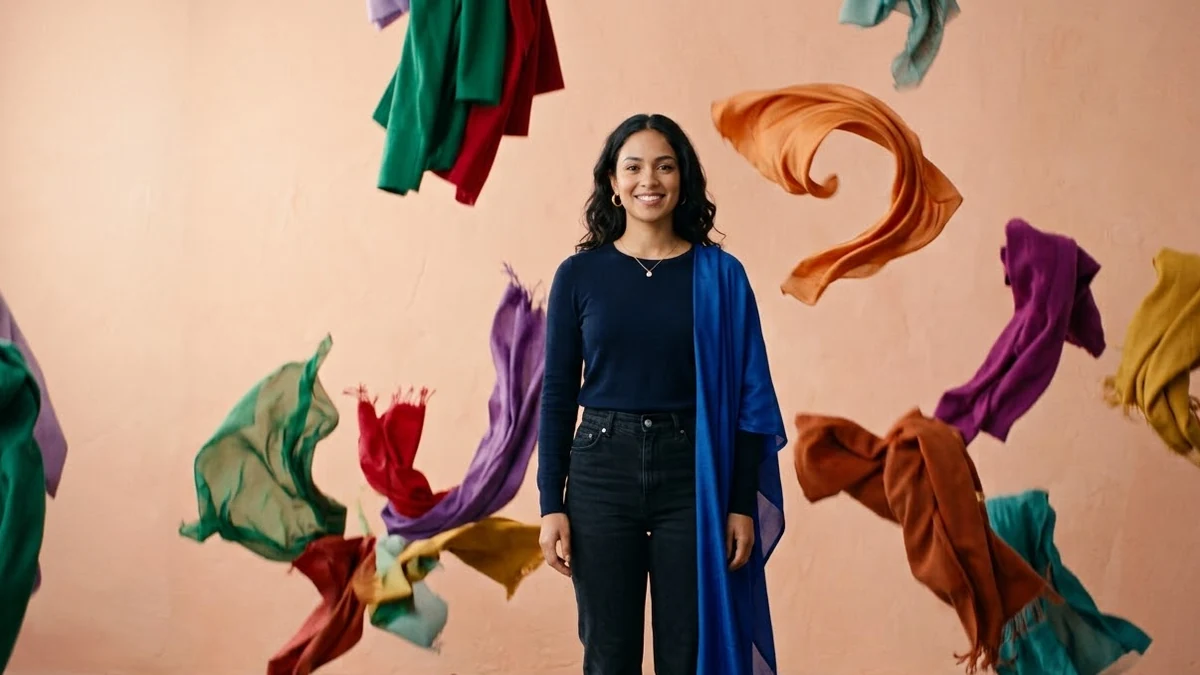 Clothes Rain video promptHiggsfield · Kling
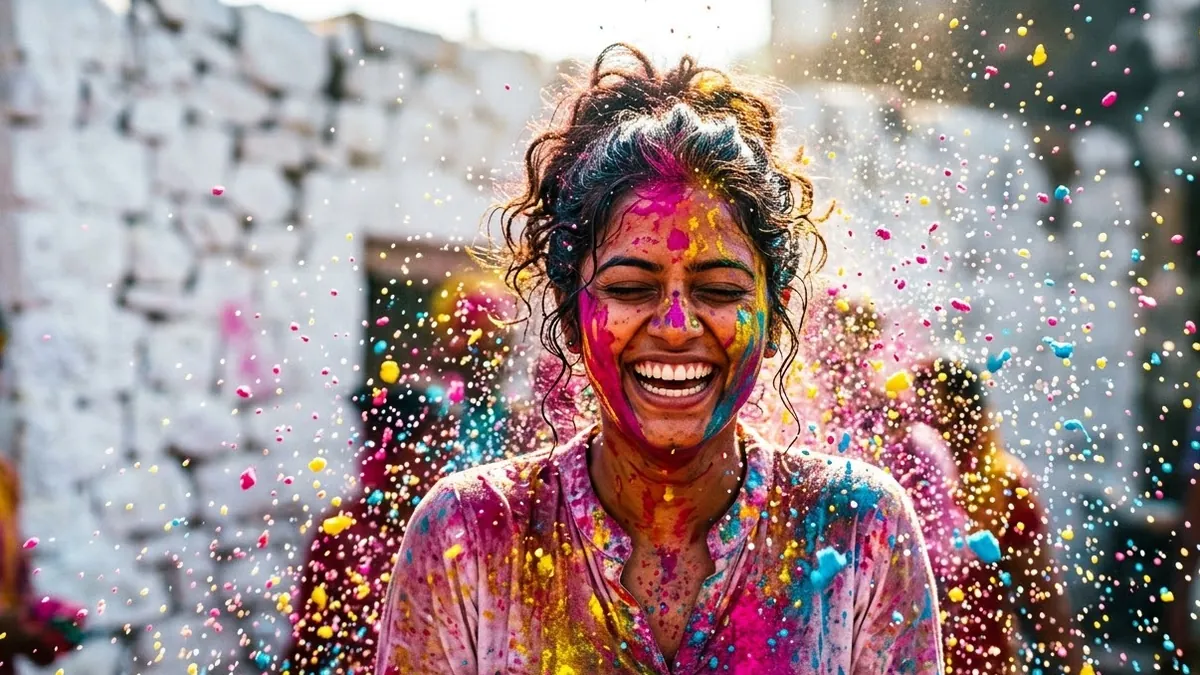 Colour Rain (Holi) video promptHiggsfield · Kling · Veo
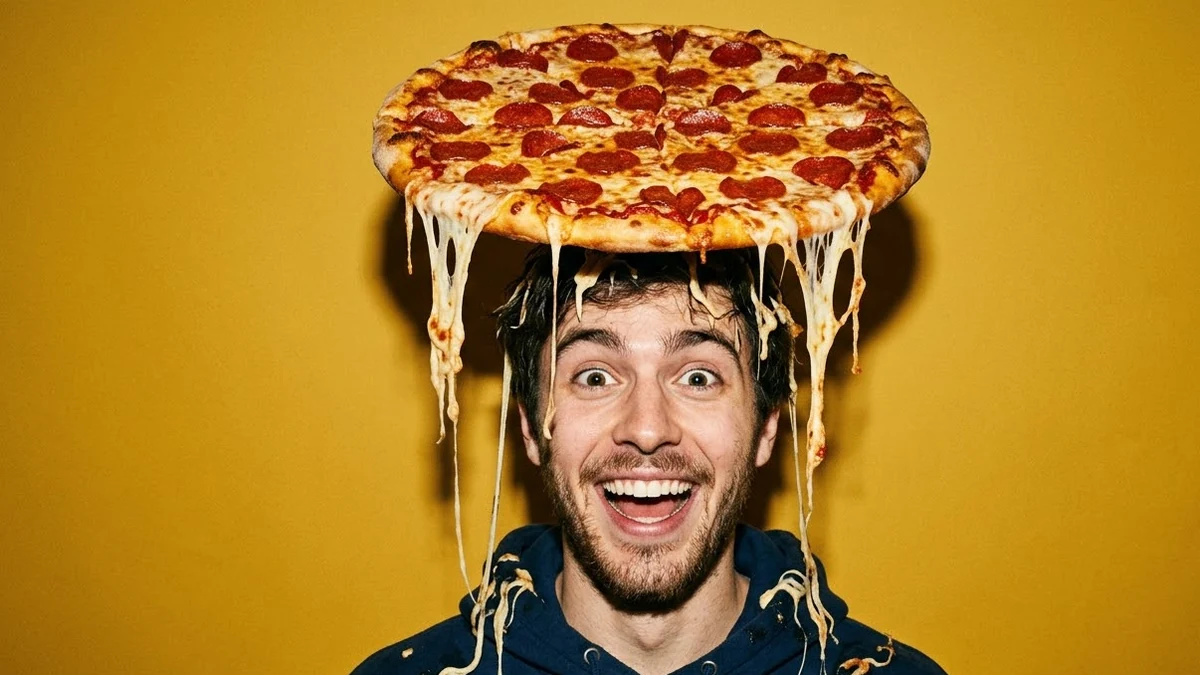 Pizza Fall video promptHiggsfield · Kling
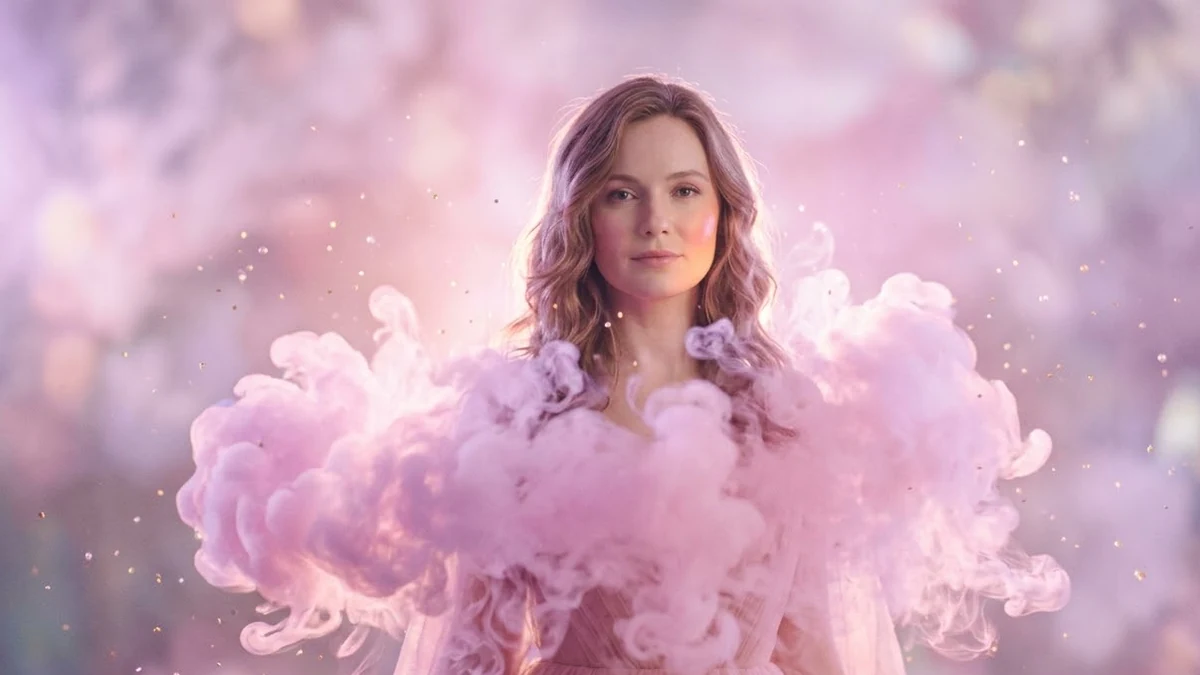 Cotton Cloud video promptHiggsfield · Kling · Veo
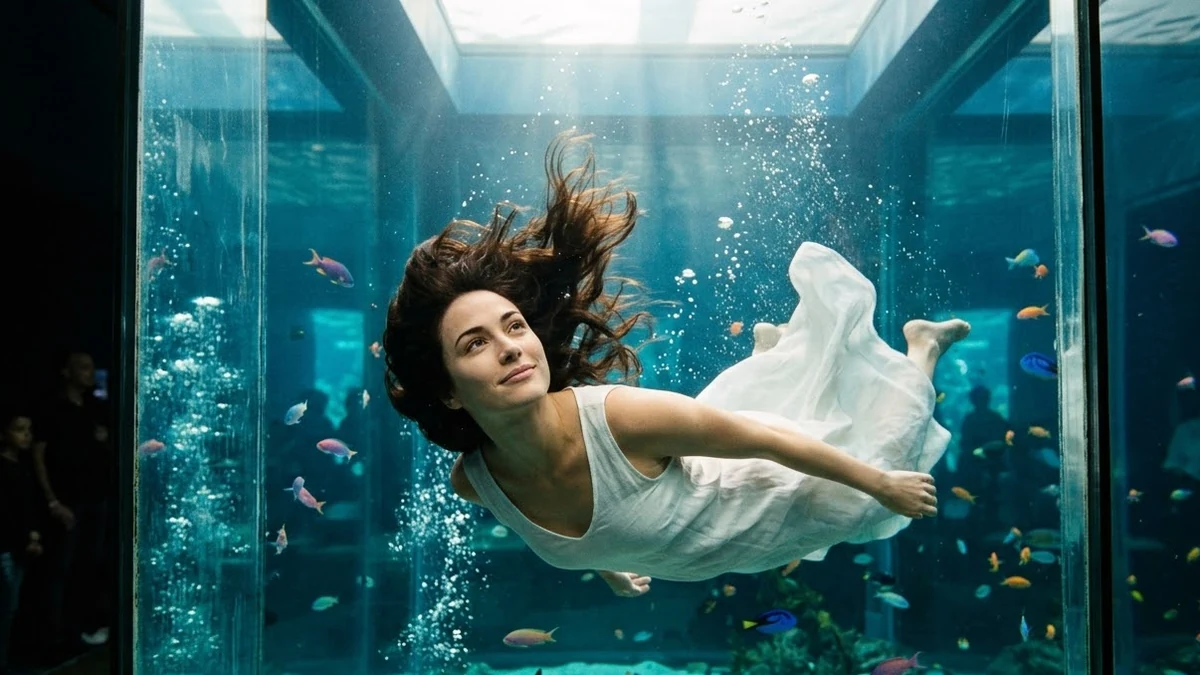 Aquarium video promptHiggsfield · Kling · Veo
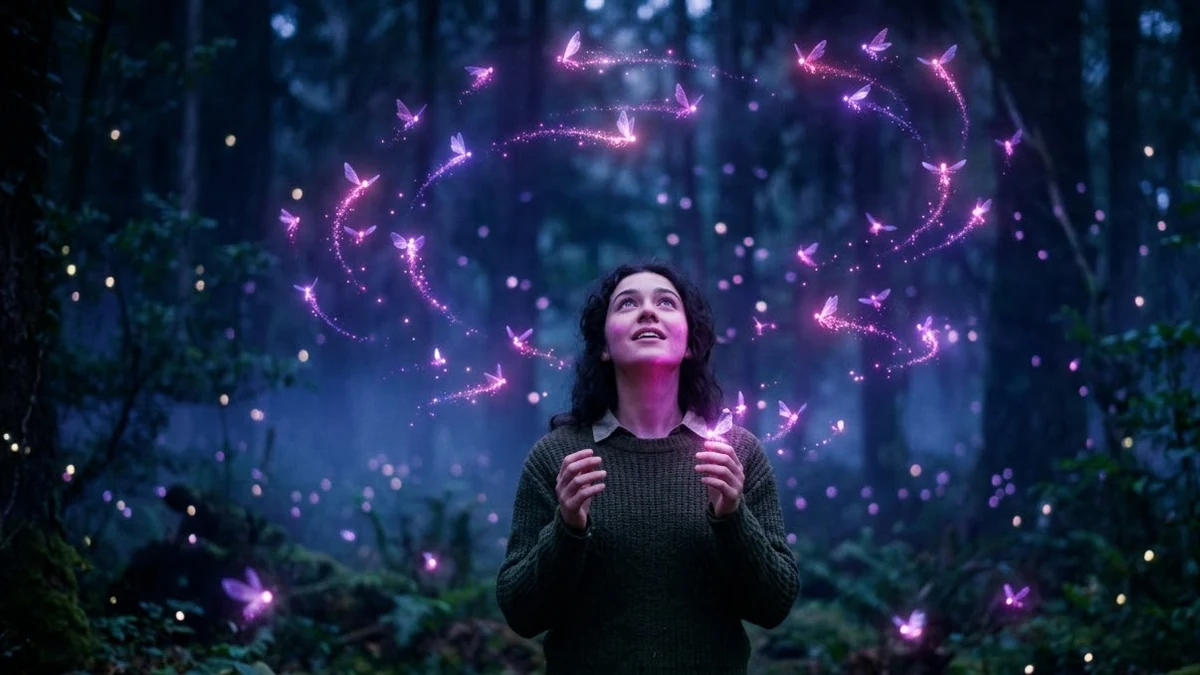 Fairies Around video promptHiggsfield · Kling · Veo
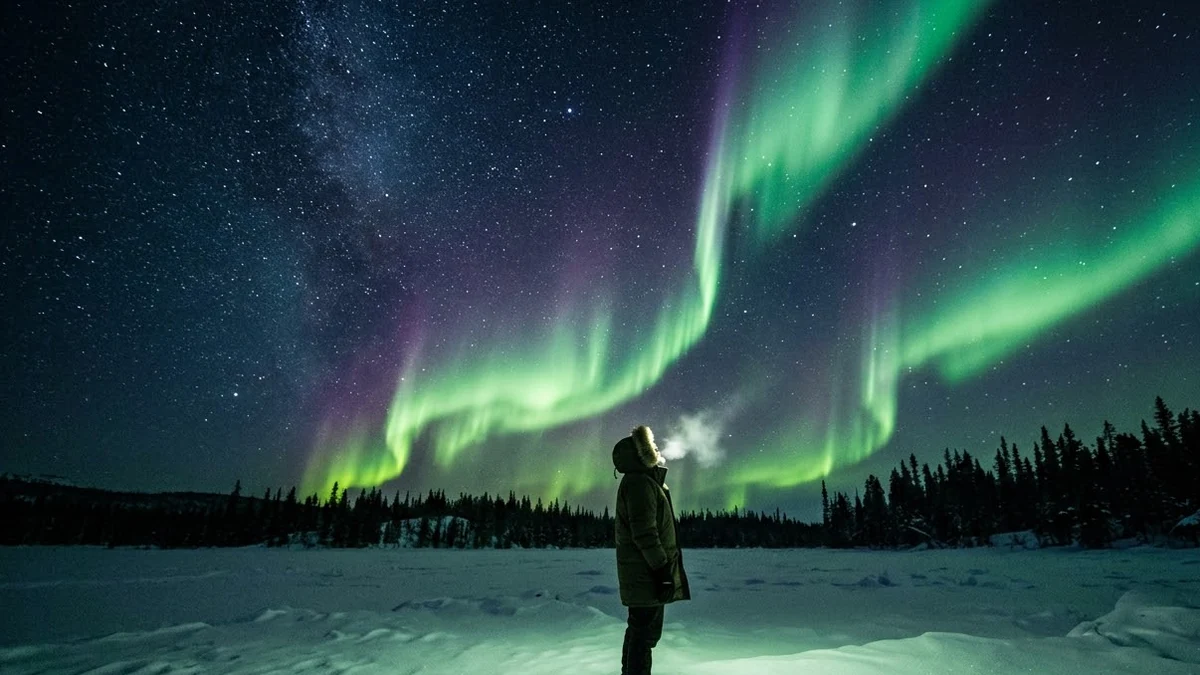 Northern Lights over your photoHiggsfield · Kling · Veo
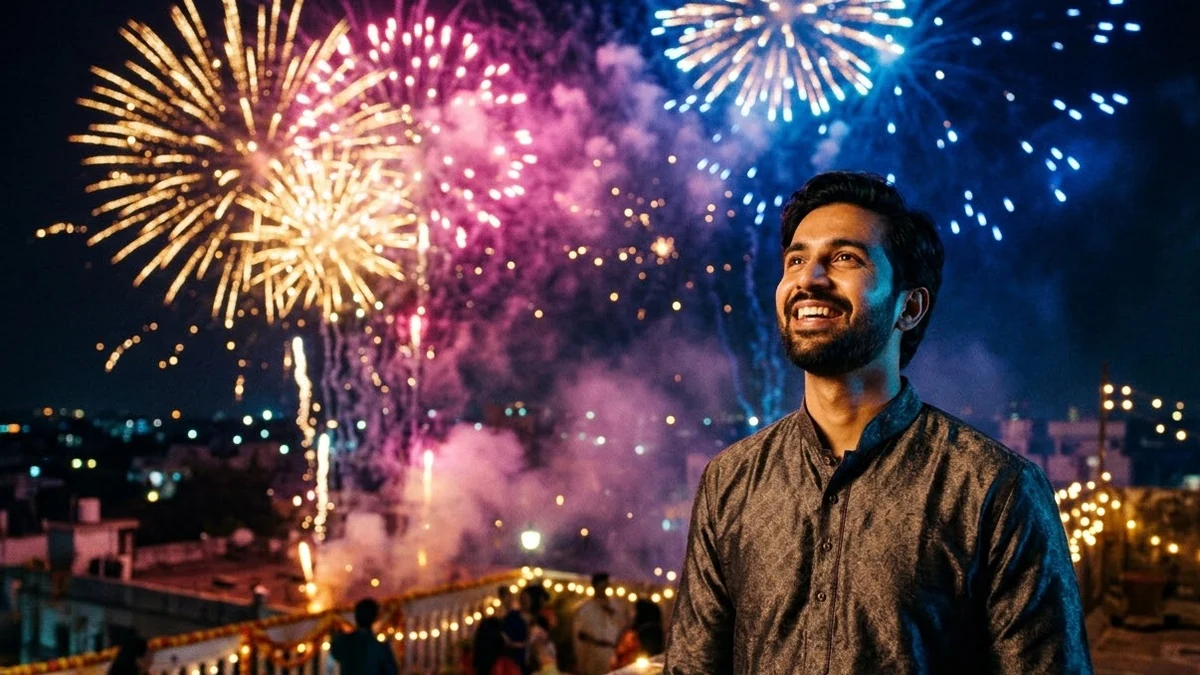 Fireworks behind you video promptHiggsfield · Kling · Veo
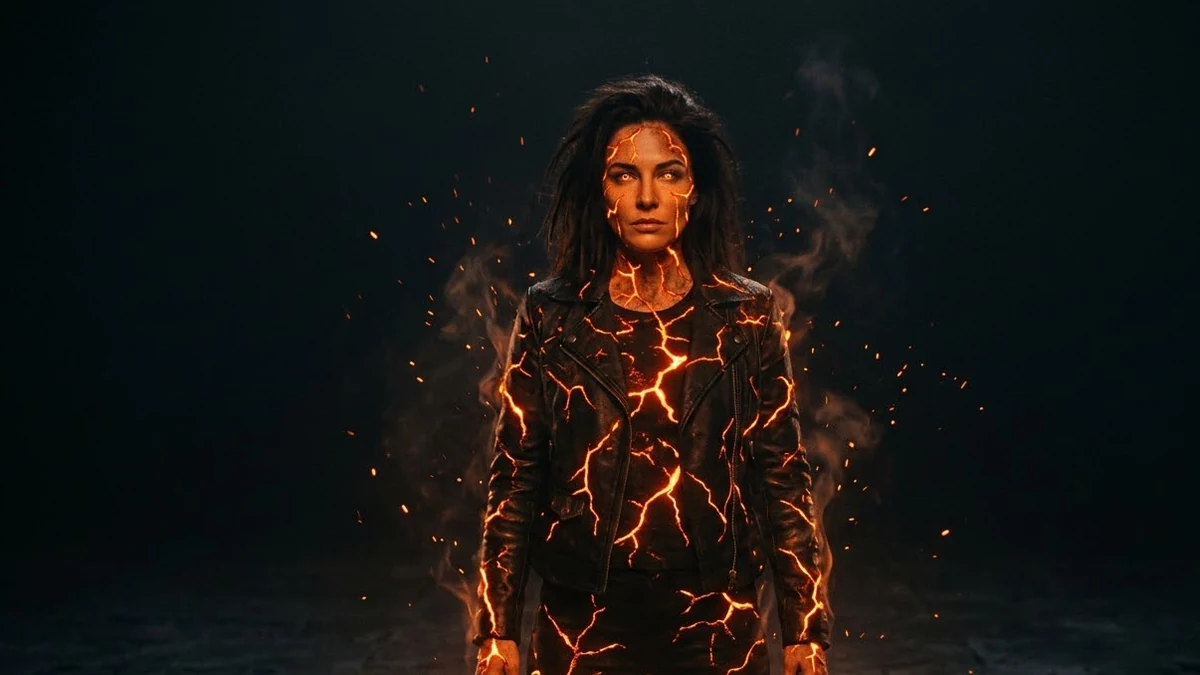 Fire Element video promptHiggsfield · Kling · Veo
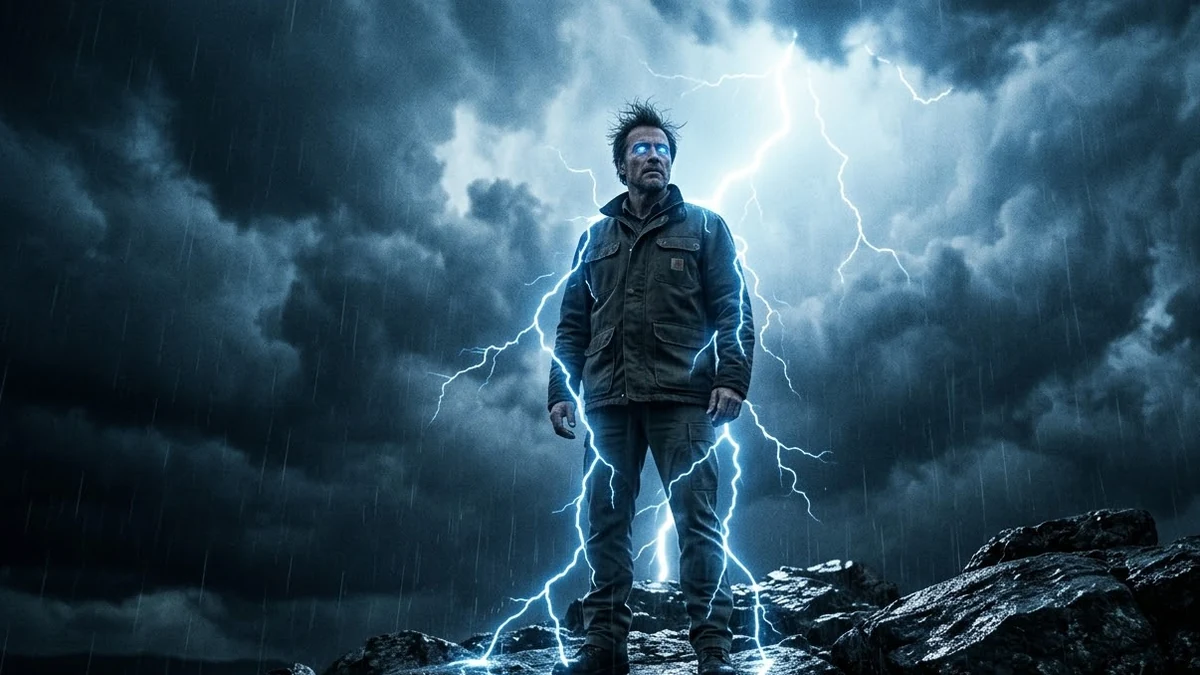 Thunder God video promptHiggsfield · Kling · Veo
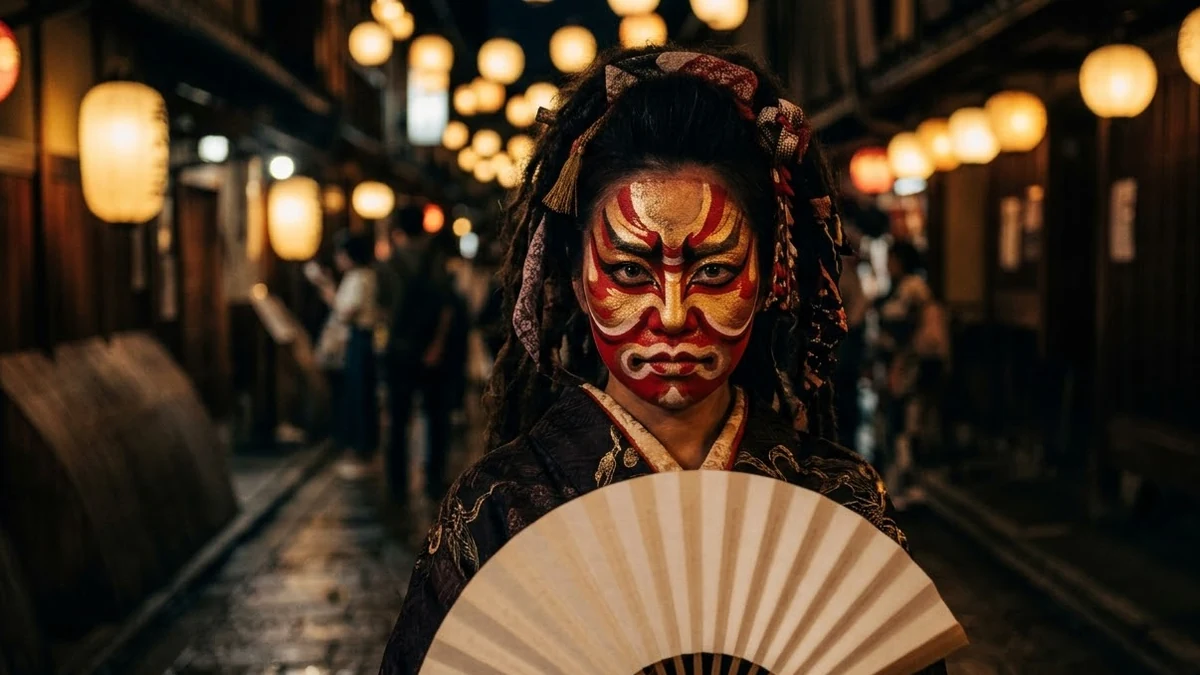 Oni Mask video promptHiggsfield · Kling
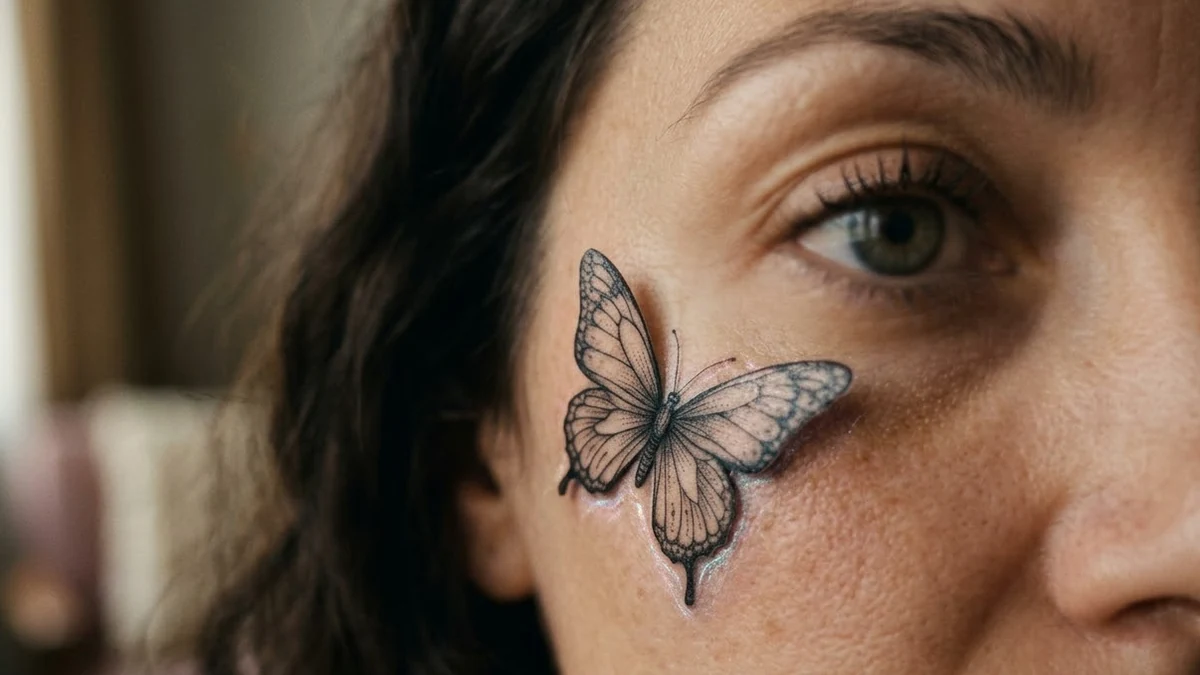 Tattoo Animation video promptHiggsfield · Kling · Veo
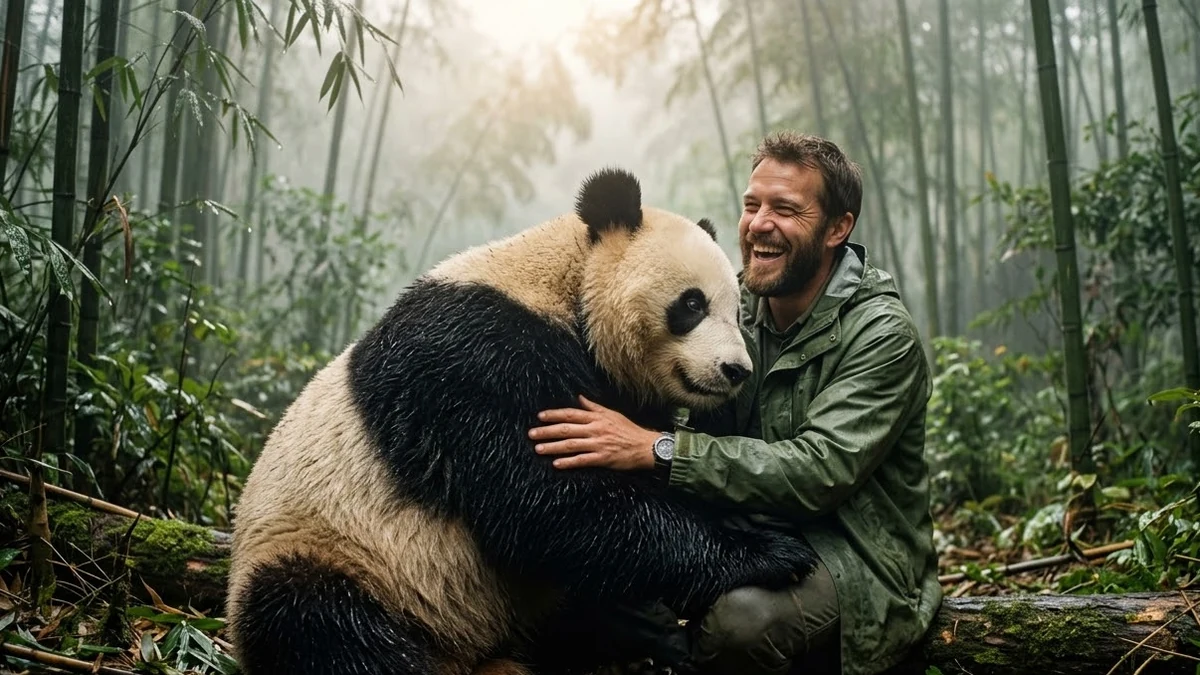 Beast Appearance video promptHiggsfield · Kling · Veo
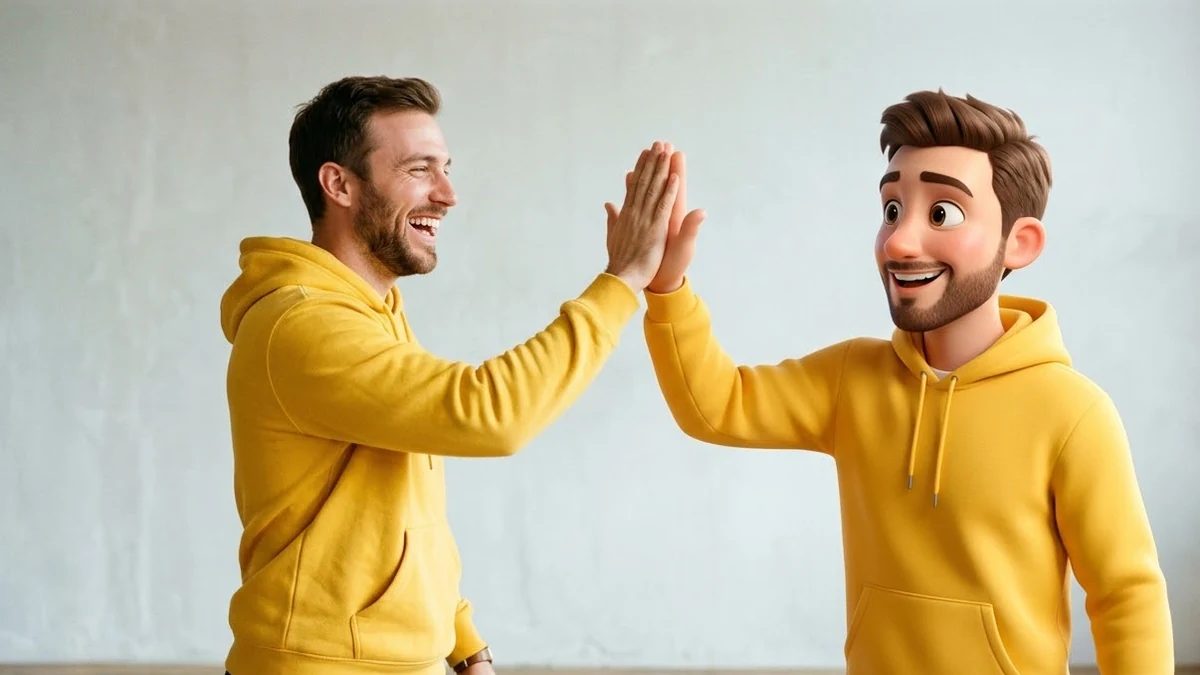 Buddy effect video promptHiggsfield · Kling
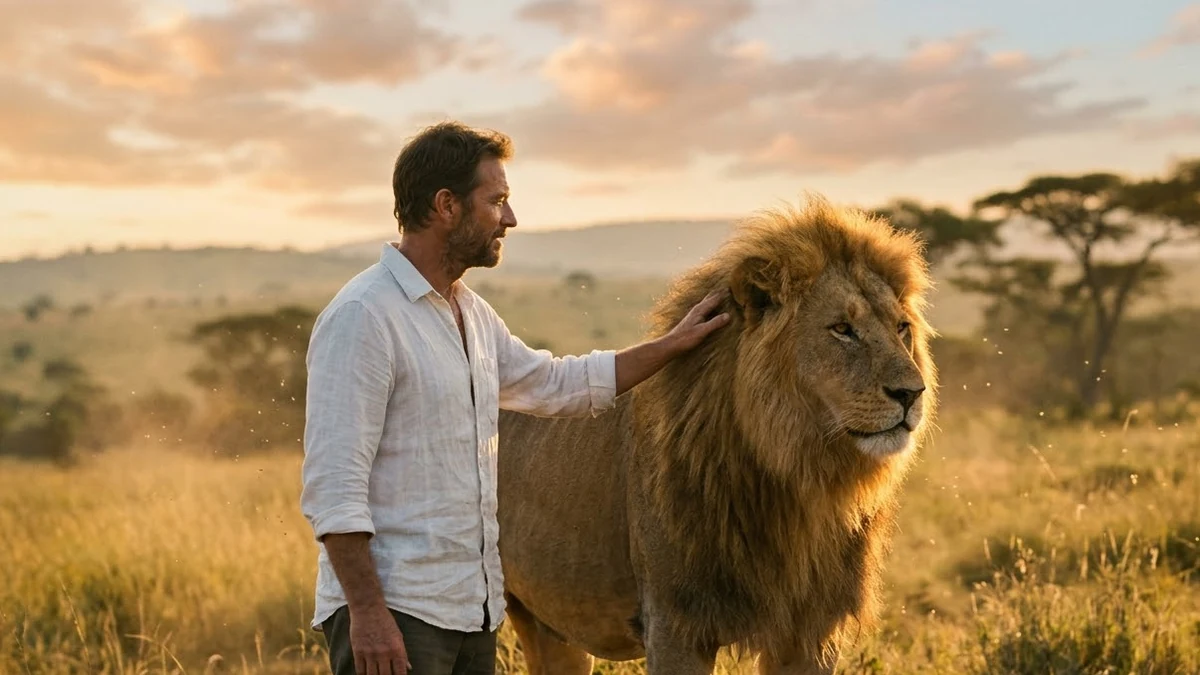 Spirit Animal video promptHiggsfield · Kling · Veo
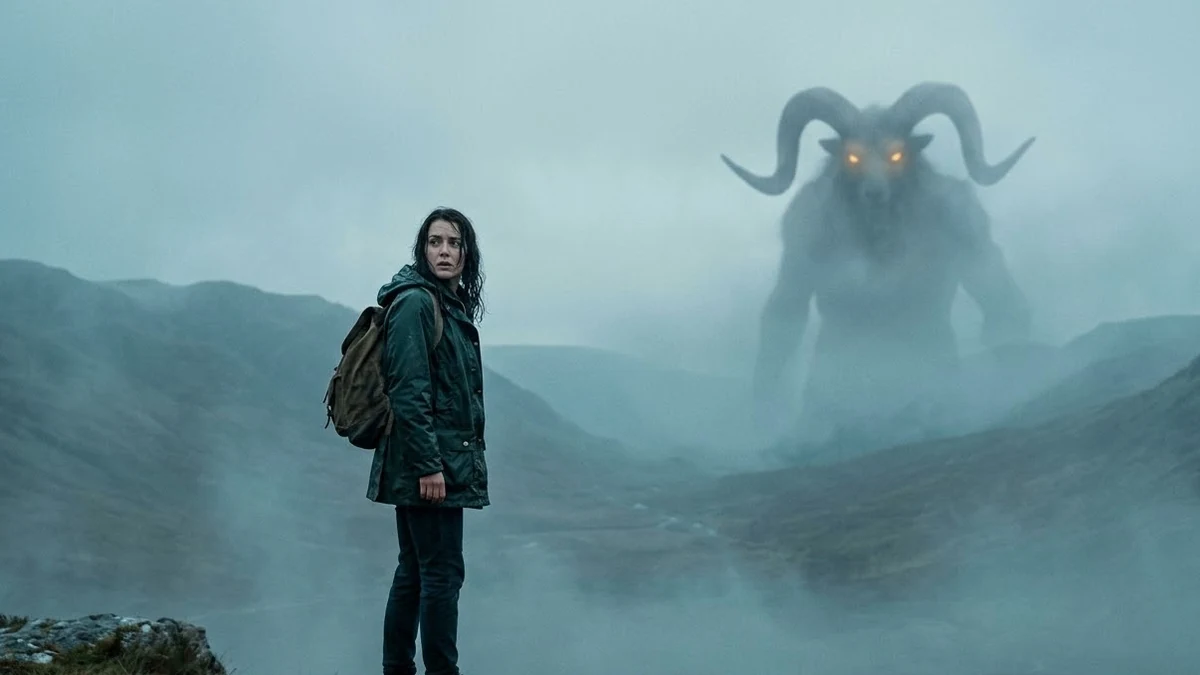 Monstrosity video promptHiggsfield · Kling · Veo
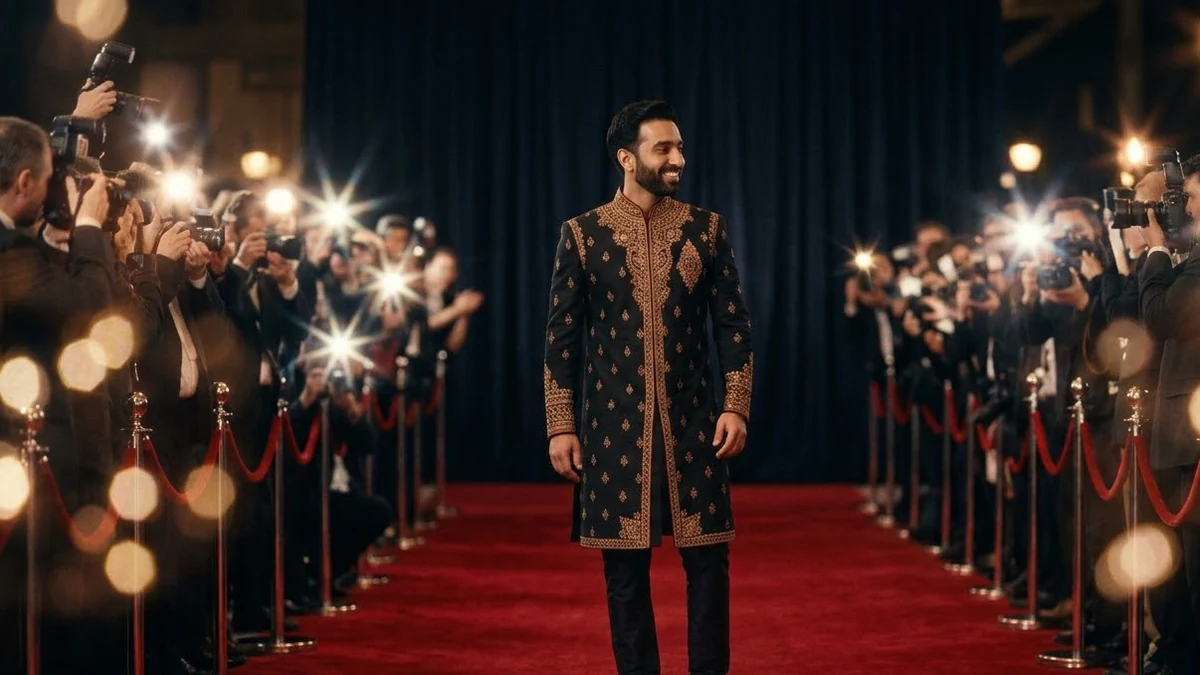 Red Carpet video promptHiggsfield · Kling · Veo
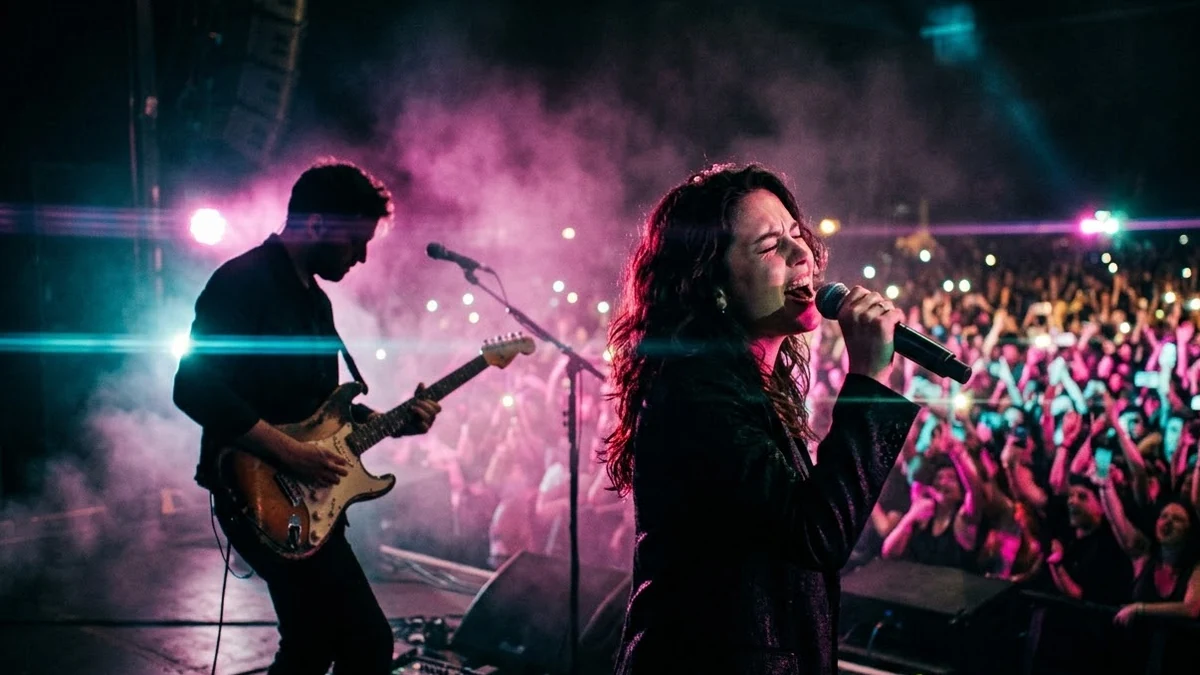 Live Concert video promptHiggsfield · Kling · Veo
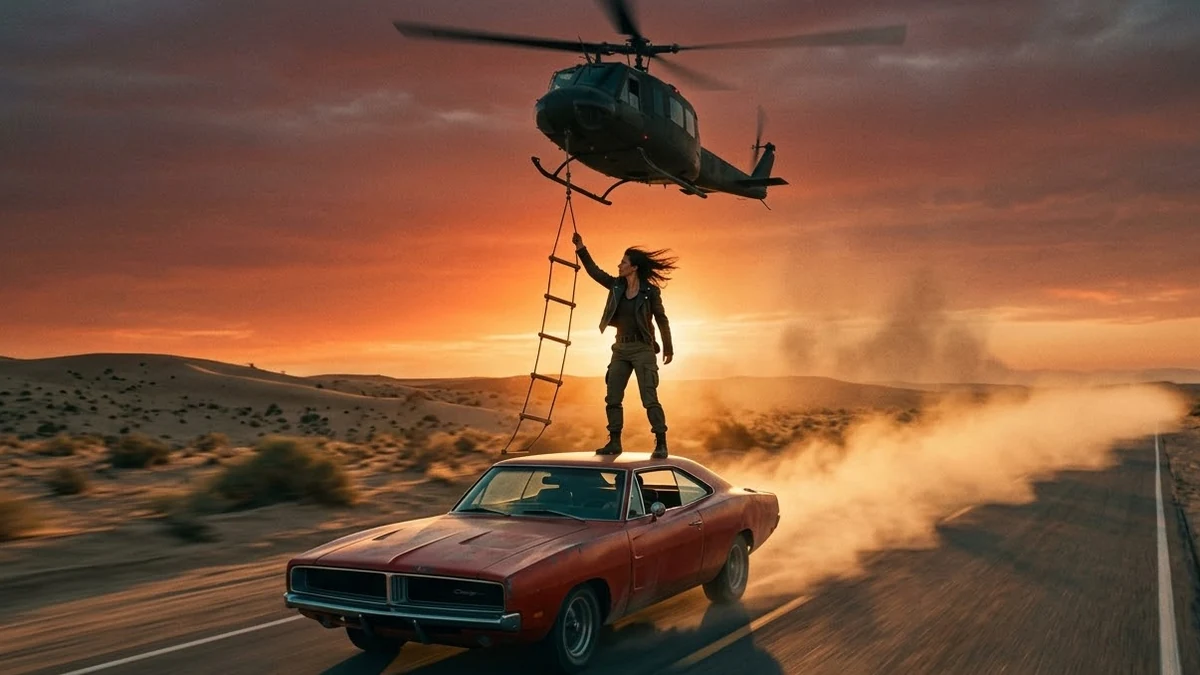 Helicopter Escape video promptHiggsfield · Kling · Veo
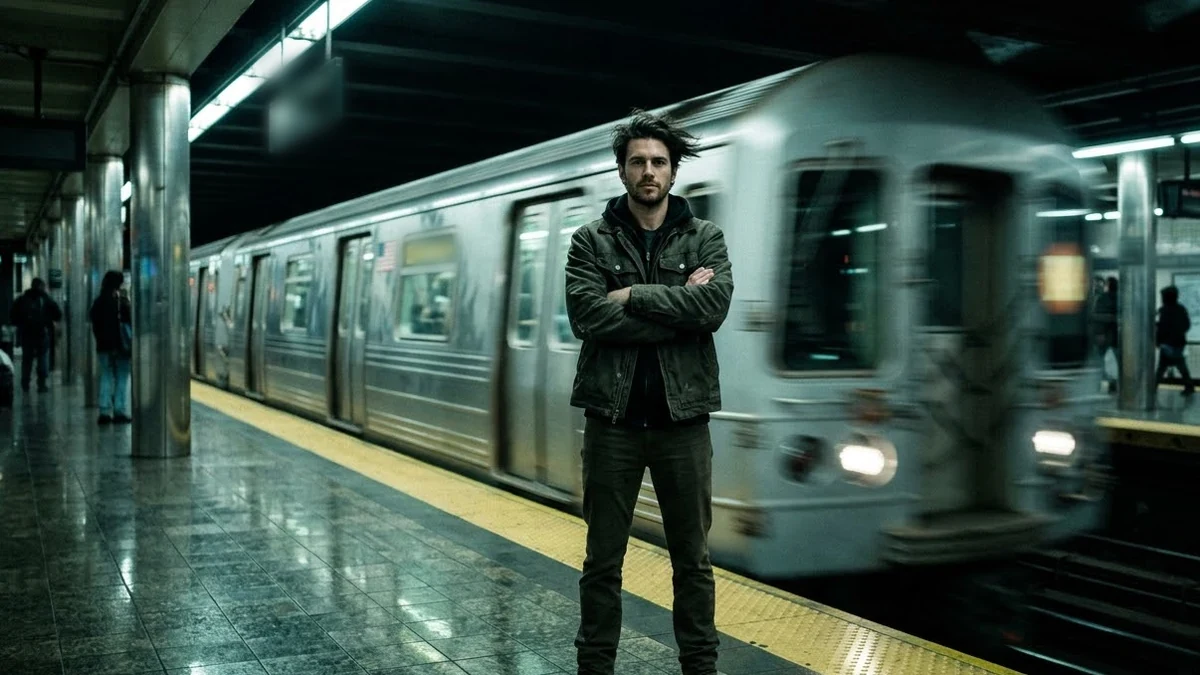 Train Rush video promptHiggsfield · Kling · Veo
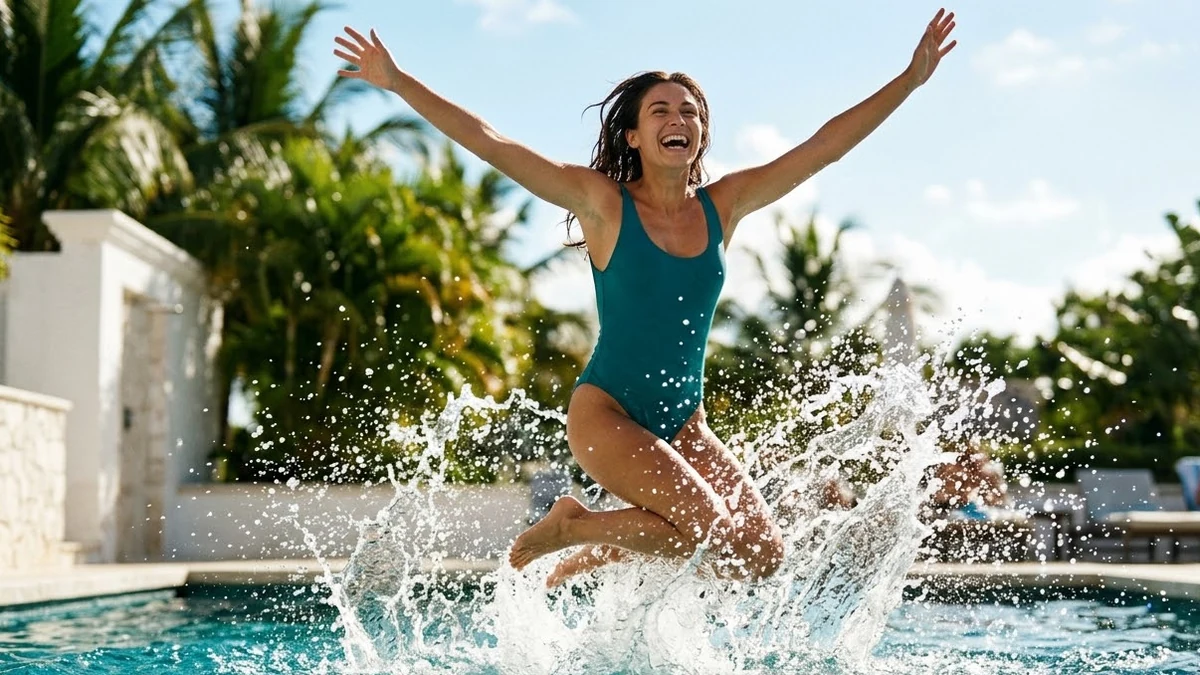 Pool Jump video promptHiggsfield · Kling · Veo
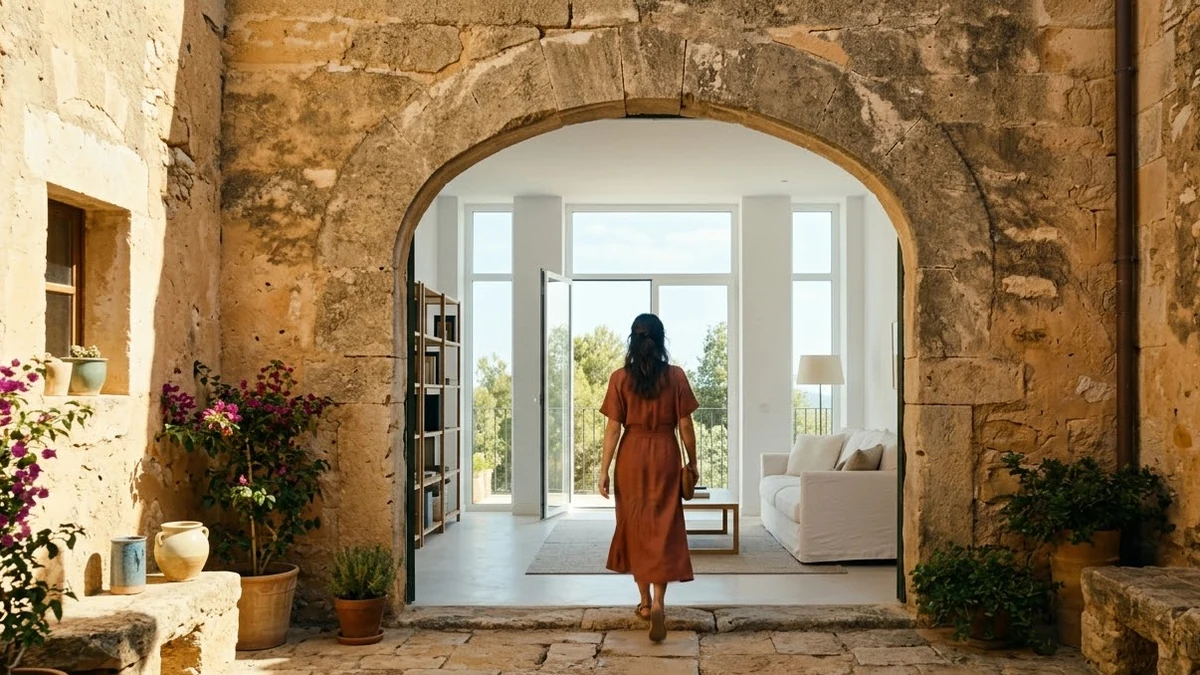 Flying Cam transition promptHiggsfield · Kling
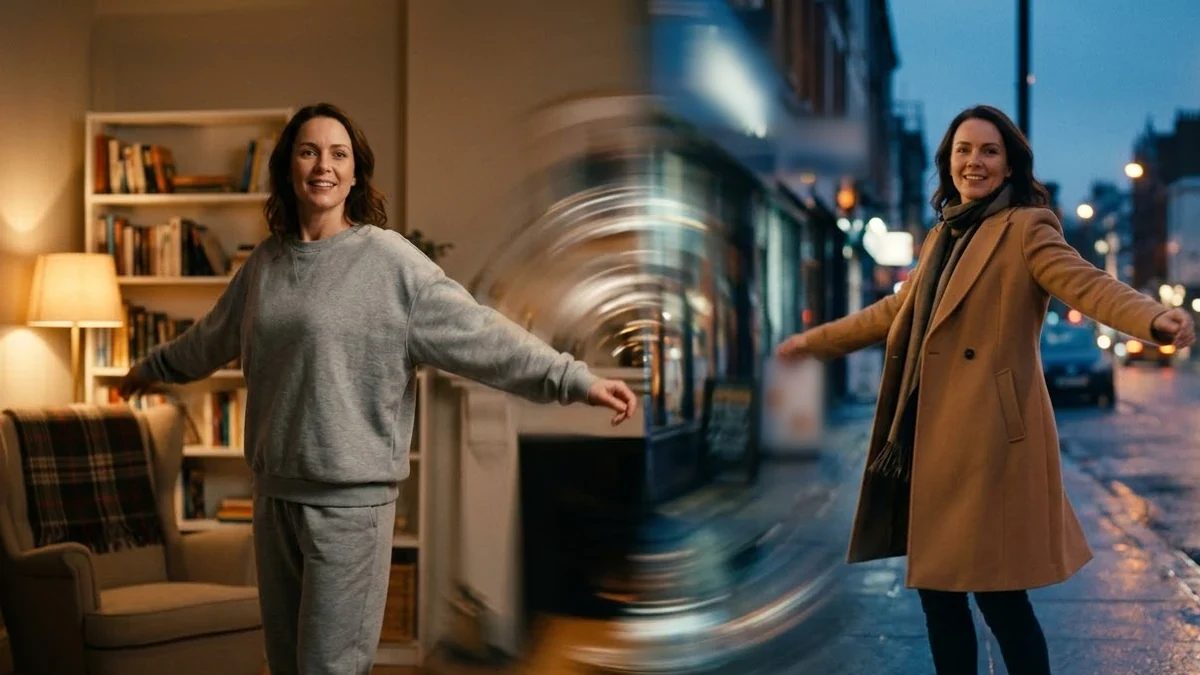 Seamless Transition promptHiggsfield · Kling
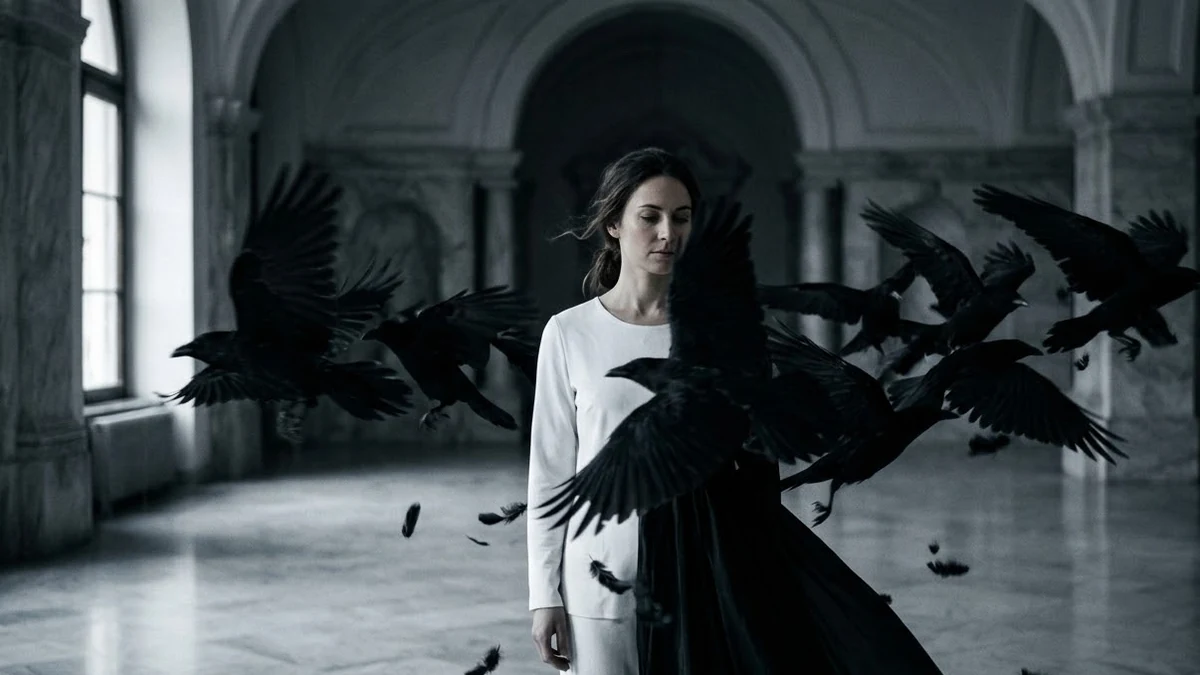 Raven Transition promptHiggsfield · Kling
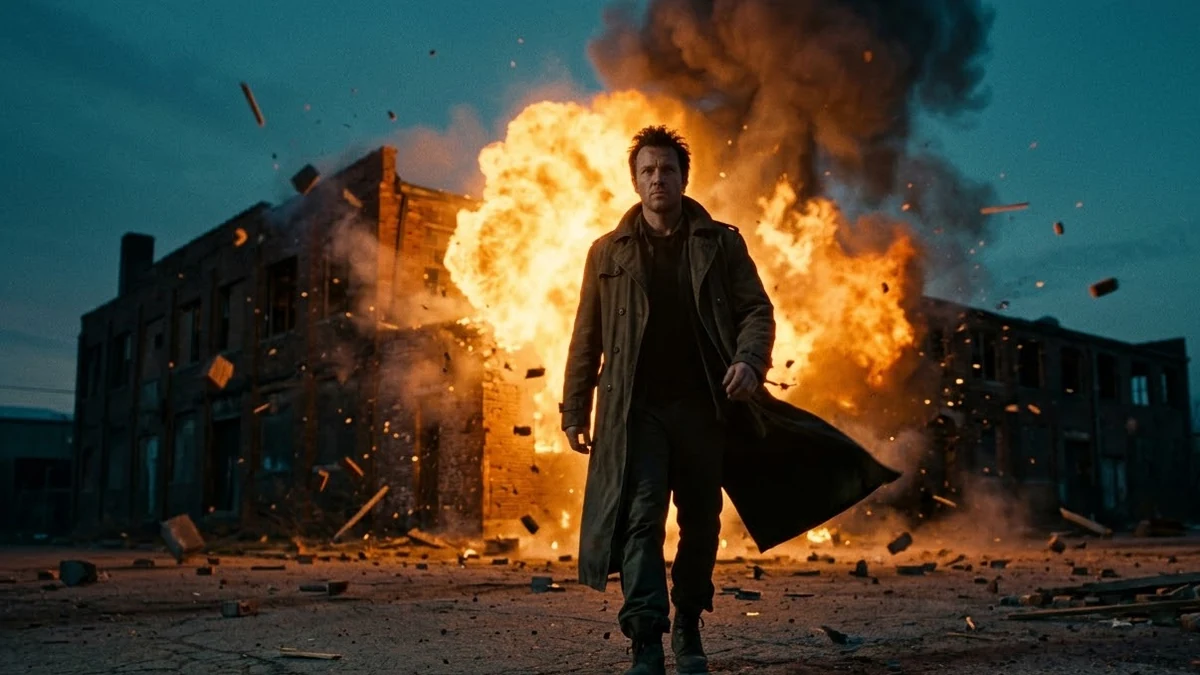 Building Explosion video promptHiggsfield · Kling · Veo
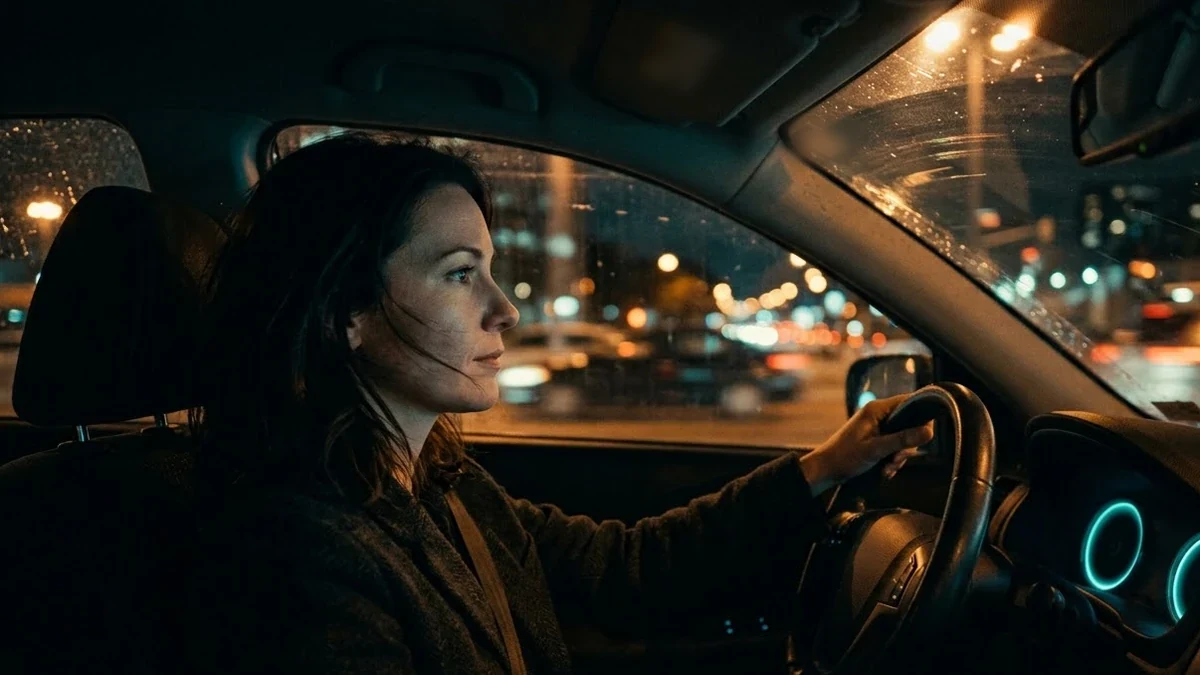 Car Drive video promptHiggsfield · Kling · Veo
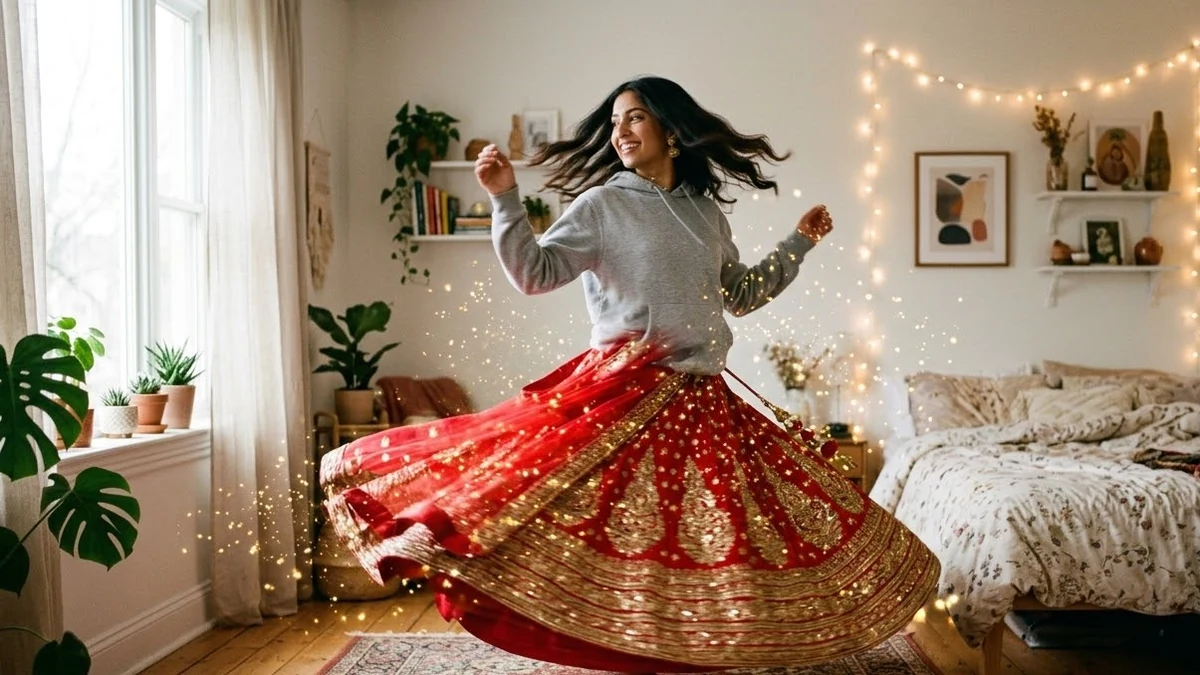 Outfit change transition ReelHiggsfield · Kling
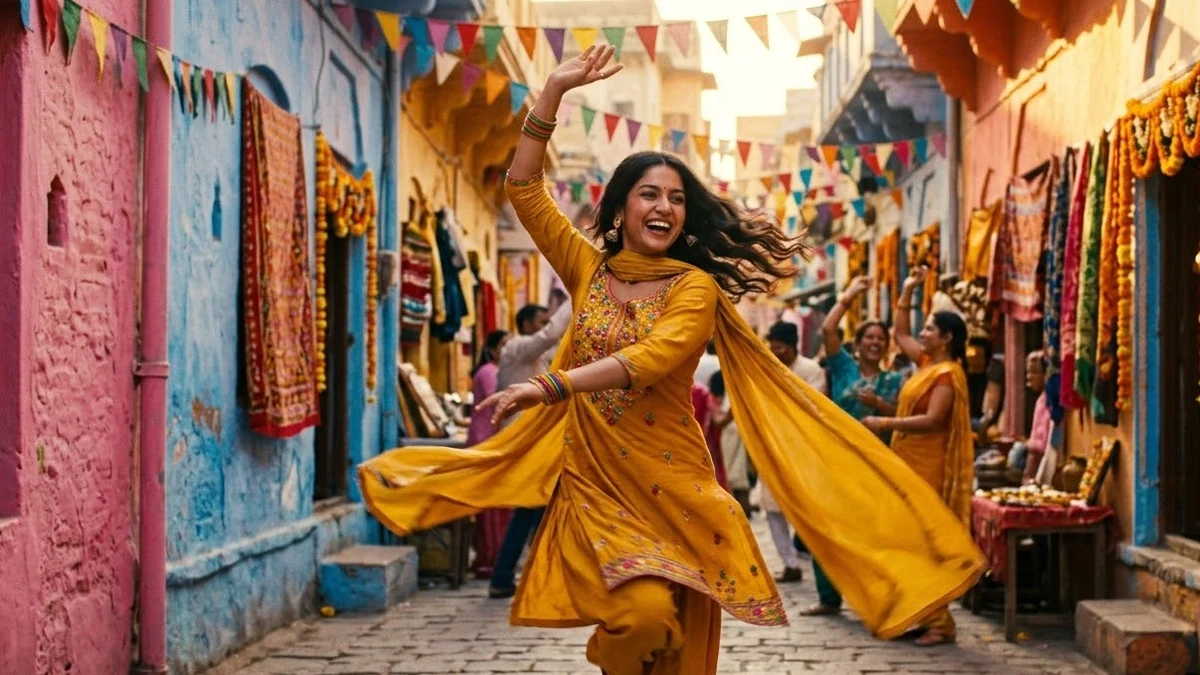 Dance trend video from one photoHiggsfield · Kling
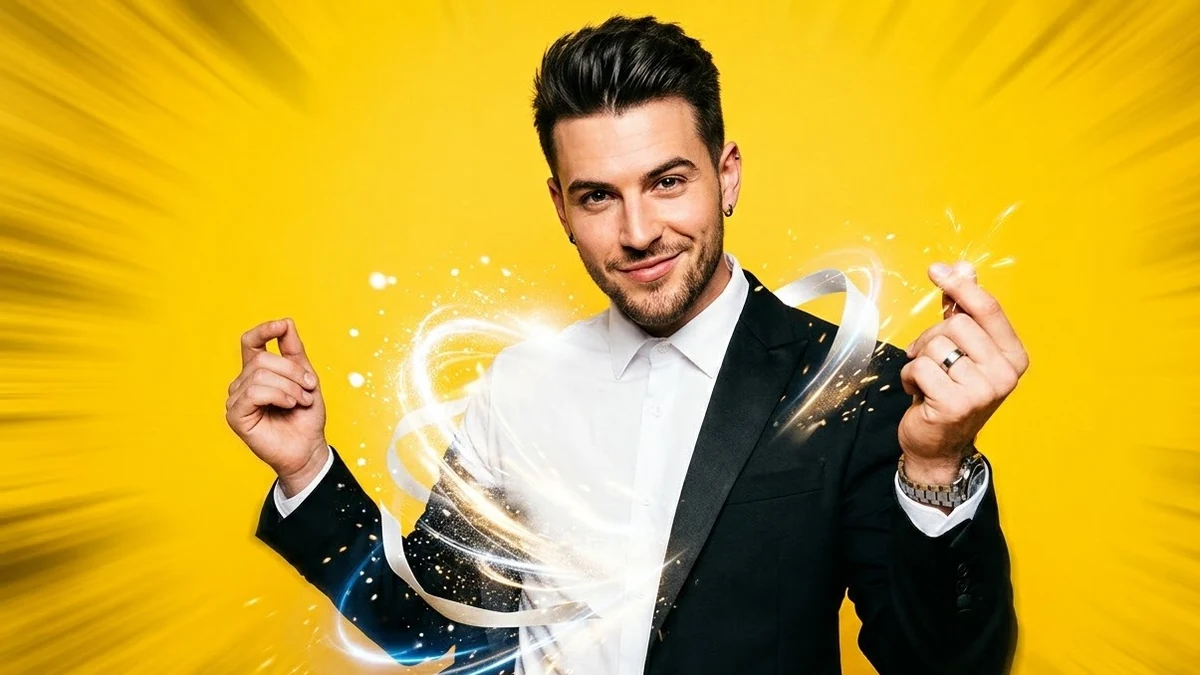 Scroll-stopping first 2 seconds for a ReelHiggsfield · Kling
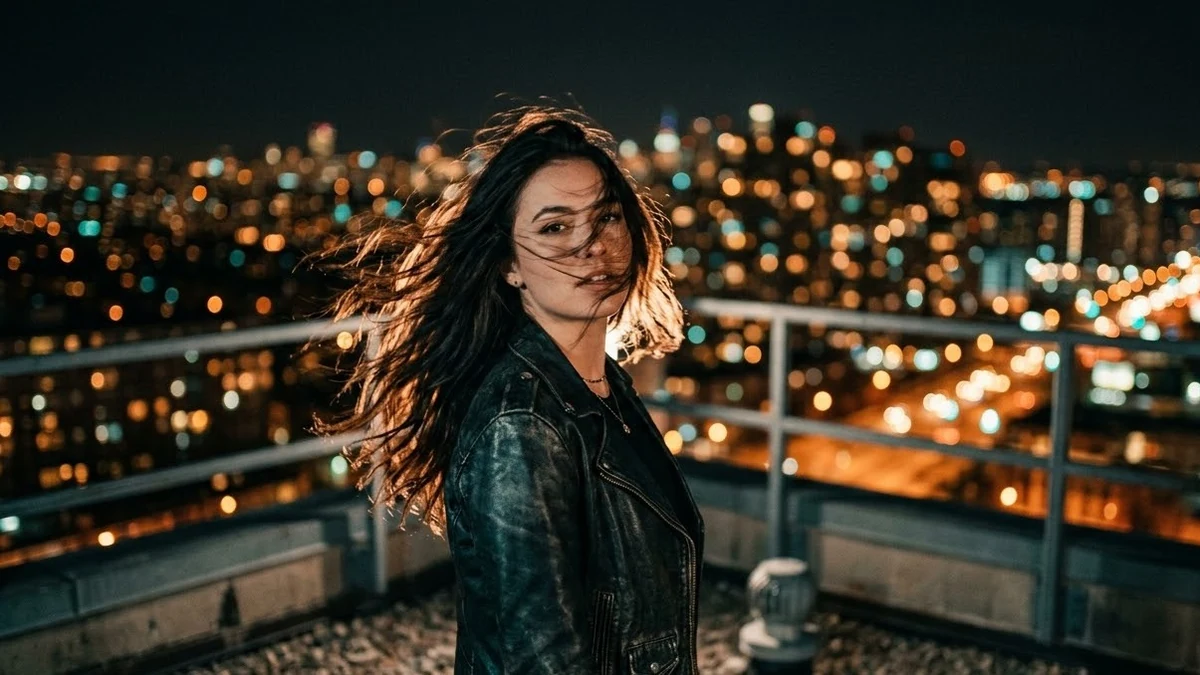 Selfie to a cinematic movie momentHiggsfield · Kling
No prompts match that search. Build your own in the builder →
How to make a viral effect video that looks clean, not glitchy
The effects on this page all follow the same pattern: a real person in a real photo, and one big change that happens to them or around them. The Earth zooms out, wings open, money falls, a flock of birds swaps the outfit. The change is the whole point of the clip, so everything else has to stay still and recognisable. Most failed effect videos fail for the same reason: the prompt or the photo asks the model to change too much at once, and the face, the hands or the background start to drift.
You can make these in two ways. A preset in an app such as Higgsfield does the effect with fixed settings: you upload a photo, pick the effect and generate. A prompt in Kling, Veo or another video tool gives you more control over colours, setting and timing, but the result depends more on the photo and the wording. The prompts here describe each effect in plain words for that second route, and they also help when you want to adjust a preset.
How to use these prompts
- 1
Choose a photo where the person is sharp, well lit and facing the camera, with some space around them for the effect to fill.
- 2
Pick the effect, paste the prompt into your video tool with the photo as the starting image, and fill in any [BRACKETED] details.
- 3
Generate two or three takes and pick the one where the face stays closest to the photo from the first frame to the last.
- 4
Trim the clip so the change happens in the first two seconds, then add music and a short caption in your editor or app.
Get better results
- Lock what must not change. Keep the lines that fix the face, clothes and pose. The effect looks clean only when everything else holds still.
- Leave space in the photo. Wings, clones, rain and zoom-outs need room. A tight crop gives the model nowhere to put the effect.
- Show the change early. Short-video viewers decide fast. Start the effect near the beginning instead of after a long still intro.
- Match the sound to the moment. A whoosh, a beat drop or a thunder crack timed to the change makes the effect land harder than any extra visual detail.
- Make it yours. Change the colour, the place or the object in the effect, so your clip is not a copy of a thousand others.
If the answer is not right
- The face changes during the clip. Use a sharper, front-facing photo, shorten the clip and repeat the line that keeps the face exactly the same.
- The effect is weak or missing. Describe the effect in more physical terms, such as “large white wings unfold from behind the shoulders and fill the frame”.
- The background warps. Pick a photo with a simple background, or ask for the background to stay still and only the effect to move.
- It looks nothing like the trend. That can happen with a prompt instead of a preset. Try the preset if your app has it, or run the prompt a few more times.
Use your own photos, or photos of people who have agreed, and never put real people into effects that could embarrass or mislead. Many platforms ask you to label AI video, so add the label when you post.
Guides for viral ai video effect
Questions, answered
Do I need a prompt if I use the Higgsfield presets?
Not for the preset itself: you upload a photo, pick the effect and generate. A prompt helps when you want to change details such as the colours or setting, or when you use the same idea in another video tool like Kling or Veo, where there is no preset.
Will these prompts look exactly like the viral videos?
No. They describe the same idea, so the result is similar, but every model interprets words a little differently and a preset uses its own settings. Run it two or three times and keep the best take.
Which photo works best?
A clear, well-lit photo where the person faces the camera, with some space around them. Crowded or blurry photos give messy results. Use your own photos, or photos of people who have agreed.
How long should the video be?
Five to seven seconds is enough for one effect. Each prompt gives a length and asks for one continuous move, because short clips with one change look cleaner than long ones with many.
Need something that isn’t here?
Describe it in one line and get a Viral AI video effect prompt built for you.
Explore more prompts
- Photo editing prompts
- Image generation prompts
- Video generation prompts
- Chat & writing prompts
- ChatGPT prompts
- Gemini prompts
- Veo prompts
- Midjourney prompts
- Higgsfield prompts
- Claude prompts
- Kling prompts
- Ideogram prompts
- Claude Code prompts
- Seedance prompts
- Stable Diffusion prompts
- Cursor prompts
- 1980s retro photo prompts for Gemini & ChatGPT
- Viral AI photo trend prompts
- Old photo restoration and enhancement prompts
- AI prompts for your job search
- AI product photo and ad prompts
- AI prompts for content creators
- AI coding prompts you can copy and paste
- AI marketing prompts you can copy and paste
- AI prompts for students
- AI travel planning prompts
- AI prompts for small business owners
- AI workout and meal plan prompts
- AI productivity and planning prompts
- AI portrait and headshot prompts
- AI couple photo prompts
- AI profile picture prompts
- Black-and-white photo prompts
- AI photo enhancer prompts
- Remove objects and people from photos with AI
- Change photo background prompts
- AI photo filter and colour grade prompts
- Sky replacement and weather effect prompts
- AI saree photo prompts
- Indian wedding photo prompts
- AI festival photo prompts
- Cinematic portrait prompts
- Vintage photo prompts by decade
- Photo to cartoon and anime prompts
- Photo to painting and sketch prompts
- AI pet photo prompts
- Baby and family photo prompts
- AI Instagram photo prompts
- AI room makeover and interior design prompts
- AI real estate and rental listing photo prompts
- AI mockup prompts for your designs
- AI food photo prompts for restaurants and home cooks
- AI virtual try-on prompts
- How to write AI prompts