AI photo enhancer prompts
Most bad photos have one main problem: blur, darkness, noise, a yellow or blue cast, harsh shadows, blown-out highlights or a crooked horizon. Each prompt here fixes one of those, and tells the AI to keep faces, people and the scene the same.
Pick the prompt that matches the problem, upload the photo to Gemini or ChatGPT and paste it. If a photo has two problems, fix them one at a time; a single focused request changes less of the picture.
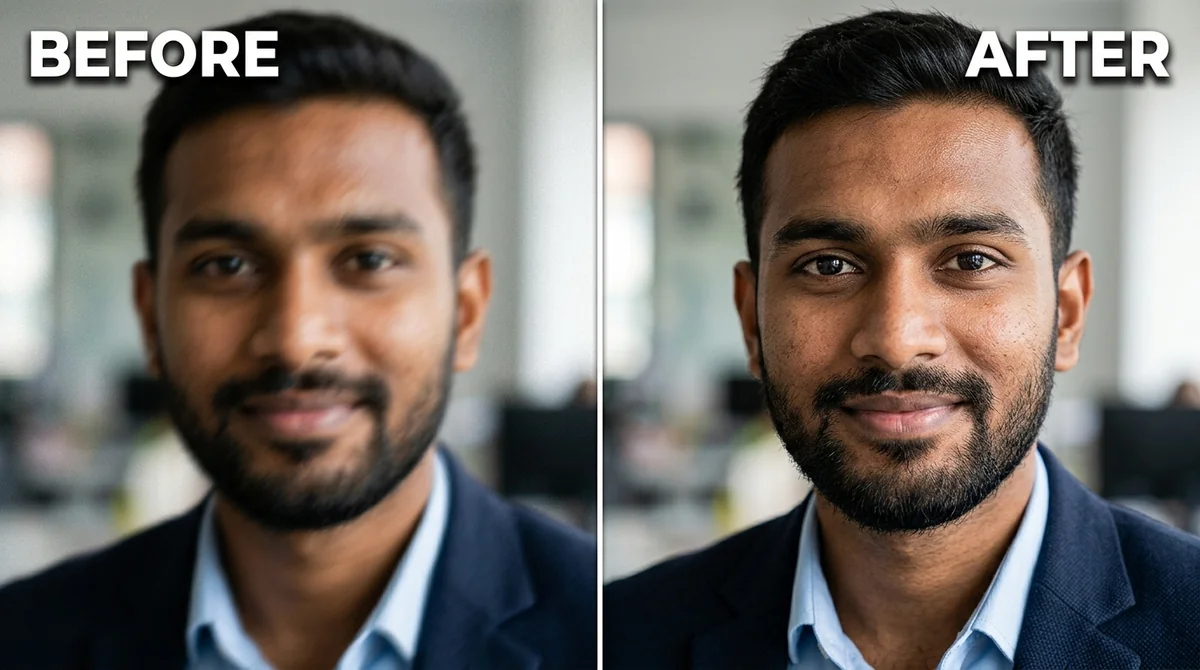
Enhance this photo to be sharp and clear. Remove the motion blur and focus softness, and restore crisp, natural detail in the eyes, hair, skin, and fabric — without halos or over-sharpening.

Keep every person's face, identity, expression, pose, and background unchanged.
Three steps, about a minute
- 1
Name the main problem: blur, dark, noisy, yellow, harsh shadows or crooked. Pick the prompt for it.
- 2
Upload the original file (not a screenshot) to Gemini or ChatGPT and paste the prompt.
- 3
Zoom in on faces and edges. If something changed that should not, reply with what to keep.
Make it yours
- Start from the best copy: use the original photo from your camera roll; screenshots and WhatsApp copies are smaller and softer.
- One fix at a time: brighten first, then sharpen. Asking for everything at once redraws more of the photo.
- Keep it real: add "natural look, no halos, no over-sharpening" if the result looks crunchy.
- People: add "keep every face and expression unchanged" to any prompt that lacks it.
If it goes wrong
- Faces look different
- Reply "keep the faces identical to the original; only sharpen".
- There are halos around edges
- Ask for "gentle sharpening, no halos, natural detail".
- The photo looks painted
- Add "keep the natural grain and texture of the original photo".
- Colours shifted
- Say "do not change colours or white balance" when you only want sharpness.
18 more prompts in this collection
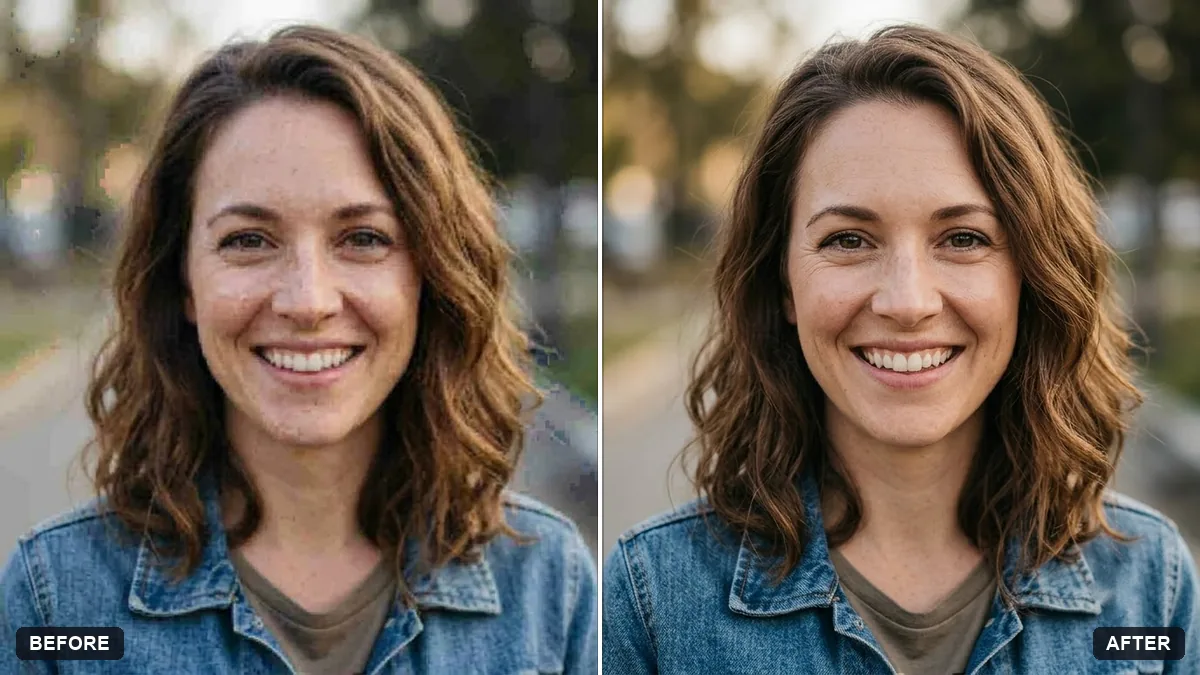 Sharpen and upscale a small photoGemini · ChatGPT
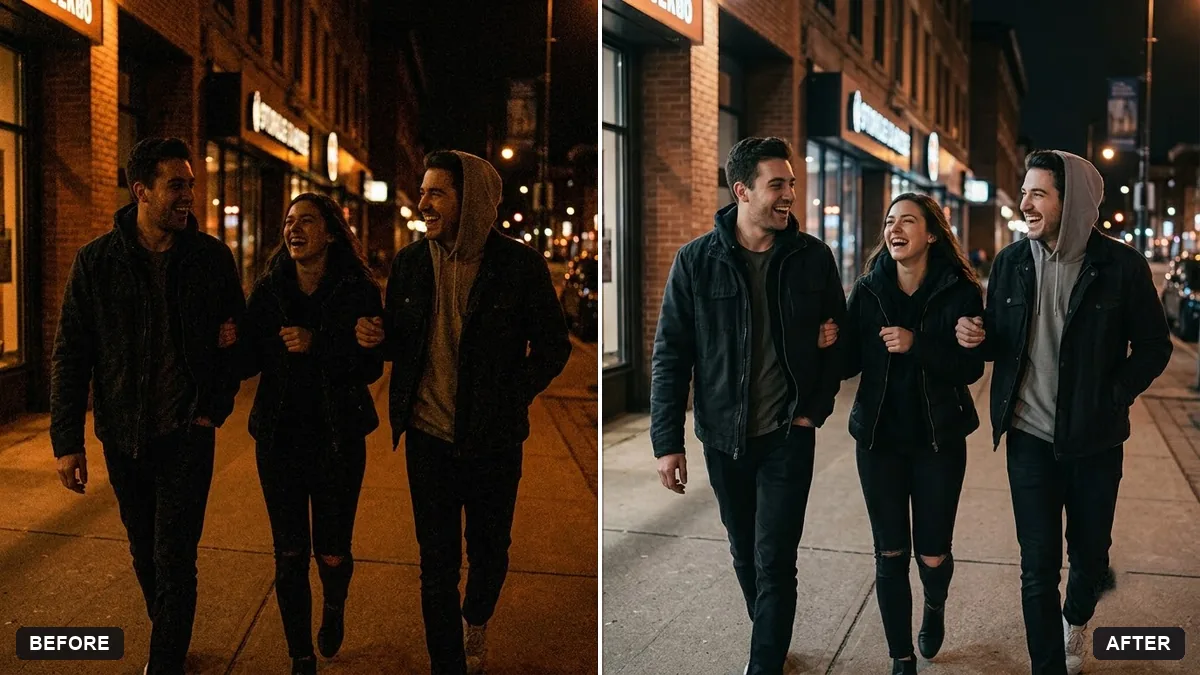 Rescue a dark, noisy night photoGemini · ChatGPT
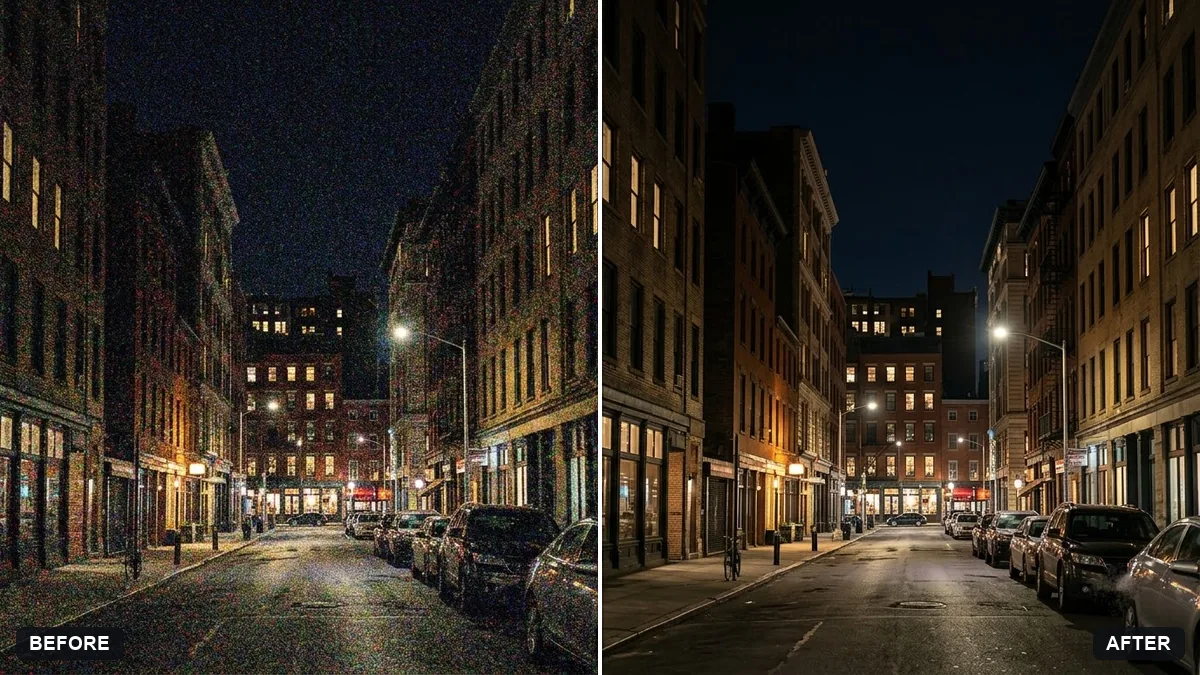 Reduce noise in a high-ISO photoGemini · ChatGPT
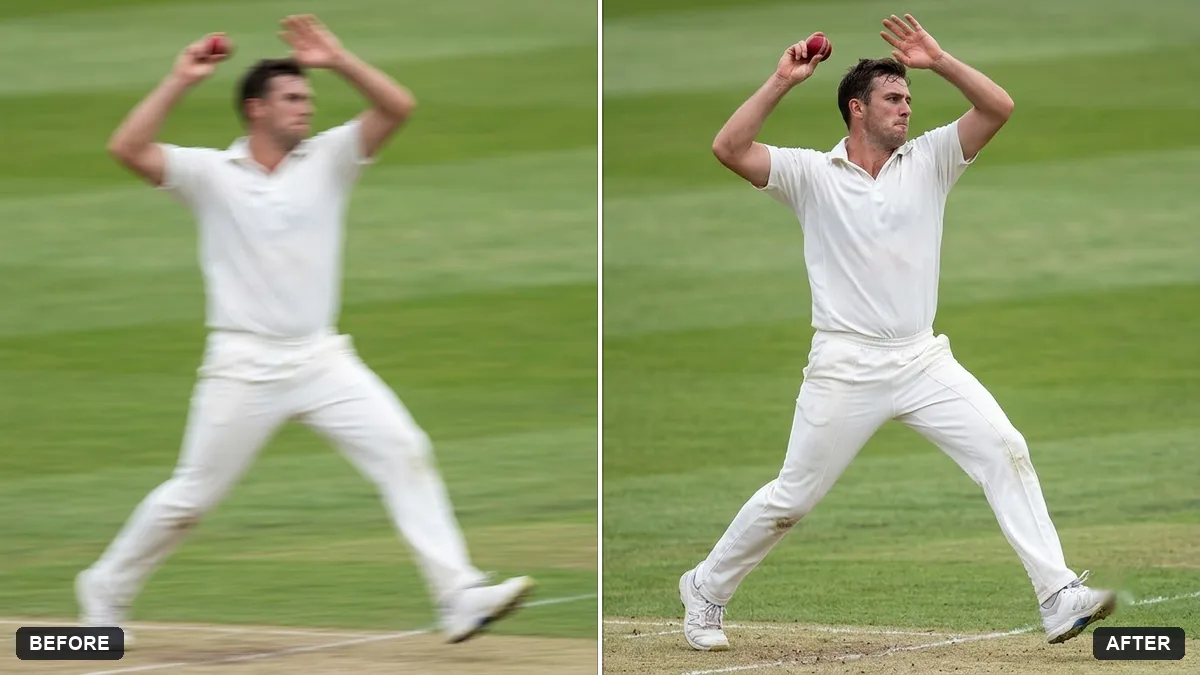 Sharpen a blurry sports action shotGemini · ChatGPT
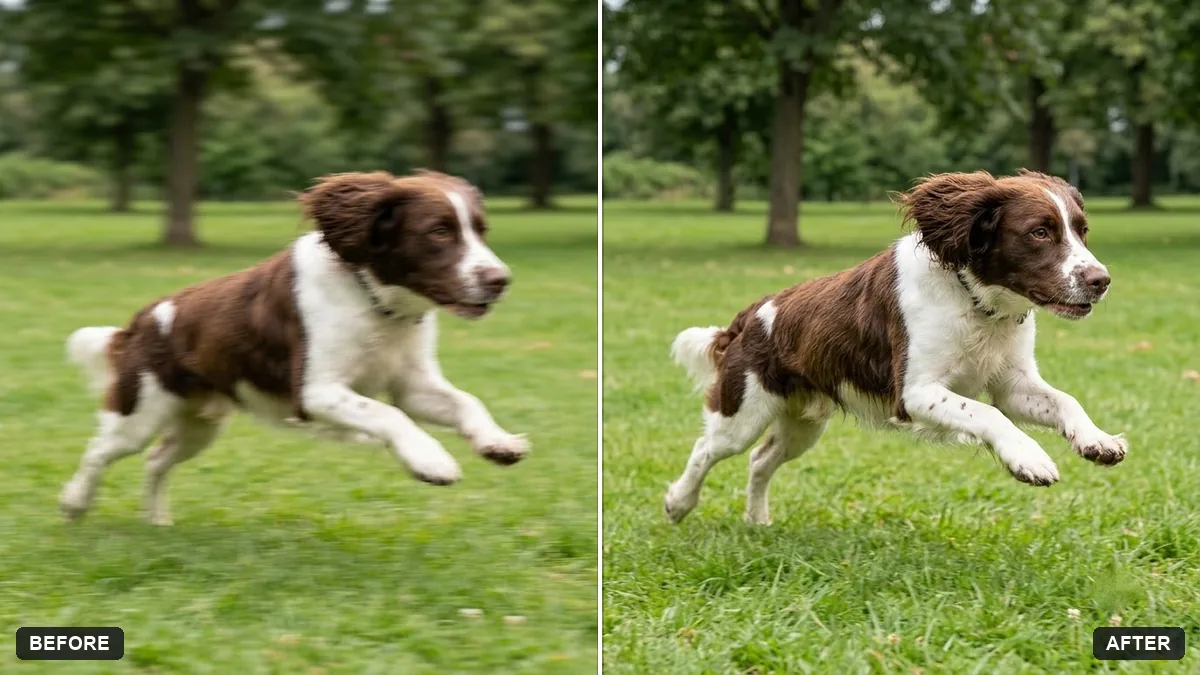 Sharpen a blurry pet action shotGemini · ChatGPT
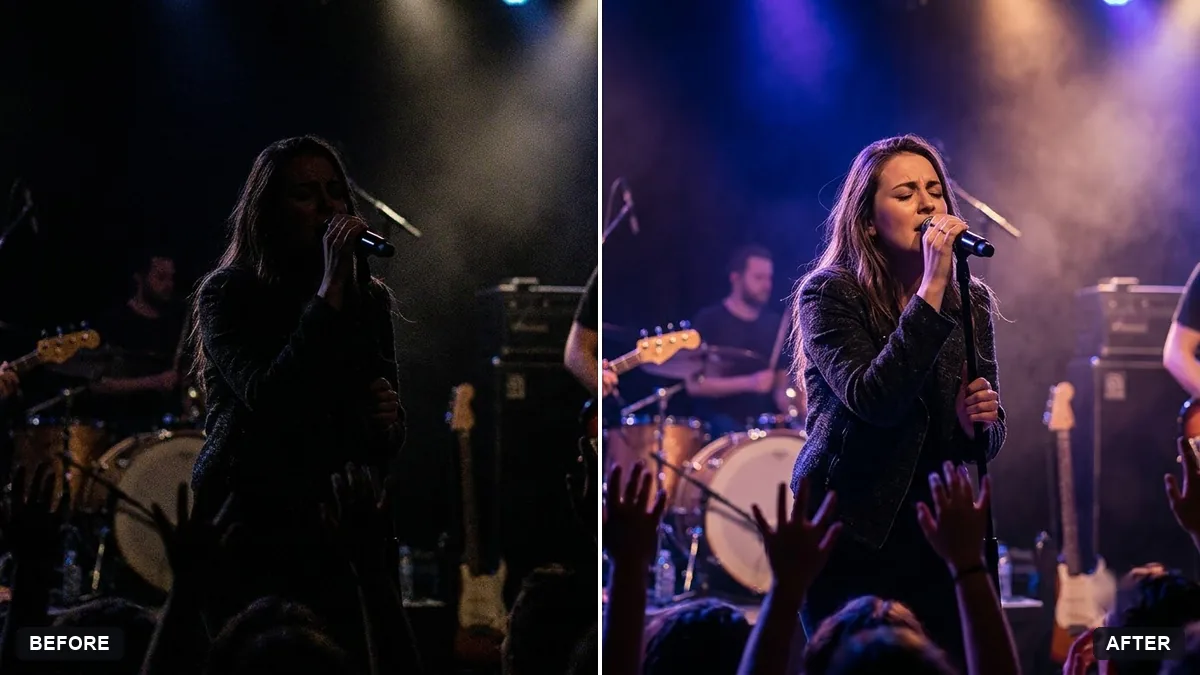 Rescue an underexposed concert photoGemini · ChatGPT
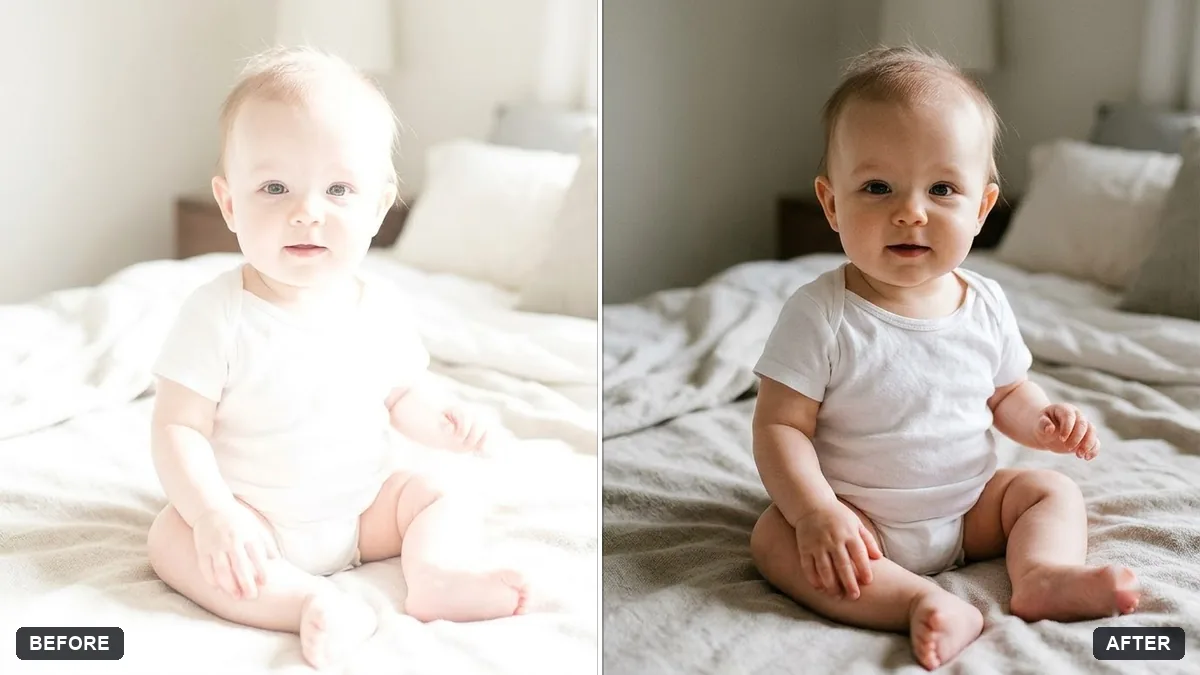 Fix an overexposed baby photoGemini · ChatGPT
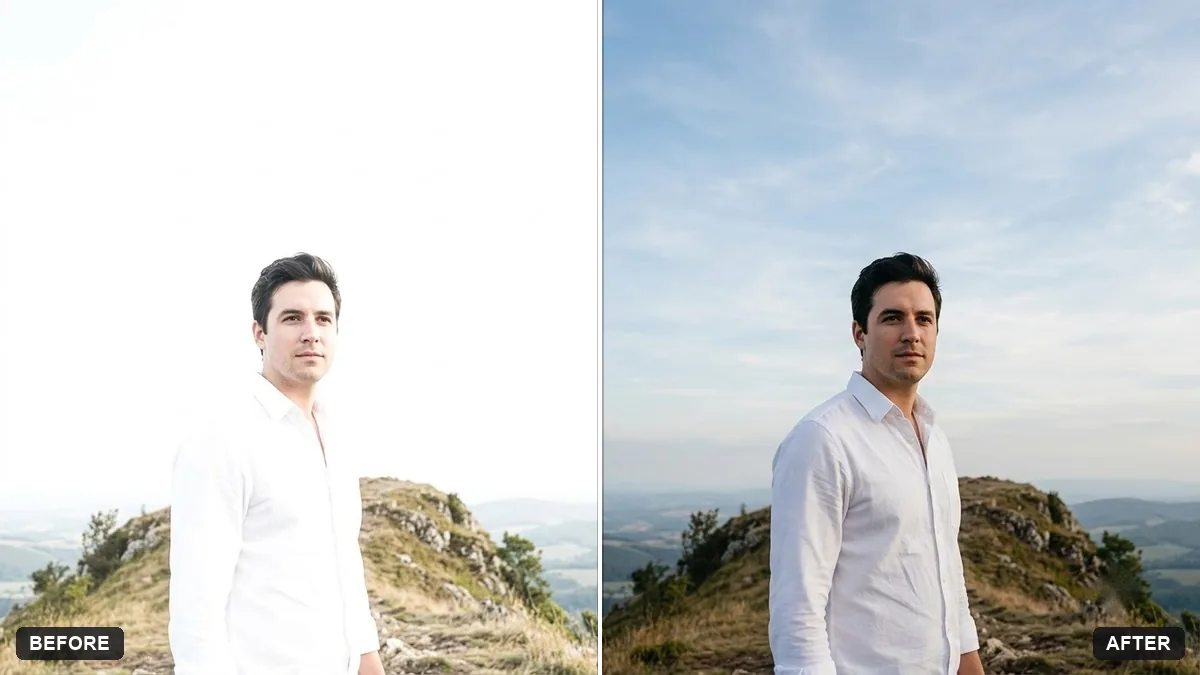 Recover blown-out highlightsGemini · ChatGPT
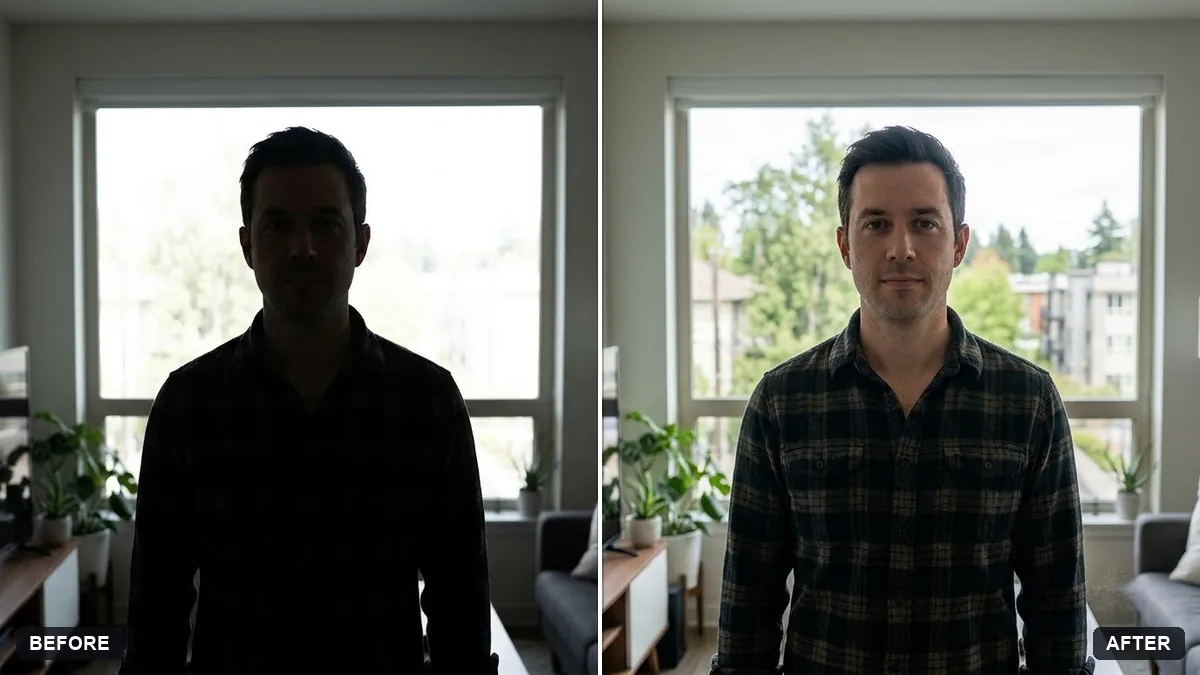 Brighten a face in a backlit photoGemini · ChatGPT
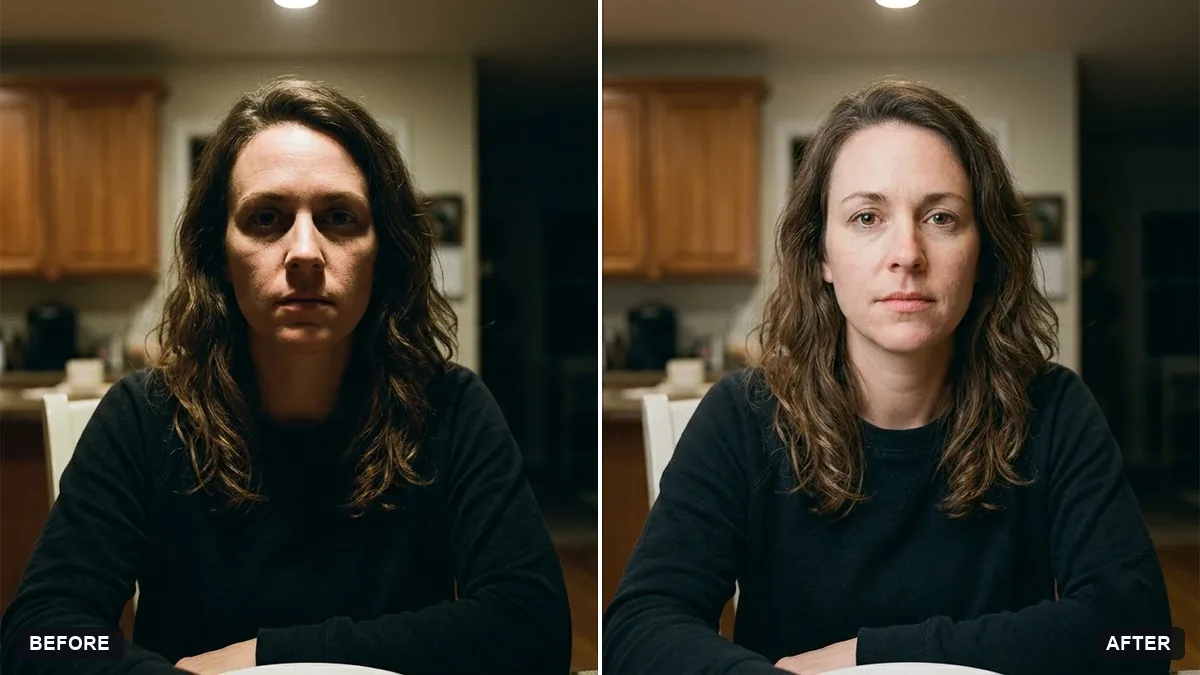 Soften harsh shadows on a faceGemini · ChatGPT
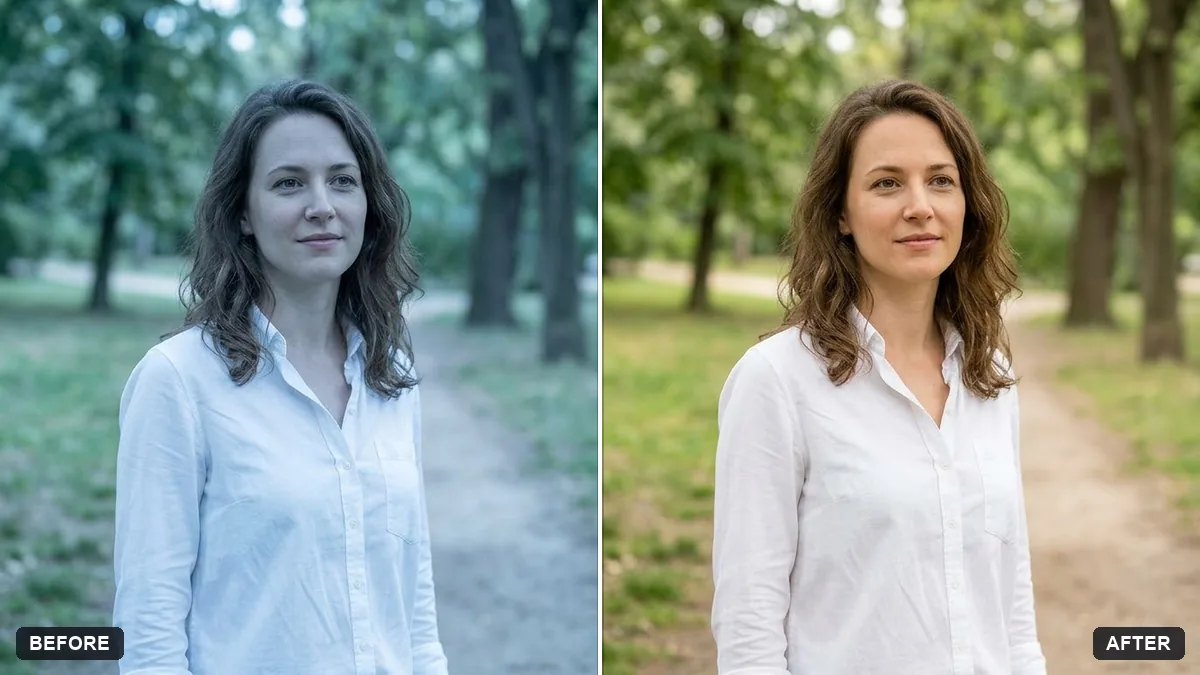 Correct a yellow or blue colour castGemini · ChatGPT
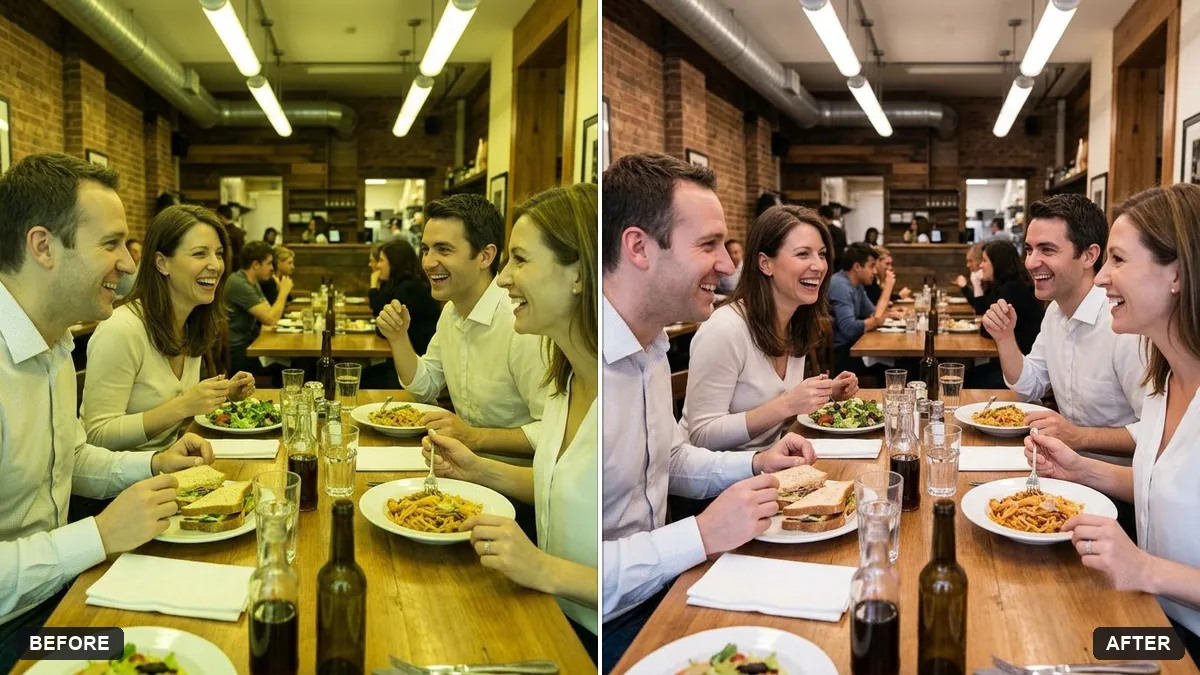 Fix yellow indoor lightingGemini · ChatGPT
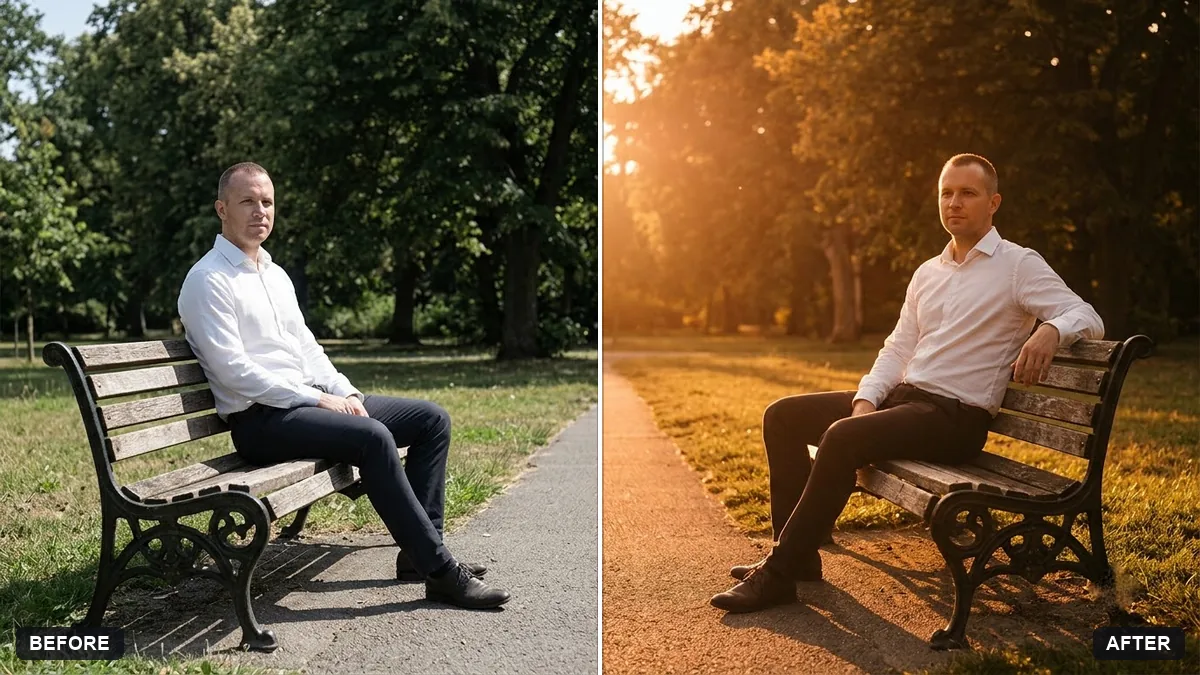 Relight a flat photo with golden-hour lightGemini · ChatGPT
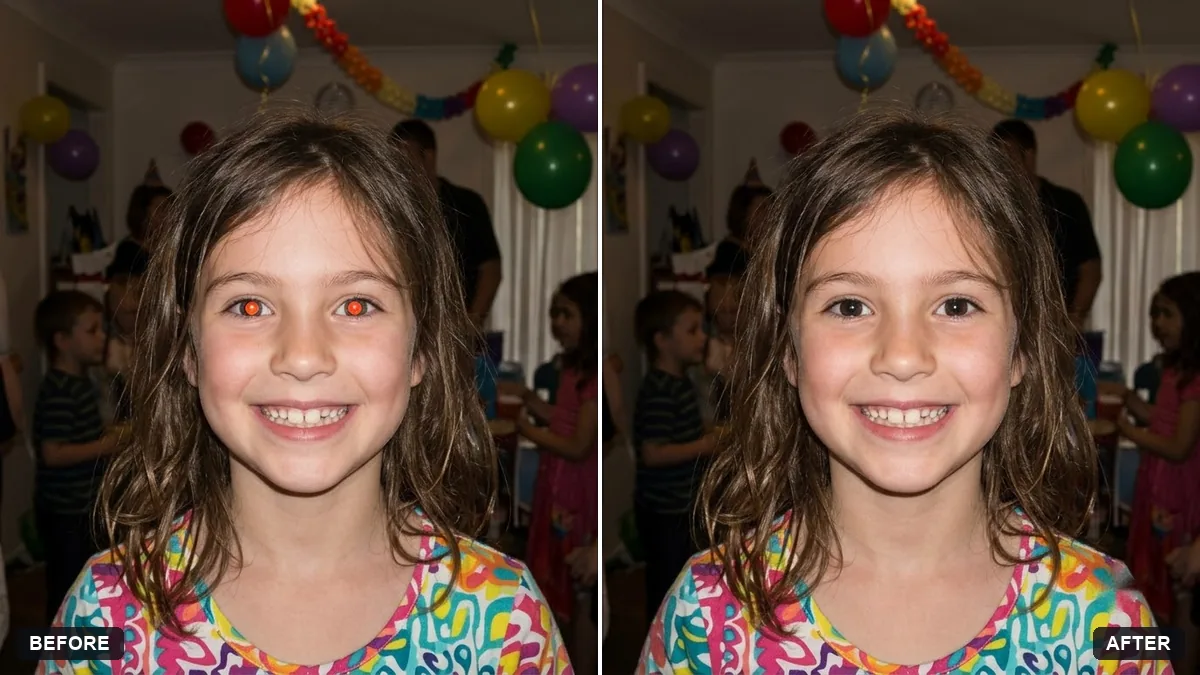 Fix red-eye in flash photosGemini · ChatGPT
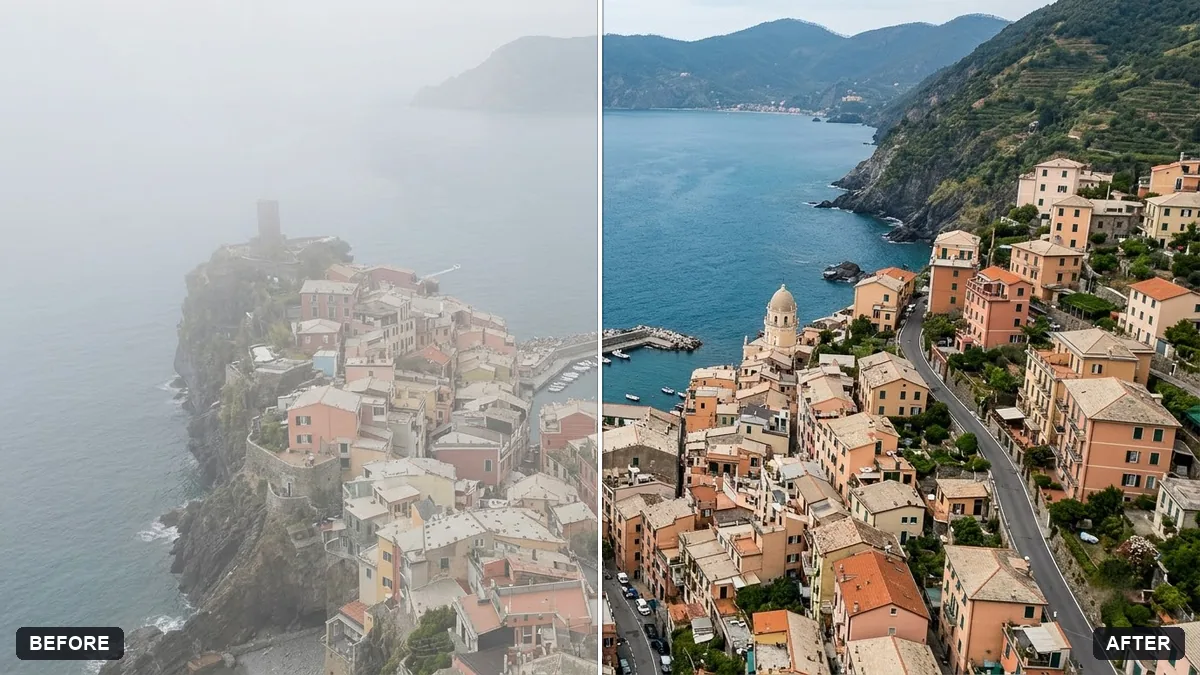 Enhance a hazy drone photoGemini · ChatGPT
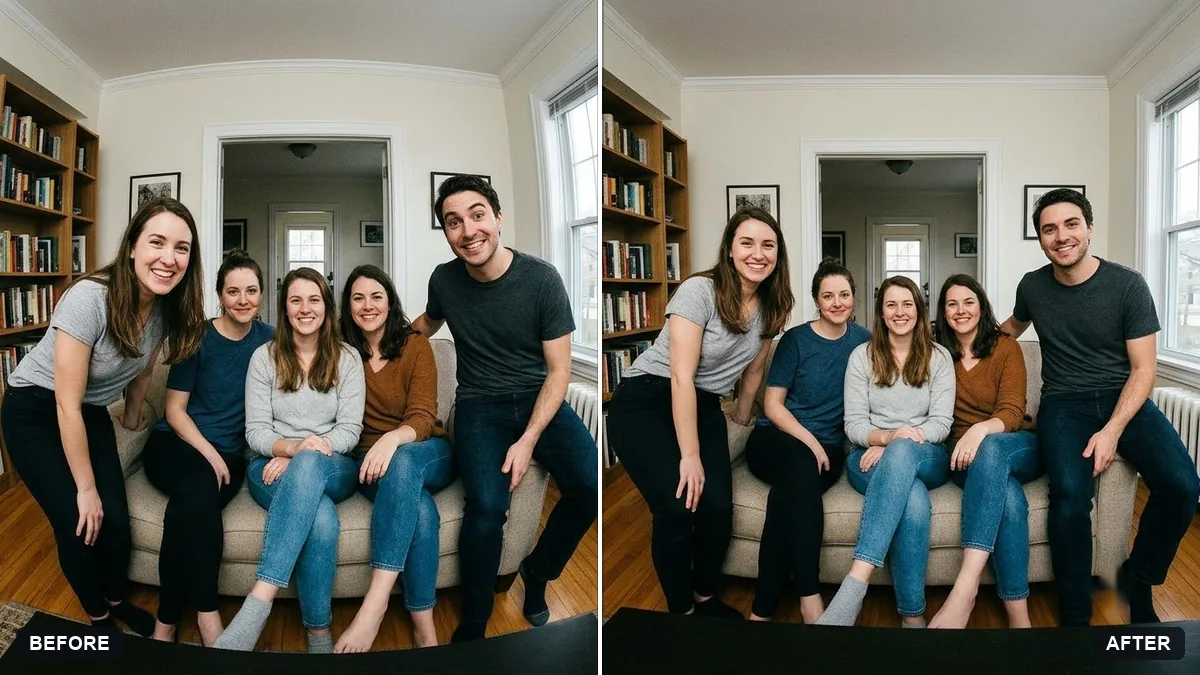 Fix wide-angle lens distortionGemini · ChatGPT
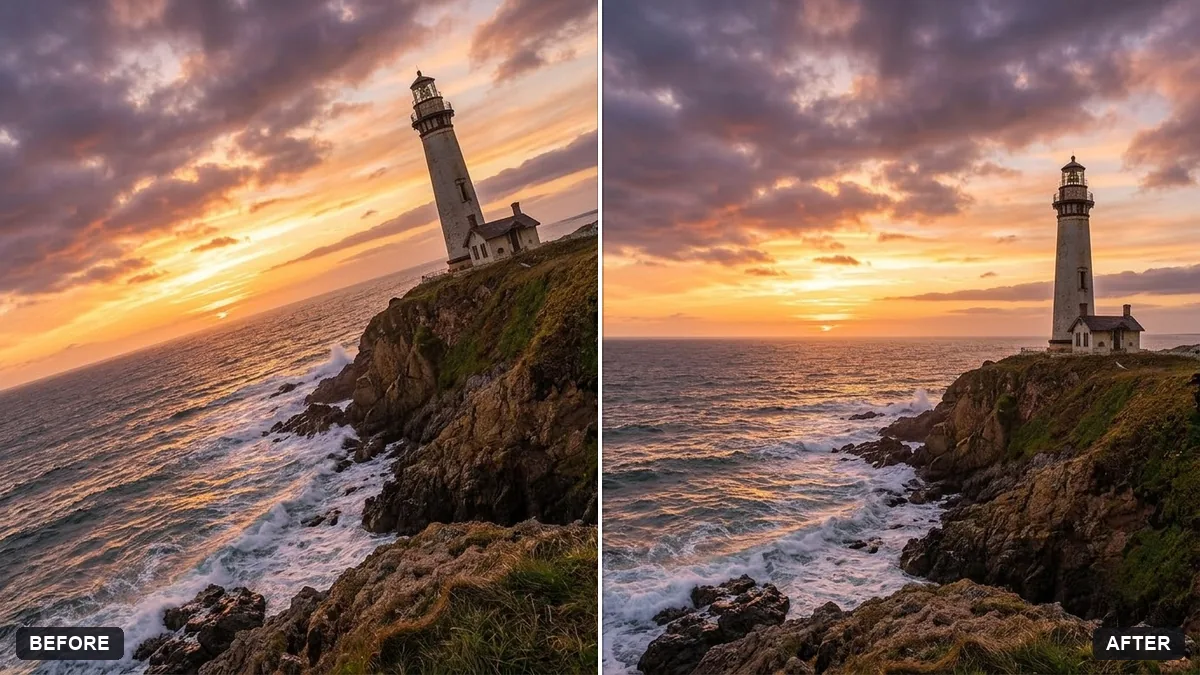 Straighten a tilted horizonGemini · ChatGPT
1 more prompt without a picture yet
- Fix a weird AI photo (hands, face, skin)Gemini · ChatGPT
Guides that use these prompts
Questions, answered
Can AI really fix a blurry photo?
It can sharpen soft focus and light motion blur and rebuild detail in eyes, hair and fabric. A very blurry photo gets redrawn, so check that faces still look like the people in it.
Is an AI enhancer better than the sharpen slider?
For mild softness, a sharpen slider is safer because it changes nothing else. The AI is better when detail is missing, but it guesses that detail, so compare the result with the original.
Will enhancing make the photo bigger?
The upscale prompt asks for more detail at a larger size. The exact output size depends on the app you use.