- Updated
Sharpen and upscale a small photo
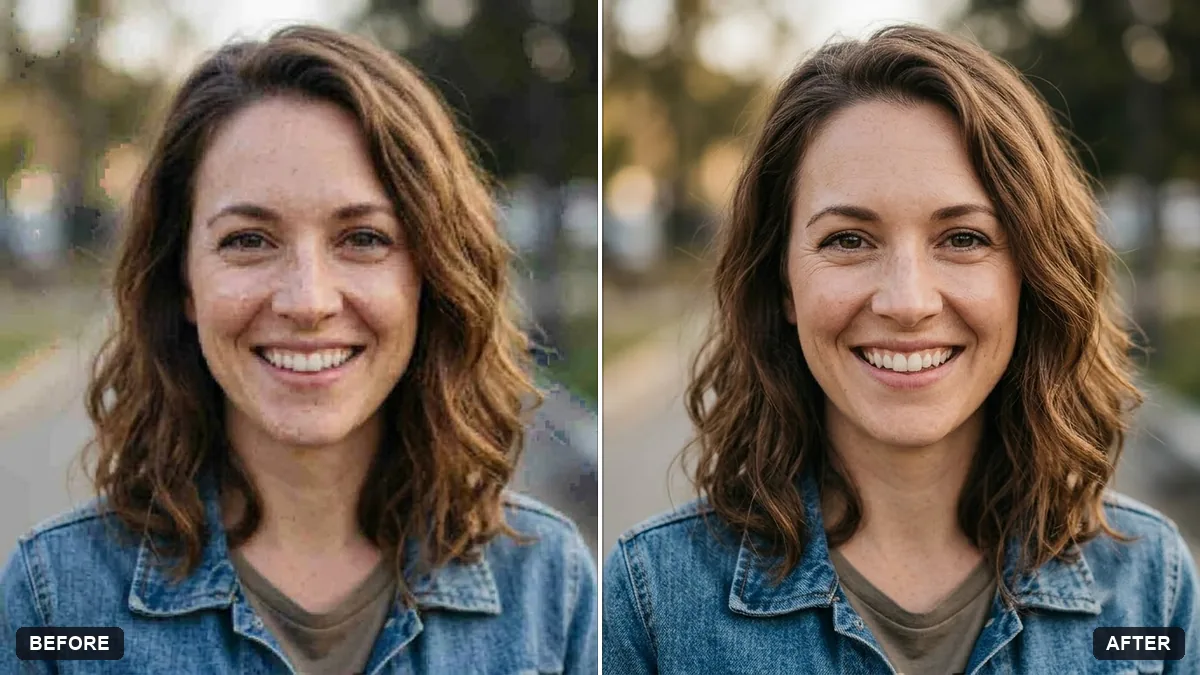
This prompt asks the AI to upscale a small photo and enhance detail in faces, textures or text while reducing compression artefacts.
Upscale this small photo to a higher resolution. Enhance detail in [FACES / TEXTURES / TEXT] and reduce compression blocks and noise.

Keep every person, object and colour exactly the same. Do not invent new details or change faces. Natural sharpness, no over-smoothing or plastic skin.
For a printout, ask for the largest size your tool can produce.
Your photo goes to the AI app you choose, never to PromptUp.
Get a better result
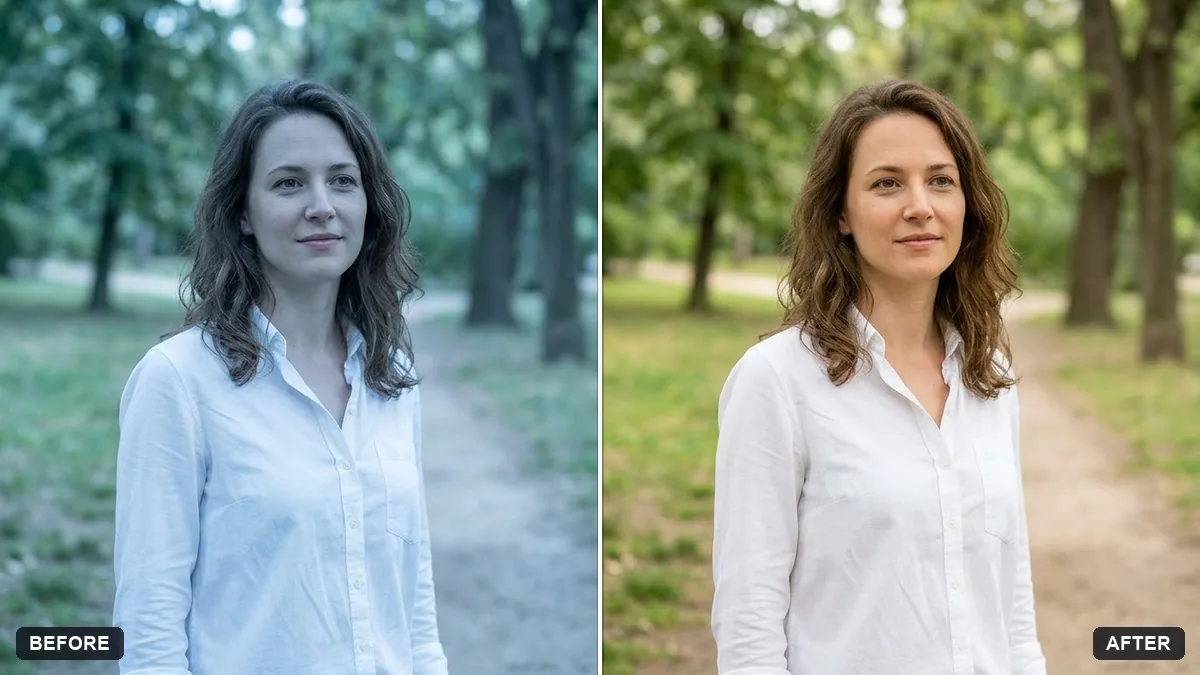
A larger version of your small photo with cleaner edges, less noise and fewer compression blocks, and the same people, objects and colours as before.
Skin looks plastic and over-smoothed.
Fix: Keep “natural sharpness, no over-smoothing” and add “keep skin pores and fine lines”. Choose faces in the first blank only when they truly need help.
- Small text becomes new, wrong letters. If a sign or label must stay readable, mention it, but check every character afterwards. The AI may guess letters that were blurry.
- The result is barely larger. Ask for a specific size, for example “at least 3000 pixels on the long side”, and download the largest option your tool offers.
Choose textures in the blank and add “remove the blocky JPEG squares and the colour banding in the sky”. A 480-pixel photo from a chat app often needs this.
Keep every face, object and colour exactly the same. Reduce the smoothing and keep a little natural grain.
Guides that use this prompt
More photo editing prompts
See all 334 →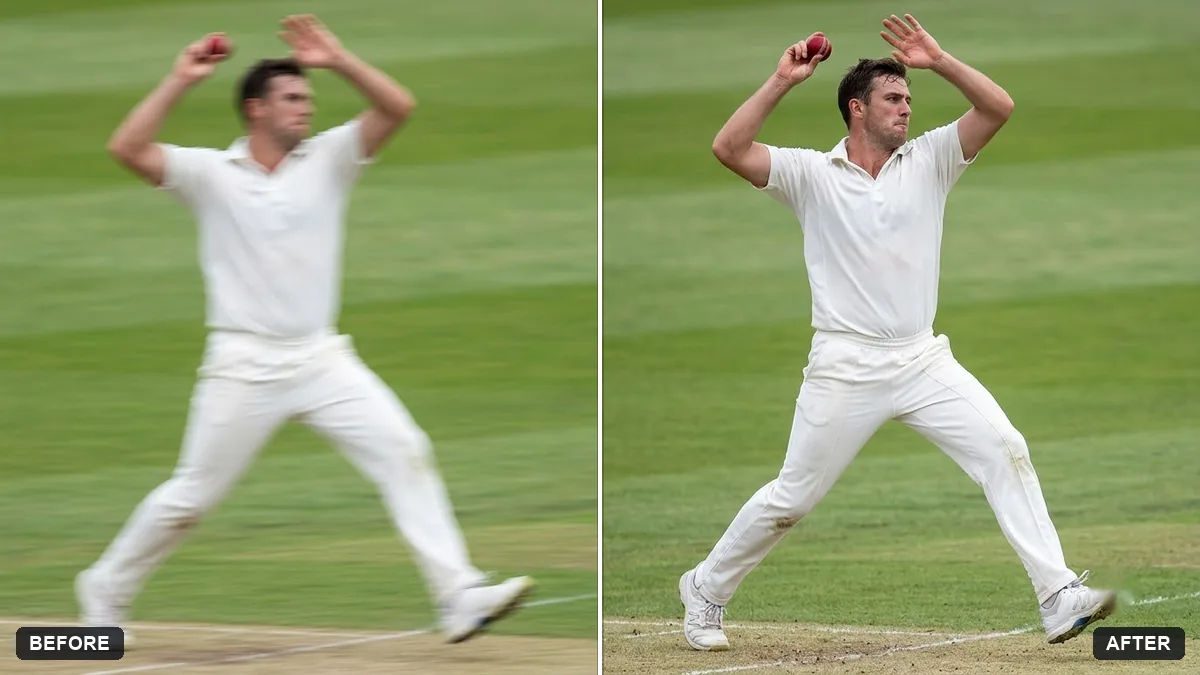
More like this
- Recover blown-out highlightsGemini · ChatGPT
- Enhance a hazy drone photoGemini · ChatGPT
- Reduce noise in a high-ISO photoGemini · ChatGPT
- Soften harsh shadows on a faceGemini · ChatGPT
- Rescue an underexposed concert photoGemini · ChatGPT