Why does my AI photo look fake? 8 fixes for the plastic AI look
Published
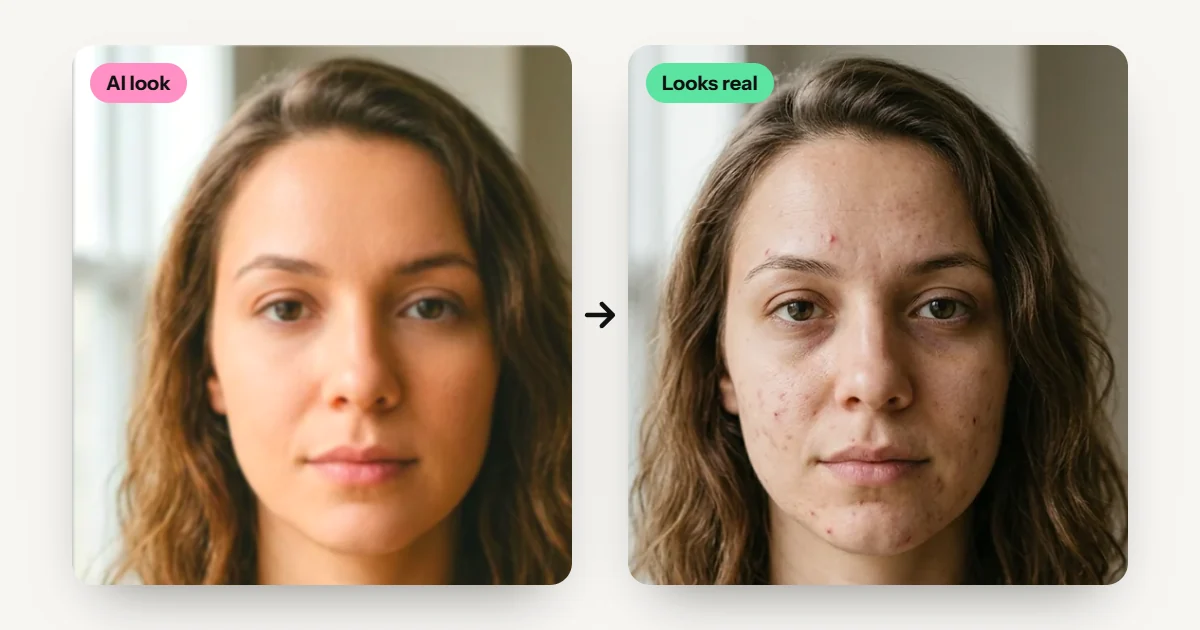
Short answerAI photos look fake when the prompt asks for perfection. Words like "8k", "flawless skin", "cinematic lighting" and "masterpiece" push the model towards a glossy render. Remove them, then ask for what a real camera sees - skin with pores, one ordinary light, a phone camera, a slightly messy background and natural colours. The free Make It Look Real tool does both steps for you.
You asked for a nice photo of yourself and got a wax figure. The skin is too smooth, the light glows from nowhere and the background looks like a showroom. Friends spot it in a second.
This happens to almost everyone, and it is almost always the prompt, not the AI. Below are the eight things that make AI photos look fake, with the exact words to fix each one.
Check your prompt in 10 seconds
Paste your prompt into Make It Look Real. It crosses out every word that pushes the AI towards the fake look, adds the lines for real skin and phone-camera light, and shows a realness score as you go. Then copy the fixed prompt into Gemini or ChatGPT.
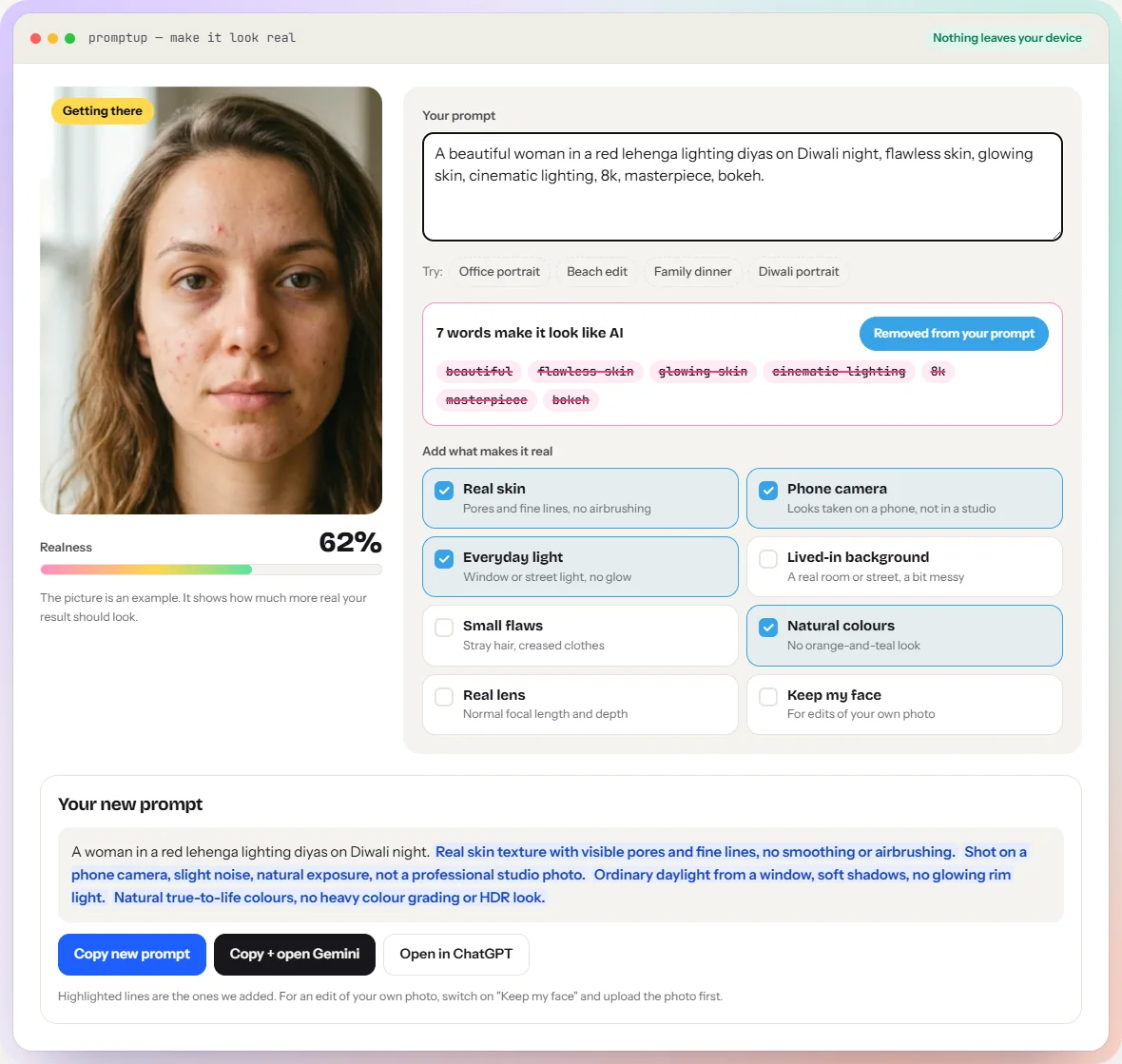
The words that cause the fake look
Image models learned these words from millions of polished renders, ads and digital art. Use them and you get a polished render:
| Remove | Why it looks fake |
|---|---|
| 8k, 4k, ultra HD, ultra detailed, highly detailed | Over-sharp, every hair drawn in |
| flawless skin, perfect skin, smooth skin, glowing skin | Plastic, airbrushed face |
| cinematic, cinematic lighting, dramatic lighting | Orange-and-teal film look, glowing rim light |
| masterpiece, best quality, award winning | Digital-art style |
| hyperrealistic, photorealistic, ultra realistic | Ironically, the "AI realistic" look |
| beautiful, stunning, gorgeous | Beauty-filter faces |
| octane render, unreal engine, artstation | A 3D render, not a photo |
| bokeh | Fake, extreme background blur |
The 8 fixes
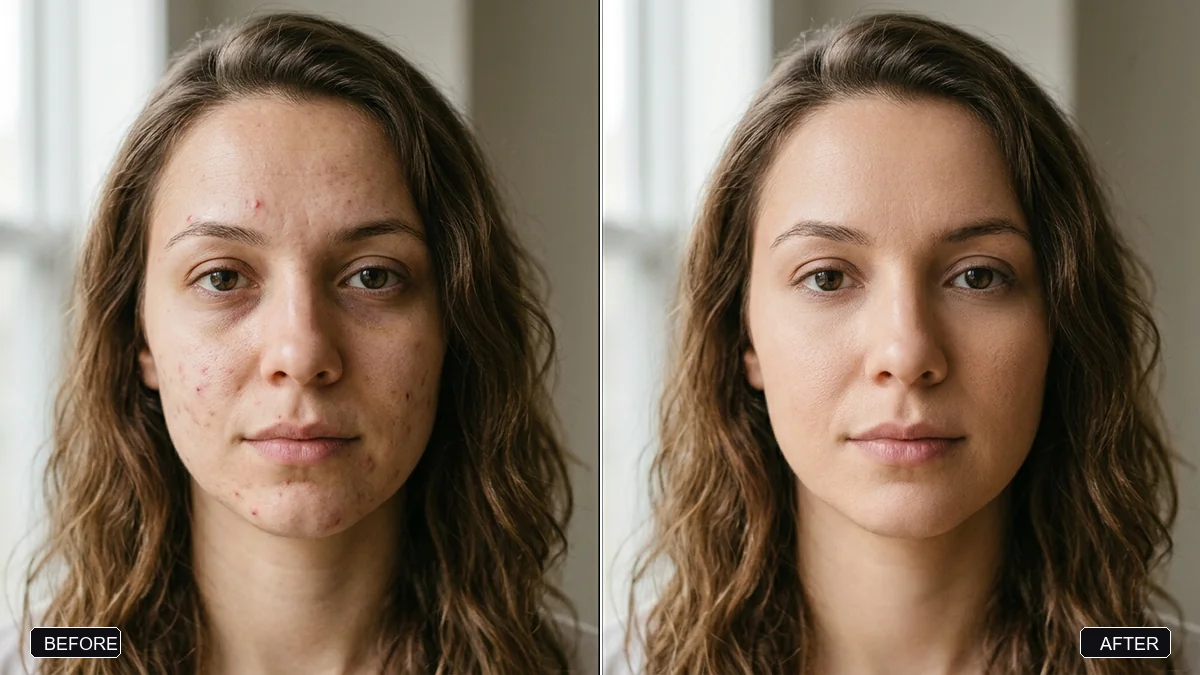
1. Real skin
Real skin texture with visible pores and fine lines, no smoothing or airbrushing.
This one line fixes most "plastic face" problems. For edits of your own photo, add "keep my skin tone exactly the same". Some tools lighten skin if you don't. More in the natural skin prompt.
2. A phone camera, not a studio
Shot on a phone camera, slight noise, natural exposure, not a professional studio photo.
3. One ordinary light
Ordinary light from one real source, like a window, a lamp or a street light, soft shadows, no glowing rim light.
Real photos have one main light. AI photos often have three, plus a glow around the hair.
4. A lived-in background
A real everyday background with small clutter, not a perfect set.
A charger cable, a steel glass, a slightly crooked curtain. Small mess is what makes a room real.
5. Small flaws
Small imperfections: a few stray hairs, slightly creased clothes, a candid moment.
6. Natural colours
Natural true-to-life colours, no heavy colour grading or HDR look.
7. A normal lens
A normal 35mm lens, natural depth of field, no extreme background blur.
8. Keep my face
When you edit your own photo, the AI may slightly "improve" your face. That is the real reason many edits feel fake: it looks like you, but not quite.
Keep my face exactly the same as in the uploaded photo: same features, skin tone and hairline.
Put this line first, not last.
Before and after
A typical fake-looking prompt:
A beautiful woman in a red lehenga lighting diyas on Diwali night, flawless skin, cinematic lighting, 8k, masterpiece, bokeh.
The same idea, fixed:
A woman in a red lehenga lighting clay diyas on her balcony on Diwali night. Real skin texture with visible pores, no smoothing. Lit only by the diya flames and a string of fairy lights, soft shadows. Shot on a phone camera, slight noise, natural colours. A real building balcony with a grille and a few potted plants behind her.
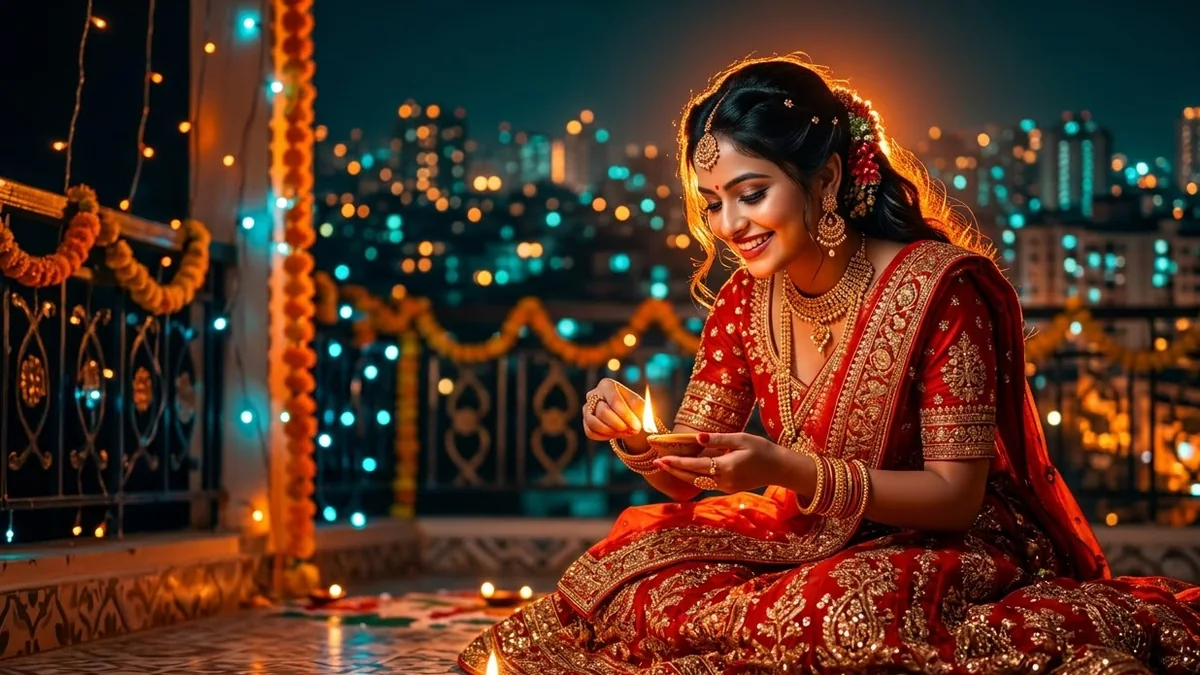
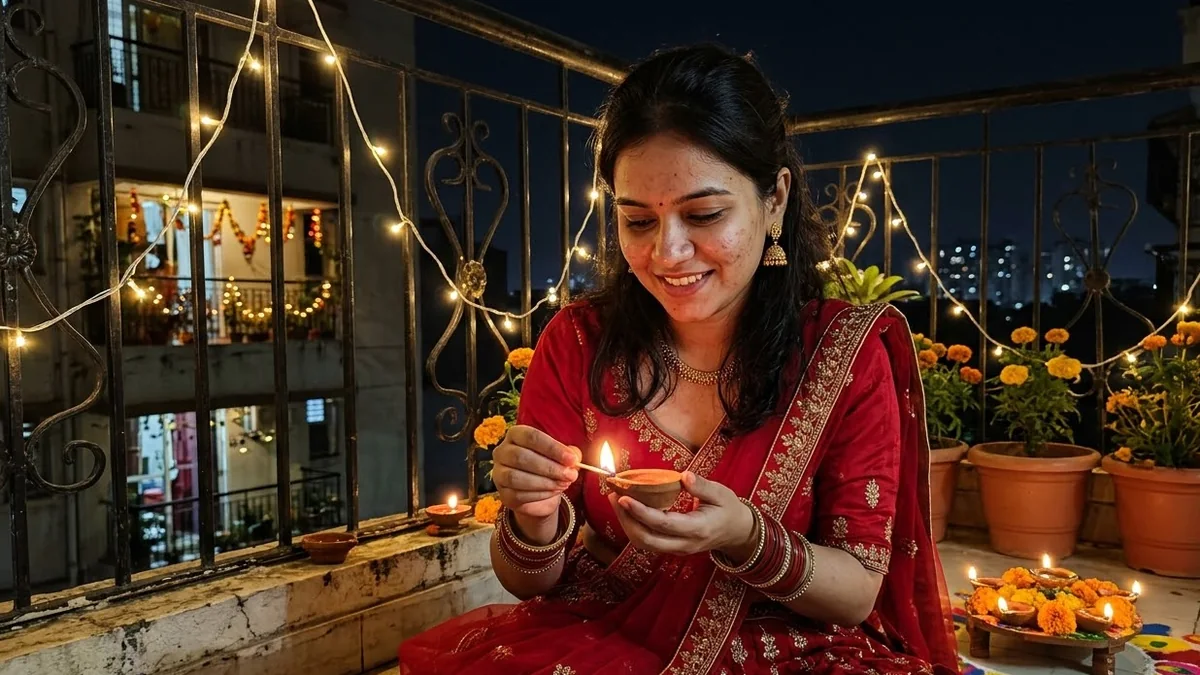
Try the first one in the Make It Look Real tool. The "Diwali portrait" example button loads a prompt just like it.
Festival photos are the worst offenders
Diwali, Navratri and wedding photos tend to look the most fake, because people pile on "glowing", "vibrant" and "cinematic" to make them feel festive. Let the diyas, fairy lights and marigolds do that job instead. Real festival light is warm, low and a bit uneven, so say exactly that.
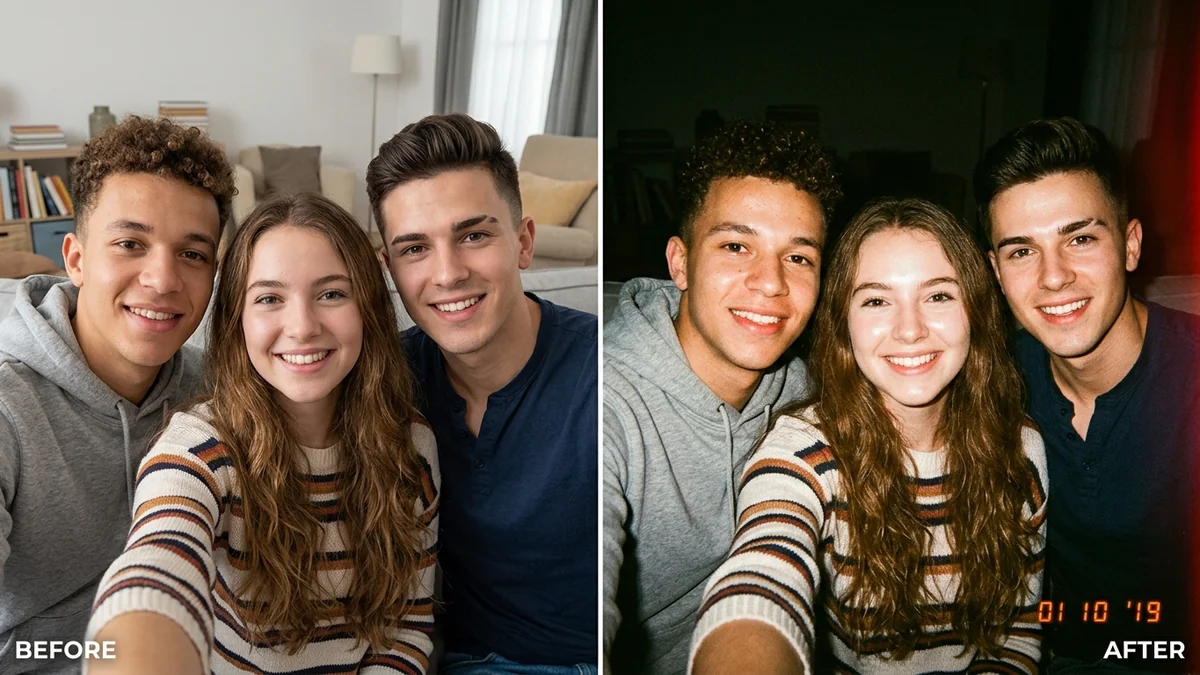
If you want an old festive photo instead, the 90s retro Diwali prompts go the other way on purpose: harsh flash, grain and faded colour.
Fixing a photo that's already made
Upload the fake-looking image and paste:
Make this photo look like a real, unedited phone photo. Keep the person's face, pose and clothes exactly the same. Add real skin texture with pores, remove the glow and the airbrushed look, make the light come from one natural source, tone the colours down to true-to-life, and add slight phone-camera noise.
The fix AI image prompt has more versions, and add film grain helps if it still feels too clean.
Gemini or ChatGPT?
Gemini (Nano Banana) keeps faces closest to the photo you upload, so it is the better pick for edits of yourself. ChatGPT is good at natural colour and texture when you make a picture from scratch. The same fixed prompt works in both.
Use it honestly
A realistic picture of yourself for a DP, a festival greeting or fun is fine. Don't use realistic AI photos to pretend something happened, to fake a document, or to show a real person doing something they didn't do.
Quick checklist
- Remove "8k", "flawless", "cinematic", "masterpiece", "beautiful".
- Ask for skin with pores and no smoothing.
- One ordinary light source.
- Phone camera, natural colours, normal lens.
- A slightly messy, real background.
- "Keep my face exactly the same" first for edits.
- Or paste the prompt into Make It Look Real and let it do the list.
More: realistic AI photo prompts and edit photos with AI prompts.

Comments
No comments yet. Be the first to share what worked for you.