How to edit photos with AI prompts without changing the face
Published
Short answerFor every photo edit, say what to change and what to keep. Naming the face, pose and background as "unchanged" is the single most useful line, and a specific request such as "remove the bin behind the tree" beats "clean it up".
Full collectionOld photo restoration and enhancement prompts15 prompts with examples, steps and fixes →AI photo editing can repair an old family picture, sharpen a blurry shot or remove a stranger from a holiday photo. The usual problem is not that the tool can't do it. It is that the tool does too much: the face changes, the skin turns plastic, or details are invented.
Does your AI photo look fake? Paste the prompt into the free Make It Look Real tool. It strikes out the words behind the plastic look and adds the fixes. Or read why AI photos look fake.
The fix is in the prompt. This guide covers the habits that keep a photo looking like the original, using prompts from the photo editing prompts in the library.
The rule: say what to change and what to keep
Every good photo edit prompt has two halves:
- What to change. "Remove the scratches", "make it sharp", "colourize".
- What to keep. "Keep every person's face, identity, expression, pose and background unchanged."
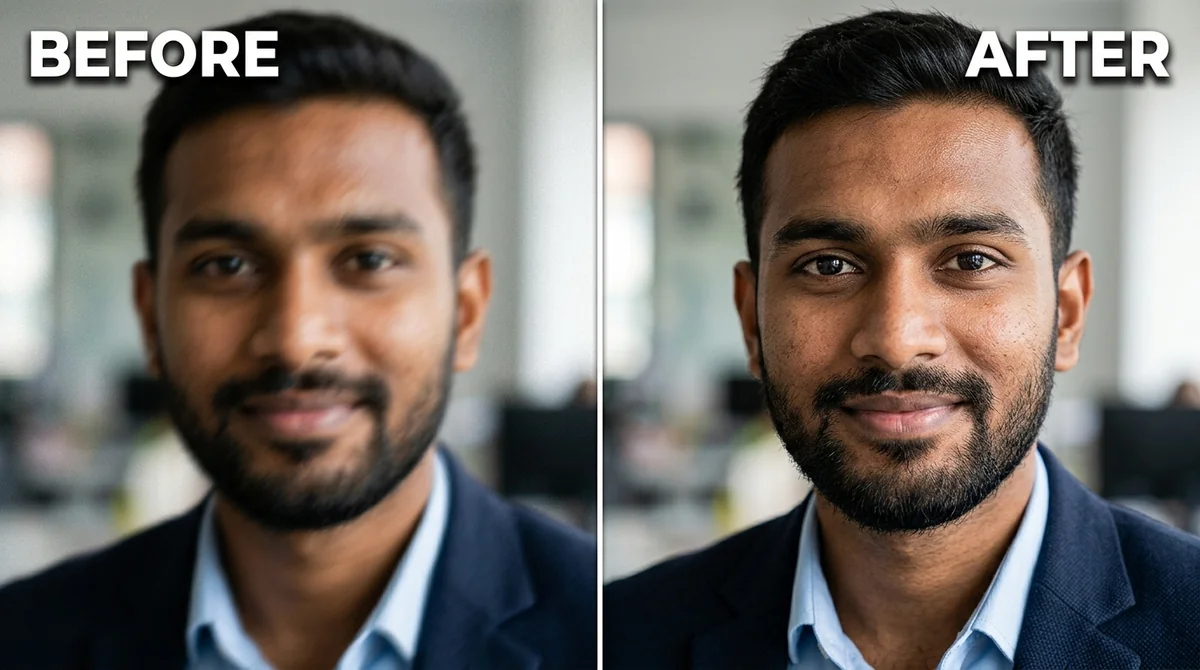
The blurry photo prompt is a good example:
Enhance this photo to be sharp and clear. Remove the motion blur and focus softness, and restore crisp, natural detail in the eyes, hair, skin, and fabric — without halos or over-sharpening.

Keep every person's face, identity, expression, pose, and background unchanged.
The second paragraph is what protects the photo. If your result changes a face, don't start over. Reply with "Keep the face identical to the original."
Restoring old and damaged photos
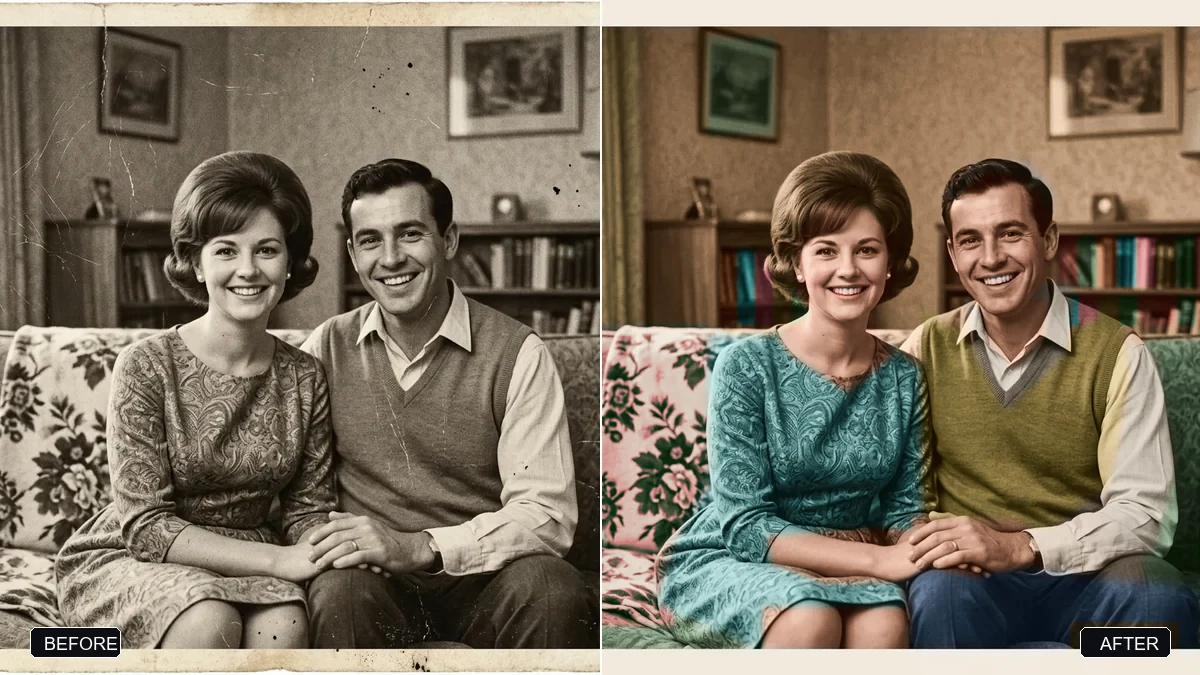
Old prints have scratches, tears, creases, stains and faded areas. The restoration prompt asks the AI to repair these and to reconstruct fine details "faithfully to the original", with the instruction not to invent a different face.
Tips:
- Scan or photograph the print flat, in even light without glare.
- Fix one problem at a time if the damage is heavy. Repair the tear first, then colour.
- Compare the faces carefully with the original. Restoration tools can invent detail where the photo has none, and a stranger's face on a relative is a real risk.
More options are in the old photo restoration prompts.
Colourizing black-and-white photos
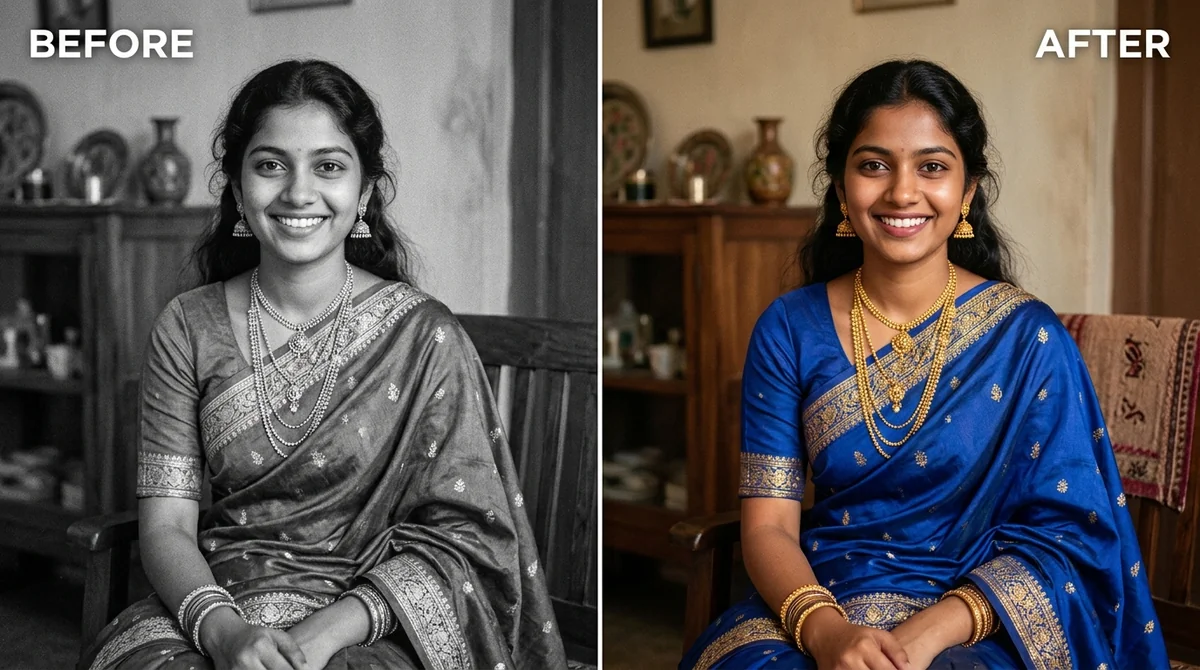
Colourizing works better when you help. The colourize prompt lets you fill in the decade and place, so clothes and surroundings look right for the period. Then add anything you remember:
Her saree was maroon with a gold border, and the wall behind was pale green.
Real memories beat the AI's guesses. If the colours look wrong, tell it which one to change.
Retouching portraits naturally
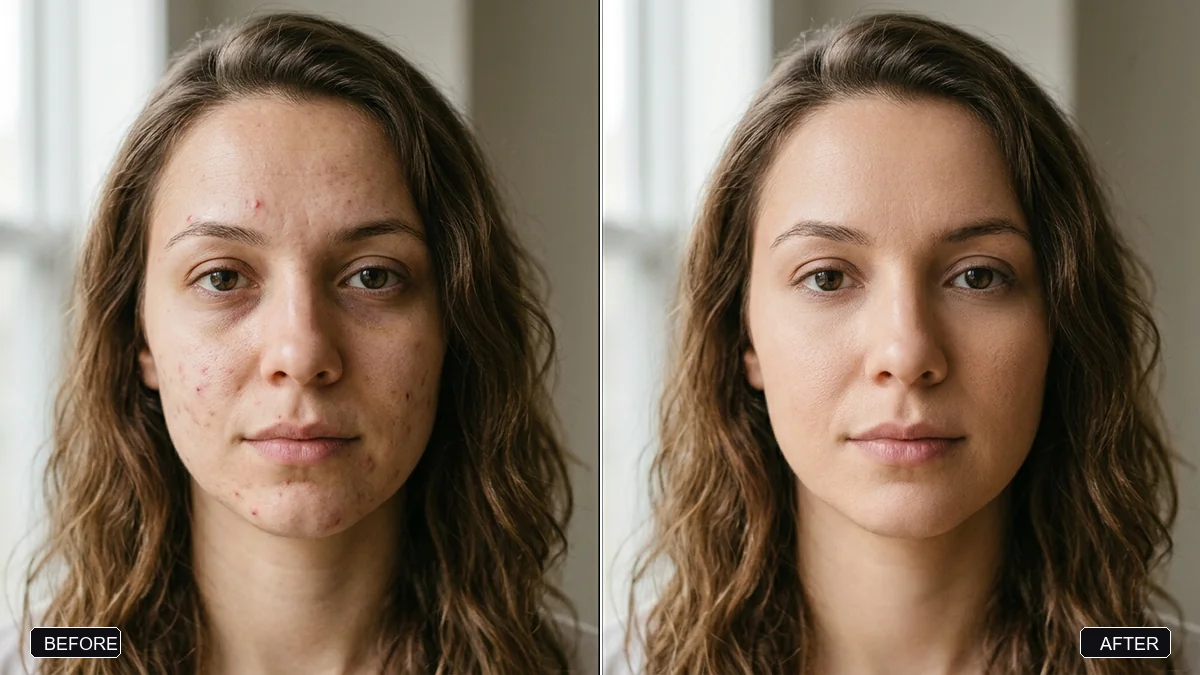
Over-smoothed skin is the most common giveaway of an AI edit. The natural skin retouch prompt reduces temporary blemishes and redness but asks to keep pores, moles, freckles and real skin texture. It also says what not to touch: the shape of the face, the nose and the lips.
If the result is still too smooth, reply: "Less smoothing. Bring back natural skin texture."
Removing an object or person
For removals, be specific about what to remove and what is behind it:
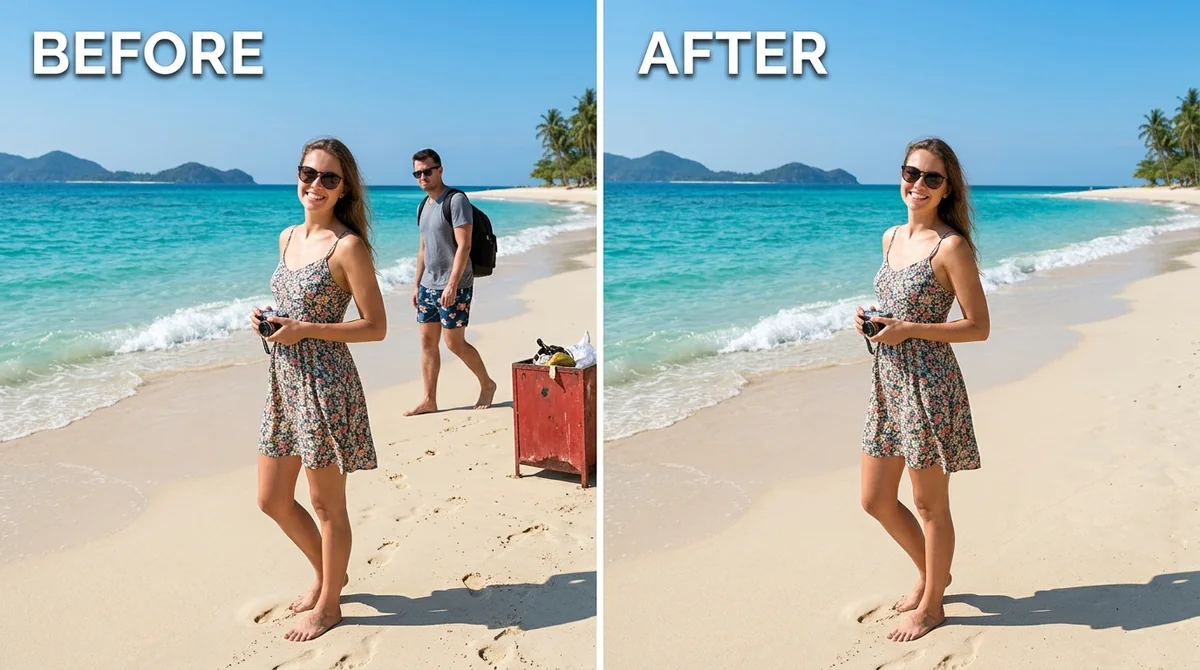
Remove the white bin next to the tree on the left. Fill the area with the same brick wall and pavement, matching the light.
The remove object prompt asks for the background, floor and lighting to be rebuilt with no seam or blur. Telling the AI what is behind the object helps it fill the gap accurately. If the fill looks wrong, try again on a smaller area.
Photos of other people
Use the same care you'd want for your own photo:
- Edit photos you took, or have permission to edit.
- Don't change a photo in a way that misleads people about a real person or event.
- Ask before you share edited photos of someone else, especially children.
Quick checklist
Before you send a photo edit prompt, check that it:
- Says exactly what to change.
- Says what to keep: face, identity, expression, pose, background.
- Asks for natural results: "natural skin texture", "no over-sharpening".
- Gives context the AI can't see, such as the decade or the colours you remember.
Then compare the result with the original at full size, and change one thing at a time. See how to edit an AI prompt.
Prompts to try
More prompts on this topic
- Upscale a tiny old portraitGemini · ChatGPT
- Old family photo to video (Higgsfield)Higgsfield · Kling
- Colourize a 1950s family photoGemini · ChatGPT
- Bring an old photo to lifeKling · Veo
Comments
No comments yet. Be the first to share what worked for you.