AI prompts to remove unwanted things from a photo
Published
Short answerWrite two separate lines, one naming exactly what to remove and one naming exactly what to keep. The AI rebuilds the gap from the background around it, so the more specific you are about what's behind the object, the cleaner the result.
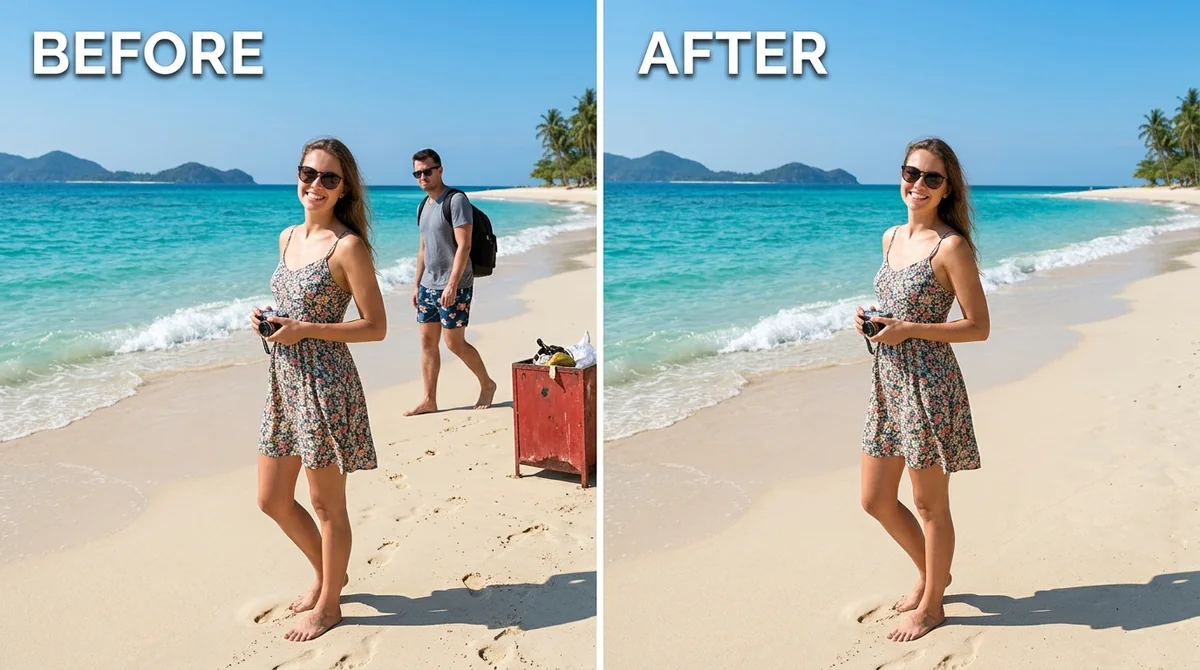
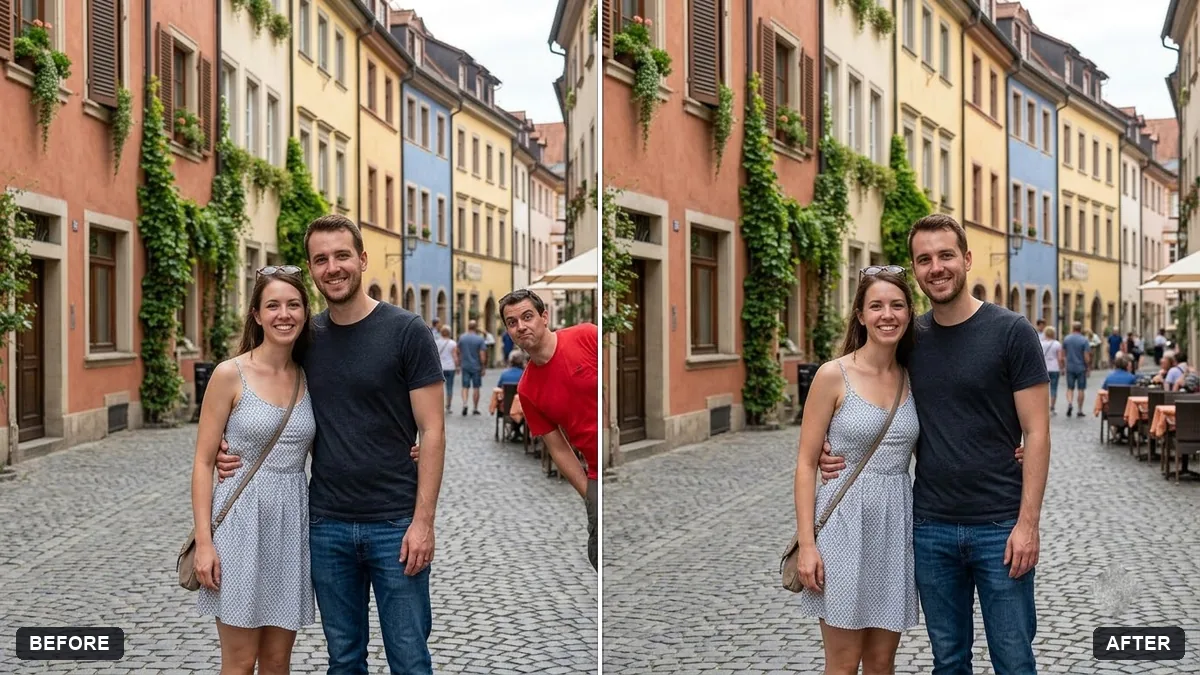
Full collectionRemove objects and people from photos with AI16 prompts with examples, steps and fixes →Almost every photo has one thing you wish wasn't in it. A stranger walked into frame, a bin is sitting by the wall, or wires are cutting across an otherwise clean sky. Gemini and ChatGPT can both remove these cleanly, but a one-line request such as "remove the man in the background" often takes other things with it, like a bit of someone's shoulder or the texture of the wall behind them.
The fix is to split the instruction into two parts: what to remove, and what to keep. This guide walks through the common removal jobs and the exact wording that keeps the rest of the photo untouched.
Say what to keep, not just what to remove
Most bad results come from a prompt that only describes the problem. The AI knows what you don't want, but not what it should protect. Give it both:
Remove [DESCRIBE PERSON OR OBJECT, e.g. the man in the red shirt on the right] from this photo. Keep [WHO OR WHAT SHOULD STAY] exactly the same.

Fill the gap with realistic background that matches the surrounding texture, colour and lighting. Do not change any other faces, clothing or objects.
This is the pattern behind the remove a photobomber prompt. The first line tells it what to erase, the second line protects everyone else, and the third line tells it how to fill the hole. Skip the third line and the AI sometimes blurs the area instead of rebuilding it properly.
Common removal jobs, and what to say
Different clutter needs slightly different wording, because the AI needs to know what's realistically behind the thing you're removing.
| Problem | What to tell the AI |
|---|---|
| A stranger in frame | Name their position and clothing, e.g. "the woman in the blue jacket on the left" |
| A crowd behind you | Say who should stay, then ask it to work on the largest group first |
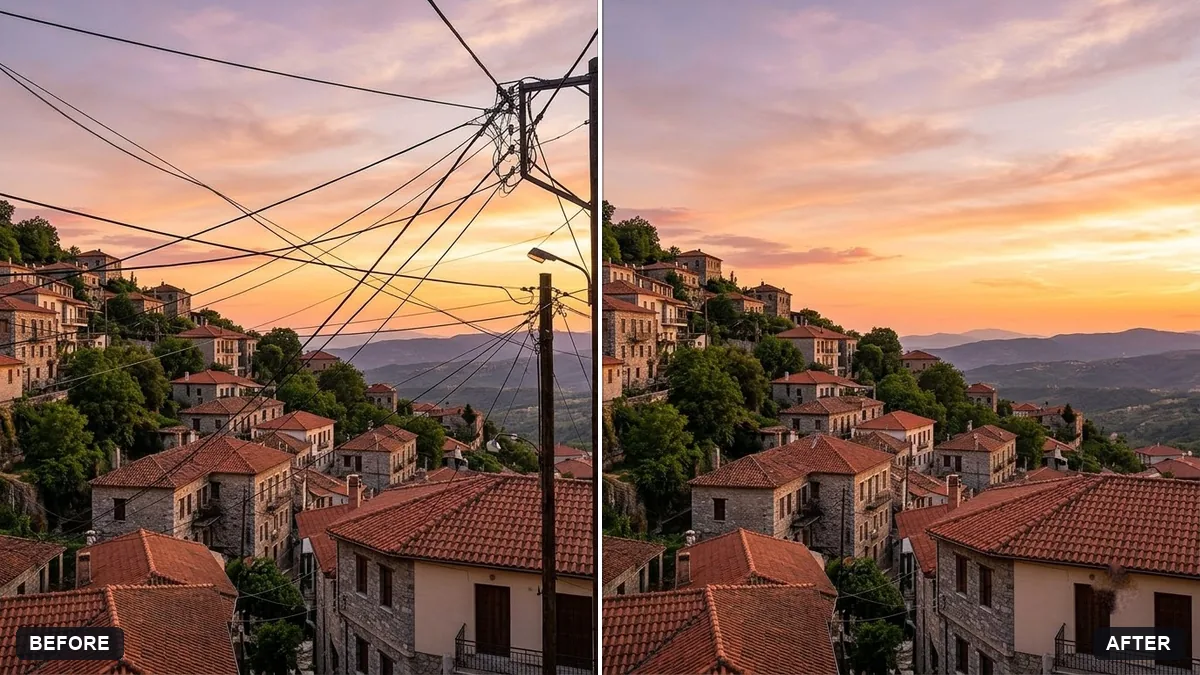
| Power lines or wires | Name the area, e.g. "the sky", and ask it to rebuild clouds and colour to match |
| Window reflections | Name the glass and the subject behind it, so it knows what to reveal |
| Glare on glasses | Ask it to keep the frame and your eyes, and restore natural eye colour under the lens |
| A date stamp on a scan | Name the corner, and ask it to match the surrounding grain and colour |
| General clutter | List the specific items, e.g. "cables, bottles, clothes on the chair" |
The tidy a cluttered background prompt uses this list approach. Naming items individually works better than a vague "clean this up", because the AI then knows exactly where to look.
Clearing a crowd takes a different approach
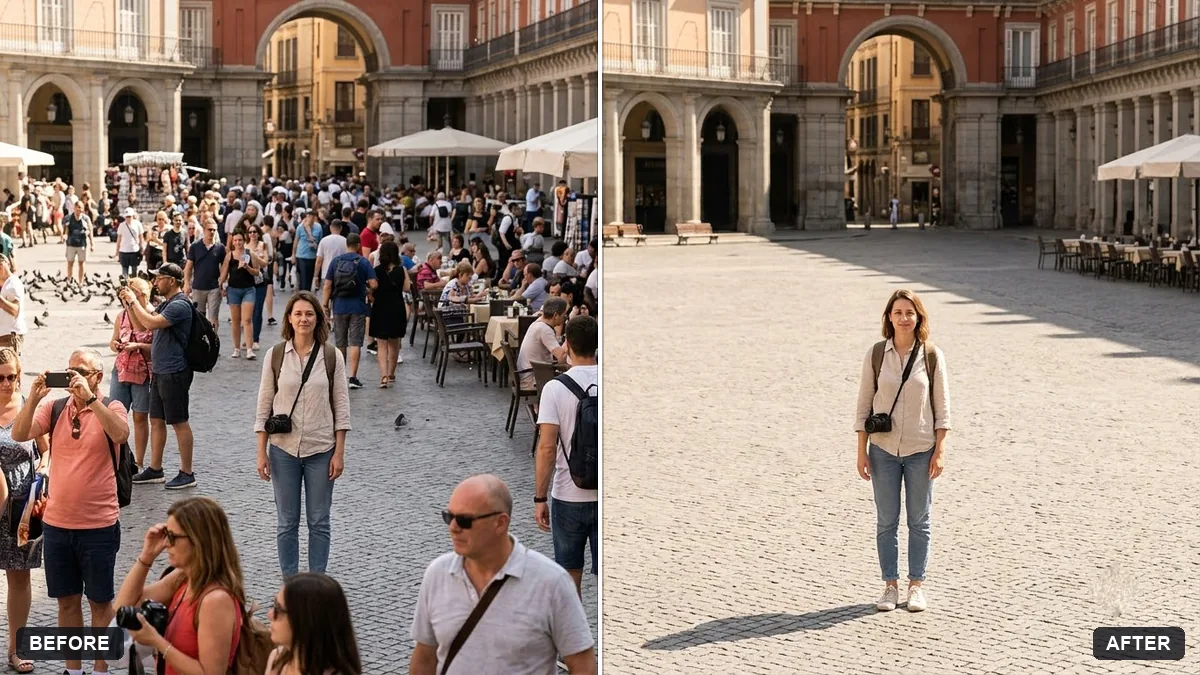
A busy street or a tourist spot is harder than removing one person, because there's more background to rebuild and more edges to match. The remove crowds from a tourist photo prompt is built for this:
Remove the strangers in the background of this photo. Keep [ME / THE PEOPLE I NAME] exactly as they are.

Fill the empty areas with realistic pavement, walls and scenery that match the surrounding texture and light. Do not change the landmark, the sky or my clothing.
If the result looks patchy, do it in stages rather than in one go: ask it to remove the largest group of people first, check the result, then ask it to clear the rest. One big request on a crowded scene gives the AI more to guess at once, and guessing is where mistakes creep in.
Wires, reflections and other background problems
Power lines across a nice sky, or reflections across a shop window, follow the same two-part pattern but with a different "what to keep":
Remove the power lines and wires crossing the sky in this photo. Keep the buildings, trees and everything else exactly the same.

Reconstruct the sky behind them with matching clouds, gradient and colour so there are no smudges or patches.
For reflections, name the glass and what's behind it: "Remove the reflections on the window so I can see what's behind it clearly, and keep the subject behind the glass exactly as it is." The remove reflections from window shots prompt adds one more useful line: ask it to restore natural colour and contrast once the glare is gone, since reflections often wash out the colour underneath.
When it changes something it shouldn't
Even with a good prompt, AI edits sometimes drift. A few fixes for the usual problems:
- A face nearby changed slightly. Reply: "Keep every other face exactly as in the original, you only had permission to touch the object I named."
- The fill looks smudged or soft. Ask for "sharp detail in the filled area, matching the grain and texture of the rest of the photo."
- It removed too much, or the wrong thing. Be more specific about position: left, right, foreground, background, or describe clothing colour.
- A shadow or reflection of the removed object is still there. Add a line naming it directly: "also remove the shadow it was casting on the ground."
Where to go from here
This fits inside a bigger idea: when you edit a photo with AI, say what to change and what to keep, every time. The guide to editing photos without changing your face covers the same principle for restoring, colourising and retouching. You'll find the full set of removal prompts, including glasses glare and date stamp fixes, in the remove object from photo prompts collection, and the prompt builder can write a custom version for your exact photo.
Quick checklist
- Name exactly what to remove, with its position and description.
- Name exactly who or what should stay unchanged.
- Say what should fill the gap: matching background, texture and light.
- For crowded scenes, remove the largest group first, then the rest.
- If something changed by mistake, point it out directly and ask again.
Prompts to try
More prompts on this topic
- Remove unwanted lens flareGemini · ChatGPT
- Clear crowds from a beach photoGemini · ChatGPT
- Remove signs and clutter from a street photoGemini · ChatGPT
- Remove parked cars from a street photoGemini · ChatGPT


Comments
No comments yet. Be the first to share what worked for you.