Adobe Firefly can now remove a shadow, not just the object
Published

Short answerAdobe Firefly's new Remove Related Elements beta (public beta from 1 October 2026) cleans up what an object leaves behind, such as its shadow, reflection or footprints, not just the object itself. Name what to remove and what to keep in plain language.
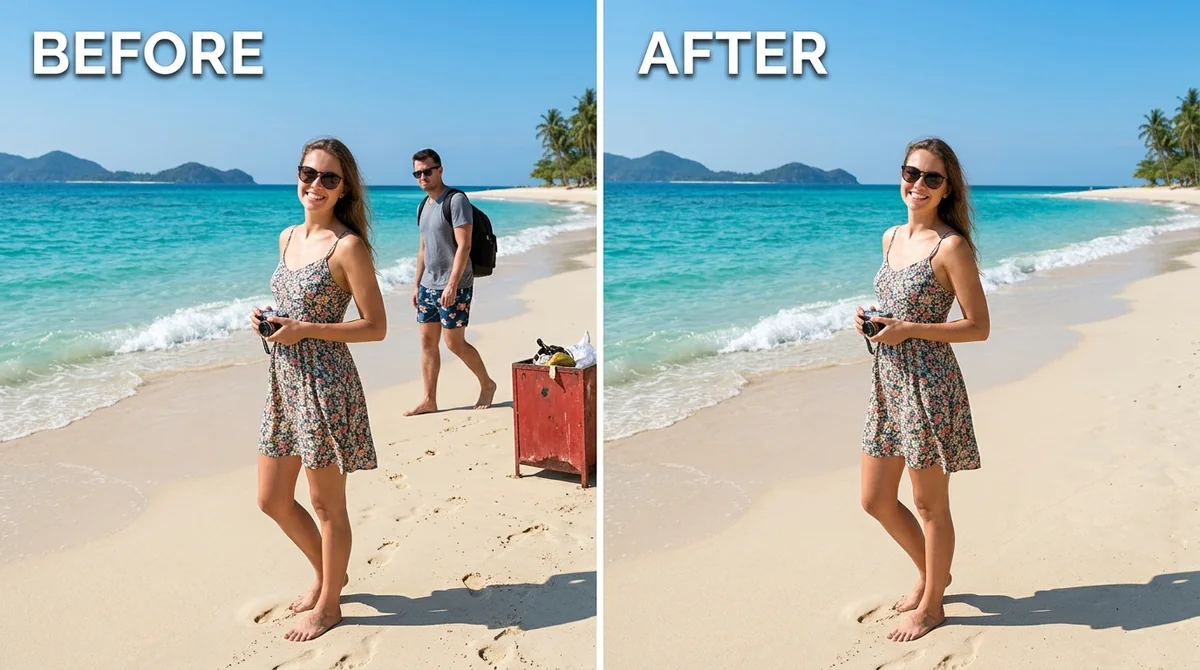
Removing an object from a photo has always had an annoying side effect: the shadow, reflection or footprint it left behind stays put, and it looks wrong once the object is gone. Adobe's new Remove Related Elements feature, in public beta from 1 October 2026, is built to fix exactly that. It extends Adobe's Firefly-powered Remove tool (found in the Photoshop beta, in the Contextual Task Bar) to also clear shadows, reflections, footprints, splashes, ripples, lens flare and smoke connected to whatever you remove.
You don't need Firefly specifically to use this idea. The same approach works in Gemini and ChatGPT's image editing, which is what the prompts below are built for.
Why "just remove it" isn't enough
Symptom: you remove a person, car or object, and the result still has their shadow on the ground, or their reflection in a window or puddle.
Fix: say so directly. Most tools, Firefly included, only remove what you point at unless you tell them to go further:
Remove the [OBJECT] from this photo. Also remove its shadow, reflection and any marks it left on the ground. Fill the area naturally, matching the surrounding light, texture and colour. Keep everything else in the photo exactly the same.
The remove unwanted object prompt and remove a photobomber prompt both work well as a starting point. Add the "also remove its shadow and reflection" line yourself if the first result leaves a trace behind.
Reflections are their own problem
Windows, glass, water and polished floors all throw up reflections, and a reflection can survive even after the object causing it is gone. Be specific about where it is:
Remove the reflection visible in the window behind the subject. Keep the window glass and everything outside it the same. Do not change the subject or add anything new in the reflection's place.
The remove window reflection prompt is built around this exact case, and it's one of the more common edits people ask for in travel and real-estate photos.
Footprints, wet patches and small traces
These are easy to miss when you're checking a result quickly, because they're small. If your edit involves someone walking, standing, or setting something down, mention the ground as a separate instruction:
Remove the [OBJECT] and the footprints or marks it left on the [SURFACE, e.g. sand, snow, wet floor]. Smooth the surface back to how it would look untouched, matching the lighting already in the photo.
Keeping a clean product cutout clean
This matters for product photos too. When you cut a product out onto a plain background, an old shadow from the original photo can linger at the edges. The clean product cutout prompt removes the original shadow and adds a soft, natural one that matches the new background, rather than just deleting the object and leaving a mismatched trace.
Power lines, wires and other background clutter
The same "remove it and what it implies" idea applies to background clutter. Taking out power lines without checking for their shadows on a wall, or wires without their reflection in a wet street, leaves the same kind of giveaway. The remove power lines prompt is written to clear the wires and any shadow they cast together.
Checking the result
Before you call an edit done, look at:
- The ground where the object stood, for a shadow or footprint.
- Any glass, water or shiny surface nearby, for a leftover reflection.
- The edges of the area you removed, for a faint outline or colour mismatch.
If one of these is still there, don't start over. Add one line naming exactly what's left: "there's still a faint shadow on the floor near where the bag was, remove that too."
Where to go from here
For prompts that fix the opposite problem, adding back detail instead of removing it, see how to edit an AI prompt for the general approach to refining a result step by step. Browse more fixes in the photo editing prompts collection, or build a custom removal prompt with the prompt builder.
Quick checklist
- Name the object, then separately name its shadow, reflection or marks.
- Be specific about the surface: ground, glass, water, wall.
- Ask the tool to match the surrounding light and texture when filling the gap.
- Check reflections and shadows near the edit, not just the object itself.
- Fix one leftover trace at a time rather than re-running the whole edit.



Comments
No comments yet. Be the first to share what worked for you.