How to keep the same AI character consistent across images
Published
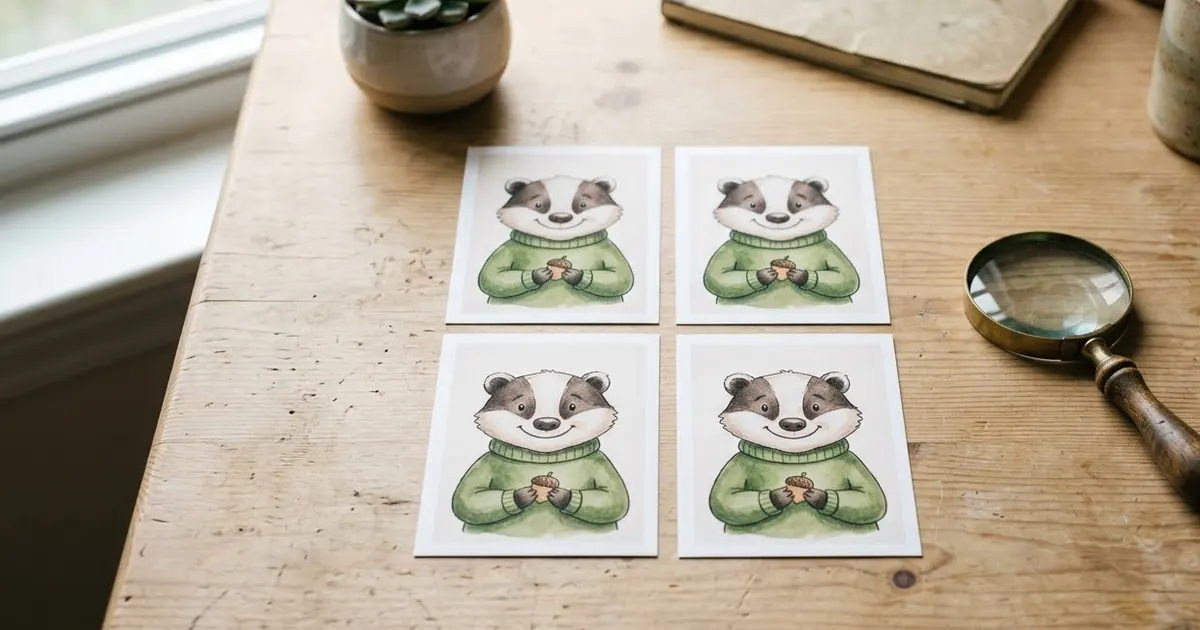
Short answerKeep the same seed or reference image across every generation, describe the character in the same fixed words each time, and change only the setting or pose in your prompt. A character sheet or reference photo works better than a long written description.
Ask an AI image tool for "a woman with curly red hair and green eyes" twice, and you'll usually get two different women. This is the single most common frustration with AI image generation: getting the same character, mascot or product to look the same across several images. Tools are getting better at this on their own, with Adobe Firefly adding dedicated character-consistency controls to its Boards feature and Google's current Gemini image model holding faces steady across several generated objects in one go. But you still get far better results if you prompt for it deliberately.
Why this is hard in the first place
Most image models generate each image from scratch, with no memory of what they made last time. "Curly red hair and green eyes" describes a type of person, not one specific person, so the model picks a slightly different match every time. The fix is to give it something more fixed to copy than words alone.
Start from a reference image, not a description
The single biggest improvement is uploading a reference photo or image and asking the tool to keep that exact subject, rather than describing the subject in words and hoping for the same result twice.
Use the uploaded image as the exact character: same face, same proportions, same colours. Do not change their identity or features.

Put them in a new scene: [NEW SETTING OR POSE]. Keep the character consistent with the reference in every other way.
This works whether the "character" is a real person's photo, an illustrated character, or a product. If you don't have a reference image yet, generate one first, then reuse that exact output as the reference for every image after it.
Build a character sheet first
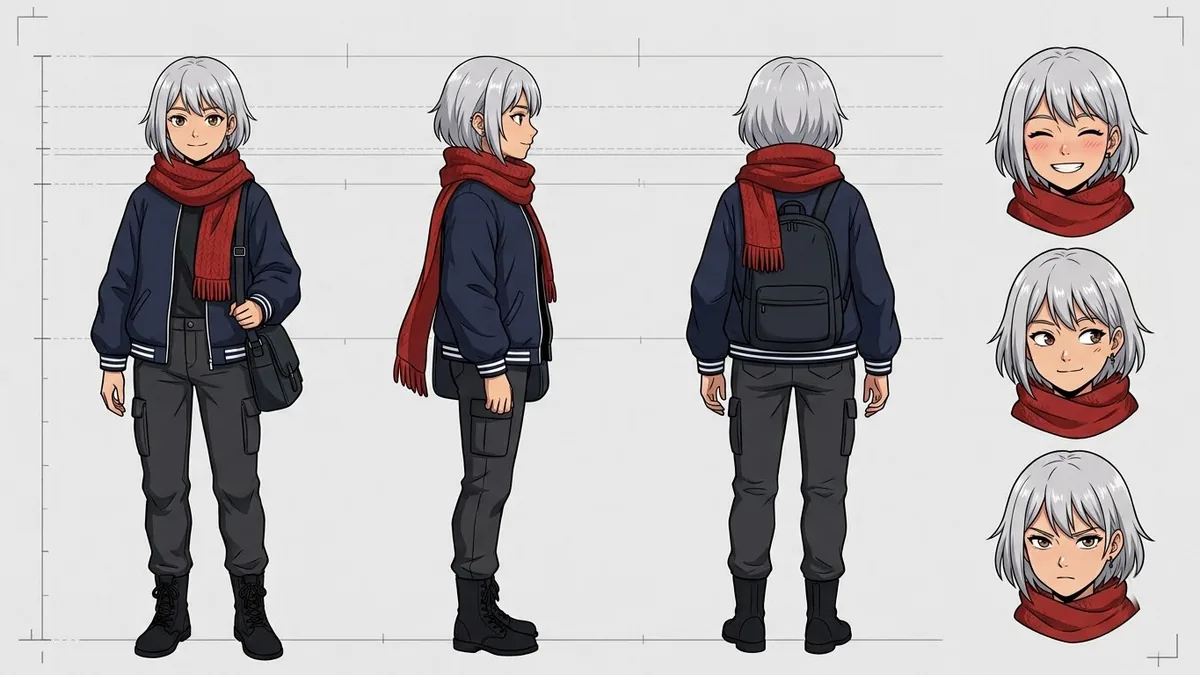
For an illustrated character you'll use across many images, generate a character sheet before anything else: the same character from the front, side and a three-quarter angle, in one image. The anime character design sheet prompt does this well. Once you have it, feed it back in as the reference for every new pose or scene, instead of describing the character again from memory.
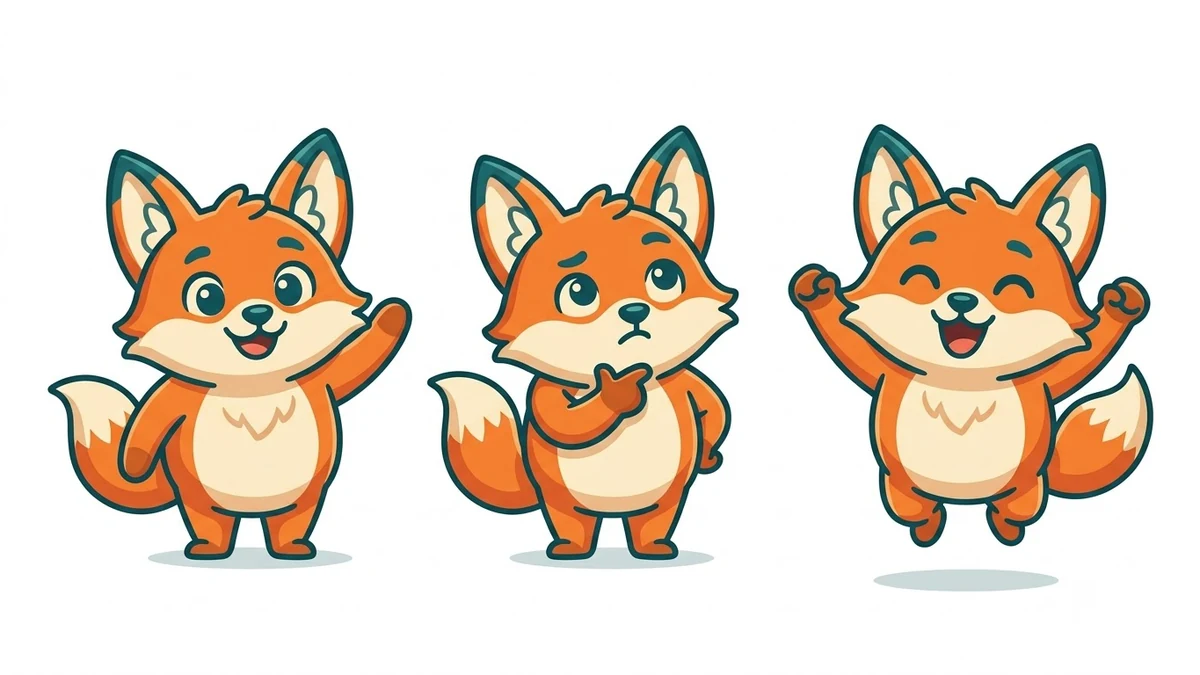
The same approach works for a brand mascot. Start with the friendly brand mascot prompt to lock in the design, then reuse that exact image as your reference going forward rather than regenerating the mascot from its description each time.
Keep your written description identical
If you are describing the character in words at all, use the exact same sentence every time, word for word. Small changes, such as swapping "ginger hair" for "red hair" between prompts, are enough to shift the result. Save your character description somewhere and copy-paste it into every new prompt rather than retyping it from memory.
Changing the outfit without changing the person
A common version of this problem is wanting the same person in different clothes. Say explicitly what should stay the same and what should change:
Keep the exact same face, body, pose and background from the uploaded photo. Change only the clothing to: [NEW OUTFIT]. Match the lighting already in the photo.
The virtual outfit try-on prompt is built around this split, which is also the trick behind most AI shopping try-on features: hold the person fixed, and treat the outfit as the only variable.
Putting a character into a scene or panel
Once a character is locked with a reference image, you can drop them into a new setting the same way. The comic book panel prompt and a set like the panda emoji set both rely on a consistent subject shown in several small variations, which is a good way to test how well your reference is holding up: if the fourth panel starts drifting from the first, go back to describing less and referencing more.
When it still drifts
- Regenerate from the reference, not from a previous generation. Each copy of a copy loses a little accuracy. Always go back to your original reference image.
- Simplify the character. A very detailed description, with many specific features, gives the model more chances to get one of them wrong. A few strong, distinctive features work better than a long list.
- Check which tool holds consistency best for your case. Some tools are noticeably better at faces, others at objects or illustrated styles, so it's worth testing the same reference across two tools if one keeps drifting.
Where to go from here
If you're trying to keep a cartoon version of yourself consistent across a series of images, see cartoon in real life AI photo prompts. Browse more character and portrait ideas in the image generation prompts collection, or build your own consistent-character prompt with the prompt builder.
Quick checklist
- Upload a reference image rather than relying on a written description alone.
- Build a character sheet first if you'll reuse the character often.
- Keep your written description word-for-word identical across prompts.
- State exactly what should stay the same and what should change.
- Regenerate from the original reference, not from a previous result.

Comments
No comments yet. Be the first to share what worked for you.