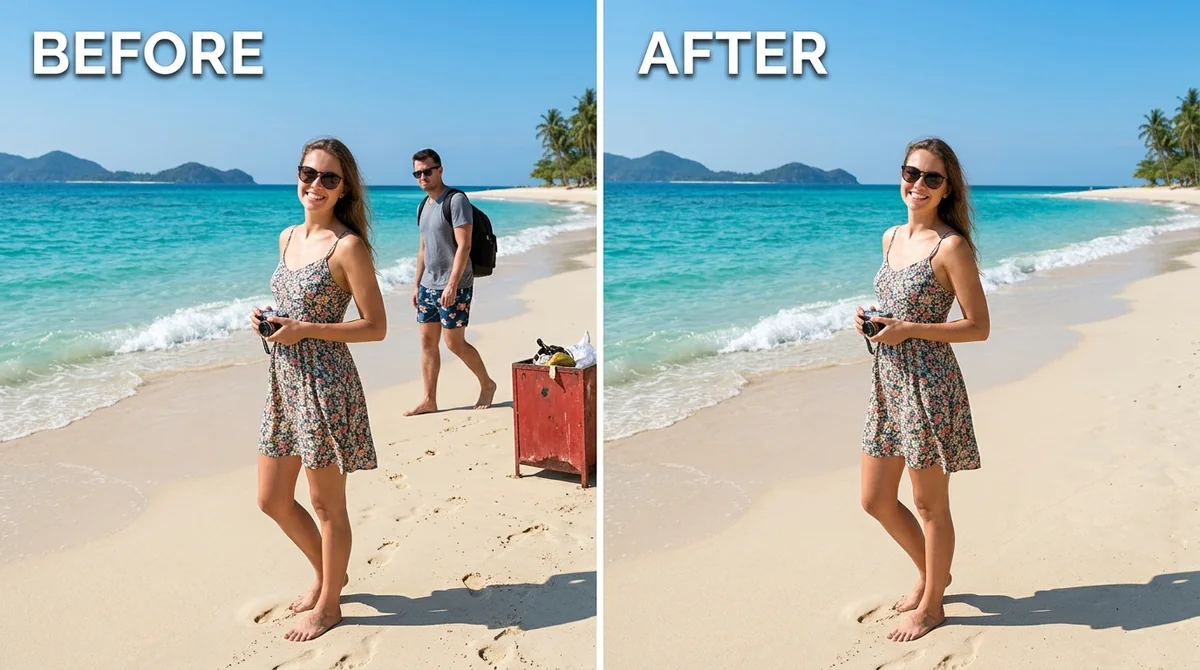
- Updated
Remove an unwanted object or photobomber: AI prompt
This prompt removes the object or person you name and asks the AI to reconstruct the background, floor and lighting behind them so no seam, blur or distortion is left. Describing what lies behind the object helps the AI fill it accurately.
Cleanly remove [OBJECT OR PERSON TO REMOVE] from this photograph. Seamlessly reconstruct the background, floor, and lighting behind them so that no trace, seam, blur, or distortion remains.
Be specific about what lies behind the object so the AI fills it accurately.
Your photo goes to the AI app you choose, never to PromptUp.
Get a better result
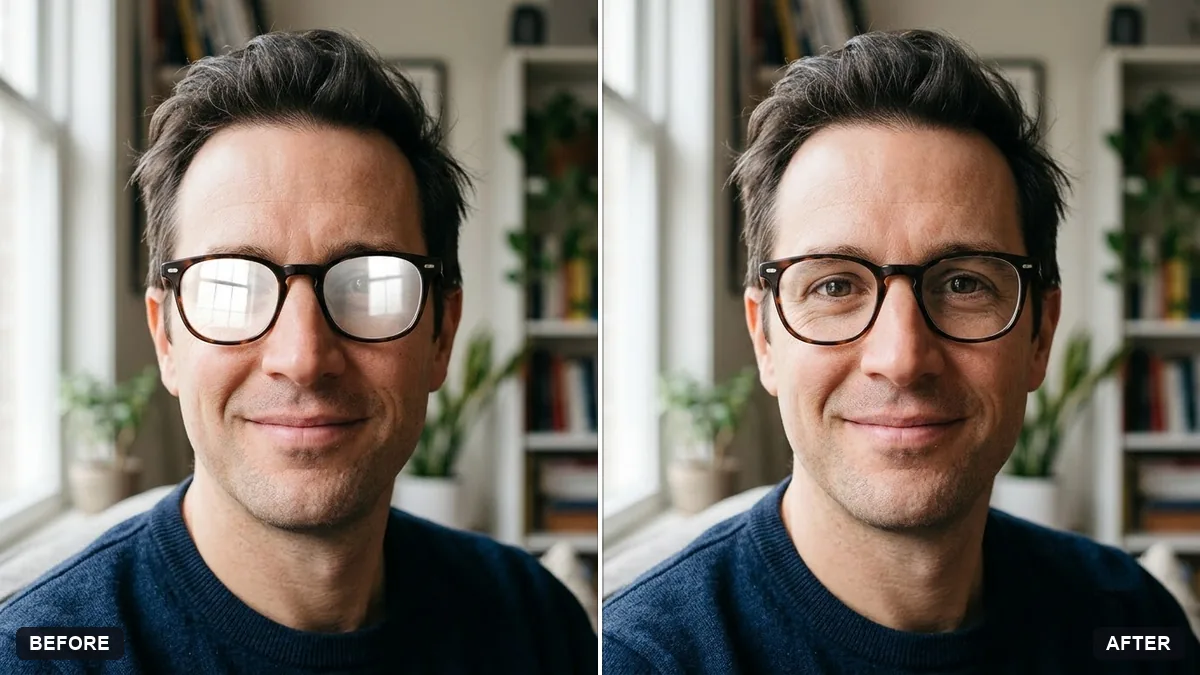
The same photo with the object or person you named removed, and the background, floor and lighting rebuilt so that no seam, blur or distortion remains.
The removed area is filled with a smudge or a repeated texture.
Fix: Say what should be there: “continue the sandy beach and the line of the wave”. Describing the hidden background gives the AI a target.
- The shadow or reflection of the removed item stays behind. Add “also remove its shadow and any reflection in water or glass”. The shadow is part of the object.
- The edit changes the rest of the photo, such as colours or other faces. Add “leave everything else unchanged”, then compare the corners of the photo before and after.
For more than one item, remove them one per message: first the person, then the bin, then the sign. Checking each result catches mistakes early.
Also remove its shadow and reflection, fill the gap with the same ground and background, and leave everything else unchanged.
Guides that use this prompt
More photo editing prompts
See all 334 →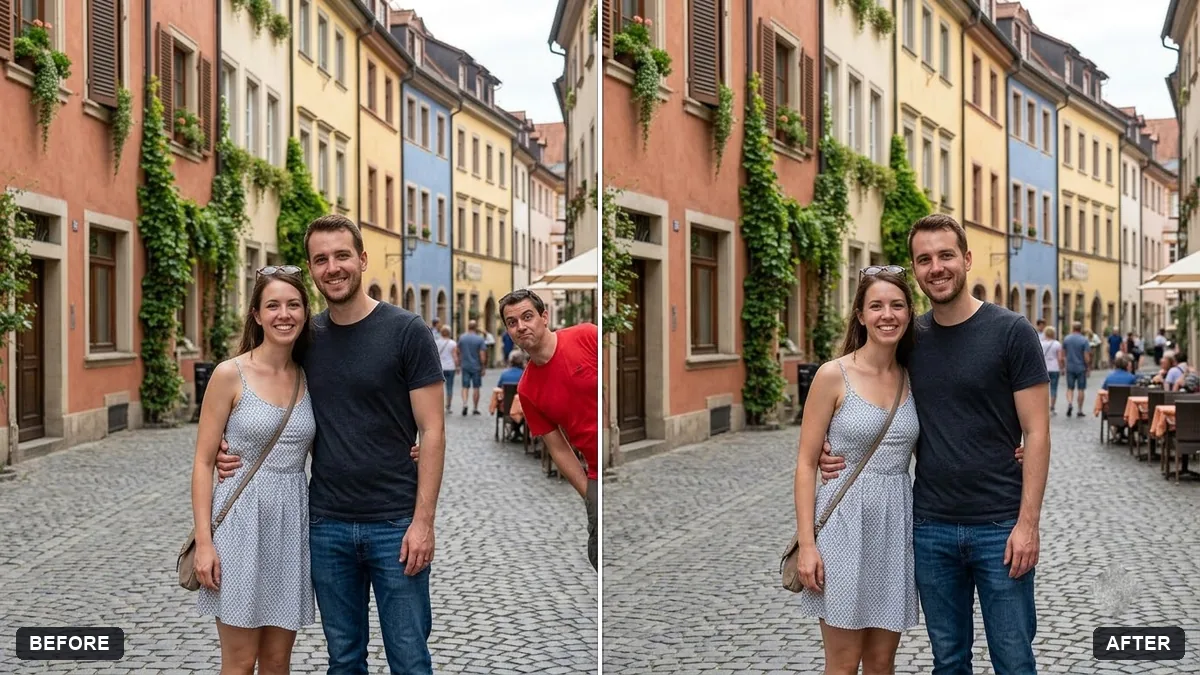
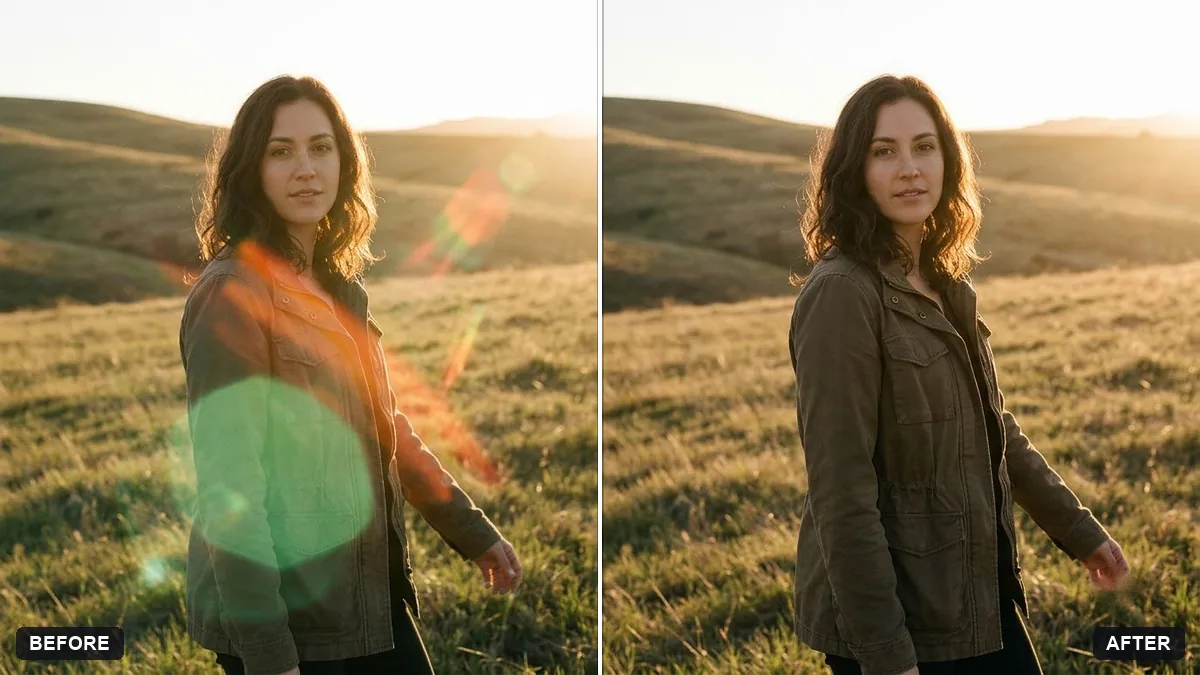
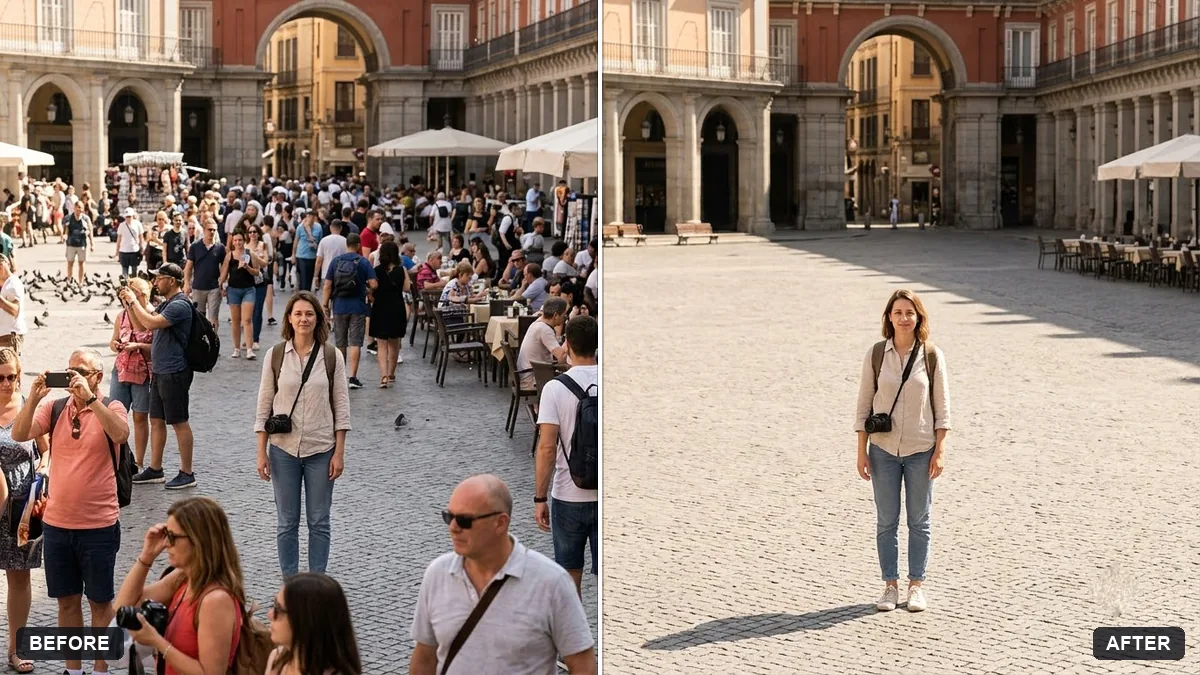
More like this
- Clear crowds from a beach photoGemini · ChatGPT
- Remove reflections from window shotsGemini · ChatGPT
- Remove signs and clutter from a street photoGemini · ChatGPT
- Tidy a cluttered backgroundGemini · ChatGPT
- Blur strangers in the backgroundGemini · ChatGPT