- Updated
Remove signs and clutter from a street photo
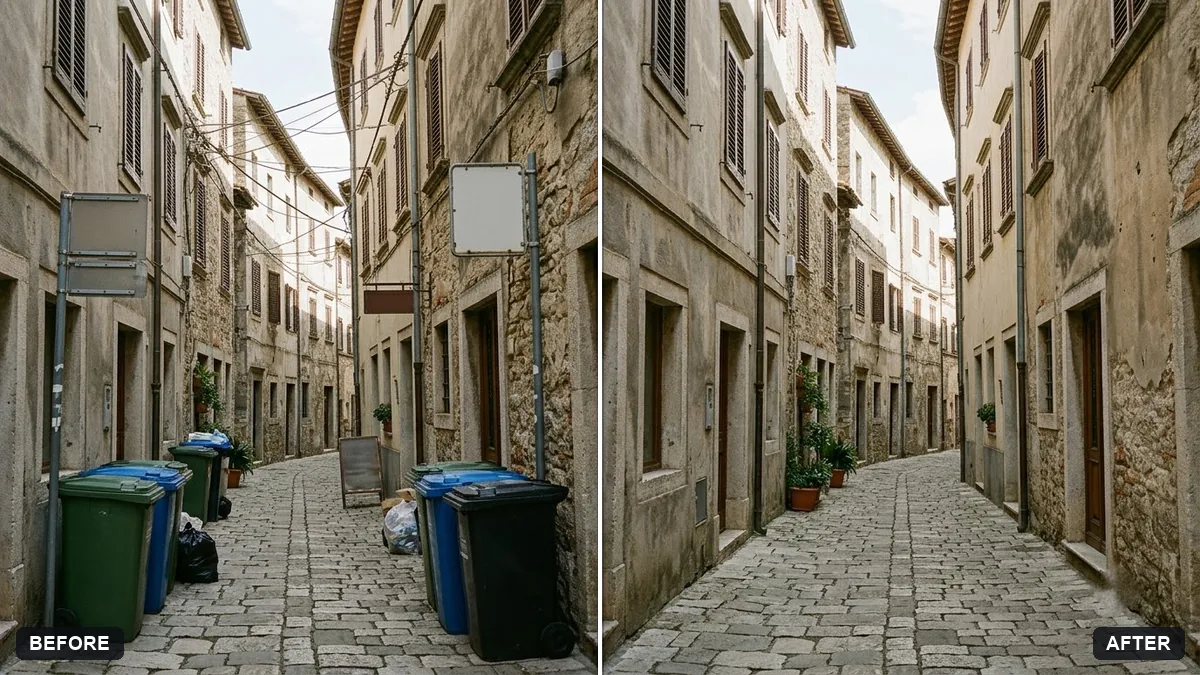
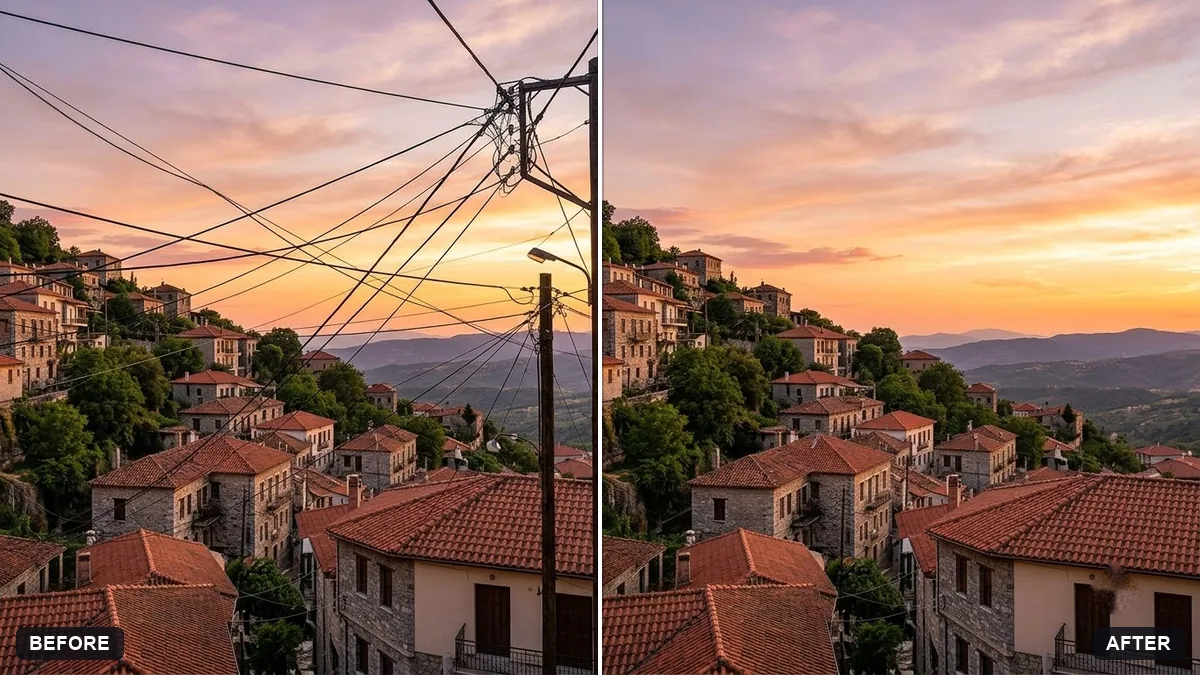
This prompt removes the distracting items you list from a street photo and fills the gaps to match the surrounding textures and lighting.
Remove these distracting items from this street photo: [SIGNS, WIRES, BINS]. Fill the gaps naturally, matching textures and lighting.

Keep the buildings, people and the rest of the scene unchanged.
List each thing you want to remove so the AI does not remove too much.
Your photo goes to the AI app you choose, never to PromptUp.
Get a better result
Your street photo without the signs, wires or bins you listed, with the gaps filled to match the textures and light, while the buildings, people and everything else remain unchanged.
The AI removes more than you listed.
Fix: Follow the tip: name each item with its place, for example “the blue dustbin on the left and the yellow sign above the door”.
- The wall behind a sign looks smooth and fake. Add “continue the brick or plaster texture, including cracks and stains, so the area looks the same as the wall around it”.
- A shopfront name is changed rather than removed. If you want a name gone, say “remove the text completely and leave a plain wall”. Do not ask for new signage in the same prompt.
For a cluttered street, run the prompt once per item and reply “now also remove the next one”. Each pass stays cleaner than one long list.
Remove only the items I listed and nothing else. Keep the buildings, people and the other signs exactly as in my photo.
Guides on this topic
More photo editing prompts
See all 334 →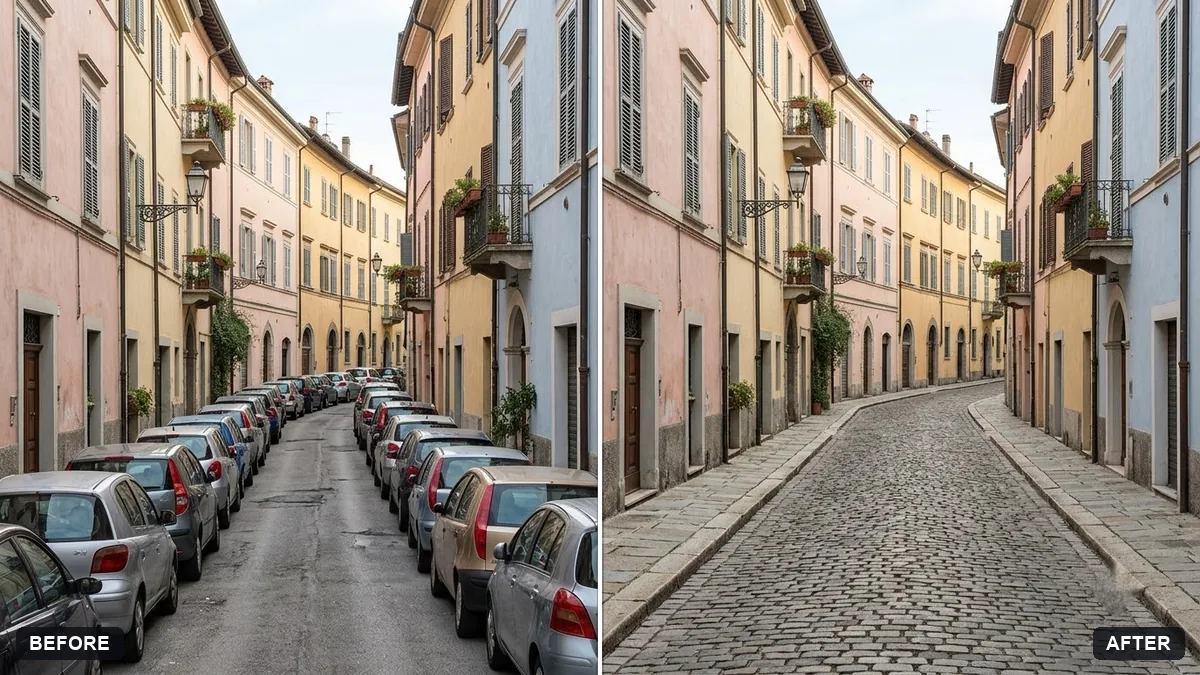
More like this
- Tidy the background of a team photoGemini · ChatGPT
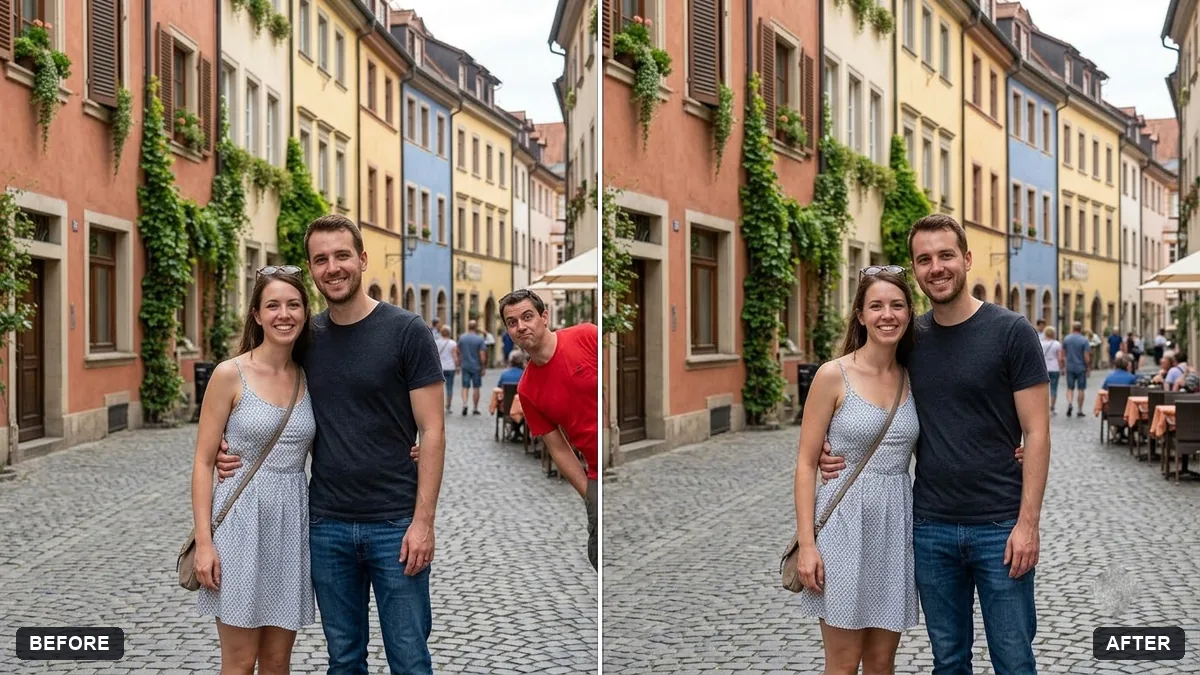
- Remove crowds from a tourist photoGemini · ChatGPT
- Clean up an event stage photoGemini · ChatGPT
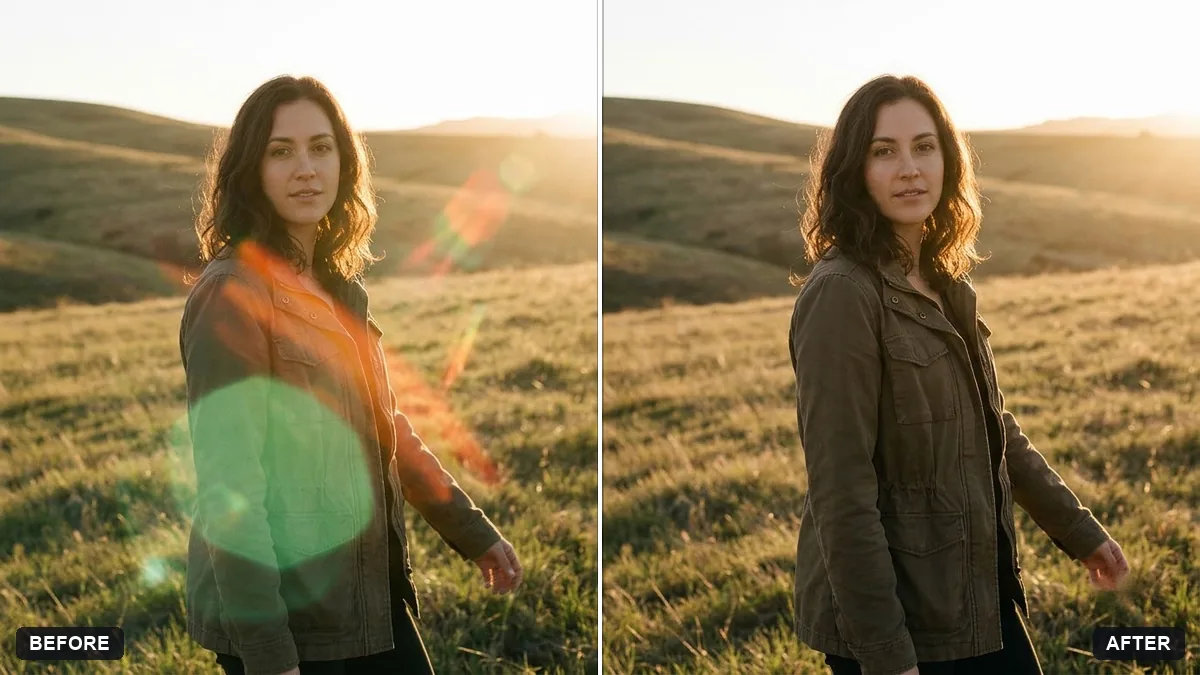
- Remove glare from eyeglassesGemini · ChatGPT
- Blur strangers in the backgroundGemini · ChatGPT