- Updated
Remove unwanted lens flare
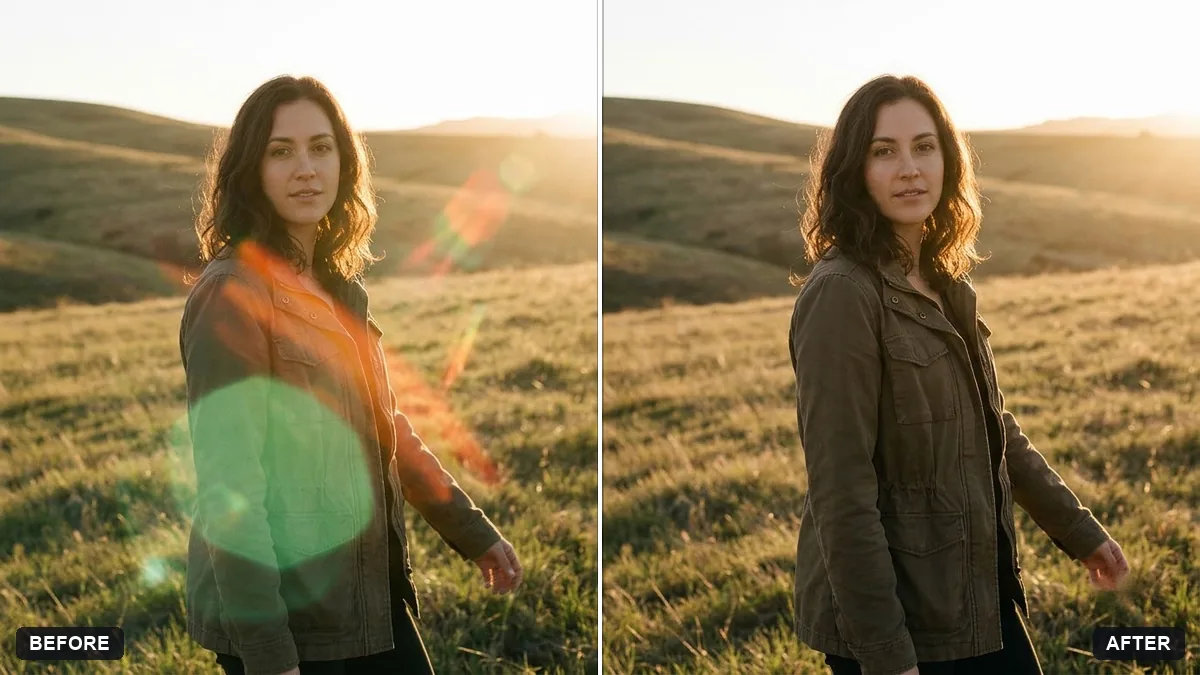
This prompt removes lens flare and streaks near an area you name and rebuilds the detail behind them, keeping the overall warm sunlight and mood. If the flare touches a face, ask for careful skin detail.
Remove the [GREEN / ORANGE] lens flare and light streaks from this photo, especially near the [AREA]. Rebuild the detail behind them naturally.

Keep the overall warm sunlight and mood of the photo. Do not change the subject or composition.
If the flare touches a face, ask the AI to rebuild the skin detail carefully.
Your photo goes to the AI app you choose, never to PromptUp.
Get a better result
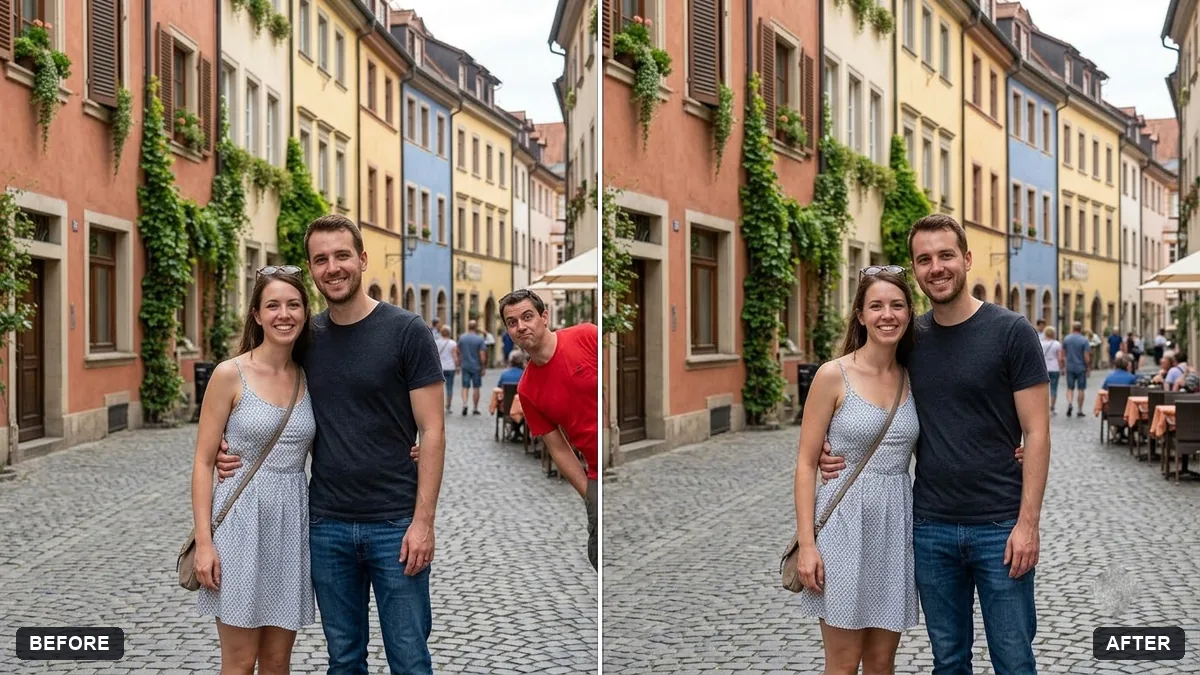
Your photo with the green or orange lens flare and light streaks gone, the detail behind them rebuilt, and the warm sunlight and mood of the original kept.
Flare removal means rebuilding what was hidden, so the prompt asks for natural detail behind the streaks. Keeping the warm sunlight and mood stops the photo going flat. Naming the colour and area points the edit.
The flare is removed, but a smooth patch is left.
Fix: Say “rebuild the texture behind it, such as leaves, sky gradient or skin, matching the surroundings”.
- The whole photo loses its warm glow. Add “keep the warm sunlight, soft glow and colour grade, remove only the flare shapes”.
- The wrong area is changed. Point to the exact area in the bracket, such as “top right, above the shoulder”, and say nothing else may change.
Ask to remove the hard streaks but keep a gentle haze at the light source, so the photo still feels like real sunlight.
Keep the repair, but make it softer on the face. Keep my real skin texture and check the edges of the hair and shoulders for smudges.
Guides on this topic
More photo editing prompts
See all 334 →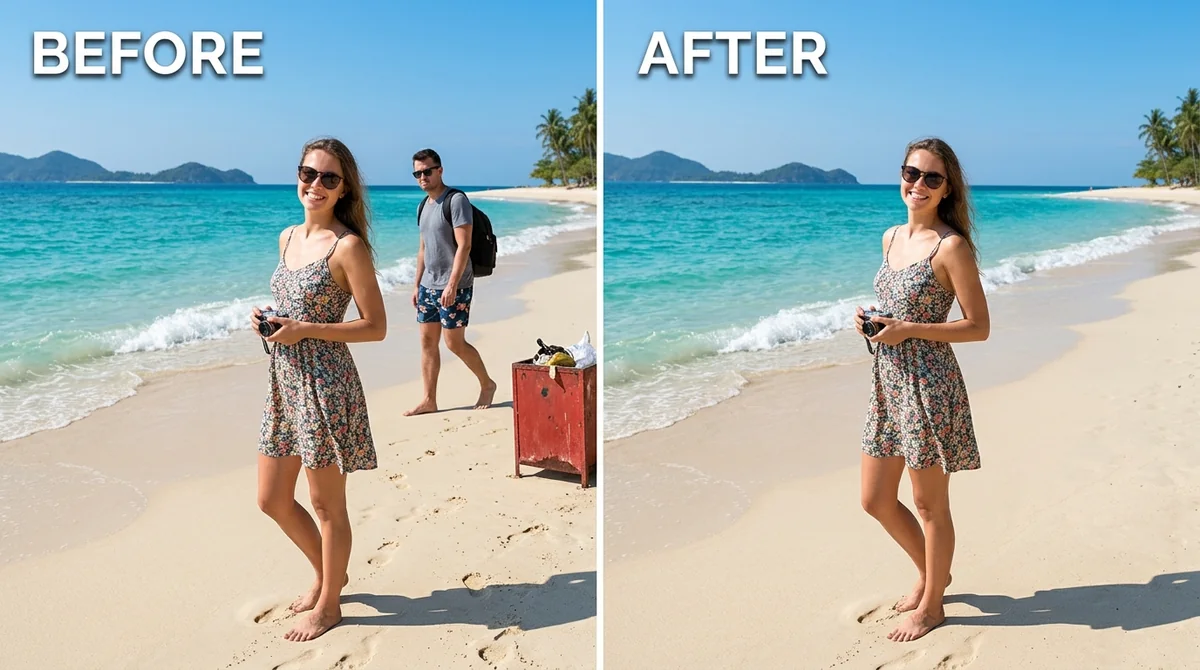
More like this
- Remove reflections from window shotsGemini · ChatGPT
- Clear crowds from a beach photoGemini · ChatGPT
- Remove glare from eyeglassesGemini · ChatGPT
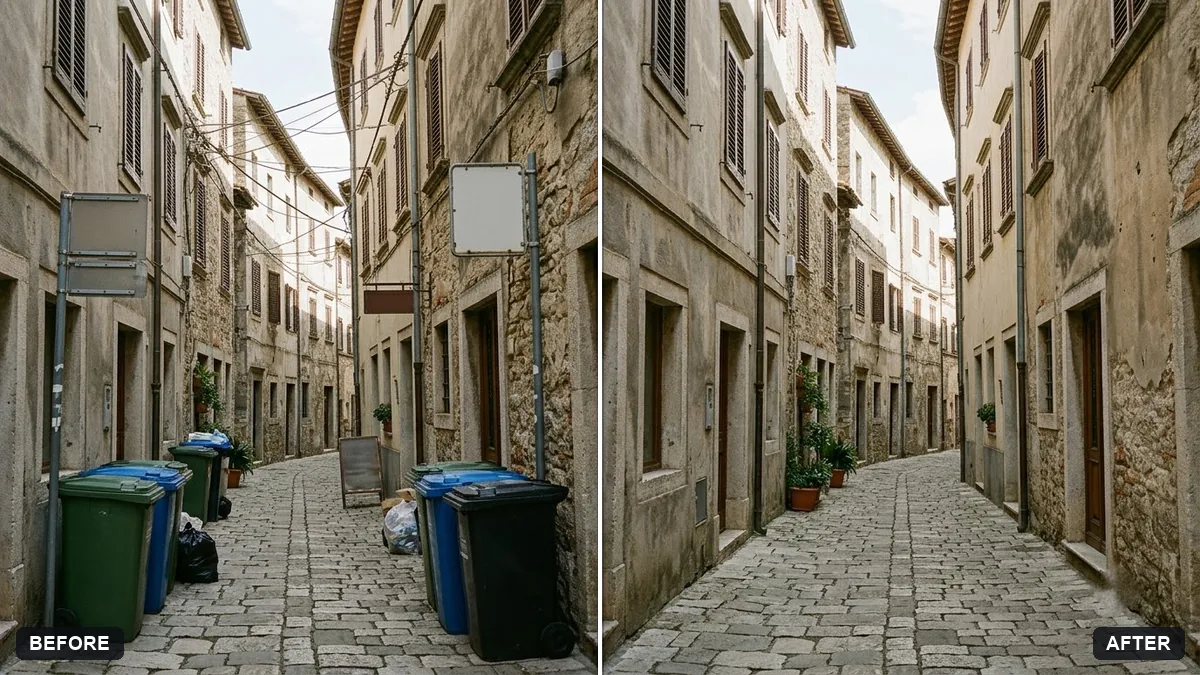
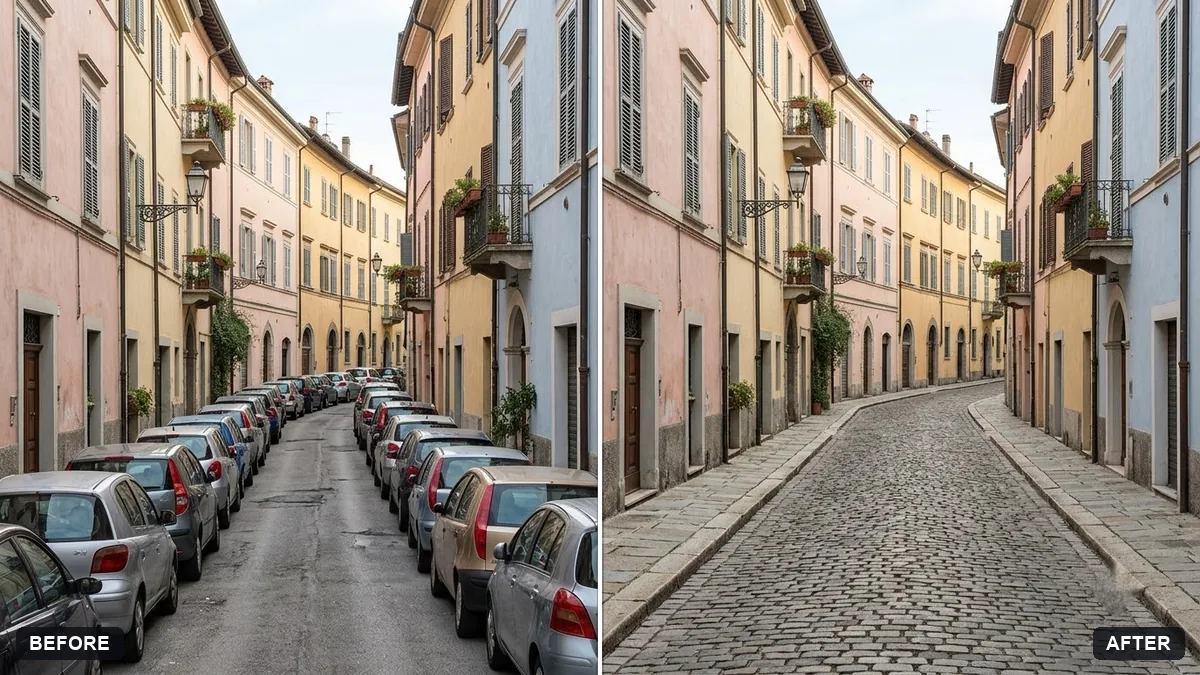
- Remove crowds from a tourist photoGemini · ChatGPT
- Remove power lines and wires from the skyGemini · ChatGPT