- Updated
Preview artwork on your wall
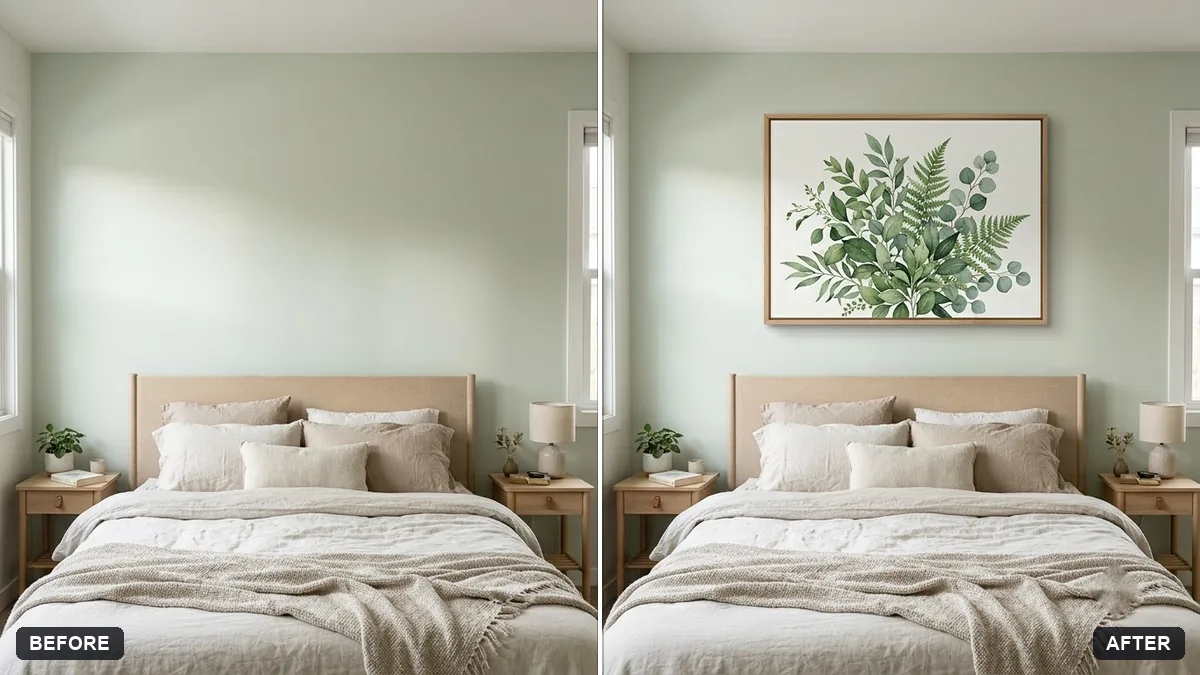
This prompt hangs the artwork from the second photo on the wall in the first, matching the lighting and perspective with a soft natural shadow, without changing the room. Try different sizes to compare.
Hang the artwork from the second photo on the [COLOUR] wall in the first photo above the [SOFA / BED / DESK], sized about [SIZE]. Match the lighting, perspective and add a soft natural shadow.

Do not change the room in any other way. Keep the artwork's colours accurate.
Try different sizes in separate prompts before you buy or print.
Your photo goes to the AI app you choose, never to PromptUp.
Get a better result
Your room photo with your chosen artwork hanging at the size you named above the sofa, bed or desk, with a soft shadow, matched perspective and the picture’s true colours.
The artwork looks tilted or does not fit the wall’s angle.
Fix: Photograph the wall as straight-on as you can. A photo taken from a corner makes the perspective hard to match.
- The size looks wrong. Write real measurements, such as “60 by 90 cm” and “the sofa is about 200 cm wide”, so the AI can scale it against something in the room.
- The artwork’s colours shift to fit the room. Repeat “keep the artwork’s colours accurate, do not recolour it to match the room”. Compare it with the original file before you buy.
Upload three artworks and ask for them as “a balanced row of three frames with equal gaps, centred over the sofa”. Check the overall width against the furniture.
Keep the room and the artwork exactly as before. Make the artwork 20% smaller and hang it a little higher above the sofa.
Guides on this topic
More photo editing prompts
See all 334 →
More like this
- Preview new bathroom tilesGemini · ChatGPT
- Preview new curtainsGemini · ChatGPT
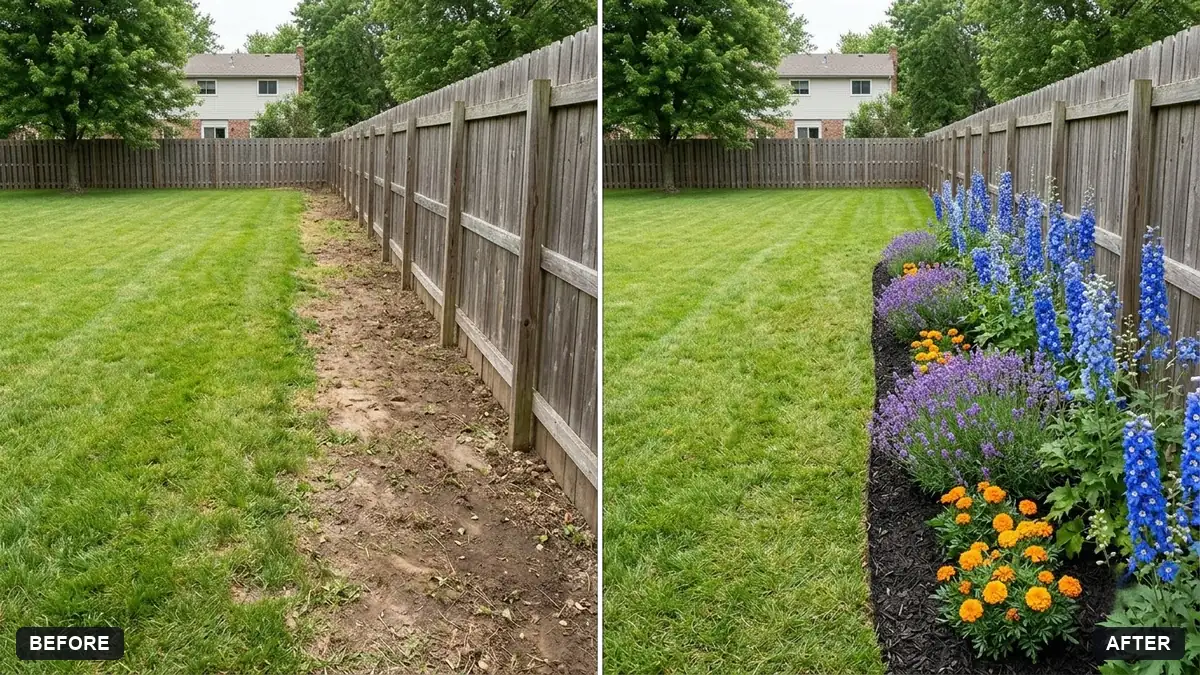
- Garden makeover previewGemini · ChatGPT
- Repaint your house exterior previewGemini · ChatGPT
- Kitchen remodel previewGemini · ChatGPT