AI prompts to fix the lighting and colour problems in your photos
Published
Short answerName the exact problem and where it is in the photo, point to something that should look neutral (white, grey, or a face) so the AI has a reference, and tell it to keep everything else, including your features and the background, exactly the same.
Full collectionAI photo enhancer prompts19 prompts with examples, steps and fixes →Most photos don't fail because of composition. They fail because of light: glare across glasses, a window that's blown out to white, indoor bulbs turning everyone orange, or hard midday sun carving shadows under someone's eyes. These are small, specific problems, and AI photo tools are good at fixing specific problems when you describe them specifically.
This is different from recovering a photo that's generally blurry or dark everywhere; the blurry and dark photo guide covers that case. This one is for photos that are otherwise sharp, but have one lighting or colour problem getting in the way.
Say where the problem is, not just that one exists
"Fix the lighting" is too vague for a model to act on well. Naming the exact spot gives it something to target:
Fix [THE SPECIFIC PROBLEM] in [THE SPECIFIC AREA, e.g. the sky / my face / the left side of the photo] in this photo.

Keep every person, object and the rest of the lighting exactly as they are. Do not change anything outside the area you're fixing.
Every prompt below is a version of this same structure. The more specific the location, the less the model has to guess, and the less it tends to touch things you didn't ask about.
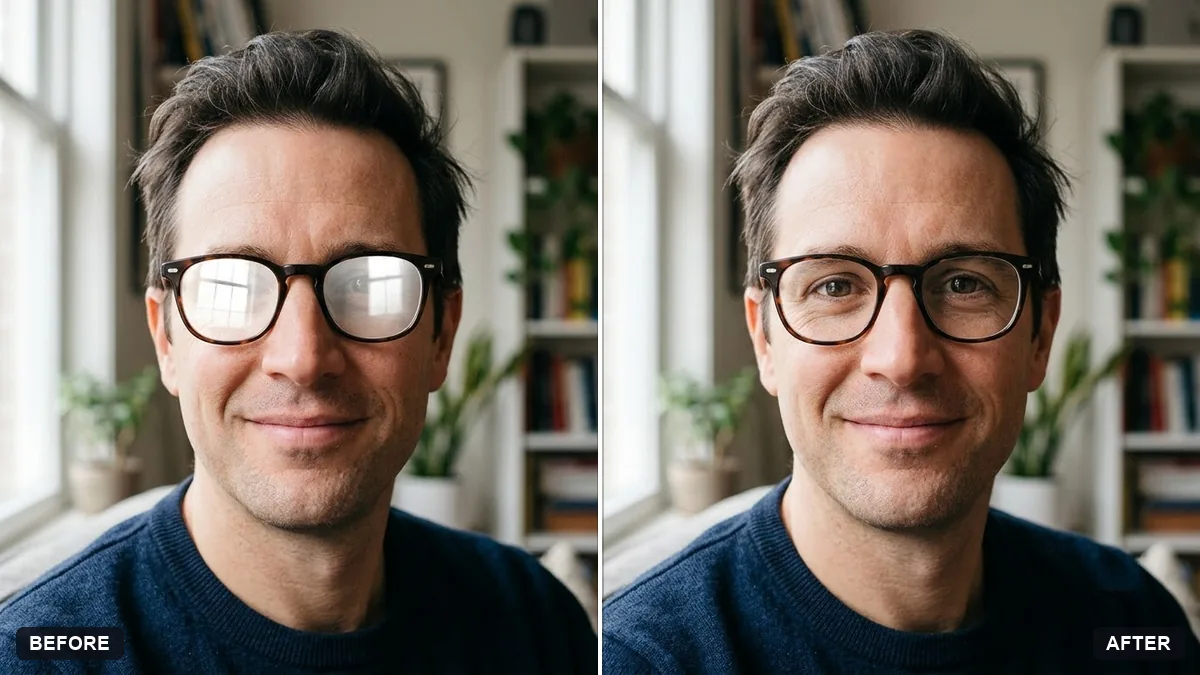
Glare across glasses
This one is common and usually ruins an otherwise good portrait, since it hides the eyes entirely:
Remove the glare and reflections from the lenses of my [GLASSES TYPE, e.g. prescription] glasses in this photo. Keep the glasses frame, my eyes and my face exactly as they are.

Show my real eyes clearly through the lenses with a natural, slight lens tint. Do not change anything else in the photo.
This is the glasses glare prompt. Only ask for this on your own photos, since it reveals detail (your eyes) that the original photo was hiding.
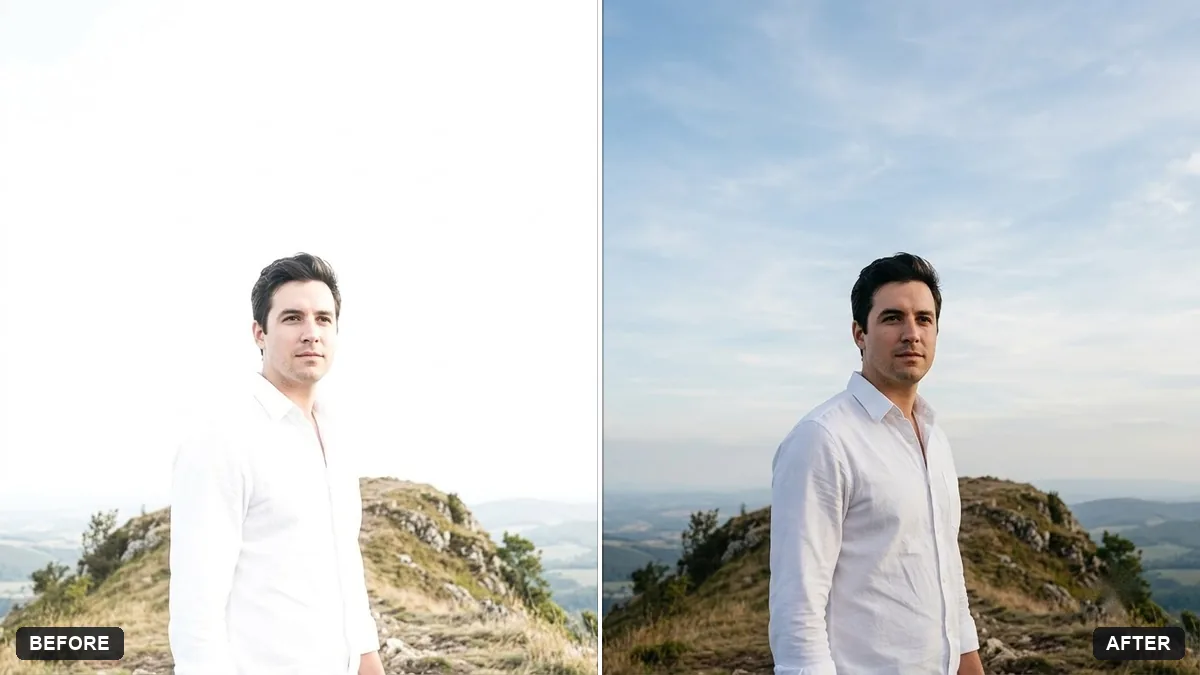
A blown-out sky or window
Bright skies and sunlit windows are a classic problem: expose for the room and the window turns to pure white; expose for the window and the room goes dark.
Recover the blown-out highlights in this photo. Bring back detail in the [SKY / WINDOW / WHITE CLOTHING] and reduce the harsh glare there.

Balance the exposure evenly across the photo, keep natural colour and contrast, don't make it look HDR, and keep every person and object unchanged.
The highlight recovery prompt works best when you tell it exactly where the blown-out area is, rather than leaving it to find the problem itself.
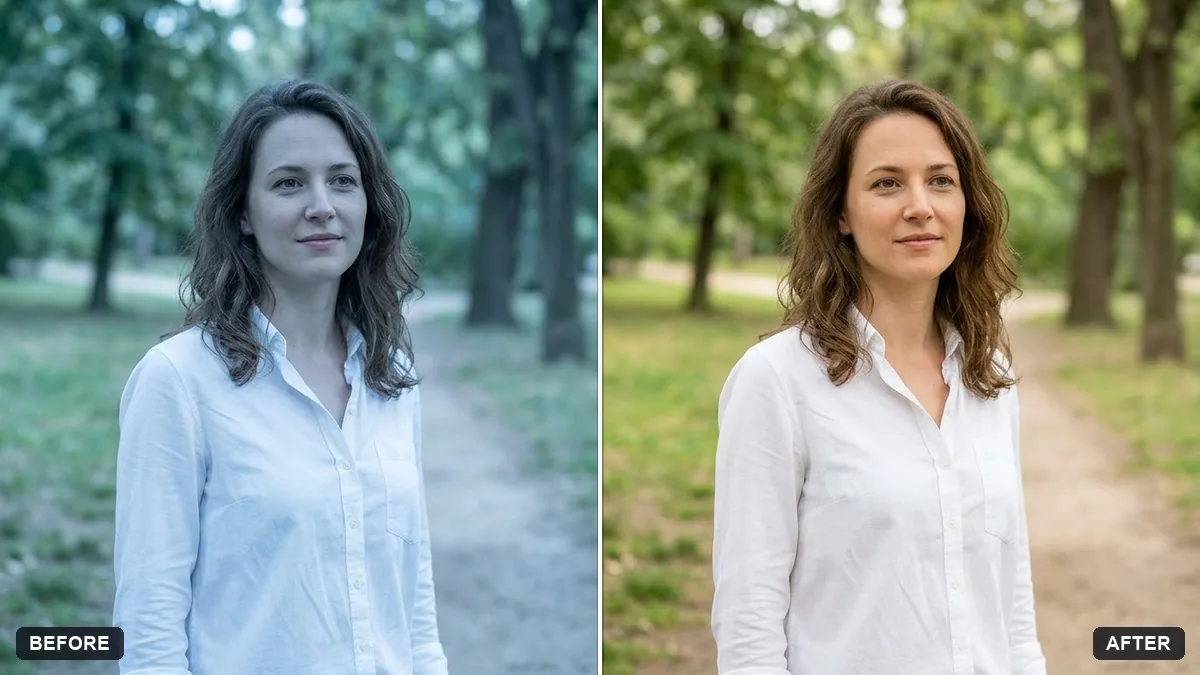
A yellow, blue or green colour cast
Indoor bulbs, shade and fluorescent lighting all throw a colour cast across a whole photo, and it's often more obvious in a photo than it was to your own eyes at the time:
Correct the colour cast in this photo. It looks too [YELLOW / BLUE / GREEN] because of [e.g. indoor bulbs / open shade / fluorescent lights].

Make whites truly white and skin tones look natural. Keep the overall mood, don't oversaturate, and keep every detail and person exactly the same.
This is the white balance prompt. If you can point to something in the photo that should be white or grey (a wall, a shirt, a piece of paper), mention it. It gives the model a reference point to calibrate against, the same way a photographer uses a grey card.
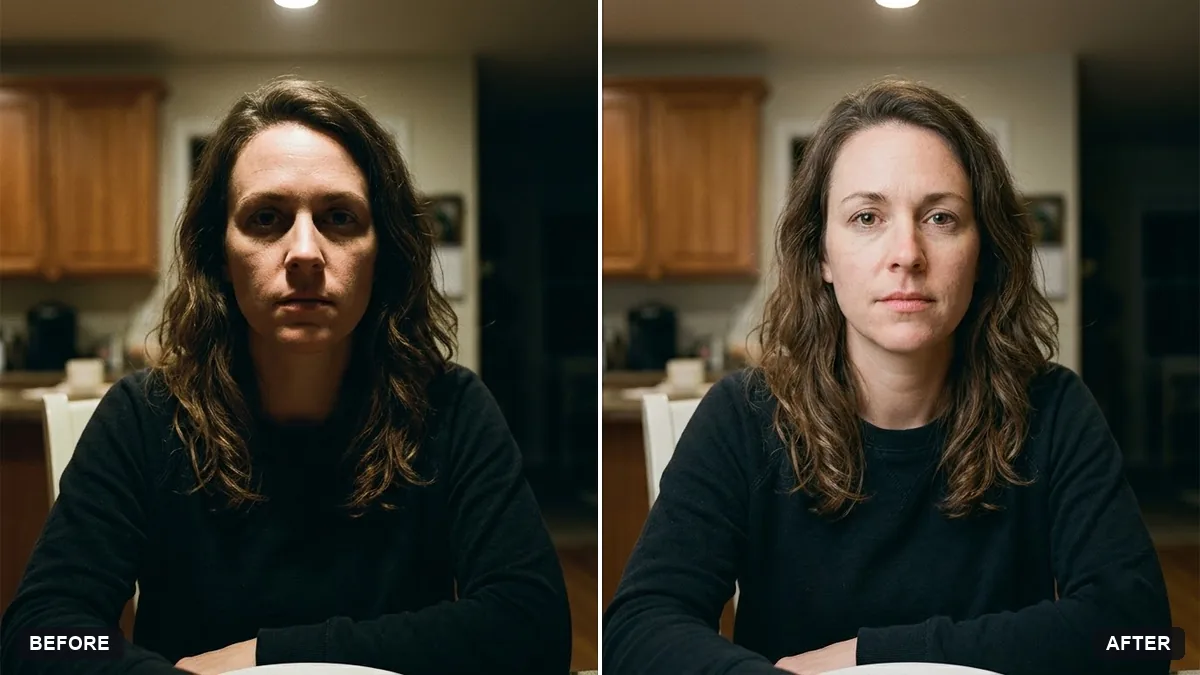
Harsh shadows on a face
Overhead light, direct flash and strong midday sun all carve hard shadows under the eyes, nose and chin:
Soften the harsh shadows on my face in this photo, caused by [OVERHEAD LIGHT / DIRECT SUNLIGHT / FLASH]. Lift the shadows under my eyes, nose and chin gently.

Keep my face shape, expression and natural skin texture exactly the same. Don't smooth skin or change my features. Keep the background unchanged.
The soften shadows prompt is deliberately narrow: it should even out the light, not retouch your skin. If the result looks over-smoothed, add "keep visible skin texture, including pores" to the prompt.
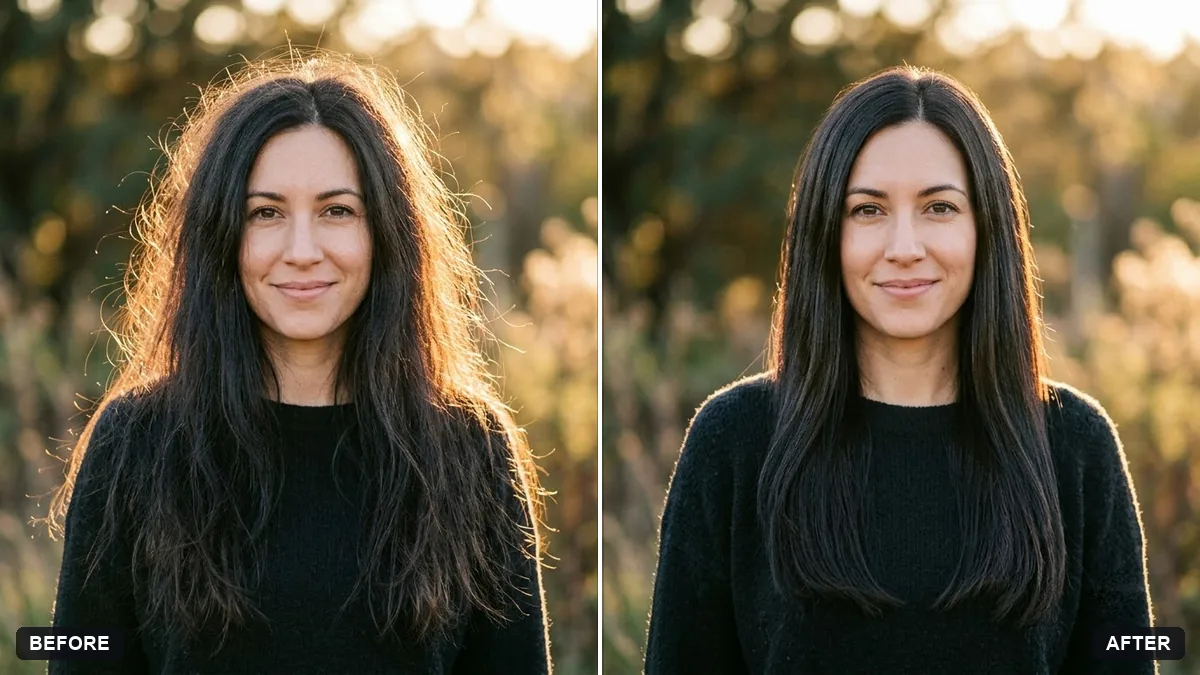
Flyaway hair
A small, specific fix that makes a bigger difference than its size suggests, especially outdoors or in wind:
Tidy the flyaway strands of hair in this [PORTRAIT / FULL-BODY] photo. Keep my hairstyle, hair colour, length and parting exactly the same.

Smooth only the loose strands around my head and shoulders, keep natural volume and texture, and don't change my face, skin or clothing.
This is the flyaway hair prompt. It's a good example of a rule worth applying everywhere in this guide: a small, specific edit usually looks more convincing than a heavy, general one.
If the first result overcorrects
Each of these problems has an opposite failure mode, where the fix goes too far:
- Too flat. If recovering highlights or fixing shadows leaves the photo looking washed out, ask for "the same fix, but keep more contrast."
- Too smooth. If a face or hair fix looks plastic, add "keep natural skin and hair texture, don't smooth it."
- Still off. If a colour cast fix doesn't fully land, point at a second neutral reference in the photo and ask it to match that too.
Where to go from here
If the whole photo is blurry or dark, rather than one specific area, the blurry and dark photo guide is the better starting point. Browse the full photo editing prompts collection for more fixes, or use the prompt builder to write one for your own photo.
Quick checklist
- Name the exact problem and exactly where it is in the photo.
- Point to something that should look neutral, like a white wall or a shirt, when fixing colour.
- Say what must stay unchanged: your face, your features, the background.
- Keep each fix narrow; don't ask for a colour fix and a retouch in the same breath.
- If it overcorrects, ask for less of the same fix rather than starting over.
Prompts to try
More prompts on this topic
- Fix yellow indoor lightingGemini · ChatGPT
- Fix wide-angle lens distortionGemini · ChatGPT
- Fix red-eye in flash photosGemini · ChatGPT
- Brighten a face in a backlit photoGemini · ChatGPT
- Fix a weird AI photo (hands, face, skin)Gemini · ChatGPT
- Fix an overexposed baby photoGemini · ChatGPT



Comments
No comments yet. Be the first to share what worked for you.