- Updated
T-shirt design mockup on a person
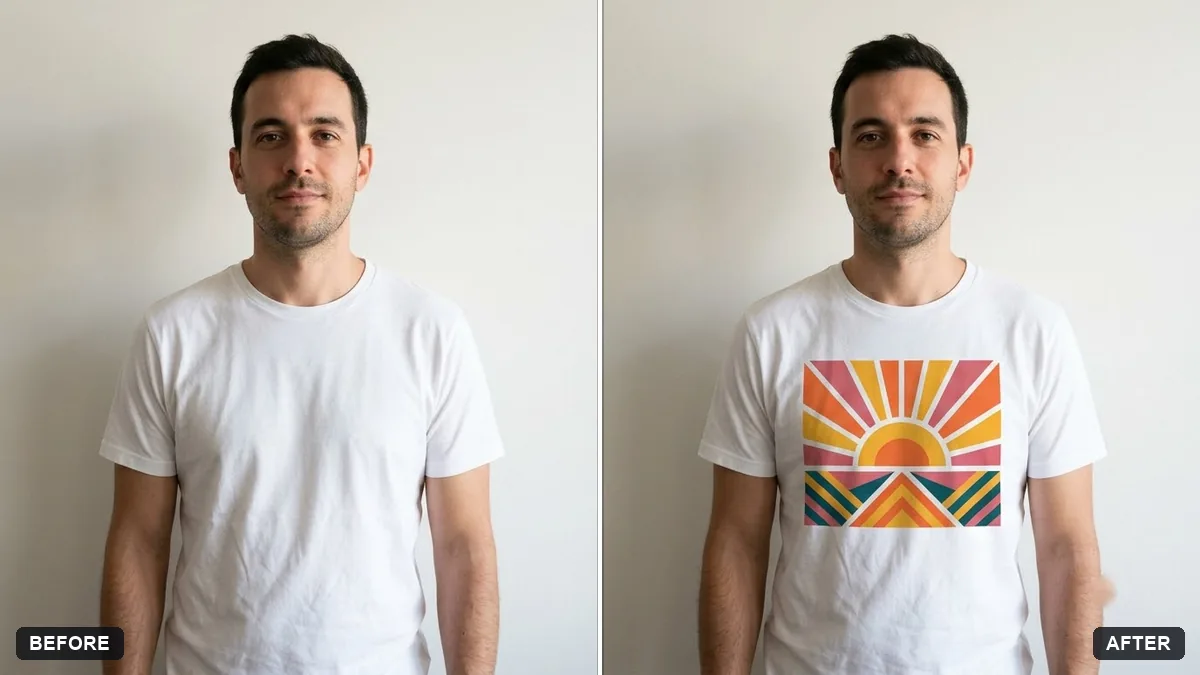
This prompt puts your design, the first image, on a t-shirt of a colour you choose worn by the person in the second photo.
Put my design (the first image) on the [COLOUR] t-shirt worn by the person in the second photo. Keep the person, pose, face and background exactly the same.

Position the design centred on the chest at [SIZE], follow the fabric folds and lighting realistically, keep the print colours accurate.
Use a plain t-shirt photo for the cleanest mockup.
Your photo goes to the AI app you choose, never to PromptUp.
Get a better result
The person in your second photo wearing a t-shirt in your chosen colour, with your design from the first image centred on the chest, following the folds and light of the fabric, with the pose and background unchanged.
The design is redrawn and the letters are not the same.
Fix: Say “do not redraw the design, place the first image exactly as uploaded”. Compare each letter, and keep the artwork simple.
- The tool treats the wrong picture as the design. Name them: “Image 1 is the flat artwork, image 2 is the person”. Upload them in that order.
- A white box appears around the design on a coloured shirt. Use a design with a transparent background (a PNG), or tell the tool “ignore the white background of the artwork”.
Replace the position with “a small logo on the left chest, about 8 cm wide”. A small logo is easier to keep sharp than a large print and suits staff uniforms.
Do not redraw the design. Place image 1 exactly as uploaded on the chest, ignore its white background and keep the shirt colour as it is.
Guides on this topic
More photo editing prompts
See all 334 →
More like this
- Billboard advertising mockupGemini · ChatGPT
- Poster in a frame mockupGemini · ChatGPT
- Logo on a ceramic mug mockupGemini · ChatGPT
- Storefront signage mockupGemini · ChatGPT
- Screenshot on a laptop mockupGemini · ChatGPT