- Updated
Storefront signage mockup
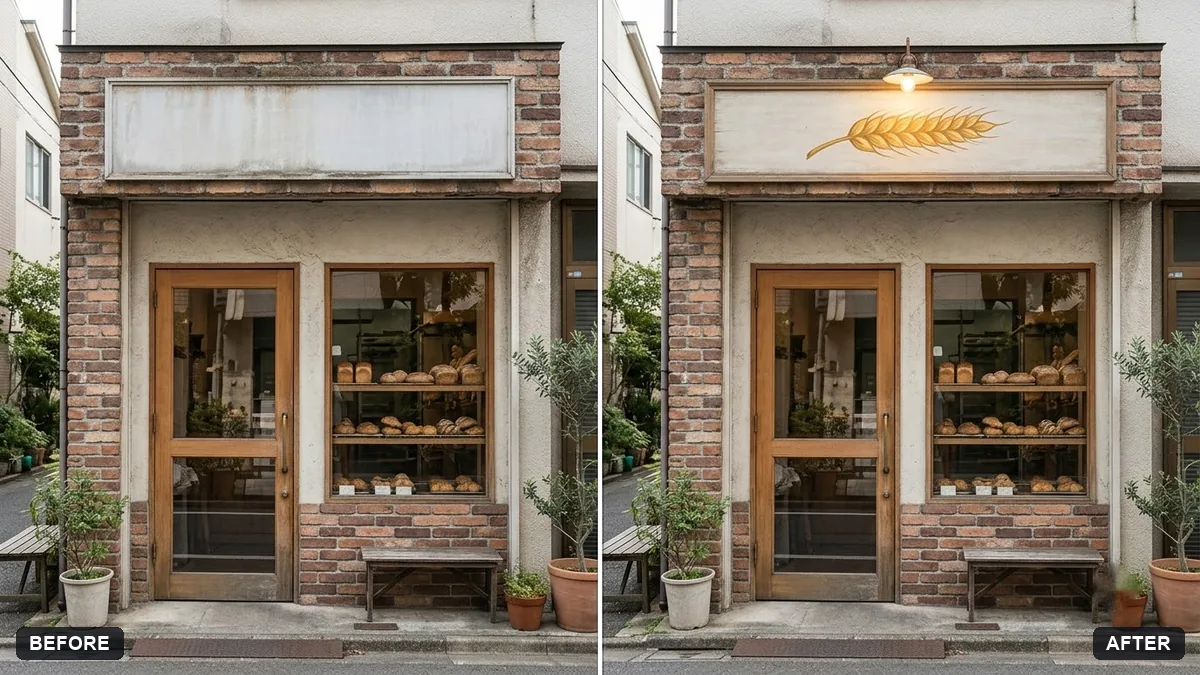
This prompt places the sign from the second image above the door of the shop in the first photo, matching perspective, size, lighting and shadows, and adds a glow if the sign is lit. A straight-on shop photo gives the best result.
Place the sign from the second image above the door of the [SHOP TYPE] in the first photo, matching perspective, size, lighting and shadows. Add a soft glow if the sign is lit.

Keep the shopfront unchanged and the sign design exact.
Upload a straight-on shop photo so the sign is placed with the right perspective.
Your photo goes to the AI app you choose, never to PromptUp.
Get a better result
Your shopfront photo with the new sign above the door, matching the building’s angle, size, light and shadows, glowing softly if it is a lit sign.
The letters on the sign are changed.
Fix: Upload the sign design as a clean, flat file and say “keep every letter and colour of the sign exactly as in the second image”.
- The sign floats instead of sitting on the wall. Ask for a thin shadow under the sign and fixings where it meets the wall.
- The size is wrong for the shopfront. Give the real sign width in the prompt, such as “2 metres wide, about the width of the door and window”.
Ask for the same shopfront at dusk with the sign lit and the window glowing warm, to see how it reads after dark.
Keep the sign and the shop. Make the sign size and position look realistic for the shop front, with the same light and shadows.
More photo editing prompts
See all 334 →
More like this
- Preview a new shop frontGemini · ChatGPT
- Poster in a frame mockupGemini · ChatGPT
- Wall art in a room mockupGemini · ChatGPT
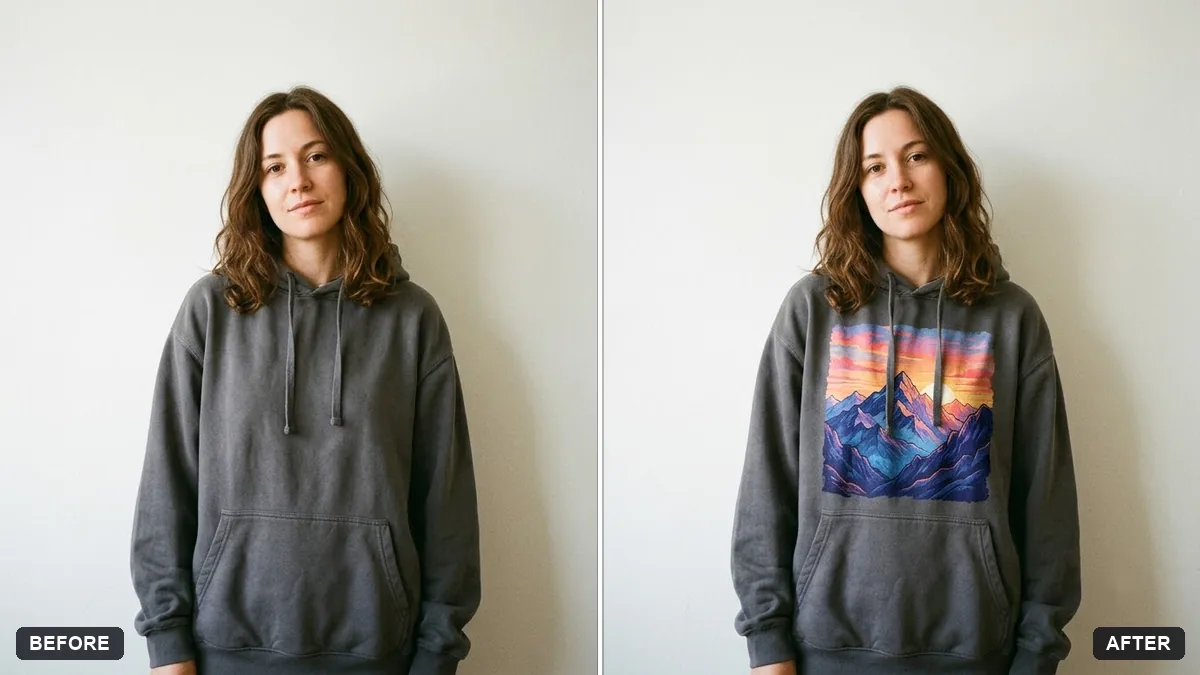
- T-shirt design mockup on a personGemini · ChatGPT
- Book cover as a 3D mockupGemini · ChatGPT