- Updated
Preview a new shop front
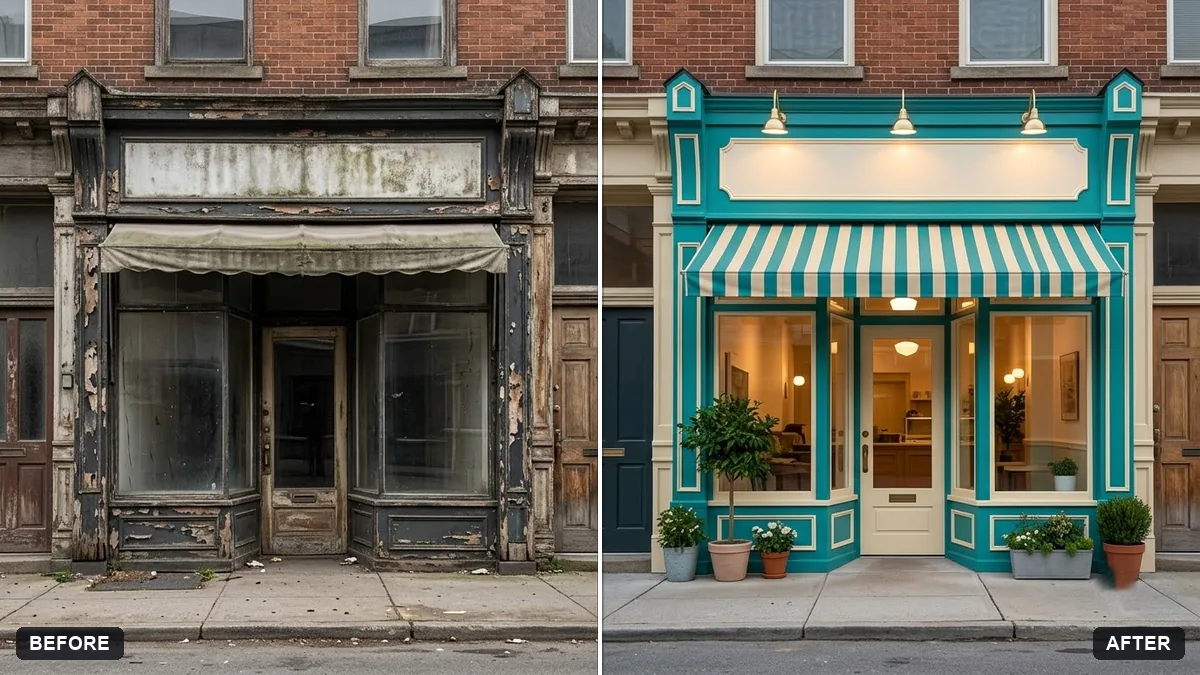
This prompt gives your shop front a fresh look with paint in colours you choose, a modern awning, new lighting and a clean sign panel with your shop name.
Give the shop front in this photo a fresh look: repaint it in [COLOURS], add a modern awning and new lighting, and add a clean sign panel with a blank sign for "[SHOP NAME]". Match the perspective and daylight.

Do not change the buildings next to it.
Upload a straight-on photo and describe the new colours and style.
Your photo goes to the AI app you choose, never to PromptUp.
Get a better result
A preview of your shop with a fresh colour scheme, a modern awning, new lighting and a blank sign panel for your name, matching the perspective and daylight of the original.
A shop makeover preview only helps if it matches the real street, so the prompt asks for the same perspective and daylight and leaves the neighbours untouched. New paint, an awning, lighting and a blank sign panel show the change. A straight-on photo, as the tip says, gives the cleanest result.
The neighbouring buildings change.
Fix: Repeat “do not change the buildings next to it” and check both sides against your original photo.
- The sign text is misspelt. Leave the sign blank, as the prompt does, and add your shop name in an editor or give the design to a sign painter.
- The perspective is off. Take a straight-on photo, as the tip says, and avoid tilting the camera.
Ask for the same new shop front at dusk with the new lights switched on, and warm light spilling onto the pavement.
Keep the building shape exactly the same. Show the paint colours as they would look in daylight on a real wall, slightly less bright.
More photo editing prompts
See all 334 →
More like this
- Storefront signage mockupGemini · ChatGPT
- Preview a beard or moustache styleGemini · ChatGPT
- Billboard advertising mockupGemini · ChatGPT
- Preview solar panels on a roofGemini · ChatGPT
- Wall art in a room mockupGemini · ChatGPT