- Updated
Website hero image from a photo
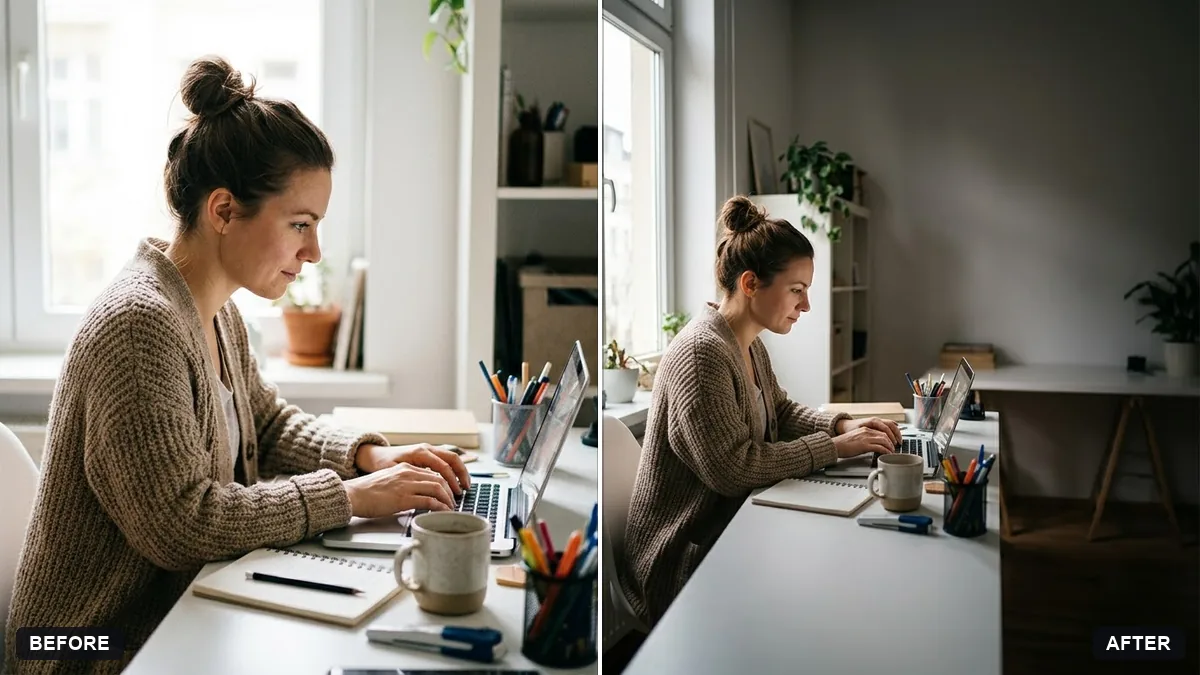
This prompt extends your photo to a 16:9 frame, keeps the subject on the left or right and leaves clean empty space on the other side for your headline.
Turn this photo into a wide website hero image. Extend the scene to a 16:9 frame, keep the subject on the [LEFT / RIGHT] and leave clean empty space on the other side for text.

Balance the exposure, add a subtle dark gradient for text readability and keep everything natural.
Leave the left or right side empty for your headline and button.
Your photo goes to the AI app you choose, never to PromptUp.
Get a better result
A wide 16:9 version of your photo with the scene extended, the subject on one side, clean space on the other for a headline and button, balanced exposure and a soft dark gradient.
Hero images need empty space for a headline, so the prompt extends the scene to 16:9 and keeps the subject on one side. A subtle dark gradient helps text stay readable. Balanced exposure keeps it natural.
The extended side has repeated patterns.
Fix: Describe what should fill the new area, such as “more of the plain wall and floor”, so it does not copy objects.
- The gradient is too dark. Ask for a gentle gradient only on the text side, strong enough for white text, light enough to keep the scene.
- The subject is cut off on phones. Keep the subject well inside the frame, since many sites crop hero images narrower on mobile.
Ask for a 4:5 portrait version too, with the subject at the bottom and empty space above for text on small screens.
Keep the subject where it is and make the empty side plainer and a little darker, so a white headline is easy to read at phone width.
More photo editing prompts
See all 334 →

More like this
- Flat vector hero illustration for a websiteChatGPT · Gemini · Midjourney
- Website landing page hero mockupGemini · ChatGPT · Ideogram · Midjourney
- Headphones hero image with colour glowMidjourney · Gemini · ChatGPT
- Car hero shot at sunsetGemini · ChatGPT
- Extend a photo to a wider frameGemini · ChatGPT