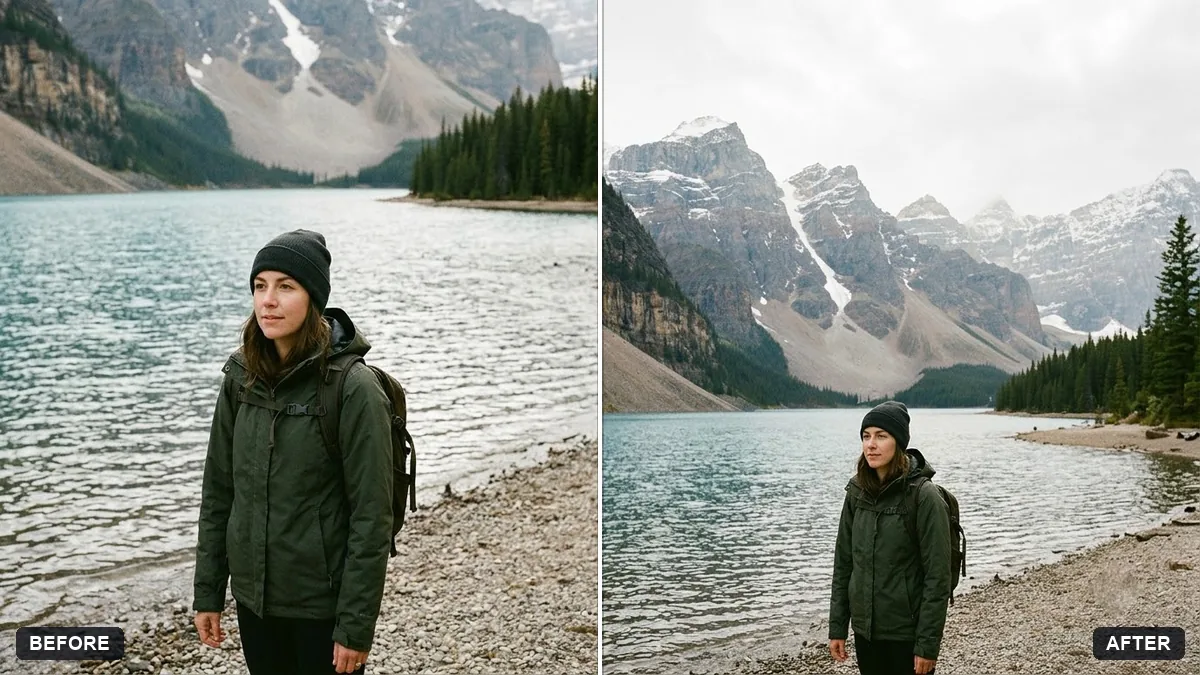
- Updated
Extend a photo to a wider frame
This prompt extends your photo to a new aspect ratio. The original part stays exactly as it is, and the scene continues naturally at the edges.
Extend this photo to a [16:9 / 9:16 / 1:1] frame. Keep the original part exactly as it is.

Continue the scene naturally on the [LEFT / RIGHT / TOP / BOTTOM]: [WHAT SHOULD APPEAR, e.g. more sky and mountains]. Match the lighting, perspective, colours, grain and sharpness so there is no visible seam.
Extend by small amounts at a time for the most natural join.
Your photo goes to the AI app you choose, never to PromptUp.
Get a better result
Your photo extended to the new frame shape, with the original part untouched and the scene continued on the side you chose, matching light, perspective, colour, grain and sharpness.
A visible line or colour change appears where the new area starts.
Fix: Extend in smaller steps, such as a quarter more each time, and add “blend the join with the same grain and exposure”.
- The new part repeats the same shape, like a copied tree. Say what should be there, such as “open sky with two small clouds and a distant ridge”, not just “more scenery”.
- The original gets slightly changed. Repeat “keep the original area exactly as it is” and compare faces and small details at full size.
Ask for 16:9, 1:1 and 9:16 versions in turn, from the same source, with the same instruction for what to add. You then have one image for a banner, a post and a story.
Keep the original pixels the same. Extend only the top by a little, with a soft sky that matches the light at the horizon.
Guides that use this prompt
More photo editing prompts
See all 334 →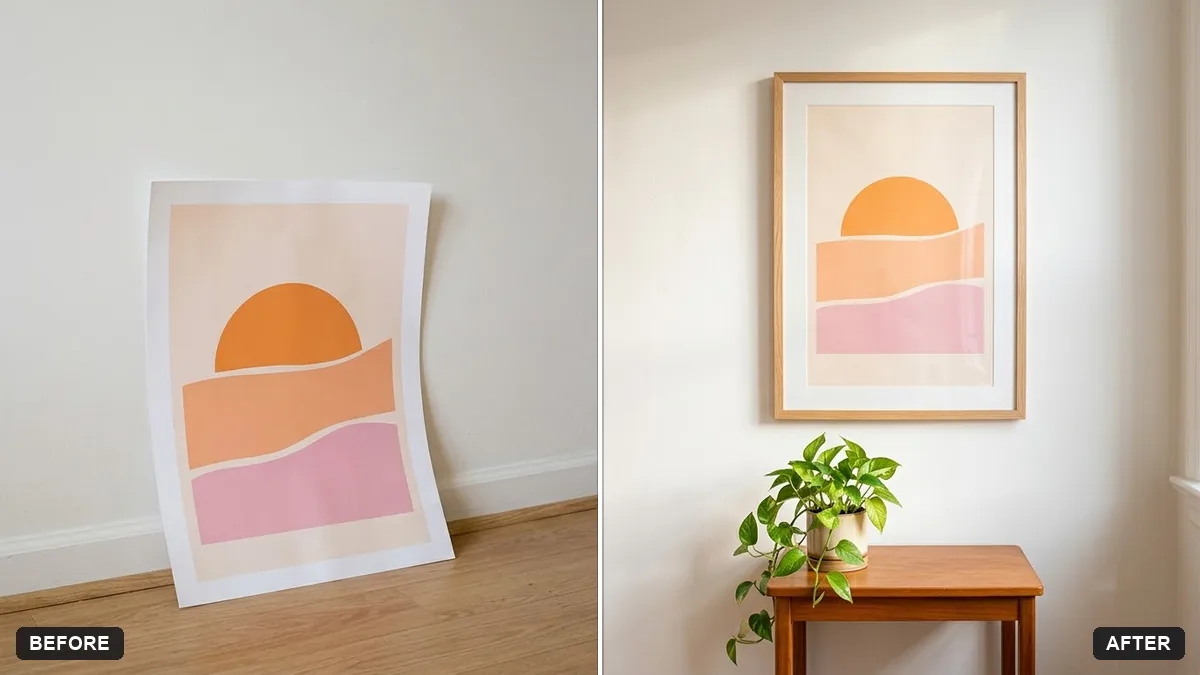
More like this
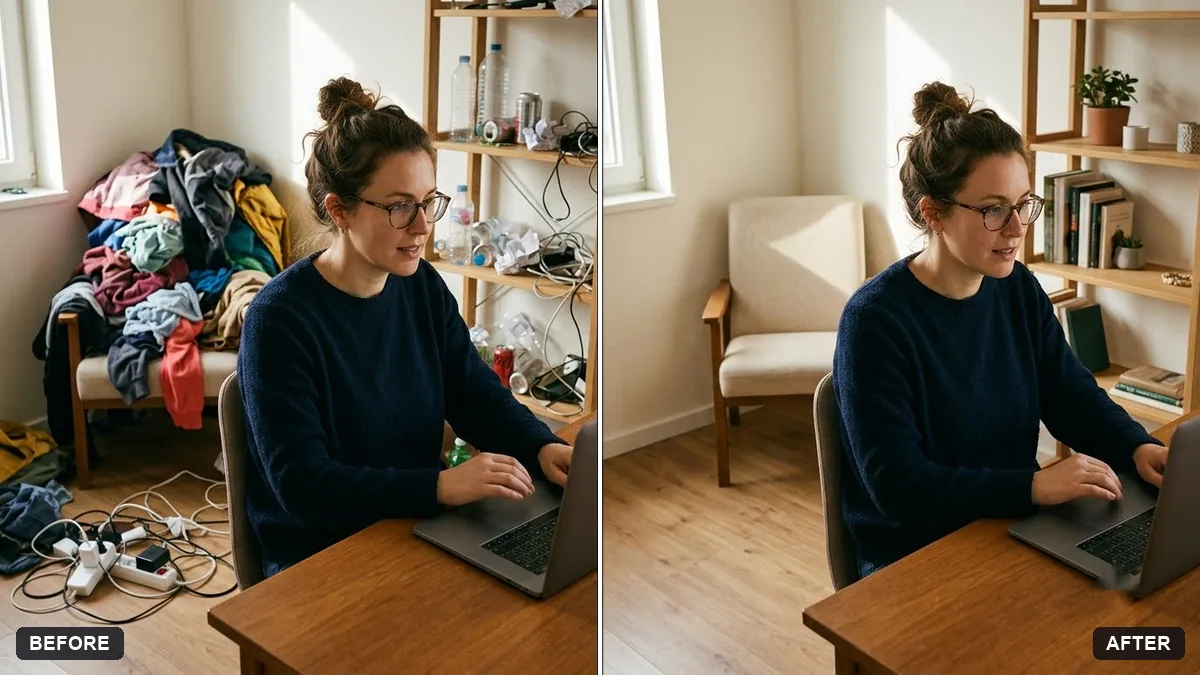
- Straighten a tilted horizonGemini · ChatGPT
- Website hero image from a photoGemini · ChatGPT
- Add dreamy bokeh lightsGemini · ChatGPT
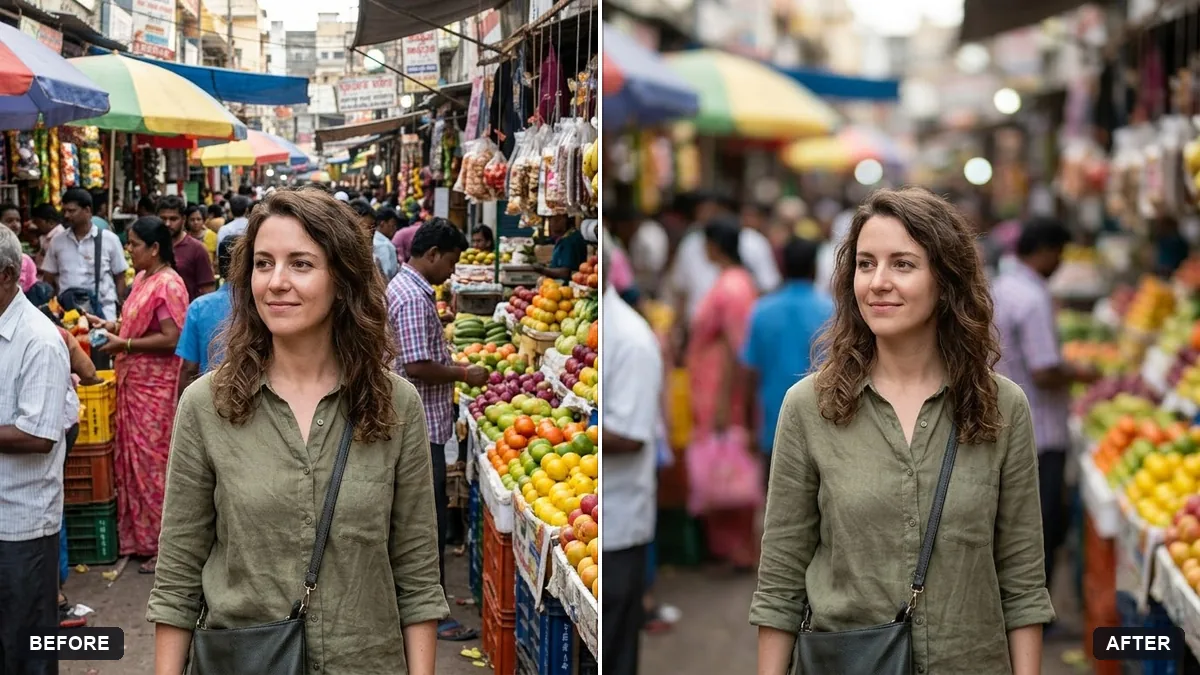
- Change the background (keep you the same)Gemini · ChatGPT
- Clean cutout on a transparent backgroundGemini · ChatGPT