- Updated
Make a restaurant dish photo look delicious
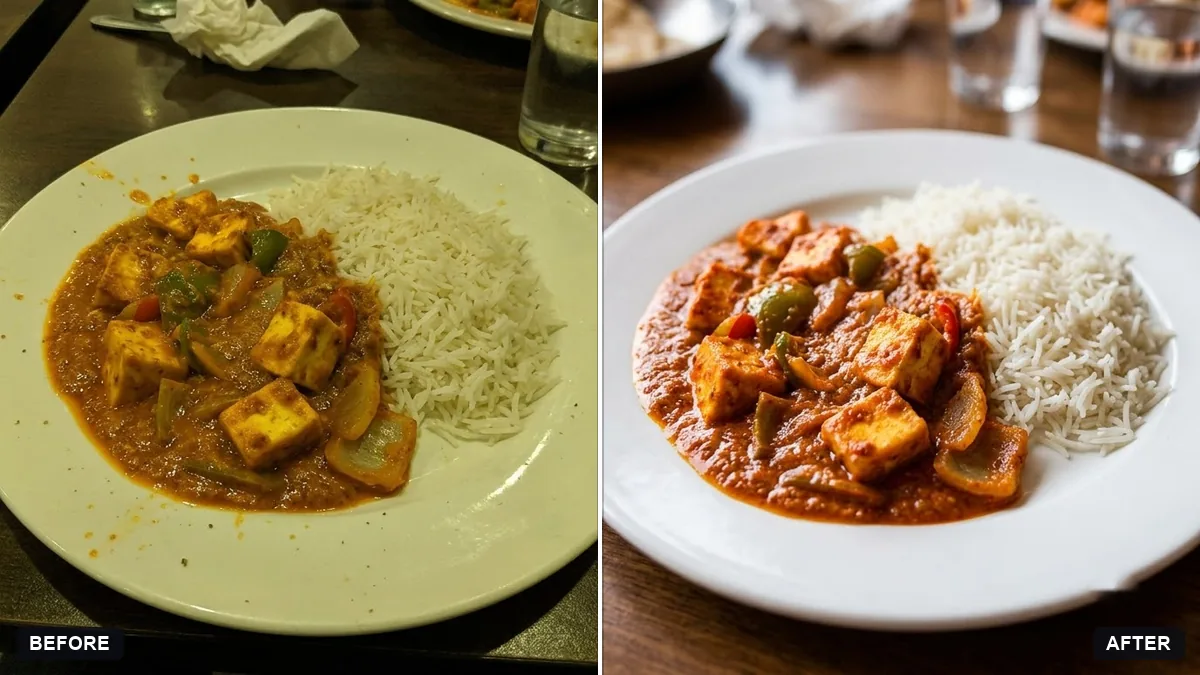
This prompt enhances a photo of a dish for a menu. The dish stays exactly as it is, with no added or removed ingredients, and the prompt improves warmth of colour and glossy highlights.
Enhance this photo of [DISH] so it looks appetising for a menu. Keep the dish exactly as it is. Do not add or remove ingredients.

Improve: warmer colour, fresh glossy highlights, cleaner plate edges, soft window-style side light, gently blurred background and slightly deeper contrast. Natural look, no oversaturation.
Shoot near a window from above or at 45 degrees for the best starting photo.
Your photo goes to the AI app you choose, never to PromptUp.
Get a better result
The same dish photo with warmer colour, fresh glossy highlights, cleaner plate edges, a soft side light and a gently blurred background, looking appetising for a menu without adding or removing any food.
Extra garnish or sauce appears that is not on your dish.
Fix: Repeat “do not add or remove any ingredient, keep every item on the plate in the same place”, and compare with the original before printing.
- Colours look oversaturated and unreal. Say “natural look, slightly warmer, no oversaturation”, as in the prompt, and compare reds and oranges with the real dish.
- The plate shape or the table changes. Add “keep the plate, table and camera angle unchanged”. Shoot near a window, as the tip says, so less needs fixing.
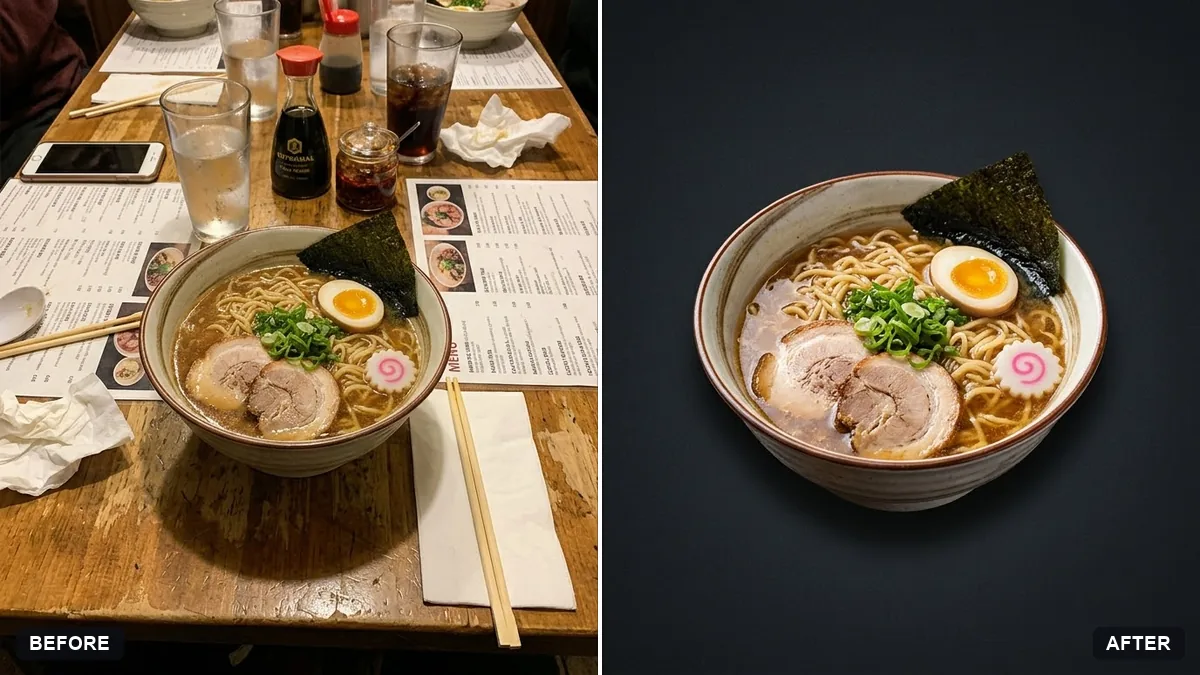
Ask for “a dark, moody style: deep shadows, one soft side light, a dark wood table” for a premium menu look. Keep the line about not changing the dish.
Keep the dish, plate, table and angle exactly as they are, add no ingredients, and make the colour slightly warmer with fresh highlights and no oversaturation.
Guides that use this prompt
More photo editing prompts
See all 334 →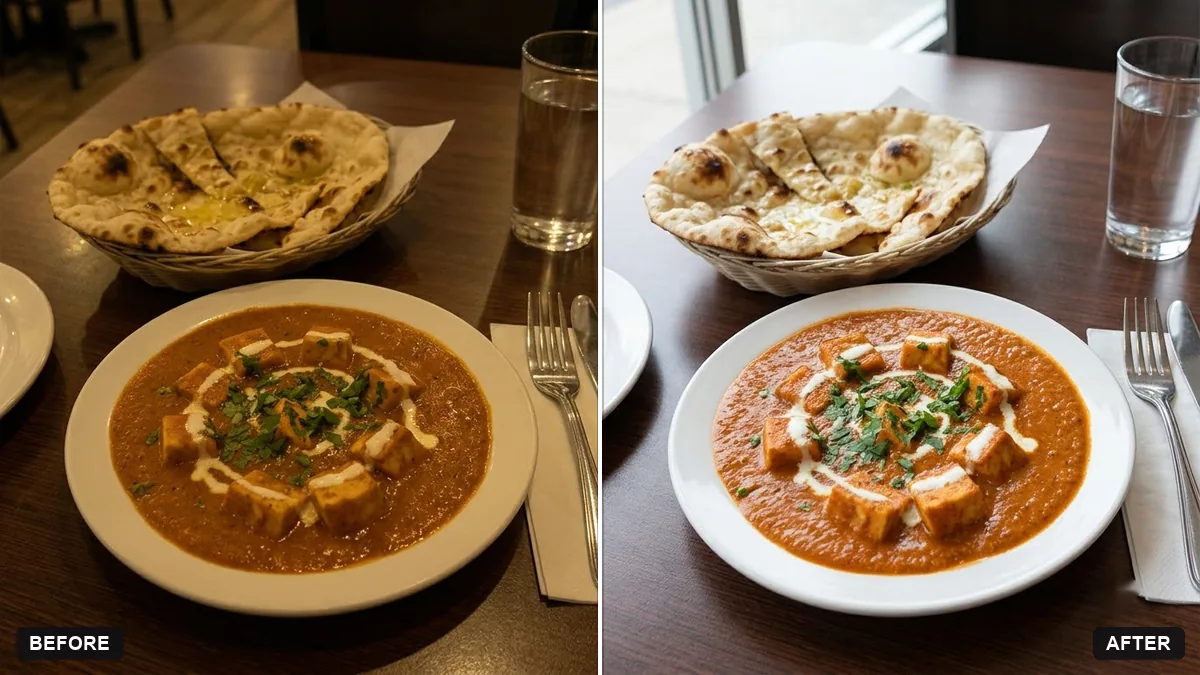
More like this
- Find restaurants near you for any occasionGemini · ChatGPT
- Menu photo for food delivery appsGemini · ChatGPT
- Restaurant logo badgeGemini · ChatGPT · Midjourney
- Bakery counter display photoGemini · ChatGPT
- Restaurant dessert flightGemini · ChatGPT · Midjourney