- Updated
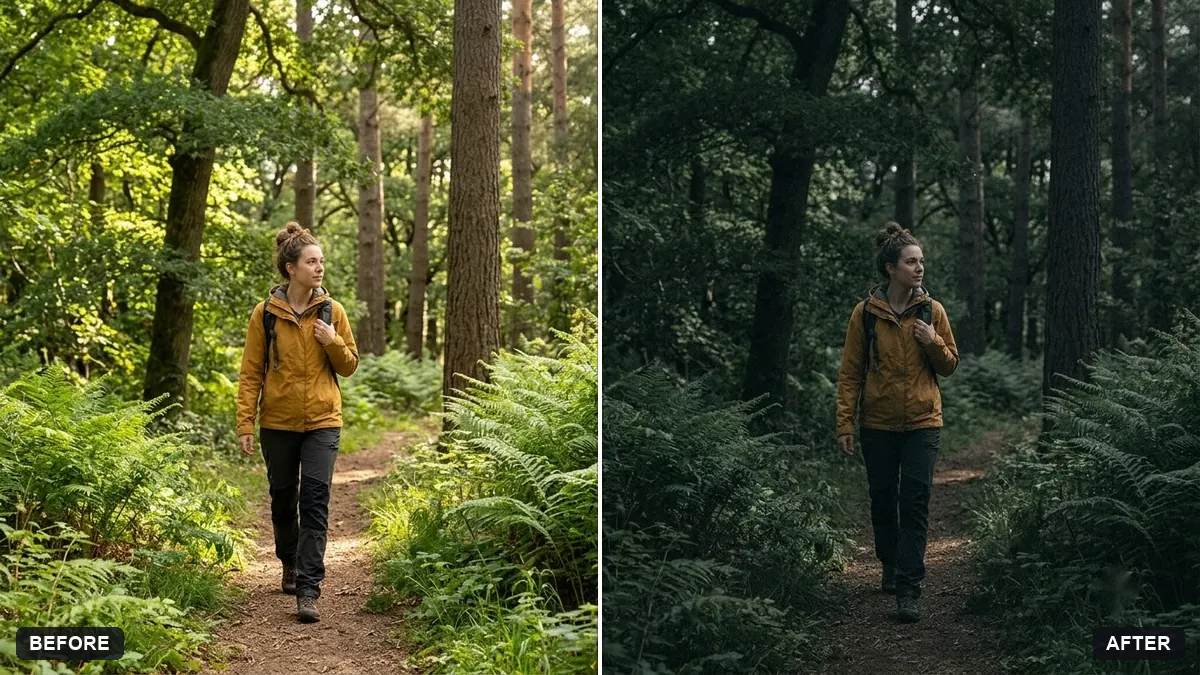
Moody dark photo preset
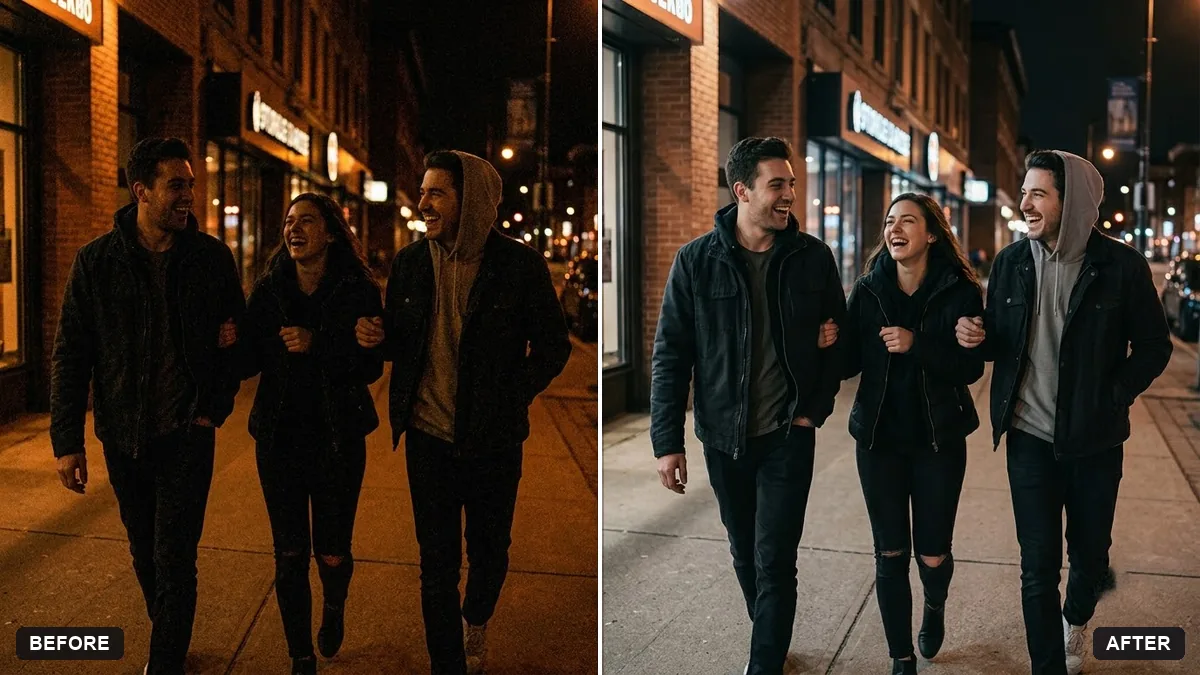
This prompt gives a photo deep shadows, muted green, blue or brown tones, slightly reduced saturation and a subtle grain while keeping the subject clearly visible. It works best on photos with a strong light source.
Give this photo a moody, dark look. Deep shadows, muted [GREEN / BLUE / BROWN] tones, slightly reduced saturation, soft contrast in the highlights and a subtle grain.

Keep the subject clearly visible. Do not change the content.
Use it on photos with strong light sources, such as window or street light, for the best result.
Your photo goes to the AI app you choose, never to PromptUp.
Get a better result
A darker, moodier version of your photo with deep shadows, muted colour tones, slightly lower saturation, soft highlights and subtle grain, with the subject still clear.
Moody looks work when the subject stays visible, so the prompt deepens shadows and mutes colour but keeps you clear. The tone blank sets green, blue or brown. Soft contrast in the highlights and subtle grain avoid a harsh filter, and the content stays the same.
The subject disappears.
Fix: Ask for the subject to stay clearly lit, with the darkness applied mostly to the background.
- Colours are crushed. Name one muted tone, such as forest green, and say “do not clip the blacks”.
- The grain is too heavy. Say “very fine grain”. Heavy noise hides detail.
Ask for a softer, airy variant with lifted shadows, cool tones and a gentle matt finish instead of deep blacks.
Write this look as one short sentence I can paste with every photo from the same day, so the set looks like one shoot.
More photo editing prompts
See all 334 →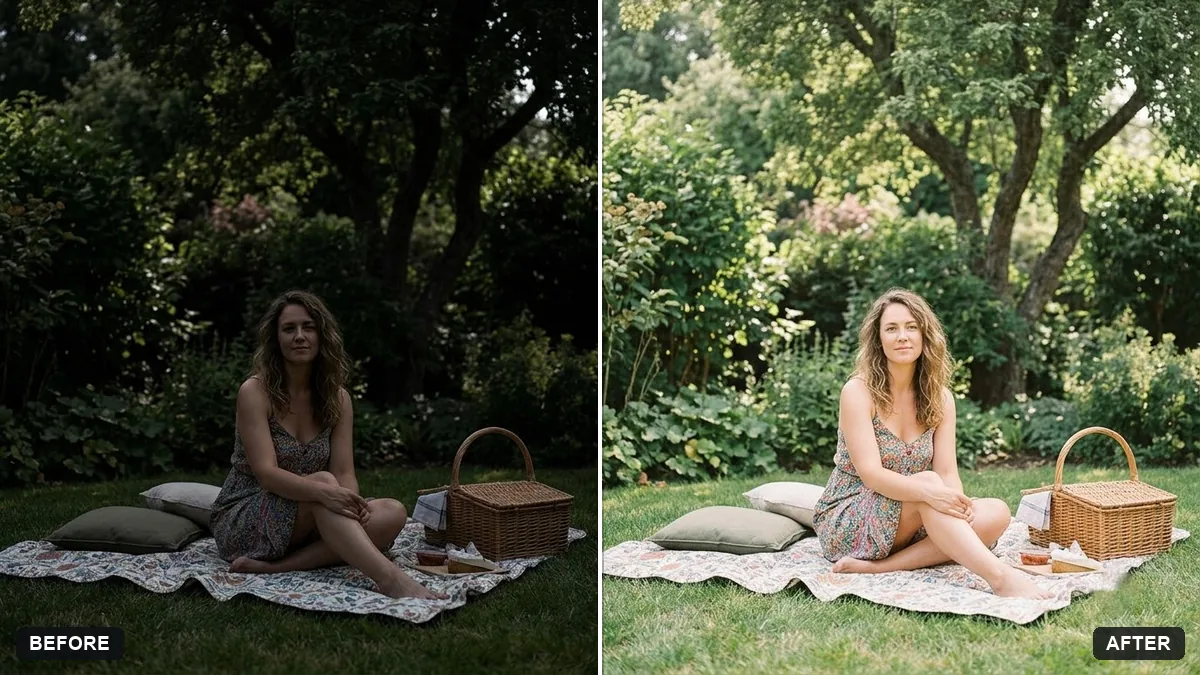
More like this
- Cinematic colour grade with vignetteGemini · ChatGPT
- Tilt-shift miniature effectGemini · ChatGPT
- Long-exposure look for a night cityGemini · ChatGPT
- Double exposure portraitGemini · ChatGPT
- Match colours across a photo setGemini · ChatGPT