- Updated
Preview a tattoo placement
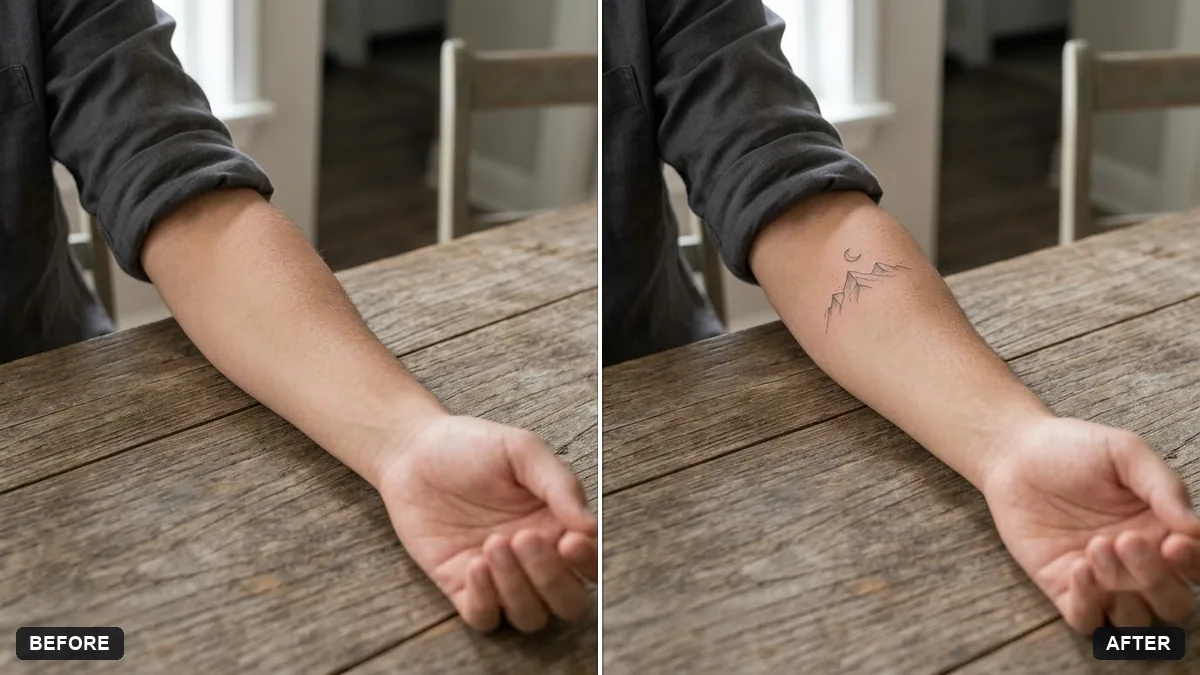
This prompt places a tattoo design from the second image on the body part you name in the first photo, at the size you say, following the curve of the skin and letting the skin texture show through. It is a rough preview, so talk to your artist.
Place the tattoo design from the second image on the [FOREARM / SHOULDER / CALF] in the first photo, sized about [SIZE]. Follow the curve of the skin, match the lighting and let the skin texture show through the ink.

Do not change anything else. Realistic healed-tattoo appearance.
Use a plain drawing of your design and a clear, well-lit photo of the body area.
Your photo goes to the AI app you choose, never to PromptUp.
Get a better result
Your photo with the tattoo design on the chosen area at about the size you gave, curving with the skin, lit like the rest of the photo and looking healed, with skin texture through the ink.
The design is redrawn and details change.
Fix: Upload a clean, high-contrast drawing of the design and say “do not change the design itself”.
- The tattoo looks like a sticker. Ask for slightly softer ink edges and skin pores visible through it, as healed tattoos look.
- The preview is treated as the final plan. Use it to choose size and position only. Your tattoo artist will adjust the design to the body.
Keep the same design and ask for it on a different body area photo, such as the upper back, to compare placements.
Keep the design. Show it at two sizes side by side on the same arm, one small and one larger, both following the curve of the skin.
Guides that use this prompt
More photo editing prompts
See all 334 →
More like this
- Tattoo design ideaMidjourney · ChatGPT · Gemini
- Virtually try on an outfitGemini · ChatGPT
- Tattoo Animation video promptHiggsfield · Kling · Veo
- Try a new hairstyle before you cutGemini · ChatGPT
- Smooth flyaway hairGemini · ChatGPT