- Updated
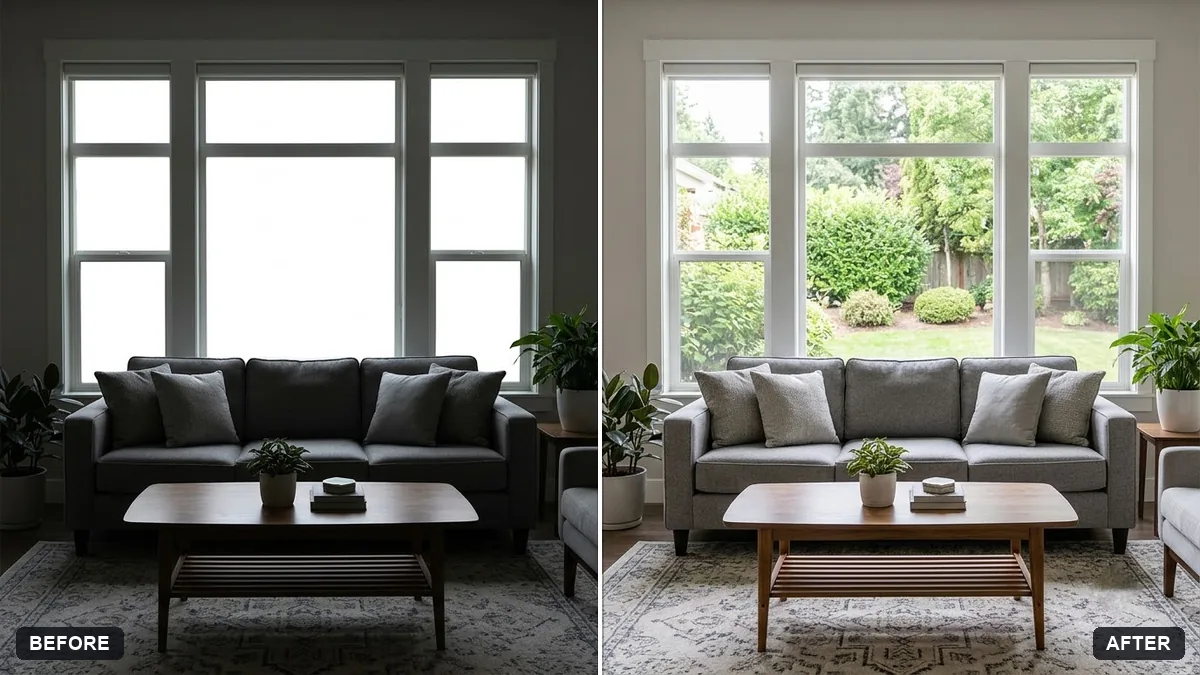
HDR blend for a bright window room
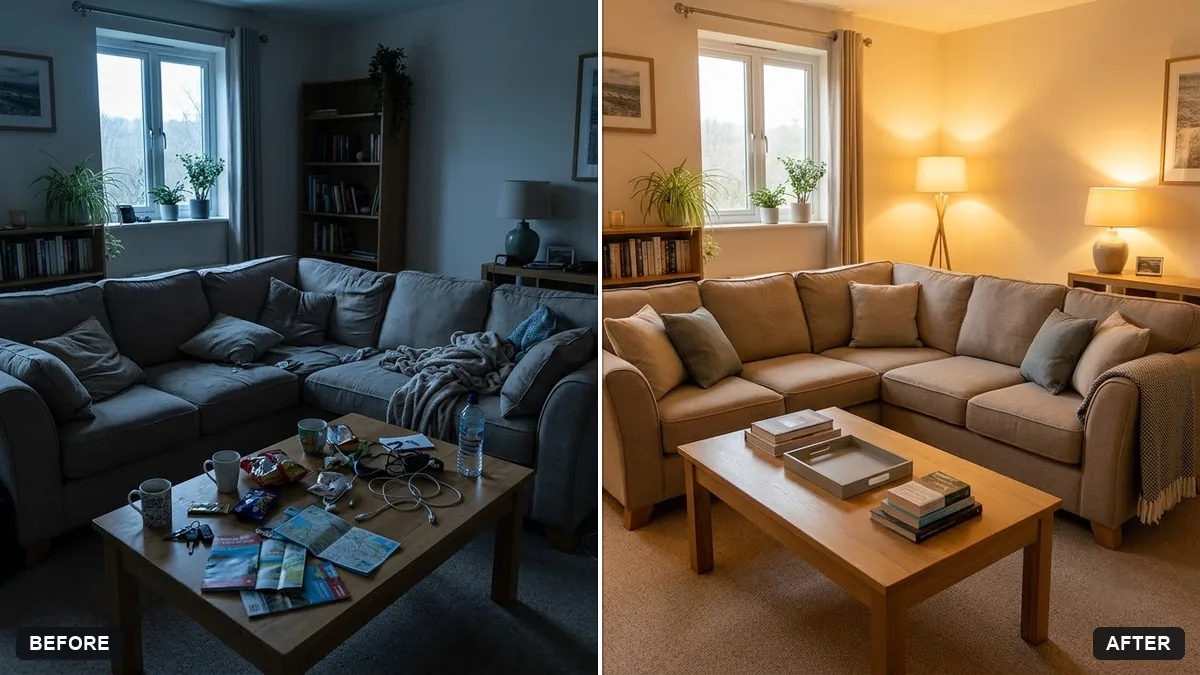
This prompt brightens a dark interior and recovers the view through the windows so both show natural detail, with straight vertical lines, neutral whites and no glow around window edges.
Edit this [ROOM] photo like an HDR bracket blend. Brighten the dark interior and recover the view through the windows so both are visible with natural detail.

Keep straight vertical lines, neutral whites, realistic shadows and no glow around window edges.
Upload the original and keep the window view natural; over-bright windows look fake.
Your photo goes to the AI app you choose, never to PromptUp.
Get a better result
Your room photo edited like an HDR bracket blend, with the dark interior lifted and the window view recovered, straight verticals, neutral whites, realistic shadows and no glow around the windows.
Glowing halos appear around window frames.
Fix: Keep “no glow around window edges” and add “no halos, no oversaturation”. Zoom in on the frames to check.
- The view outside is invented, not real. Ask to “recover what is visible, do not add trees or buildings”. If the window is pure white, retake the photo at a lower exposure.
- The room looks flat, with no shadow at all. Say “keep soft realistic shadows under the furniture”. Slightly less brightening usually looks more natural.
For a listing, add “do not hide marks or change the size of the room”. Natural, accurate photos lead to fewer disappointed visitors.
Keep the room exactly the same. Brighten the corners a little less and make the view outside slightly softer and bluer.
Guides on this topic
More photo editing prompts
See all 334 →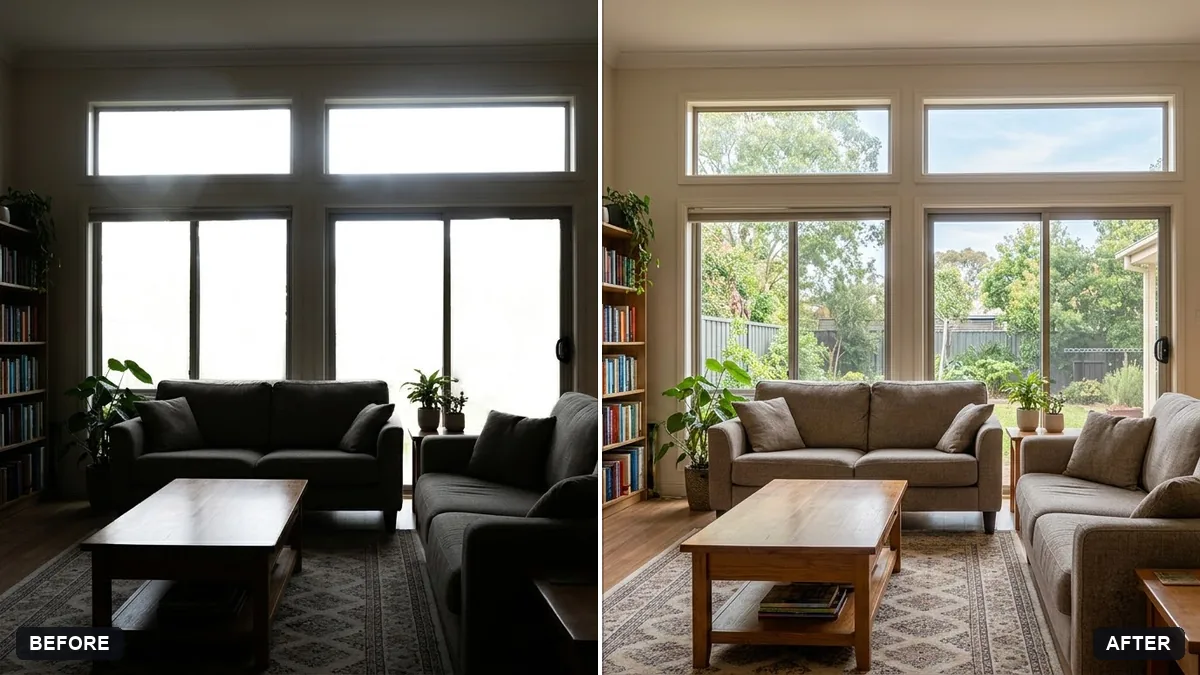
More like this
- Change the background (keep you the same)Gemini · ChatGPT
- Property exterior at twilightGemini · ChatGPT
- Virtually stage an empty room for listingsGemini · ChatGPT
- Real estate agent portraitGemini · ChatGPT
- Brighten a restaurant interior photoGemini · ChatGPT