AI prompts for LinkedIn: a better photo, headline and About section
Published
Short answerFix your LinkedIn profile piece by piece with AI: a proper headshot from a selfie, a banner that leaves room for your photo, a headline built from your role and skills, and an About section that opens with a line worth reading. Do each part separately and you'll notice the difference faster than rewriting everything at once.
Most LinkedIn profiles are held back by the same few things: a phone selfie as the profile photo, the default banner, a headline that just repeats the job title, and an About section nobody finishes reading. None of these need a professional photographer or a copywriter to fix. AI prompts can do a solid first pass on all four, as long as you tell them what to keep and give them real details to work with.
The profile photo
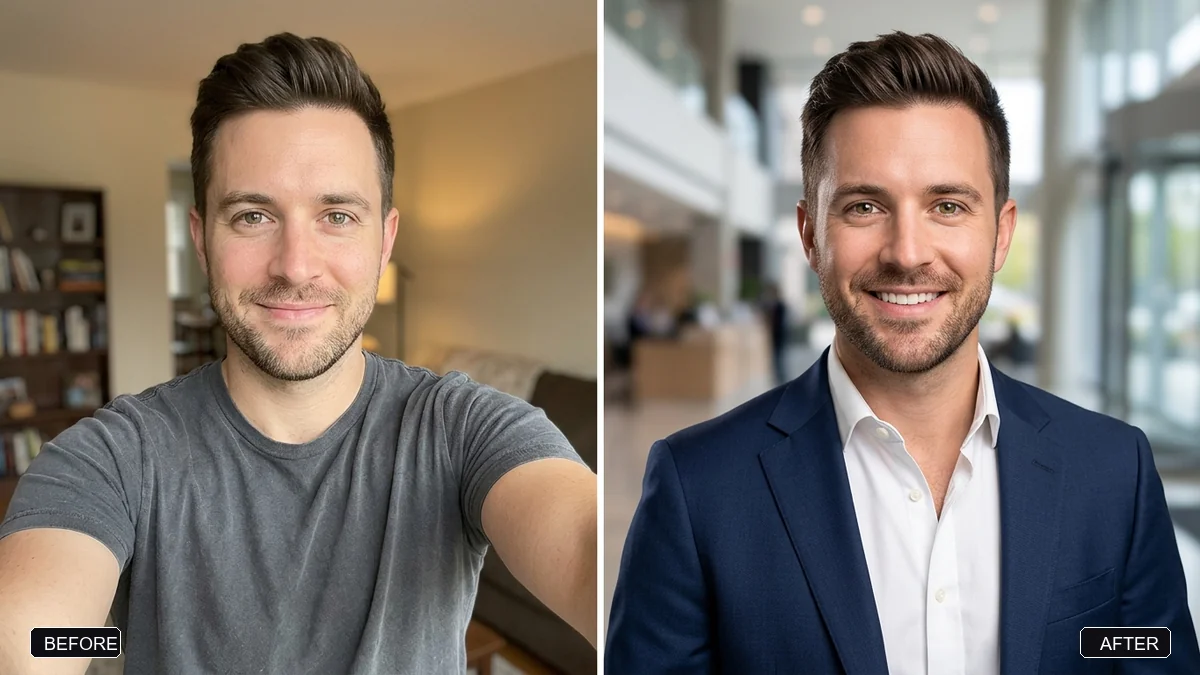
A professional headshot is the single biggest upgrade most profiles are missing, and you don't need a studio to get one. The LinkedIn headshot prompt turns a normal selfie into something closer to a studio shot:
Turn this selfie into a professional LinkedIn headshot. Keep my face, facial features, skin tone, hairstyle, and expression exactly the same — it must clearly be me.

Change my outfit to [OUTFIT, e.g. a navy blue blazer with a white shirt]. Use a clean, softly blurred [BACKGROUND, e.g. light grey studio] background. Flattering soft studio light, natural skin texture (not plastic).
Start from a front-facing photo taken in daylight, without a beauty filter. The AI has an easier time keeping your actual face if the source photo is accurate to begin with.
The banner
Most people never touch the banner, which means the default one is doing nothing for you. The LinkedIn banner prompt is written with the profile photo's position already accounted for:
Design a professional LinkedIn banner (very wide, 4:1) for a [ROLE, e.g. data analyst].

Place the text "[NAME] · [WHAT YOU DO, e.g. Turning data into decisions]" on the right side in a clean sans-serif. Keep the left third mostly empty — the profile photo covers that area.

Style: minimal and modern, [COLOURS, e.g. deep blue with subtle abstract data lines], a subtle texture, and no stock-photo people.
If you'd rather turn a real photo into a banner instead of designing one from scratch, the LinkedIn cover from a photo prompt crops and grades an existing photo the same way:
Turn this photo into a LinkedIn cover banner in a very wide 4:1 format. Keep the important part of the scene in the centre and right, leave the bottom-left corner uncluttered, and apply a subtle [BLUE / NEUTRAL] professional colour grade. Do not add text.
Either way, check the result with your actual profile photo in place before you publish it. It's easy to end up with something important hidden behind your own face.
The headline
The headline is the one line people read whether or not they open your profile, and "Job Title at Company" wastes it. The LinkedIn headline prompt gives you several options to choose from instead of settling for the first idea:
Write 10 LinkedIn headlines for me (max 220 characters each).

Current role: [ROLE]
Target role or audience: [WHO I WANT TO REACH]
Top skills: [SKILLS]
Proof: [ACHIEVEMENT]

Mix formats: value statement, role + specialty + result, and keyword-rich. Avoid "passionate" and "guru". Put the most searchable keywords first.
Recruiters and clients often search by keyword before they read anything else, so put the specific job title or skill you want to be found for near the start, not buried at the end.
The About section
Most About sections either read like a CV bullet list or ramble for three paragraphs. The LinkedIn About prompt forces a structure that keeps it readable:
Act as a personal branding expert. Write my LinkedIn "About" section.
- Current or target role: [ROLE]
- Experience: [EXPERIENCE, e.g. 4 years in digital marketing for D2C brands]
- Proud achievements: [2-3 ACHIEVEMENTS WITH NUMBERS]
- What I want next: [GOAL]

Open with a strong first line (it shows before "see more"). Write in the first person — human and specific — in short paragraphs, work in 5-8 relevant keywords naturally, and end with how to contact me. Under 220 words.
The first line matters more than the rest of the section combined, since it's the only part visible before someone taps "see more". Read it on its own once the draft is done. If it wouldn't make you click, rewrite just that line before you touch anything else.
Fixing common problems
The headshot looks stiff or overly smoothed. Add "natural skin texture, visible pores, not airbrushed" to push back against the tendency to over-smooth skin.
The About section sounds generic. Feed it real numbers and specific project names instead of general achievements. "Grew organic traffic 40% in 6 months" beats "improved marketing results" every time, both for the AI's draft and for the reader.
The banner text is hard to read. Ask for "high contrast between the text and the background" directly, and check it at the small size it will actually display at, not just full screen.
Every headline sounds the same. Ask specifically for different formats in one request, as the prompt above does, rather than generating one headline five separate times.
Where to go from here
If you're job hunting rather than just tidying up your profile, see our guide to AI prompts for job search for résumés, cover letters and interview prep. You'll find more ready-made prompts in the PromptUp job search prompts collection, and the prompt builder can adapt any of these to your own details.
Quick checklist
- Start the headshot from a clear, front-facing photo with no filter.
- Design the banner around where your profile photo will sit.
- Ask for several headline options in different formats, not just one.
- Give the About section real numbers and specific achievements.
- Read your first line alone before judging the rest.
- Check text-heavy images at their real display size before publishing.
Comments
No comments yet. Be the first to share what worked for you.