- Updated
Remove a shadow from a document photo
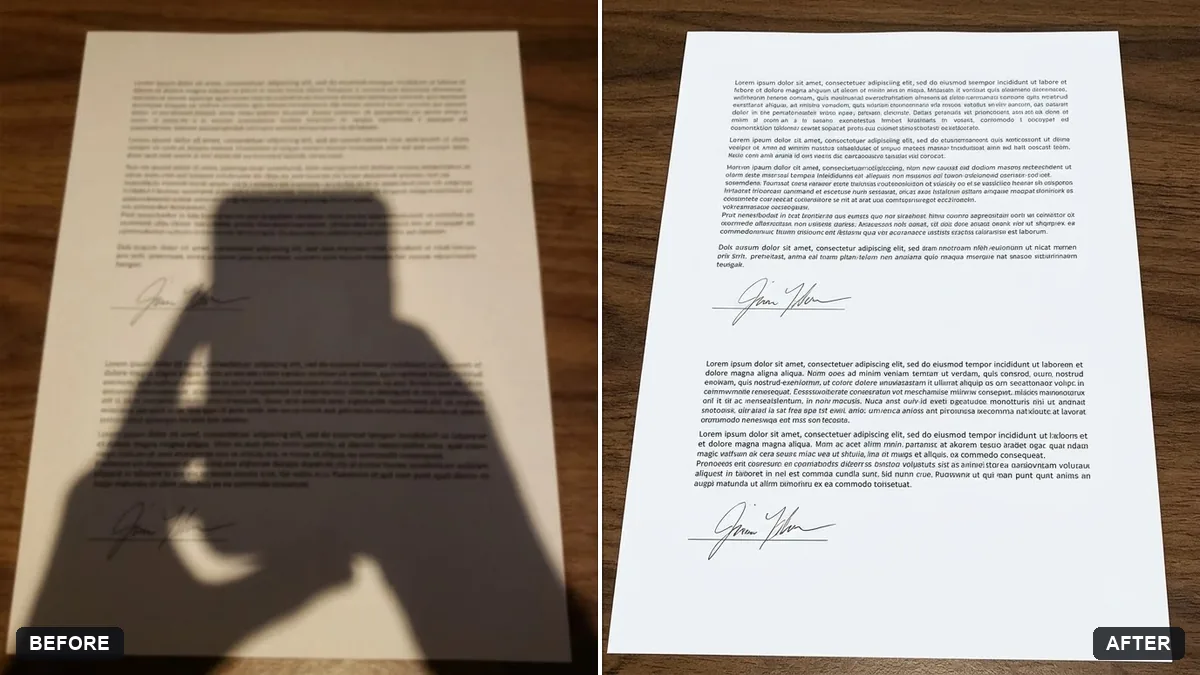
This prompt removes shadows of your hand and phone from a photo of a document and evens out the lighting, keeping the text sharp and unchanged.
Remove the shadow of my hand and phone from this photo of a document and even out the lighting across the page. Keep the text sharp and completely unchanged, with a clean white paper background.

Do not alter any words, numbers or signatures. Extra instructions: [ANY DETAIL TO KEEP OR AVOID].
Hold the phone directly above the page for the best flat result.
Your photo goes to the AI app you choose, never to PromptUp.
Get a better result
Your document photo with the shadows of your hand and phone gone, even light across a clean white page, and every word, number and signature unchanged.
Hand and phone shadows hide parts of the page, so the prompt removes them and evens the light. It also says no words, numbers or signatures may change. Holding the phone directly above, as the tip says, gives a flatter starting photo.
Words or numbers change.
Fix: Read the result line by line against the original before you use it. AI tools can redraw text, and one wrong figure matters.
- The page edge is cut off. Keep the full page in the photo with a little margin, and hold the phone straight above it, as the tip says.
- A stamp or signature is removed with the shadow. List what must stay, like stamps, signatures and handwriting, in the extra instructions.
Ask to flatten the curve of a book page near the spine as well, keeping the text unchanged.
Keep every word, number and signature exactly as they are. Only remove the shadow and even out the light, and do not sharpen or redraw any text.
More photo editing prompts
See all 334 →
More like this
- Phone photo of a page to clean scanGemini · ChatGPT
- Remove the orange date stamp from a scanGemini · ChatGPT
- Travel documents and visa checklistChatGPT · Gemini · Claude
- Remove reflections from window shotsGemini · ChatGPT
- Cosmetics flat-lay with soft shadowsMidjourney · Gemini · ChatGPT