FLUX 3 Image: prompts for the new multi-reference editor
Published
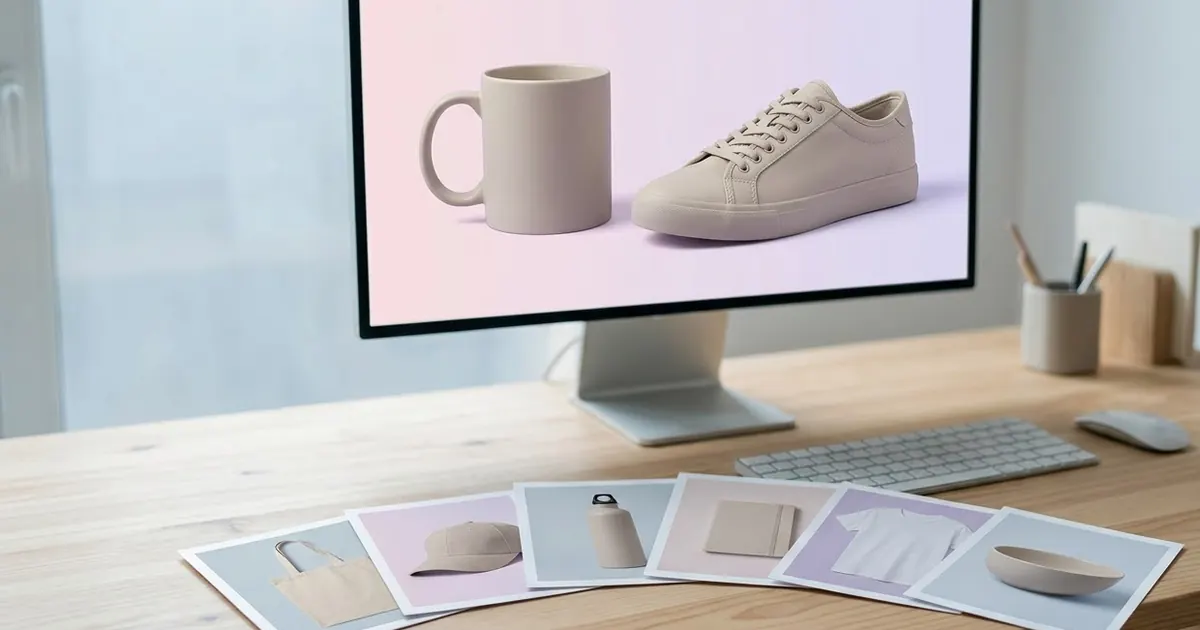
Short answerFLUX 3 Image is a new model from Black Forest Labs that can take up to 10 reference images in one request and render up to 4K. Name what each reference contributes and where it should go, and ask for one change at a time so the rest of the image stays untouched.
Full collectionAI product photo and ad prompts19 prompts with examples, steps and fixes →Black Forest Labs, the team behind the FLUX image models, started rolling out FLUX 3 Image in early October 2026. It is part of a bigger FLUX 3 family that also includes a video model and a robotics model, but Image is the part most people can actually use today, through the Black Forest Labs API and Playground.
The headline feature is how many reference images it can use at once. Where most tools let you upload one photo to edit, FLUX 3 Image can take up to 10 reference images in a single request and combine specific parts of each into one result. That changes what you can ask for.
What's actually new here
A few details matter for how you prompt it:
- Up to 10 reference images. You can give it several source photos at once and tell it what to take from each one.
- Resolution up to 4K. Output tiers go from 768px up through 1K, 1.5K, 2K and 4K, across 15 aspect ratios.
- Bounding-box control. You can point to roughly where an object should sit in the final image, rather than describing position in words alone.
- Multi-turn edits. You can keep editing the same image over several messages, and pixels you didn't ask to change are left alone.
This is still a young, limited release. Access, pricing tiers and exact feature names may change, so check Black Forest Labs' own documentation for the current details before you build a workflow around it.
Prompting for multiple references
The old habit of "upload one photo, describe the whole scene" undersells this model. Instead, label each reference and say exactly what to take from it:
Use reference 1 only for the [PRODUCT]: keep its shape, label and colour exactly as shown.
Use reference 2 only for the [SURFACE OR BACKGROUND]: match its lighting and texture.
Use reference 3 only for the [PROP, e.g. a sprig of mint]: place it to the lower-right of the product.

Combine these into one commercial product photo. Razor-sharp focus on the product, soft shadow beneath it, nothing else from the references should appear.
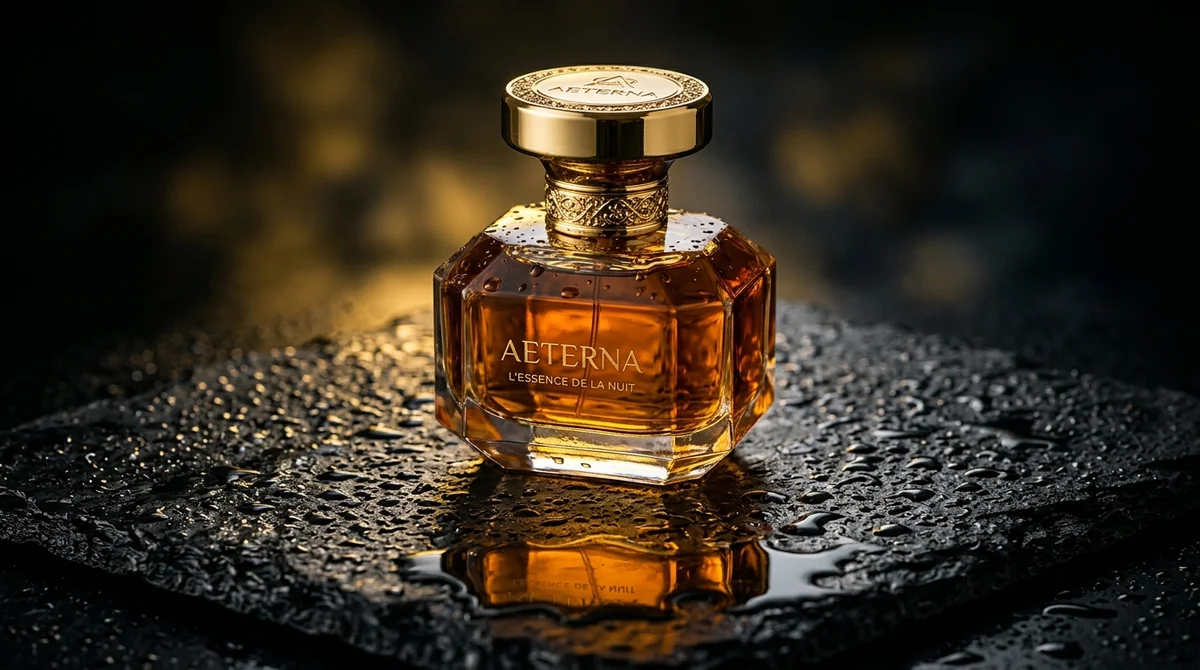
This works well for the same kind of shot as the luxury commercial product shot: naming the product, the surface and the light separately, then asking the model to combine them, usually beats one long paragraph describing an imagined scene from scratch.
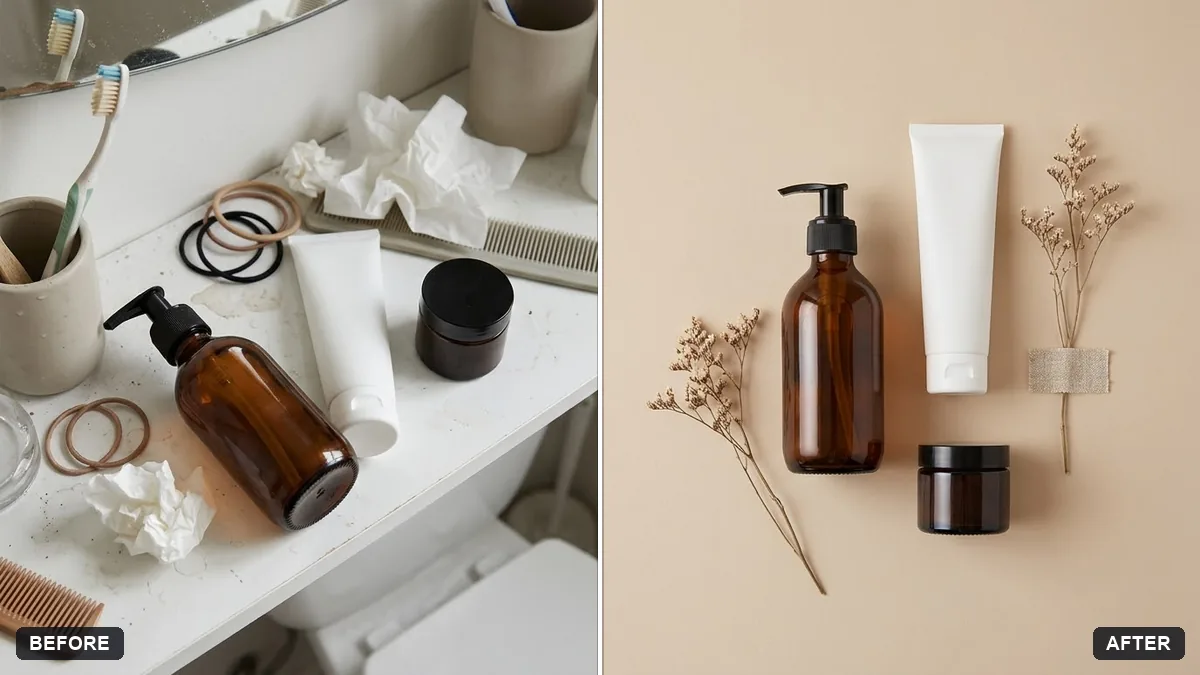
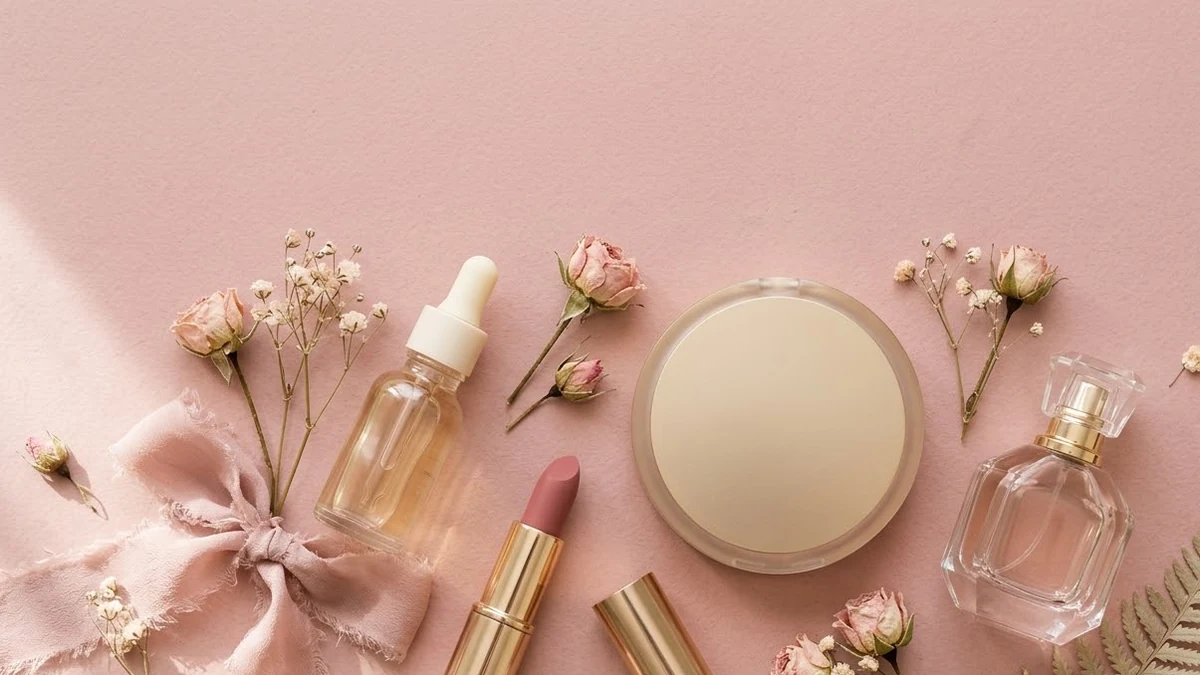
It is also a good fit for building a beauty flat-lay from several product photos you already have, instead of hoping the model invents a convincing lipstick or serum bottle on its own.
Combining photos you already have
If your references are your own product photos rather than invented ones, say so and tell it to keep each item unchanged:
Combine the products in these photos into one flat-lay arrangement on a [COLOUR] background. Keep every product's shape, colour and label exactly as photographed; do not redesign them.

Top-down view, balanced composition, gentle natural shadows, a few props like [PROPS], soft even light, catalogue quality.
The product flat-lay prompt uses this same structure. Give each product its own clean, well-lit source photo. A flat lay built from five blurry phone photos will still come out blurry in the details, however good the model is.
Placing one reference into another
Another strong use of multiple references is taking an object from one photo and placing it realistically into a different scene, matching the perspective and light:
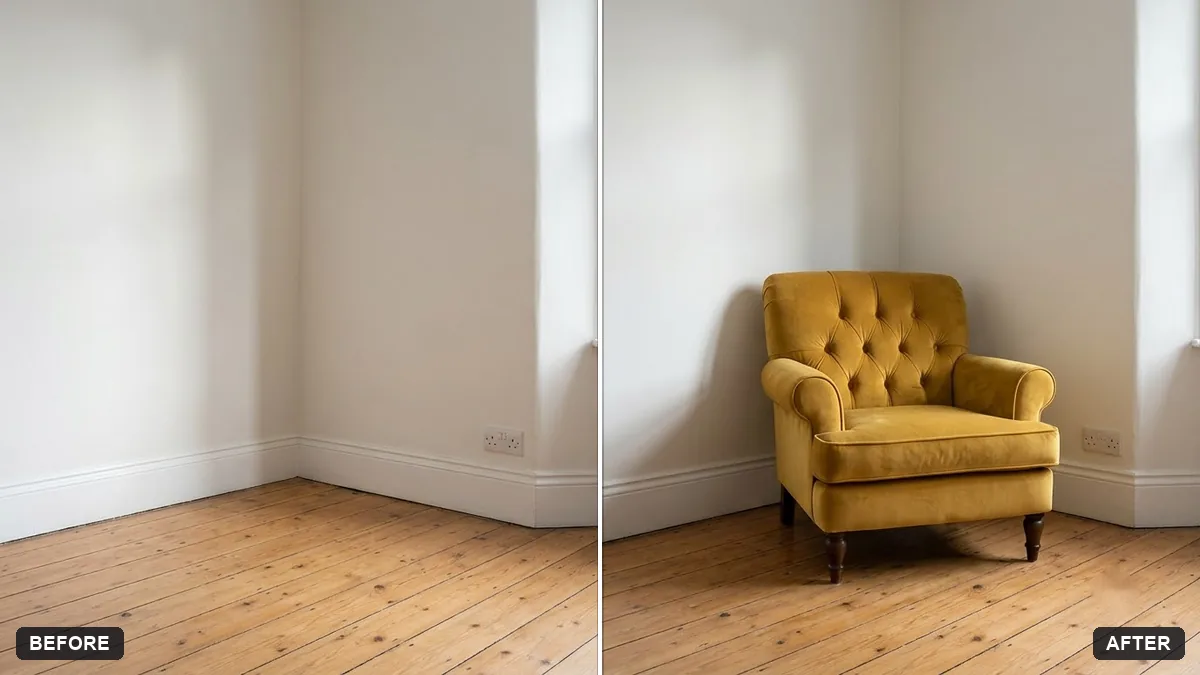
Place the [OBJECT] from reference 2 into the scene in reference 1. Match the camera angle, scale, lighting direction and shadow length of reference 1.

Position it [LOCATION, e.g. on the left third of the frame]. Keep reference 1 unchanged apart from this addition.
The furniture-in-room prompt is the same idea applied to home photos: a piece of furniture from a catalogue shot, placed into a real room photo. Give it a straight-on room photo and a clear, well-lit product photo, and it has far less guessing to do.
Editing one part without touching the rest
FLUX 3 Image's multi-turn edits are useful because you can ask for a small change and trust that only that change happens, rather than the whole image shifting slightly each time. Be specific about what should stay fixed:
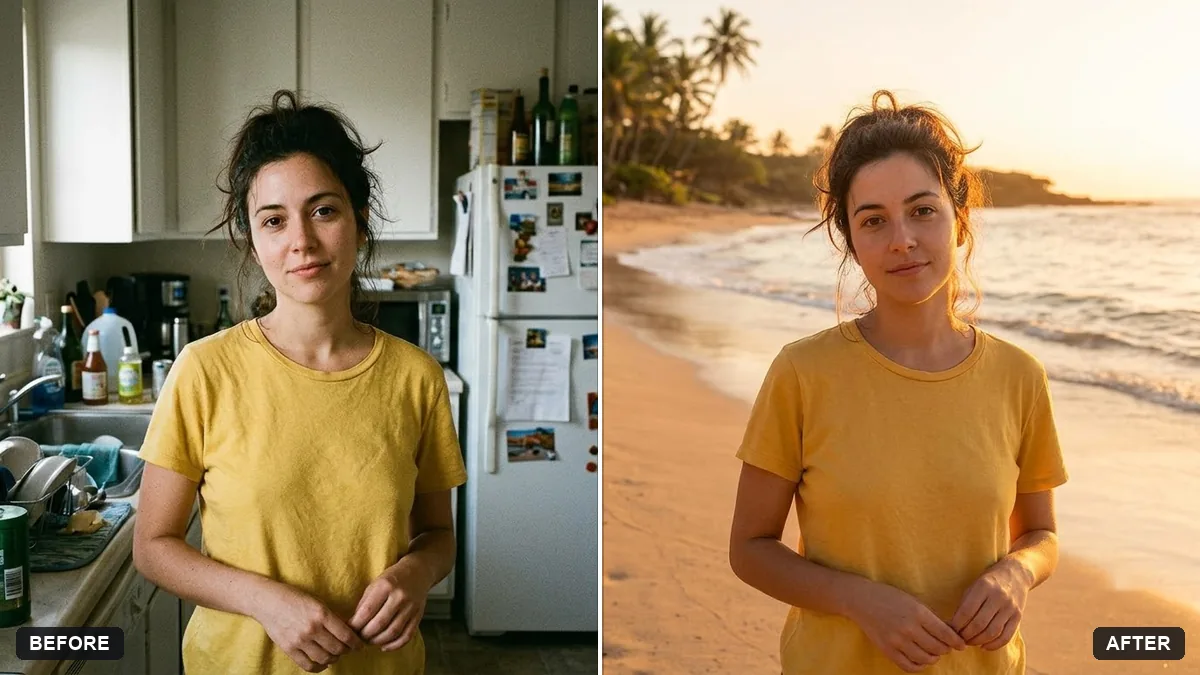
Change only [THE SPECIFIC ELEMENT, e.g. the background colour] in this image. Keep the product, its position, its lighting and every other pixel exactly as they are.

New background: [DESCRIPTION].
The background swap prompt follows the same rule: name what should change and then explicitly list what should stay the same (face, pose, clothes, framing). Models are more likely to leave something alone when you name it directly than when you just don't mention it.
Getting clean 4K output
A few things help if you want to use the top resolution tier:
- Ask for the resolution directly, for example "render at 4K" or "2K output", rather than assuming the default will be your highest option.
- Keep the prompt focused on one subject. A busy scene with many competing details tends to lose sharpness in the one area you actually care about.
- If you only need the high resolution for a crop (a product label, a face), say so: "sharpest focus and most detail on [AREA]."
Where to go from here
This is one of several new image models that showed up in October 2026; see the Nano Banana 2.1 guide for another recent release built around reference images and editing. Browse the full image generation prompts collection for more ready-made ideas, or use the prompt builder to put one together for your own reference photos.
Quick checklist
- Label each reference image and say what to take from it.
- Keep products and faces from your own photos "exactly as shown", not reinvented.
- Use bounding-box language ("lower-right", "left third") for placement.
- Name the one thing to change and the rest to leave alone.
- Ask for your resolution tier directly instead of assuming the default.
- Features and access are still rolling out; check Black Forest Labs' own docs for current limits.
Prompts to try
More prompts on this topic
- Jewellery on a model's handGemini · ChatGPT
- Ask someone to be your referenceChatGPT · Gemini · Claude
- Cinematic 360° product revealVeo · Kling

Comments
No comments yet. Be the first to share what worked for you.