How to use an AI prompt template: what to change and what to keep
Published
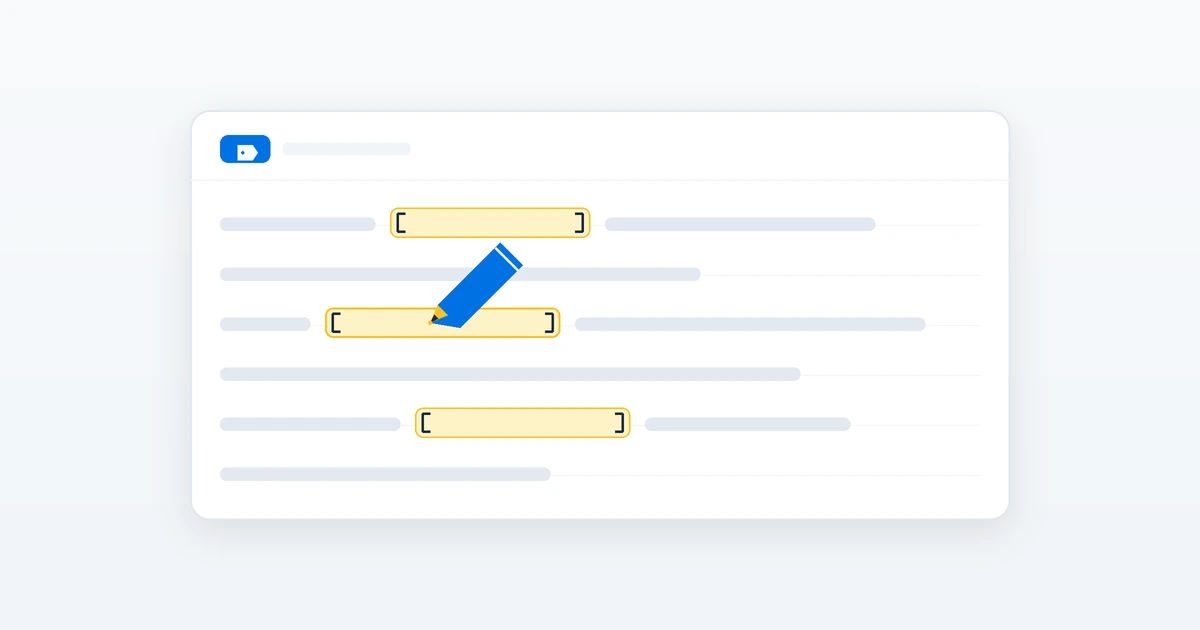
Short answerReplace every [BRACKETED] field with your real details, keep the constraints and the format, delete any instruction that doesn't apply, and read the result before you use it.
A prompt template is a prompt with blanks. You fill in the blanks and paste it. That sounds simple, but the way you fill it in decides whether you get something useful or something generic.
This guide uses real prompts from the library to show which parts to replace, which to keep, and which to delete.
The three kinds of parts in a template
Every template has three kinds of parts. Once you can tell them apart, editing is easy.
| Part | Example | What to do |
|---|---|---|
| Fields | [JOB TITLE], [COMPANY], [PASTE YOUR BULLETS] | Replace with your own details |
| Instructions | "Interview me one question at a time" | Keep, unless it doesn't apply to you |
| Constraints | "Under 120 words", "Do not invent figures" | Keep. Change the numbers only if you need to |
Fields: replace all of them
Fields are in square brackets. Some include an example after e.g.:
[OUTFIT, e.g. a navy blue blazer with a white shirt]
The example is a suggestion, not a default. Delete the whole bracket, including the e.g. part, and write your own value. If you leave a field unfilled, the tool may treat the bracket as text, or guess.
Two tips for fields:
- Paste real material where the field says "paste". The resume summary prompt asks for your top skills, your best achievement and the job post. The more real detail you give, the less the AI has to invent.
- Be specific. "[JOB TITLE]" filled with "Marketing Analyst" is better than "marketing".
Instructions: keep what you need, delete what you don't
Templates are written for a typical user. Yours may not be typical. For example, the mock interview prompt says:
Interview me one question at a time, mixing technical, behavioural, and situational questions. ... After 8 questions, give an overall summary
If you only want behavioural questions, change "mixing technical, behavioural, and situational" to "behavioural only". If you want 5 questions instead of 8, change the number. If you want no scoring, delete that line. Editing an instruction is fine. Just keep the prompt clear afterwards.
Constraints: keep them
Constraints stop the common failures. They are easy to delete by accident because they look optional. Leave them in:
- "Keep my face, facial features and skin tone exactly the same" in the LinkedIn headshot prompt is what keeps a photo edit looking like you.
- "If you are unsure about a fact, say so instead of guessing" in the company research prompt reduces made-up facts.
- "Under 120 words, no clichés" in the thank-you email prompt keeps the email short and human.
Change a constraint's value when your situation needs it (say, 200 words instead of 120). Don't remove the constraint.
Add your own context
Templates can't know everything about your situation. After filling the fields, you can add one or two lines of extra context, such as:
- "My audience is hiring managers at small startups."
- "I am switching careers from teaching to product management."
- "Write in British English."
Keep additions short. If you add long extra instructions, they can conflict with the template's own.
Read the result before you use it
A filled-in template still produces a draft. Check the output for:
- Facts and numbers. Never let the AI make up achievements or figures. Replace anything it invented with something true.
- Your voice. If it doesn't sound like you, reply with "make it sound more like me" and paste a sample of your own writing.
- Details specific to you. Names, dates and places should be correct.
Save your good versions
When a filled-in prompt works well, save it. Keep a note with the final version, the tool you used, and what you changed. Next time you can reuse it and only change the fields that differ.
A short routine
- Copy the template.
- Replace every [BRACKETED] field with real, specific details.
- Delete instructions that don't apply. Keep the constraints.
- Add a line of context if needed.
- Run it and read the result carefully.
- Fix one thing at a time. See how to edit a prompt.
Prompts to try
 Trending
Research a company before your interviewChatGPT · Gemini · Claude
Trending
Research a company before your interviewChatGPT · Gemini · Claude
 Trending
Mock interview practice (one question at a time)ChatGPT · Gemini · Claude
Trending
Mock interview practice (one question at a time)ChatGPT · Gemini · Claude
 Trending
Pro LinkedIn headshot from a selfieGemini · ChatGPT
Trending
Pro LinkedIn headshot from a selfieGemini · ChatGPT
 Write a strong resume summaryChatGPT · Gemini · Claude
 Thank-you email after an interviewChatGPT · Gemini · Claude
More prompts on this topic
- Customer support reply templatesChatGPT · Gemini · Claude
- Instagram story template for your brandIdeogram · ChatGPT · Gemini
- Turn a good prompt into a reusable templateChatGPT · Gemini · Claude
- WhatsApp message templates for businessChatGPT · Gemini · Claude



Comments
No comments yet. Be the first to share what worked for you.