Grok Imagine Image 2.0: how to prompt its region edits and text
Published
Short answerGrok Imagine Image 2.0 can edit one part of an image without touching the rest, render legible text and refine a result over several turns in the same chat instead of starting over. Say exactly what area to change and keep the rest fixed, and you'll get fewer surprises.
xAI shipped Image 2.0 for Grok Imagine on 7 August 2026 as the platform's new "Quality Mode," according to xAI's own announcement. The update's three headline features are region-level editing, multi-turn refinement inside the chat, and typography that's meaningfully better than the first version. Basenor's write-up of the launch covers the same three points in more detail.
None of these matter if your prompt doesn't ask for them properly. Here's how to use each one.
Region-level editing: say what to keep, not just what to change
The old way of editing an AI image was to describe the whole scene again and hope the model left the rest alone. Region-level editing means Grok can change one part and leave the rest of the image untouched, but only if you tell it which part that is.
On this [LABEL / POSTER / SIGN], change only the [SPECIFIC AREA, e.g. the price text in the bottom corner] to read "[NEW TEXT]". Keep everything else in the image exactly as it is: the layout, the colours, the illustration and the rest of the text.
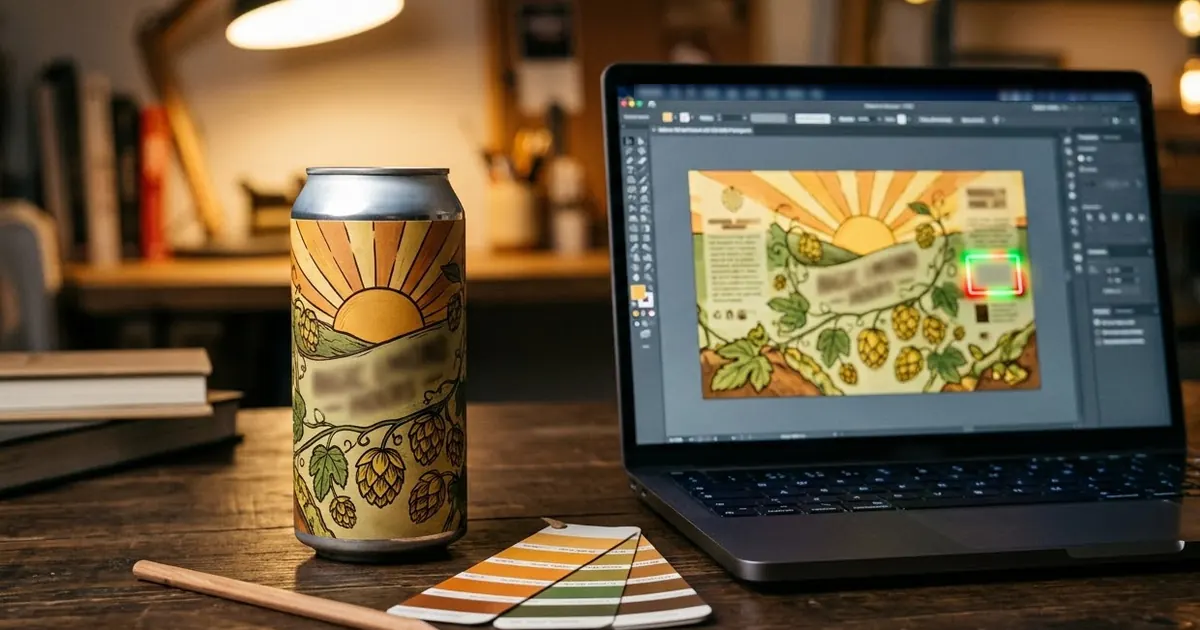
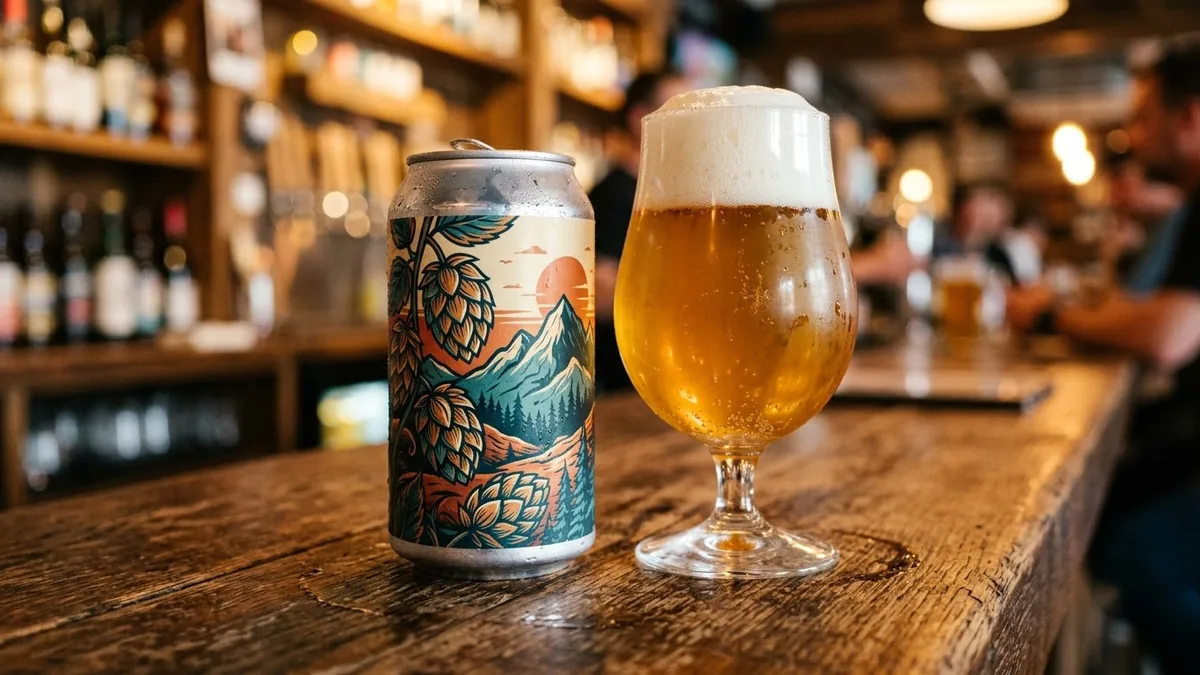
Name the area in plain terms ("the bottom corner", "the character's jacket", "the background behind the title") rather than a vague "this part". A craft beer label is a good place to practise this: use the craft beer label prompt to design the label first, then go back and ask Grok to swap only the batch number or the ABV, without regenerating the artwork.
Typography: short text, in quotes, said once
Image 2.0's biggest practical upgrade is text that's actually legible, which matters for anything with words on it: a menu board, a neon sign, a label, a poster. Even with the improvement, the habits that help any image model still apply:
- Put the exact words in quotation marks.
- Keep it to a short phrase, not a paragraph.
- Say where the text goes and roughly how big it should be relative to the rest of the image.
A food truck menu board prompt is a good test case, since it needs several short lines of text to all render correctly at once:
Food truck menu board, hand-painted style, title "[TRUCK NAME]" in large letters at the top, then four items listed below it: "[ITEM 1 — PRICE]", "[ITEM 2 — PRICE]", "[ITEM 3 — PRICE]", "[ITEM 4 — PRICE]". Warm wood background, chalk-style lettering, [ACCENT COLOUR] highlights.
If one line comes out garbled, don't rewrite the whole prompt. Use region editing to redo just that line, the same way you would fix a label.
For a single bold word rather than a list, the brutalist typography poster prompt shows the other end of this: one word, filling the frame, where size and weight matter more than a long sentence.
Multi-turn refinement: keep going in the same chat
Earlier image models often needed a fresh prompt for every change, which meant losing whatever had worked. Image 2.0 is built to be refined over several messages in the same conversation. In practice, that means:
- Don't restate the whole scene each time. Say only what changes: "make the neon glow stronger" or "move the sign slightly left".
- Refer back to what's already there: "keep the same sign, just change the colour to [COLOUR]".
- If a change makes things worse, say so directly and ask it to go back: "undo that, the glow was better before".
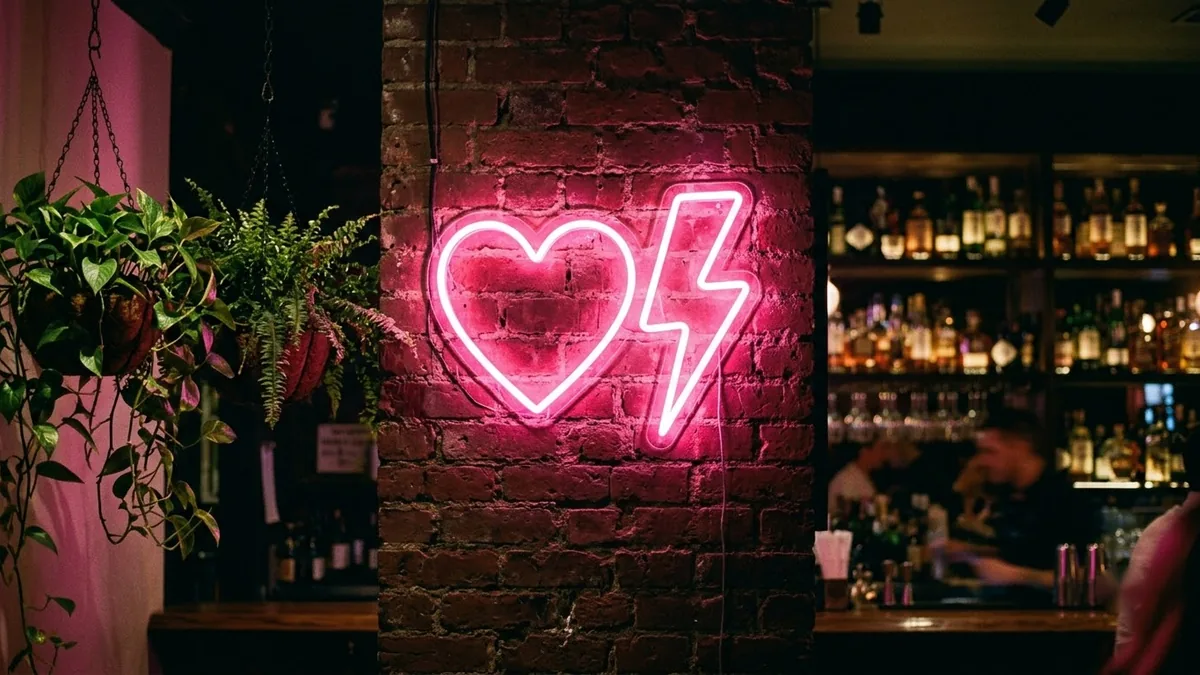
A neon sign mockup prompt is well suited to this, since the first draft rarely has the exact glow, colour and wall texture you want, and refining it in three or four short follow-ups usually gets there faster than starting over.
For a fashion or product shoot
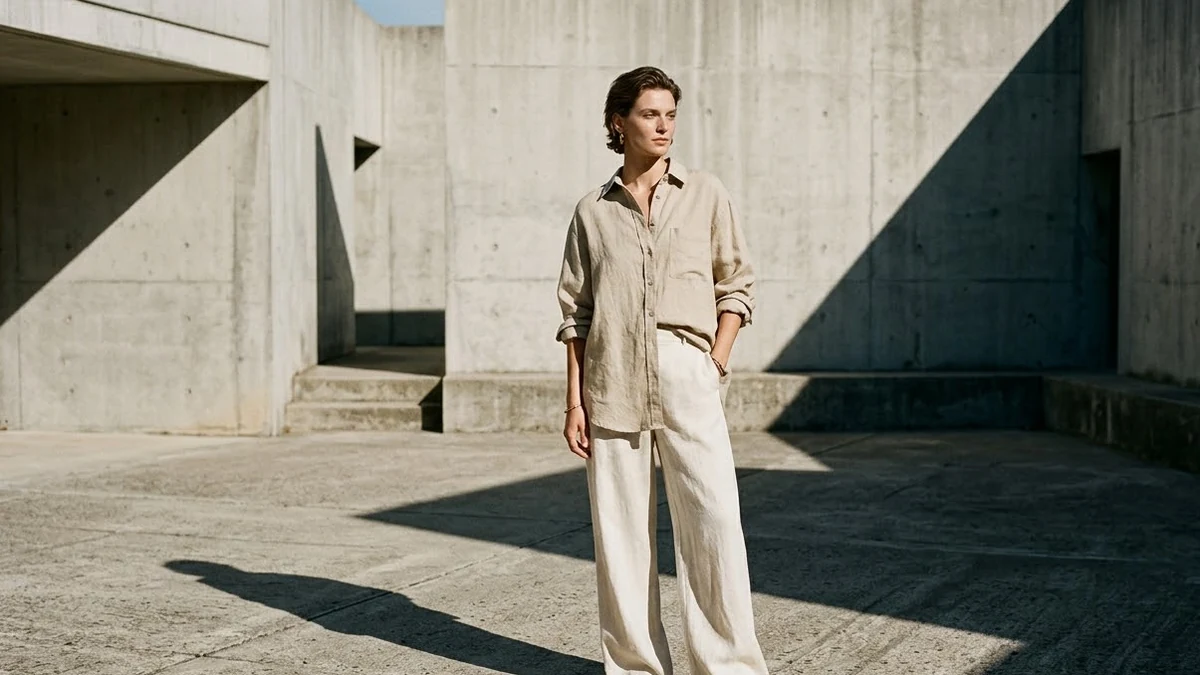
Region editing and better text also help with product images that mix a photograph and some words, such as a lookbook card with a caption. Start from the fashion lookbook prompt for the photograph, then add any caption or price as a separate region edit rather than asking for both at once. Splitting the two gives the model one job at a time, and that's where Image 2.0's region editing earns its keep.
Where to go from here
If your results still come back wrong after a few tries, our guide to why your Midjourney prompt isn't working covers several fixes, such as vague subjects and prompts asking for too much at once, that apply to Grok Imagine too. Browse more image prompts in image generation prompts, or use the prompt builder to write your own with the right placeholders filled in.
Quick checklist
- Name the exact area to change, and say what to keep the same.
- Keep text short, in quotation marks, with its position stated.
- Fix one bad line with a region edit instead of a full rewrite.
- Refine in the same chat with short follow-ups, not a new prompt each time.
- Split a photo-plus-text image into two steps: the photo, then the text.
Comments
No comments yet. Be the first to share what worked for you.