Higgsfield camera moves, explained: 7 prompts to copy
Published
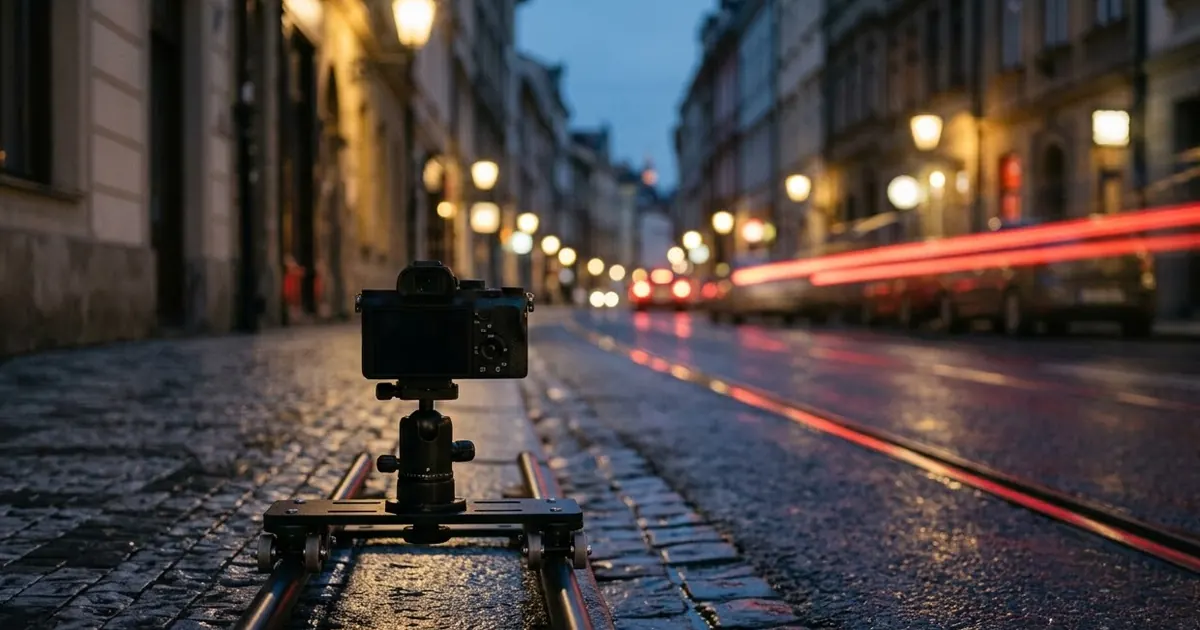
Short answerHiggsfield gives AI video a named, repeatable camera move instead of a vague request like "zoom in dramatically". Pick the preset that matches your scene, keep the move's name in your prompt, and describe the subject and setting around it.
Most AI video prompts describe a scene and hope the camera does something interesting. Higgsfield works the other way round: it gives specific camera moves a name, so you ask for the move you want instead of describing it in your own words and hoping the model understands what you mean by "swooping in dramatically".
This matters because a named move is repeatable. Once you know what "Crash Zoom" or "Dolly Zoom" means, you can use it again on a completely different scene and expect the same kind of motion, just applied to new content.
Why naming the move works better than describing it
"Zoom in fast" can mean several different things to a video model: a smooth push, a hard cut, or a camera that shakes as it moves. A named preset removes that guesswork, because the model has been trained on many examples of exactly that move. Your job becomes describing the subject and setting clearly, and letting the preset handle the camera work.
Higgsfield works alongside video models such as Kling and Veo, so the same naming approach is worth trying even outside Higgsfield itself, as a way of describing motion more precisely in any video prompt.
Seven moves and what they do
| Move | What it does | Works well for |
|---|---|---|
| Crash Zoom | Starts wide, then rushes forward fast and stops sharply on the subject | A sudden reveal, a dramatic entrance |
| Dolly Zoom | The background stretches while the subject stays the same size (the "vertigo" effect) | A moment of shock or realisation |
| 360 Orbit | Circles smoothly all the way around the subject | Product shots, showing an object from every side |
| FPV Drone | A fast first-person flight through a space | Markets, streets, forests, anywhere with depth to fly through |
| Snorricam | Camera locked to the subject's chest, facing them, while the world moves behind | Panic, a chase, a drunk or dizzy moment |
| Crane Up | Starts low on a small detail, then rises to reveal something bigger | Temples, skylines, anything that needs a "wow" at the end |
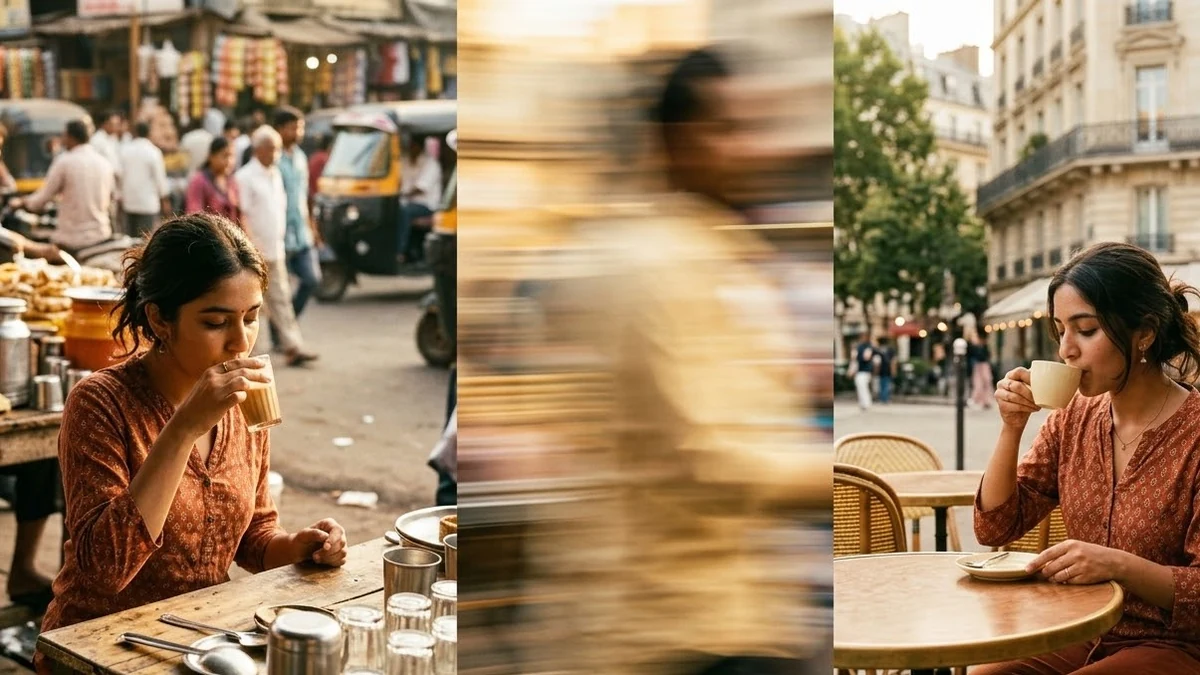
| Whip Pan | A fast sideways blur from one scene to a matching one | Before/after, two places, a quick transition |
A Crash Zoom prompt to copy
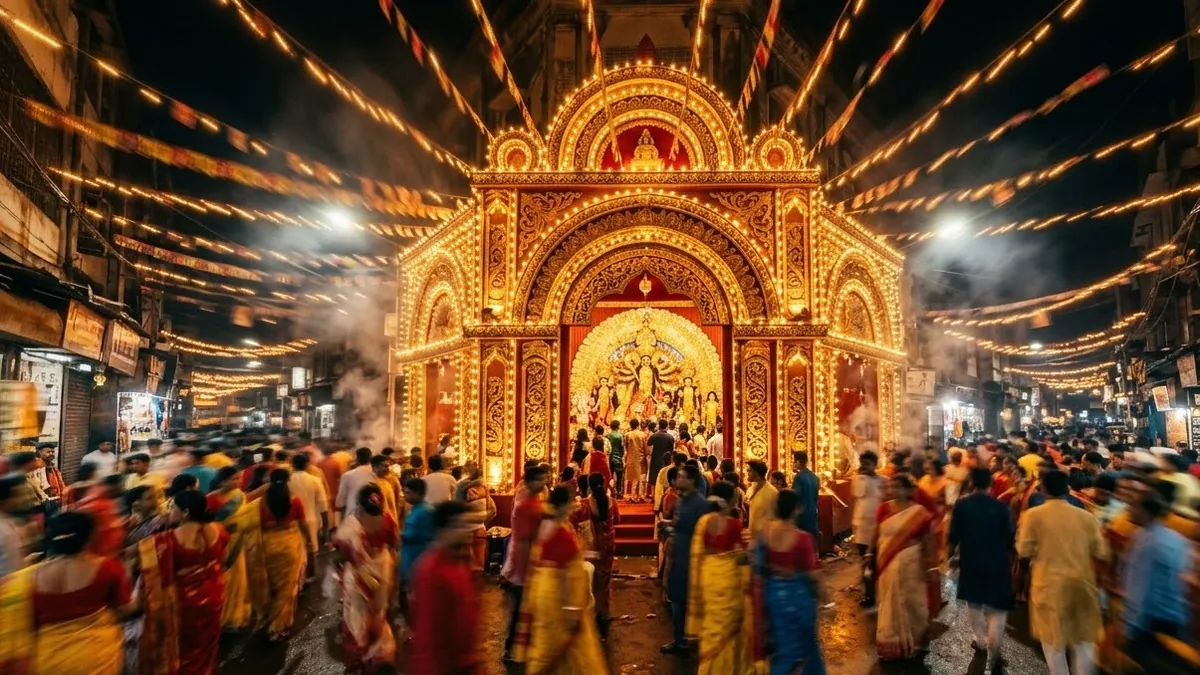
Crash zoom in, 9:16, 5 seconds. The camera starts wide on [SCENE, e.g. a crowded market lane at night], then rushes forward fast and stops sharply on [SUBJECT, e.g. a stall piled with marigold garlands]. Warm lights, handheld energy, shallow depth of field on the final frame.
This is close to the Crash Zoom reveal prompt in the library. The tip that comes with it matters: keep the words "crash zoom in" in your prompt and pick the matching preset in Higgsfield itself. Naming the move in both places gives the most reliable result.
A Dolly Zoom prompt for a "vertigo" moment
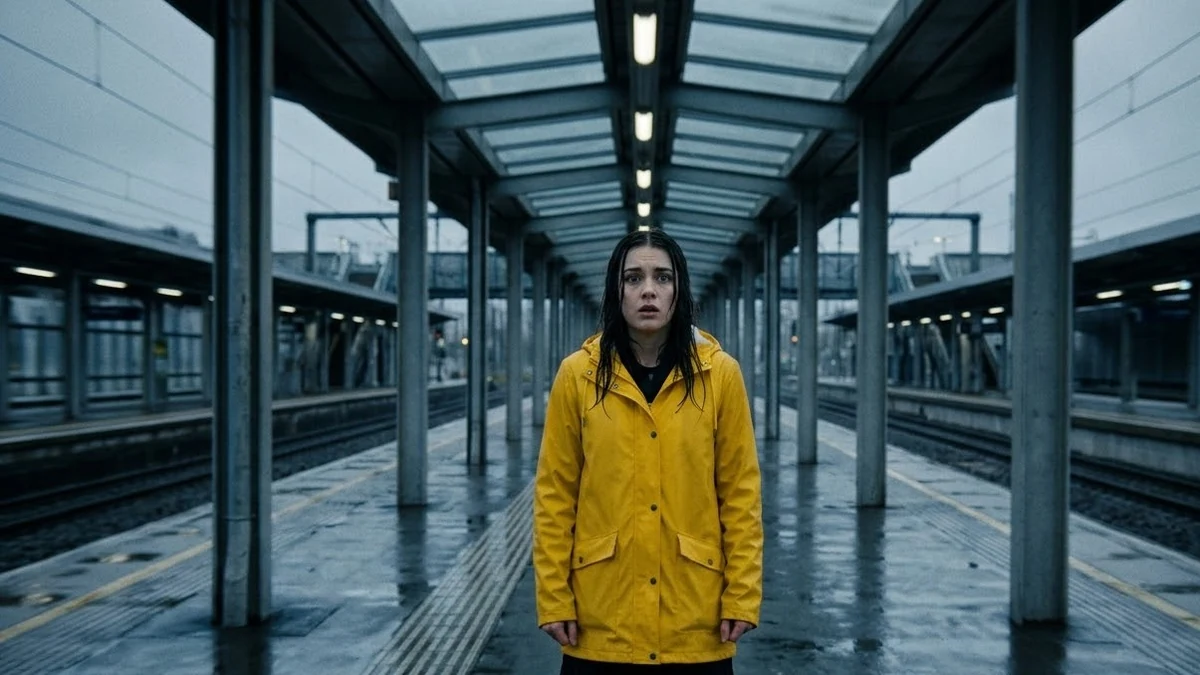
Dolly zoom (vertigo effect), 16:9, 5 seconds. [SUBJECT] stands still in [SETTING, e.g. a long, empty corridor] as the background stretches away behind them while they stay the same size in frame. Their expression shifts from calm to shocked realisation.
The Dolly Zoom prompt in the library works best on a long, straight background, such as a corridor, road or railway platform. Without that depth, the stretching effect has nothing to push against and barely reads.
Picking the right move for your footage
Not every move suits every subject:
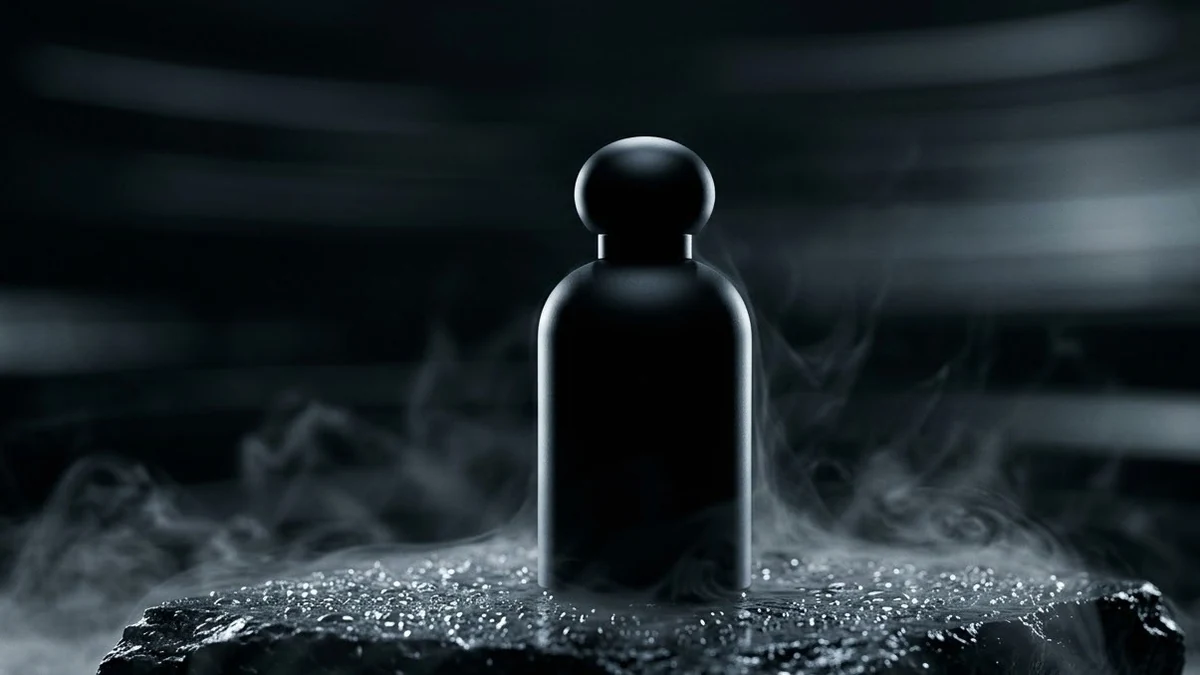
- Showing a product? Use 360 Orbit. Upload a clean photo of the real product as your starting frame, so the shape and colours stay accurate as the camera moves around it.
- Showing a place with energy and depth? Use FPV Drone. It needs somewhere to fly through, so a lane, market or path works better than an open field.
- Cutting between two versions of the same scene? Use Whip Pan. Keep the subject in the same spot and pose in both halves. The motion blur hides the cut, so a matching pose is what sells it.
- Want panic or disorientation? Snorricam keeps the face locked still while the background bounces around it, which only reads clearly in a busy setting. A quiet, empty background wastes the effect.
Common mistakes
Describing the move instead of naming it. "Make the camera rush in quickly" is weaker than "crash zoom in", because the model has specific training on the named move, not just the general idea.
Picking a move the scene doesn't support. A Dolly Zoom in a wide, open field won't stretch convincingly. A Crane Up with nothing interesting at the top wastes the reveal. Match the move to a scene built for it, as in the table above.
Changing too much at once. If a result doesn't look right, change one thing, either the move or the scene, and try again. Changing both makes it hard to tell what fixed it.
Forgetting the aspect ratio. Vertical moves such as Crash Zoom and Snorricam usually suit 9:16 for Reels and Shorts; product and landscape moves like 360 Orbit often work better at 1:1 or 16:9. Set it to match where the clip is going.
Where to go from here
For turning a still photo into motion rather than filming a new scene, see our guide to bringing a photo to life with AI video. All the camera-move prompts above, and more, are free in the Higgsfield prompts collection, and the prompt builder can fill in a preset for your own footage.
Quick checklist
- Name the move in your prompt, and pick the matching preset.
- Match the move to a scene that suits it: depth for FPV, a straight background for Dolly Zoom, a small detail and a big reveal for Crane Up.
- Upload a real reference photo for product shots so the result stays accurate.
- Set the aspect ratio for where the clip is going.
- Change one thing at a time between tries.



Comments
No comments yet. Be the first to share what worked for you.