Google Pics is here: how to write prompts that work in it
Published

Short answerGoogle Pics lives inside Docs, Slides and Drive (and on its own at pics.new). It is built on Nano Banana 2, so the same clear, specific prompting rules apply: describe the subject, the style and the exact text you want, and use its object-based editing to change one part of an image without redoing the whole thing.
Google has started rolling out Google Pics, a new AI image tool built into Google Workspace. It launched on 1 September 2026 for Google AI Pro and Ultra subscribers and most Workspace business and education customers, and it is also available on its own at pics.new (Google Workspace announcement, 9to5Google).
If you already use Gemini or Nano Banana, Pics won't feel unfamiliar. What's new is where it sits: right inside the documents you're already working on, with a way to edit one part of a picture without regenerating the rest of it.
What Google Pics actually is
Pics is built on Nano Banana 2, Google's image model (indiatvnews). If that name is new to you, it's the model covered in our Nano Banana 2 migration guide — it keeps people consistent across an image and follows detailed instructions more closely than the model before it.
Google's own material highlights three things Pics adds on top of that:
- Object-based editing. You can select one element in a generated image, such as a chair or a headline, and move, resize or recolour just that part. You don't have to describe the whole scene again and hope the rest survives.
- Several options at once. One prompt gives you a handful of variations to pick from, side by side.
- It lives where you already work. Type a prompt inside Google Slides and it drops an image straight into the deck. Saves go straight to Drive.
How this changes the prompt you write
The underlying model is the same, so the basics from our Nano Banana 2 guide still apply: be specific about the subject, the setting and the style, and describe what you want rather than what you don't. Google's own guidance for writing prompts in Pics repeats the same core habits: be specific and detailed, describe the scene (time of day, weather, lighting), name an artistic style or photography technique, and put any words you want to appear in the image inside quotation marks.
What's different is that you'll mostly be using Pics for work graphics rather than art: slide backgrounds, diagrams, banners, mood boards. That's a narrower job, and it's easier to get right if you treat the prompt like a short design brief instead of a scene description.
A prompt for a presentation graphic
This is the kind of thing Pics is built for: a diagram you'd otherwise build by hand in a slide editor. Try the SWOT analysis graphic:
SWOT analysis graphic for a presentation: a 2x2 grid with four colour-coded quadrants labelled Strengths, Weaknesses, Opportunities and Threats, each with a small icon and three placeholder bullet lines, [COLOUR PALETTE, e.g. navy and orange] palette, clean modern business style.
Once it's generated, this is where the object-based editing helps: if only the "Threats" quadrant's colour is wrong, select it and ask for just that change, instead of regenerating the whole grid and risking the other three quadrants shifting too.
The product roadmap graphic and team introduction slide work the same way, and both are built for a 16:9 slide.
Getting text right inside the image
Image models have historically struggled with text, which matters a lot for banners and headers. Google's guidance is specific here: keep any words to a short phrase and put them in quotes. The newsletter header banner is a good test case:
A wide email newsletter header banner for "[NEWSLETTER NAME]". Logo-style title text on the left, a simple illustration of [THEME] on the right, [BACKGROUND COLOUR] background with a subtle pattern, tagline "[TAGLINE]", clean and lightweight, looks good scaled down on mobile.
If a word still comes out misspelled, it's usually faster to fix it with the object-based editor than to regenerate everything and hope.
A prompt for a mood board, not a stock photo
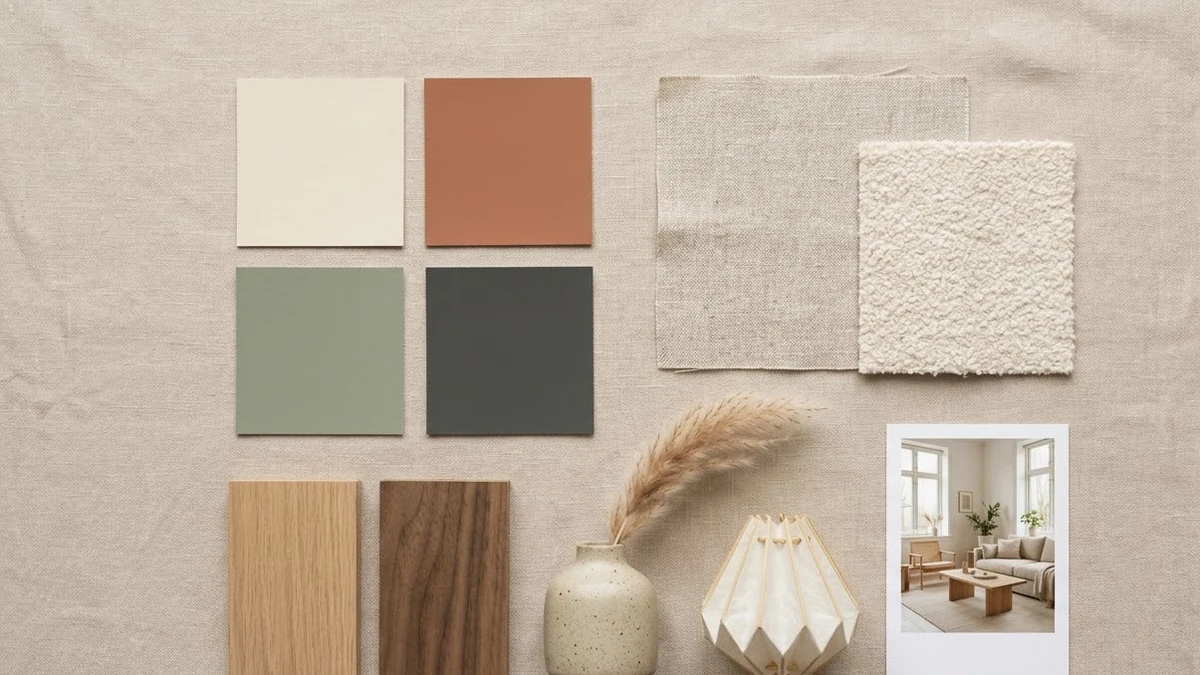
Pics is also good at the kind of flat, labelled reference layout that's normally slow to put together by hand — useful beyond office work, for planning a room or a project. Try the interior design mood board prompt:
A neat interior design mood board for a [ROOM, e.g. small home office] in [STYLE, e.g. warm Japandi] style, laid out as a flat collage: colour swatches, fabric textures, wood samples, [FURNITURE PIECES], lighting, plants and a small reference photo of the finished room. Soft light beige background, tidy grid, labelled swatches.
Common problems
It looks generic. Add a specific colour palette by name (not just "blue", but "deep navy and warm terracotta") and one concrete style reference ("modern product-management style" beats "professional style").
The layout keeps changing between tries. Describe the layout structure explicitly, such as "three columns" or "a 2x2 grid", the way the prompts above do. A vague layout description gets redrawn differently each time.
A word came out wrong. Put the exact text in quotation marks, keep it short, and if one word is still wrong, edit just that object instead of starting over.
Where to go from here
If you're curious about the model under Pics, our Nano Banana 2 migration guide explains what changed and why prompts behave differently now. Browse more ready-made ideas in the Gemini prompts collection, or use the prompt builder to put one together for your own slide or document.
Quick checklist
- Describe the layout structure (columns, grid, rows) explicitly.
- Name a specific colour palette, not just one colour word.
- Put any on-image text in quotation marks and keep it short.
- Use object-based editing to fix one part instead of regenerating everything.
- Check availability: Pics is rolling out to Workspace business, education and Google AI Pro/Ultra plans, not every account yet.
Comments
No comments yet. Be the first to share what worked for you.