AI prompts for gig posters, stage portraits and concert photo fixes
Published
Short answerDescribe your genre, band name and colour palette for a poster, ask the AI to keep your face and the stage exactly the same for a performance portrait, and rescue dark concert photos by lifting shadows without flattening the stage lights.
If you play in a band, run a small venue, or just came home with fifty dark, blurry phone photos from a gig, AI tools can help with most of it: a poster, a usable stage portrait, or a quick fix for the photos that didn't come out. None of this needs design software or a professional photographer. It needs a clear prompt and, for the photo fixes, the shot you already have.
A gig poster, without a designer
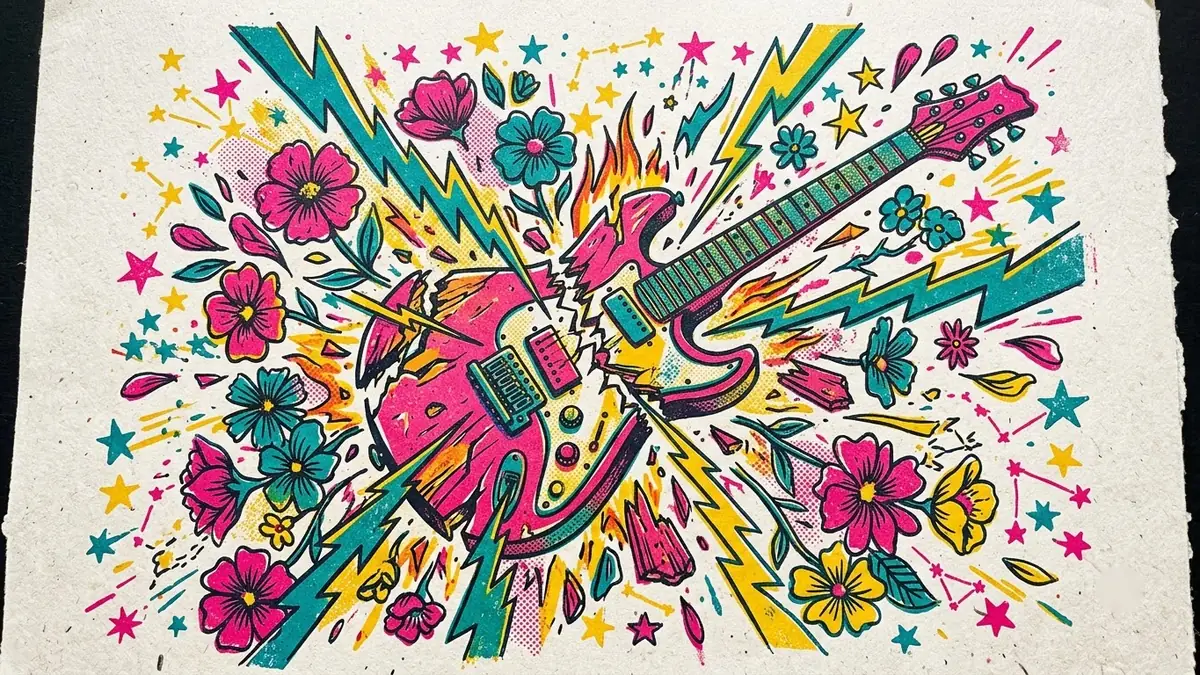
Real gig posters have a recognisable look: bold, limited colours, hand-cut lettering, a bit of texture, and one strong image rather than a cluttered collage. The gig poster prompt is built around that style:
Screen-printed style gig poster for a [GENRE, e.g. indie rock] band called "[BAND NAME]". Bold illustration of [IMAGERY, e.g. a rising sun over a skyline], limited colour palette of [3 COLOURS], distressed texture, band name in huge hand-cut lettering, details "[DATE]", "[VENUE]", "[CITY]", vintage concert poster style. --ar 2:3
A few things make this come out right:
- Limit the palette to three colours. Real screen-printed posters are cheap to make partly because they use few colours. Asking for three keeps the AI from defaulting to a busy, full-colour illustration.
- Pick one image, not a scene. "A skull and roses" works better than "the band playing on stage with a crowd," which tends to come out muddled.
- Put the support acts smaller. If more than one act is playing, list the headliner first and biggest, the way real posters do: "headline act in large text, support acts [NAMES] in smaller text below."
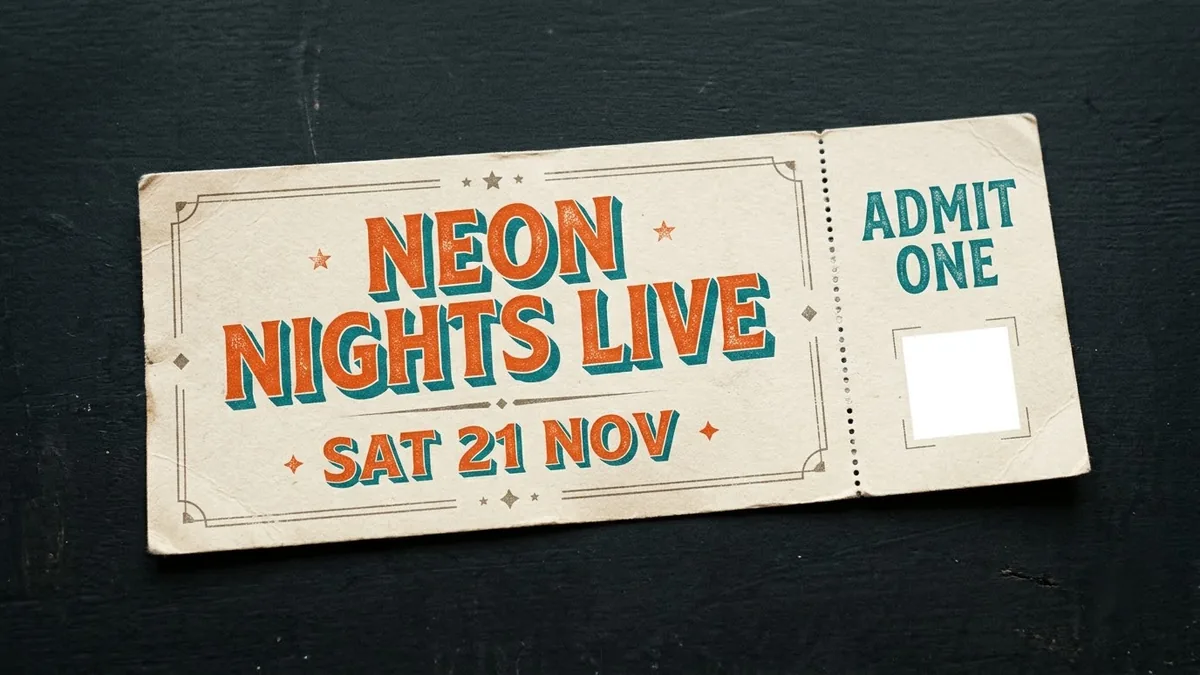
If you're selling tickets for the show, the event ticket design prompt matches the same aesthetic, with a perforated stub and a blank square where you can drop in a real QR code afterwards. AI can't generate a working QR code, so add that part yourself once the design is done.
A performance portrait, even without a live show
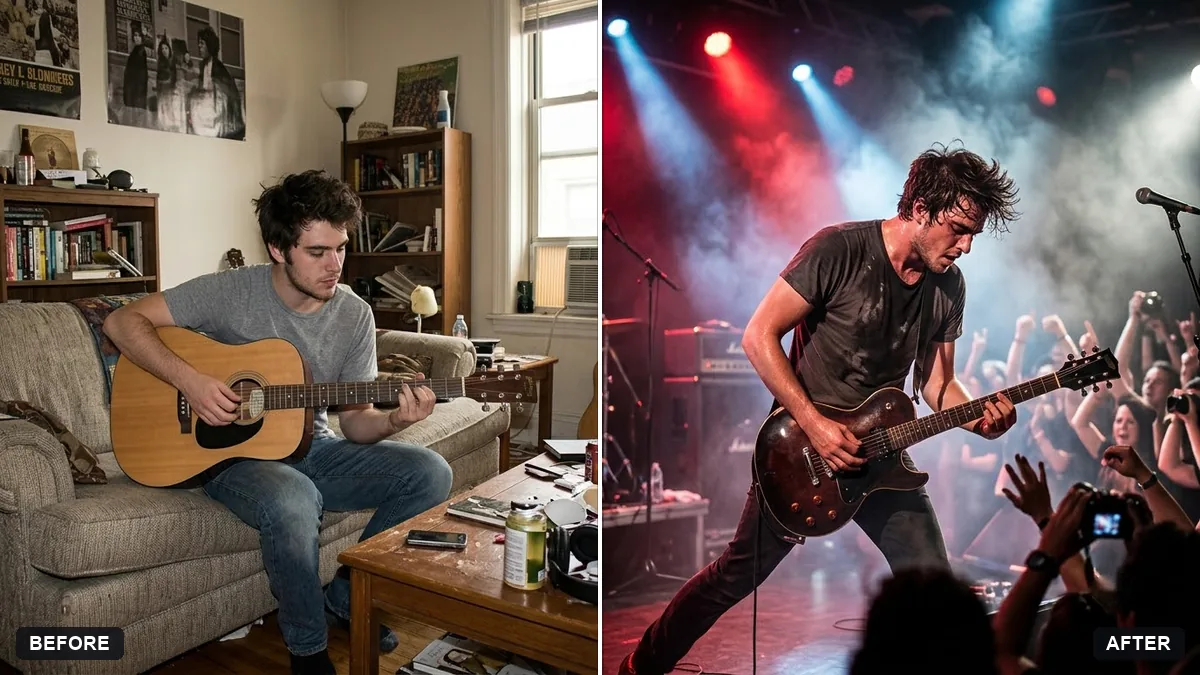
Want a striking "on stage" photo for a profile picture, an EP cover or a press shot, without waiting for your next gig? The musician stage portrait prompt builds the stage around a photo of you:
Turn this photo into a live performance portrait. Keep my face and features exactly the same.

I am on a stage playing [INSTRUMENT] under [COLOUR] spotlights, haze in the air, a blurred crowd in the background, dramatic contrast, concert photography style.
Naming the instrument and the spotlight colour matters more than almost anything else here. Without them, the AI tends to default to a generic microphone-and-guitar scene that may not match what you actually play.
Rescuing a dark concert photo
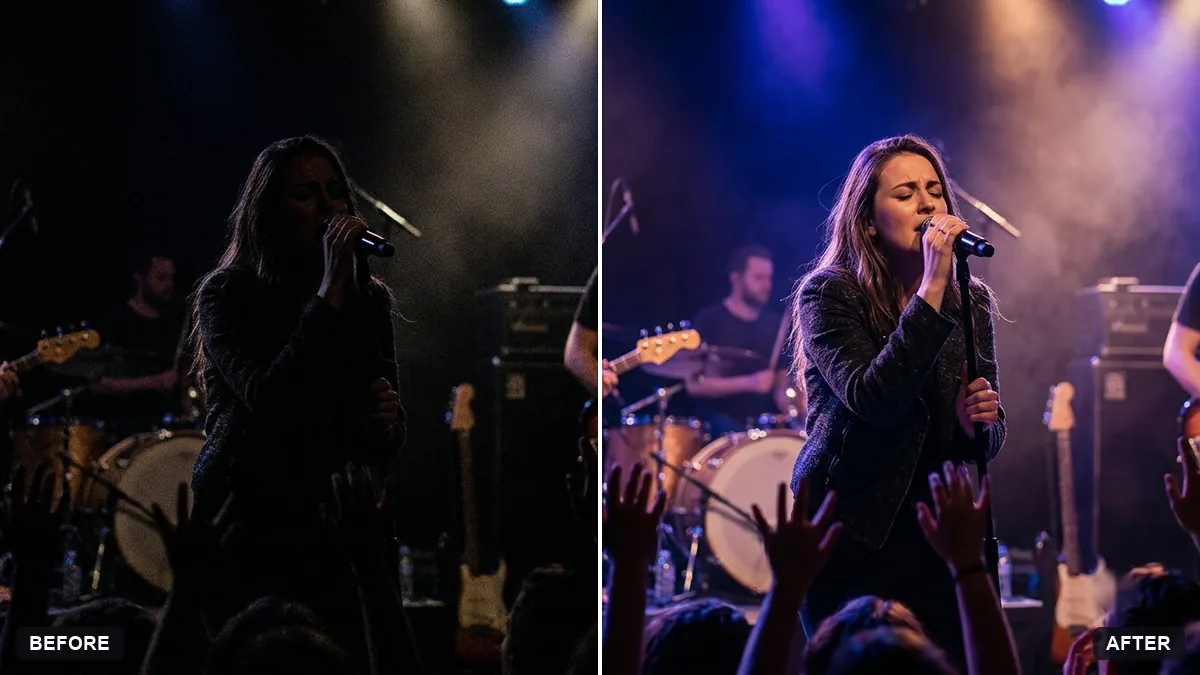
Most phone photos from a gig come out dark, grainy and colour-shifted, because venue lighting is dim and constantly changing. Before you delete the lot, try the underexposed concert photo prompt:
This concert photo is too dark and noisy. Lift the shadows to reveal the performer's face and the stage, reduce noise, sharpen detail and keep the coloured stage lights vivid but natural.

Do not change the performer, instruments or crowd. Keep the stage lighting colours moody; do not brighten the whole scene to daylight.
The last line matters. It's tempting to just ask for "brighter," but a concert photo pushed all the way to daylight brightness loses the atmosphere that made it worth keeping in the first place. Lifting the shadows while keeping the coloured lights intact gives a far more natural result.
Cleaning up a stage or conference photo
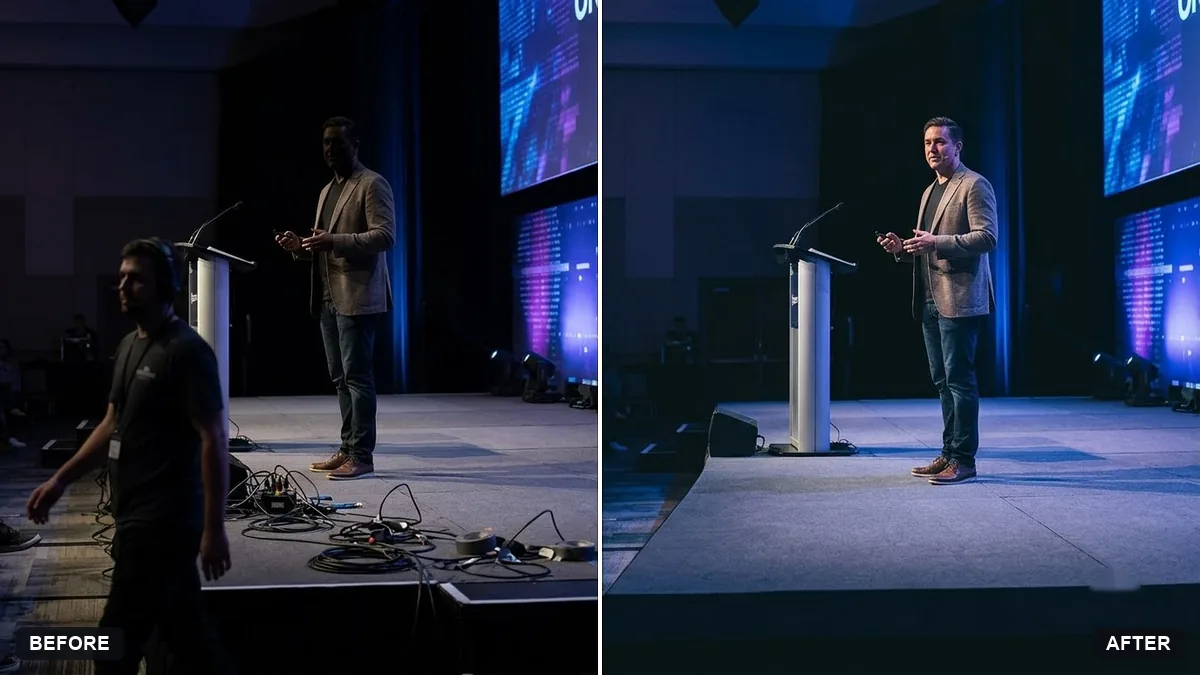
For a tidier job than the one above, such as a cable lying across the front of the stage or someone walking through the shot, the event stage cleanup prompt removes specific distractions while leaving the stage, lighting and banners untouched:
Clean up this photo of a concert stage. Remove the distracting cables and stray equipment at the front of the frame, balance the exposure and lift the shadows on the performer's face.

Keep the stage, lighting, banners and performer exactly as they are.
Naming the exact thing to remove, rather than asking for a general clean-up, keeps the AI from altering parts of the photo you actually want to keep, such as event branding or a banner.
Getting better results
- Say what instrument and what colour light. Vague prompts default to a generic rock-concert look.
- For posters, describe one strong image, not a whole scene with the band, the crowd and the venue all at once.
- For photo fixes, say what to leave alone. "Keep the stage lighting colours" stops the AI from flattening a colourful show into plain white light.
- Keep the palette short on posters. Three colours, not six, for an authentic screen-print look.
Where to go from here
If you're designing wider promotional material for a show, the movie poster prompts guide covers a similar approach for a different kind of poster, with tips on typography and composition that carry over. You'll find these prompts and more mockup styles in the mockup prompts collection, and the prompt builder can adjust any of them to your band's genre and colours.
Quick checklist
- Name the genre, band name and three colours for a poster.
- Keep posters to one strong image, not a full scene.
- Name the instrument and spotlight colour for a stage portrait.
- When fixing a dark photo, say to lift shadows, not brighten to daylight.
- Add a real QR code to ticket designs yourself; AI can't generate one that scans.
Prompts to try
More prompts on this topic
- Live Concert video promptHiggsfield · Kling · Veo
- Tech conference speaker on stageGemini · ChatGPT


Comments
No comments yet. Be the first to share what worked for you.