Is it your Wi-Fi or your internet? A 30-second ping test
Published
Short answerFind your router address with ipconfig, ping it 20 times, then ping 1.1.1.1 20 times. Loss or high times to the router means a Wi-Fi problem; a clean router ping but loss to 1.1.1.1 means an internet provider problem.
Internet slow? Before you restart everything, find out where the problem is: between your PC and the router (your Wi-Fi), or between the router and the internet (your provider).
Step 1: Find your router's address
ipconfig | findstr Gateway
Default Gateway . . . . . . . . . : 192.168.1.1
Step 2: Ping your router 20 times
ping -n 20 192.168.1.1
Ping statistics for 192.168.1.1:
    Packets: Sent = 20, Received = 20, Lost = 0 (0% loss),
    Minimum = 1ms, Maximum = 9ms, Average = 3ms
Use your own gateway address from step 1. 0% loss and a few milliseconds means your Wi-Fi link is fine.
Step 3: Ping the internet 20 times
1.1.1.1 is Cloudflare's public DNS server, a reliable target that answers pings.
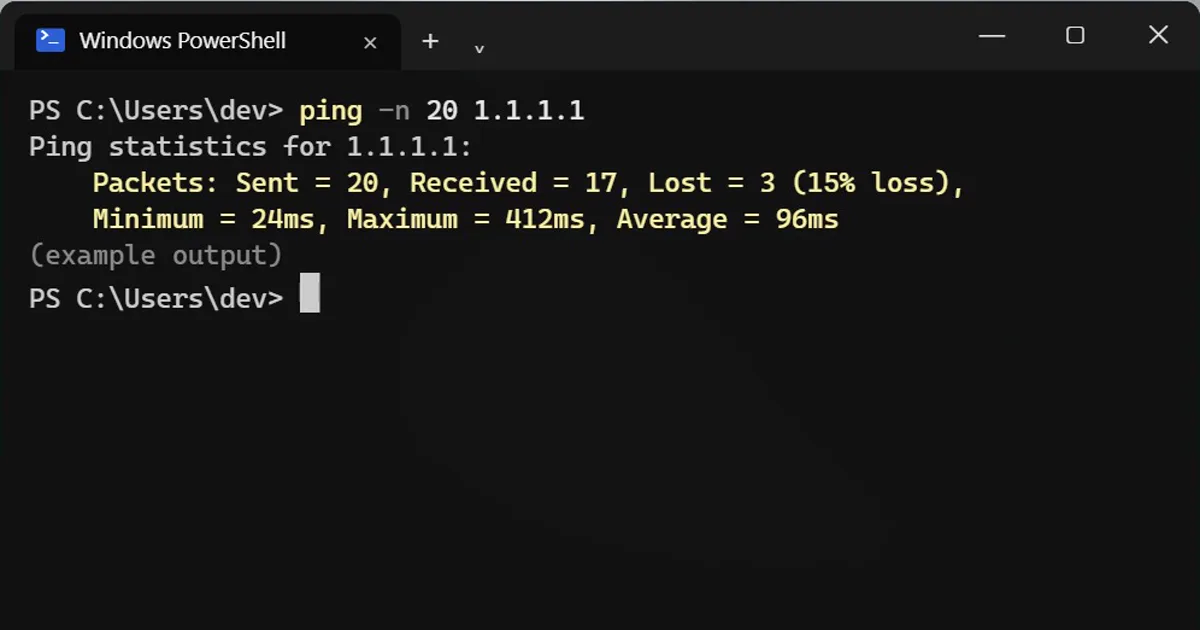
ping -n 20 1.1.1.1
Ping statistics for 1.1.1.1:
    Packets: Sent = 20, Received = 17, Lost = 3 (15% loss),
    Minimum = 24ms, Maximum = 412ms, Average = 96ms
How to read it
| Router ping | Internet ping | Problem is |
|---|---|---|
| Clean | Clean | Not the connection. Try another website or app. |
| Clean | Loss or very high times | Your internet provider. |
| Loss or high times | Bad | Your Wi-Fi. |
Provider problem: take a screenshot of both results before you call them. It's hard to argue with.
Wi-Fi problem: move closer to the router, use the 5 GHz network if you have one, or try a cable. See Is your Wi-Fi slow because of your neighbours?
Some routers don't answer pings at all ("Request timed out" every time). Then skip straight to the internet ping on a cable.
On a Mac
Use -c instead of -n: ping -c 20 192.168.1.1. Your router address is in System Settings > Wi-Fi > Details > TCP/IP.



Comments
No comments yet. Be the first to share what worked for you.