Check your Wi-Fi signal and channel on Windows (and your neighbours')
Published
Short answerRun netsh wlan show interfaces to see your signal, band, channel and link speed, then netsh wlan show networks mode=bssid to see every nearby network and its channel. On 2.4 GHz use channel 1, 6 or 11, or move to 5 GHz.
In a flat or apartment, ten Wi-Fi networks can share the same air. If they all use the same channel, they take turns, and everyone is slow. Two built-in commands show what's going on.
Step 1: Your own connection
netsh wlan show interfaces
    Radio type             : 802.11n
    Band                   : 2.4 GHz
    Channel                : 6
    Receive rate (Mbps)    : 72
Signal : 54%- Signal under about 60%: move closer, or move the router higher and away from walls and metal.
- Band: 2.4 GHz reaches further but is crowded. 5 GHz is faster with many more channels.
- Receive rate is the link between your PC and the router, not your internet speed.
Step 2: Everyone around you
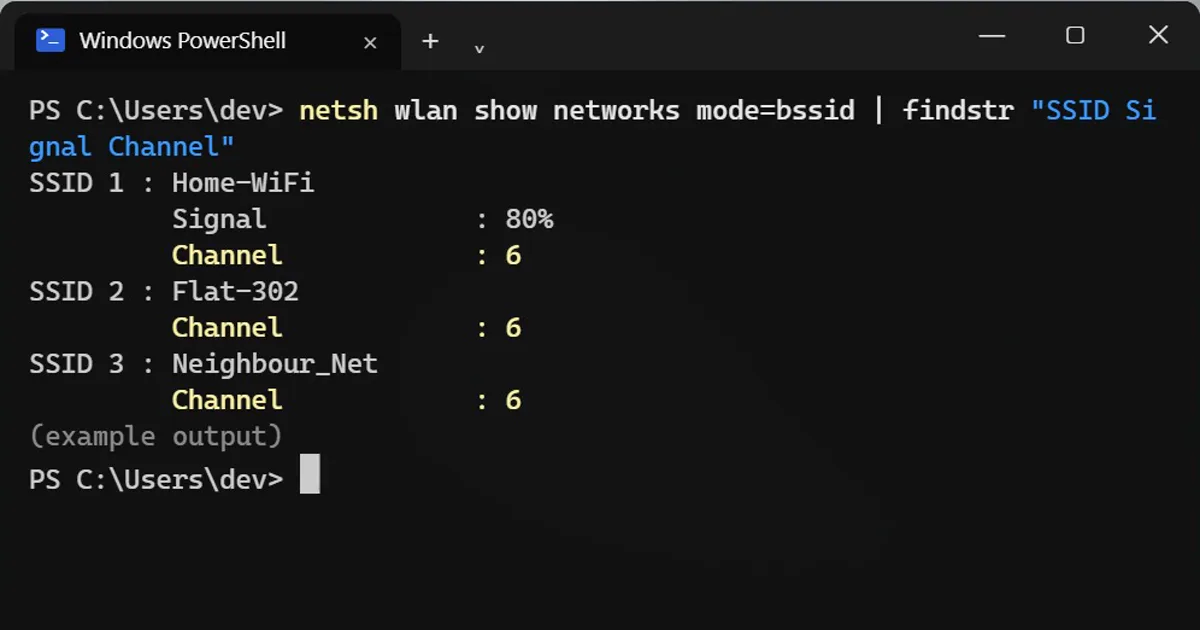
netsh wlan show networks mode=bssid | findstr "SSID Signal Channel"
SSID 1 : Home-WiFi
         Signal             : 80%
         Channel            : 6
SSID 2 : Flat-302
         Channel            : 6
SSID 3 : Neighbour_Net
         Channel            : 6
Everyone on channel 6: one lane, shared.
Step 3: Pick a better channel
On 2.4 GHz, only channels 1, 6 and 11 don't overlap. Pick the one with the fewest and weakest neighbours, then change it on your router's settings page (usually 192.168.1.1 or 192.168.0.1, the login is often on a sticker under the router). Many routers have an "Auto" setting that doesn't always choose well.
Better still: if your router has 5 GHz, connect to that network. It has many more channels and fewer neighbours reach it.
Asks for location permission?
Newer versions of Windows 11 treat nearby Wi-Fi names as location data. If the command asks for it, turn on Settings > Privacy & security > Location, then run it again.
On a Mac
Hold Option and click the Wi-Fi icon in the menu bar. It shows your channel, band and signal (RSSI). Wireless Diagnostics > Window > Scan lists the networks around you.
More quick tips
More prompts on this topic
- Write a polite note to a noisy neighbourChatGPT · Gemini · Claude



Comments
No comments yet. Be the first to share what worked for you.