How to see every device on your Wi-Fi with one PowerShell command
Published
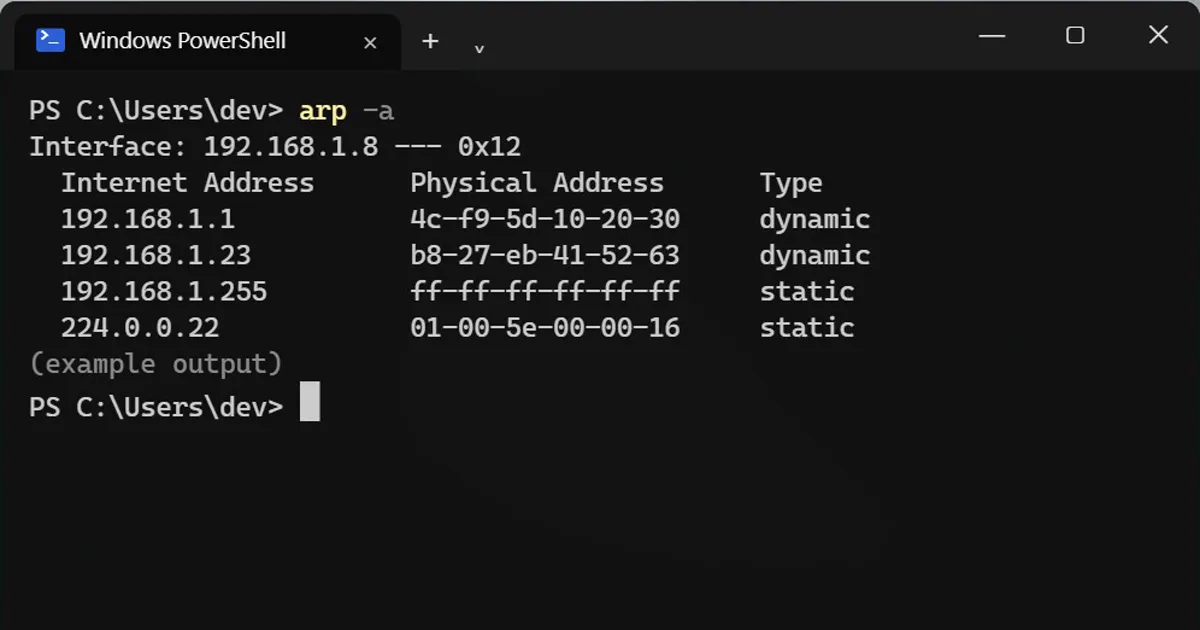
Short answerRun arp -a to see the devices your PC has talked to, then ping every address on your network at once with a PowerShell one-liner and run arp -a again to reveal the rest. Only scan networks you own or manage.
Your PC keeps a table of every device on your network it has recently talked to. You can read that table, and with one extra line you can fill it with every device that is on. Use this only on a network you own or manage, such as your own home Wi-Fi.
Step 1: Read the table
arp -a
Interface: 192.168.1.8 --- 0x7
  Internet Address      Physical Address      Type
  192.168.1.1           aa-bb-cc-11-22-33     dynamic
  192.168.1.5           2e-5a-9c-40-1d-77     dynamic
  224.0.0.22            01-00-5e-00-00-16     static
Lines marked dynamic are real devices. The .1 address is usually your router. Ignore the static lines, which are broadcast and multicast addresses such as 224.0.0.22. The table only holds devices your PC has talked to recently, so it can look short.
Step 2: Wake up the whole network
Ping every address at once (about one second), then read the table again. Replace 192.168.1 with the first three numbers of your own IPv4 address, which you can read with ipconfig:
$p = 1..254 | % { (New-Object Net.NetworkInformation.Ping).SendPingAsync("192.168.1.$_", 500) }; [Threading.Tasks.Task]::WaitAll($p); arp -aDevices that ignore ping usually still show up, because they must answer the address lookup that happens first.
Who is it?
The first six characters of the physical address identify the maker. Search them in any MAC vendor lookup. If the second character is 2, 6, A or E, it is a randomised "private" address. Phones and tablets use these to hide their real address, so that is normal and not a sign of a stranger.
Count and compare
Count the devices, then count what you own: phones, laptops, TVs, speakers, plugs, consoles, cameras. Some smart devices only show up when they are on.
If you find something unknown
Your router's admin page lists device names, which is easier than the addresses. If something is still unknown, change the Wi-Fi password using WPA2 or WPA3. Every device then has to join again, and anything you do not recognise stays out.
On a Mac
arp -a exists there too. The ping sweep above is Windows PowerShell only.
Safety
Only scan networks you own or are allowed to manage. Scanning someone else's network can break their rules, and sometimes the law.



Comments
No comments yet. Be the first to share what worked for you.