How to find a saved Wi-Fi password with one command
Published
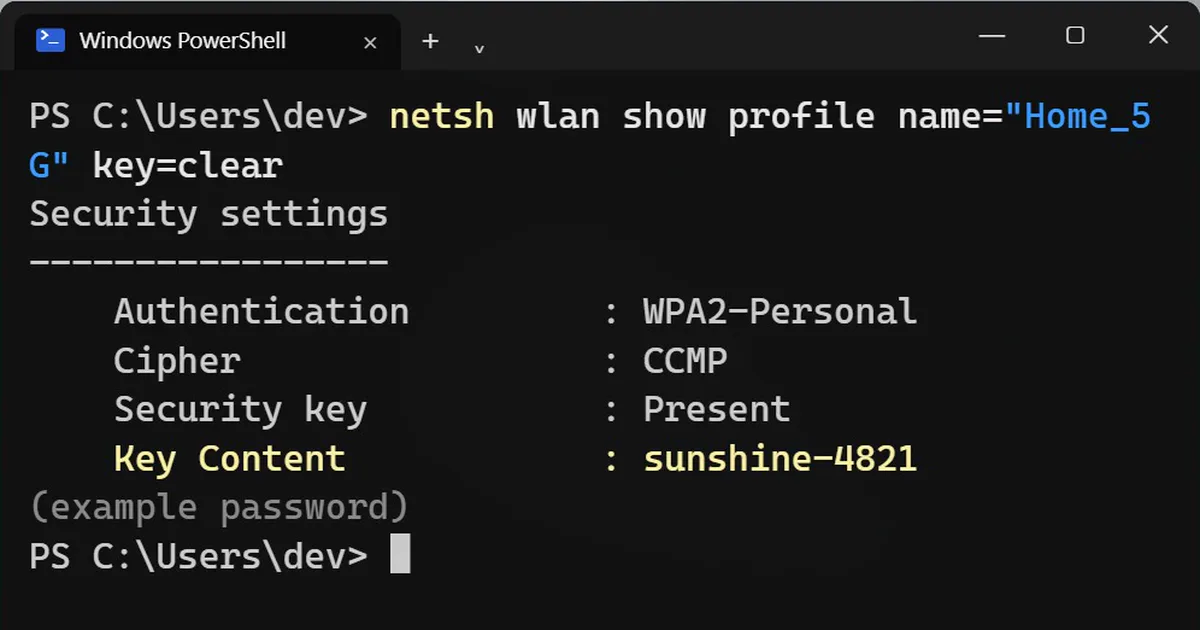
Short answerRun netsh wlan show profiles to list the networks your PC has joined, then netsh wlan show profile name="NetworkName" key=clear and read the Key Content line. It only works for networks your own computer has already joined.
You have a laptop that is connected to your Wi-Fi, but a friend needs the password and you cannot remember it. Windows saved it when you first connected, and you can read it back.
This only shows networks your own computer has already joined. It does not crack anything, and it does not work for networks you have never connected to. Use it on your own devices.
Step 1: List the saved networks
Open Terminal or PowerShell as administrator (right-click it and choose Run as administrator). Type:
netsh wlan show profiles
Example output (your networks will differ):
Profiles on interface Wi-Fi:

User profiles
-------------
    All User Profile     : Home_5G
    All User Profile     : Cafe_Guest
Step 2: Show the password for one network
Pick a name from the list and add key=clear:
netsh wlan show profile name="Home_5G" key=clear
Look under Security settings for the line called Key Content. That is the password.
Security settings
-----------------
    Authentication         : WPA2-Personal
    Cipher                 : CCMP
    Security key           : Present
    Key Content            : sunshine-4821
The password on that last line is an example.
On your phone
It is often even easier on a phone:
- Android: open Wi-Fi settings, tap the saved network, then tap Share. You get a QR code, and the menu names vary a little between phones.
- iPhone: open Settings, then Wi-Fi, tap the small i next to the network, then tap Password. You will need to unlock with Face ID, Touch ID or your passcode. Recent versions of iOS show this.
On a Mac
This command asks you to confirm with your Mac login first, then shows the password. Replace the name with your network:
security find-generic-password -wa "Home_5G"
A tip for next time
Once you have found it, save the password in a password manager so you do not have to look it up again.



Comments
No comments yet. Be the first to share what worked for you.