How to see every app on your PC that is using the internet
Published
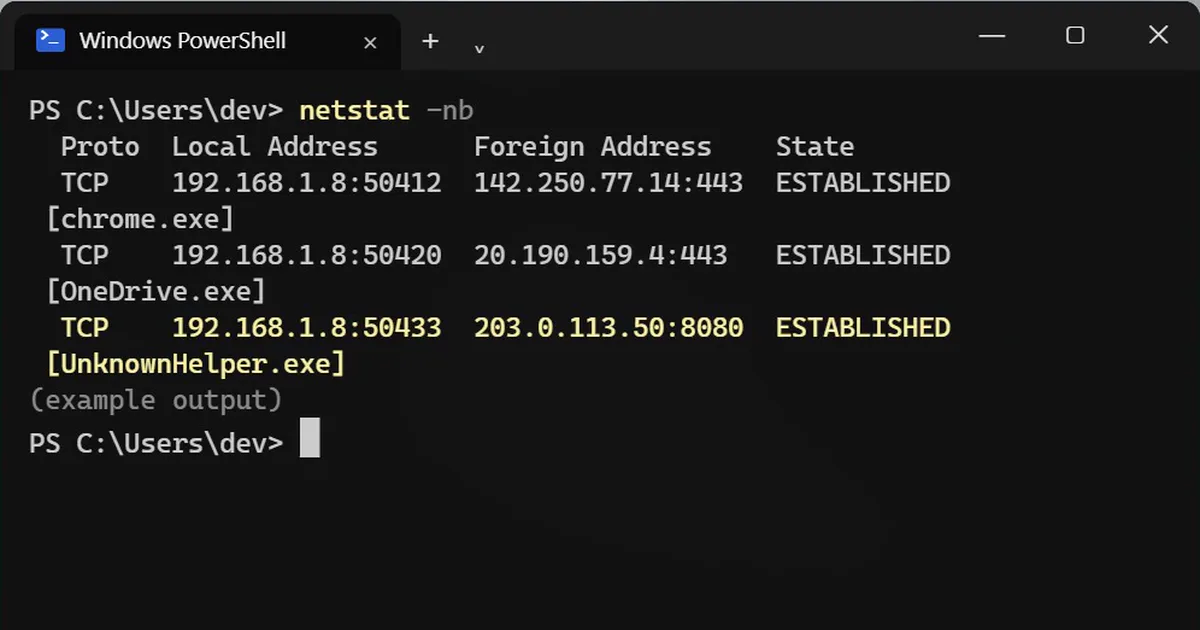
Short answerRun netstat -nb in a terminal opened as administrator. The app name appears in square brackets under each connection. Not every strange name is a virus, so search the name before you delete anything.
Your PC has more conversations going on than you might think. Browsers, cloud storage, updaters and background services all hold connections open. One command shows which apps are talking to the internet right now.
Step 1: List the connections
Open Terminal or PowerShell as administrator (right-click it and choose Run as administrator), then type:
netstat -nb
Each connection is a line, and the app that owns it is named in square brackets underneath. This is example output, and yours will be longer:
  Proto  Local Address      Foreign Address    State
  TCP    192.168.1.8:50412  142.250.77.14:443  ESTABLISHED
 [chrome.exe]
  TCP    192.168.1.8:50420  20.190.159.4:443   ESTABLISHED
 [onedrive.exe]
  TCP    192.168.1.8:50433  203.0.113.50:8080  ESTABLISHED
 [unknownhelper.exe]
Chrome and OneDrive are normal. A name you do not recognise is a reason to look, not a reason to panic.
Step 2: Get the process ID
Add the a and o flags to show a process ID (PID) for each connection:
netstat -ano
The PID is the last column. In the example, the odd app has PID 8812.
Step 3: See where the app lives on your disk
Look up that PID:
Get-Process -Id 8812 | Select-Object Name, Path
Replace 8812 with your own number. The Path shows the folder the app runs from. Apps in Program Files are usually installed software. An app running from a Temp or AppData folder deserves a closer look. The path can be blank for some protected system processes.
Before you delete anything
Not every strange name is a virus. Many are normal Windows or driver components. Search the exact file name first, and if you are still unsure, run a scan with Windows Security. Do not delete system files because a name looks odd.
If you ask an AI chatbot for help, paste only the app names, not your full output. The output includes your local network and the addresses you connect to.
I found these app names with open internet connections on my Windows PC: [LIST OF APP NAMES]. For each one, tell me what it normally is and whether it is usually safe, and what I should check if I do not recognise it.
On a Mac
This command lists connections with their apps. Without extra permissions it shows your own apps:
lsof -i -P | grep ESTABLISHED



Comments
No comments yet. Be the first to share what worked for you.