Frozen or black screen on Windows? Try this before the power button
Published
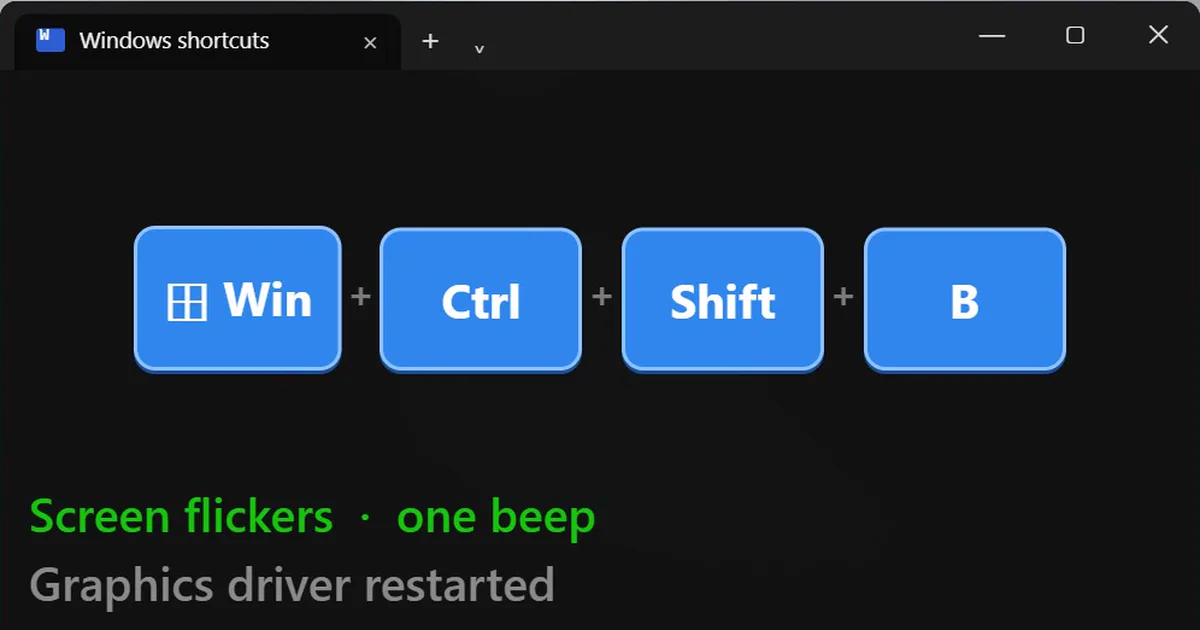
Short answerPress the Windows key, Ctrl, Shift and B together. Windows restarts the graphics driver, the screen flickers, you hear a beep, and your open apps stay open. It often helps with a black or frozen screen, but it cannot fix every freeze.
When the screen freezes or goes black, most people hold the power button. That works, but you lose anything you had not saved. There is a shortcut worth trying first.
The shortcut: Windows + Ctrl + Shift + B
Press these four keys together:
Windows key + Ctrl + Shift + B
The screen flickers or goes dark for a moment, and you hear a beep. Windows has just restarted your graphics driver. Your open apps stay open, because only the driver restarts, not the system.
It often helps with:
- a black screen after sleep
- a frozen picture
- a second monitor that will not show up
It does not fix every freeze. If the whole computer has stopped, including the mouse, the shortcut will not help. It is a quick thing to try, not a guarantee.
If the mouse still moves: open Task Manager
When the mouse moves but nothing responds, press:
Ctrl + Shift + Esc
Task Manager opens straight away, with no Ctrl Alt Delete menu in between. Find the app that is not responding, select it and choose End task. You lose that app's unsaved work, but the rest of your session survives.
Add End task to the taskbar (Windows 11)
On Windows 11 you can end a stuck app without opening Task Manager at all:
- Open Settings.
- Go to System, then For developers.
- Turn on End task.
Now right-click any app on the taskbar and choose End task.
The power button is the last resort
If none of this works, hold the power button. Just try the three steps above first. Each one keeps more of your work than a forced shutdown does.



Comments
No comments yet. Be the first to share what worked for you.