How to check your laptop's battery health with one command
Published
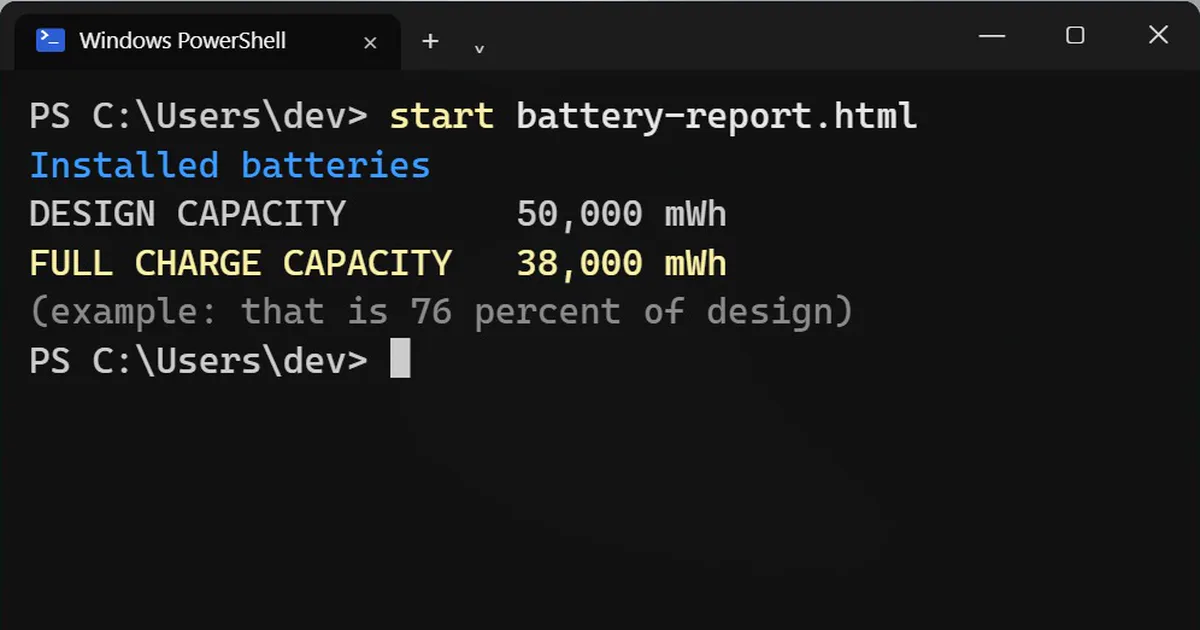
Short answerType powercfg /batteryreport in a terminal, open the report it saves, and compare Design Capacity with Full Charge Capacity. A common rule of thumb says a battery below about 80 percent of its design capacity is worn.
Your laptop has been keeping a report on how worn out its battery is. Windows never shows it in Settings, but one command opens it. It takes about a minute and it works on any Windows laptop.
This is for laptops only. A desktop PC has no battery, so the command will say that none is installed.
Step 1: Save the battery report
Open Terminal, PowerShell or Command Prompt and type:
powercfg /batteryreport
Windows saves the report as a web page and tells you where. By default it lands in the folder your terminal opened in, which is usually your user folder, as battery-report.html.
Example output (yours will show your own user name):
Battery life report saved to file path C:\Users\dev\battery-report.html.
Step 2: Open it
Type this in the same terminal window, or double-click the file in File Explorer:
start battery-report.html
It opens in your browser.
Step 3: Compare two numbers
Find the section called Installed batteries. Two lines matter:
- Design capacity is how much charge the battery held when it was new.
- Full charge capacity is how much it holds today.
The numbers below are an example. Yours will differ.
| Example value | |
|---|---|
| Design capacity | 50,000 mWh |
| Full charge capacity | 38,000 mWh |
Divide the second by the first. Here, 38,000 divided by 50,000 is 76 percent. A common rule of thumb is that a battery below about 80 percent of its design capacity is worn out. It is a rule of thumb, not a hard limit, and some laptops last well for years below that.
Check how long a charge should last
Scroll down to Battery life estimates. It shows how long a full charge should last at design capacity, next to how long it lasts today. If the two are close but your laptop still dies early, the battery is probably fine and a heavy app is draining it. If they are far apart, the battery is the problem.
On a Mac
Mac laptops have their own command. It shows the cycle count, the condition and the maximum capacity:
system_profiler SPPowerDataType
What to do if the battery is worn
You can keep using the laptop plugged in, or have the battery replaced. Check your warranty first, and use the maker's or a trusted repair shop's replacement battery.



Comments
No comments yet. Be the first to share what worked for you.