How to see which apps used your camera and microphone on Windows
Published
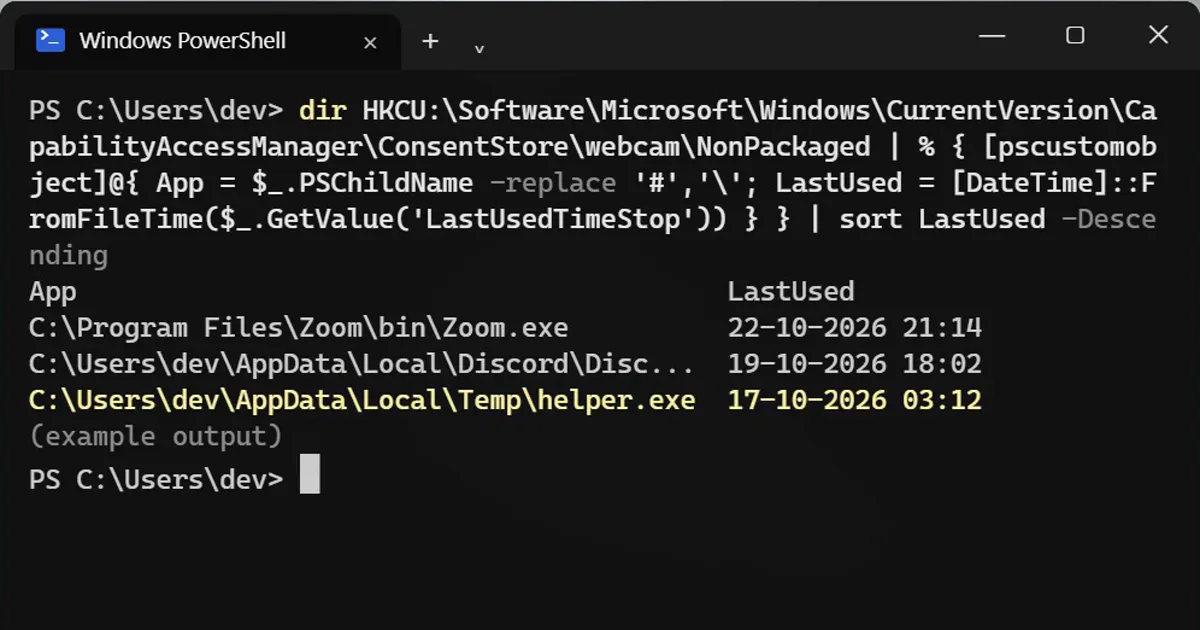
Short answerWindows records every desktop app that used your camera or microphone and the last time it did. One PowerShell command reads that list, newest first, and Settings shows the same for browsers and Store apps.
Windows remembers every app that turned on your camera or microphone, and the last time it did. You never see this list unless you go looking. One line shows it.
Step 1: List the apps that used your camera
Open PowerShell (Start, type PowerShell) and paste:
dir HKCU:\Software\Microsoft\Windows\CurrentVersion\CapabilityAccessManager\ConsentStore\webcam\NonPackaged | % { [pscustomobject]@{ App = $_.PSChildName -replace '#','\'; LastUsed = [DateTime]::FromFileTime($_.GetValue('LastUsedTimeStop')) } } | sort LastUsed -DescendingApp LastUsed C:\Program Files\Zoom\bin\Zoom.exe 22-10-2026 21:14 C:\Users\dev\AppData\Local\Discord\Disc... 19-10-2026 18:02 C:\Users\dev\AppData\Local\Temp\helper.exe 17-10-2026 03:12
Each line is a program that switched your camera on, with the last time it stopped using it. It reads only your own Windows account, and it changes nothing.
How to read it
- Zoom, Teams, Discord, your browser at times you remember: normal.
- A program in a Temp or Downloads folder, or a time when you were asleep: find out what it is.
- A date in the year 1601: that app is using the camera right now. Windows stores "still running" as zero, and zero turns into 1 January 1601.
Step 2: The same for your microphone
Change webcam to microphone in the command and run it again. You get the same list for your mic.
Browsers and Store apps
This list covers normal desktop programs. Store apps and the per-app history live in Settings > Privacy & security > Camera (and Microphone). On Windows 11, open Recent activity there to see which apps used it in the last week.
Found one you don't recognise?
- Switch its access off on that same Settings page.
- Search the file name and its folder. A program called after a Windows file but sitting in Temp or AppData is a warning sign.
- Upload the file to virustotal.com for a free scan by about 70 antivirus engines.
On a Mac
A green dot next to the camera means it is on, an orange dot in the menu bar means the microphone is on. Open Control Center to see which app is using it. System Settings > Privacy & Security > Camera lists the apps that are allowed.
More quick tips
More prompts on this topic
- App store listing copyChatGPT · Gemini · Claude
- App store screenshot with captionIdeogram · ChatGPT · Gemini



Comments
No comments yet. Be the first to share what worked for you.