How to see what a background process on your PC is really doing
Published
Short answerList the top memory users with Get-Process, then run Get-CimInstance Win32_Process with the process ID to see the full command line and the parent process. For svchost, tasklist /svc shows the Windows service inside. A hidden PowerShell is not proof of anything, so read the script first.
Task Manager shows a process name. PowerShell shows what the process was actually started to do. That makes it much easier to tell a normal helper from something odd.
Step 1: Find the big ones
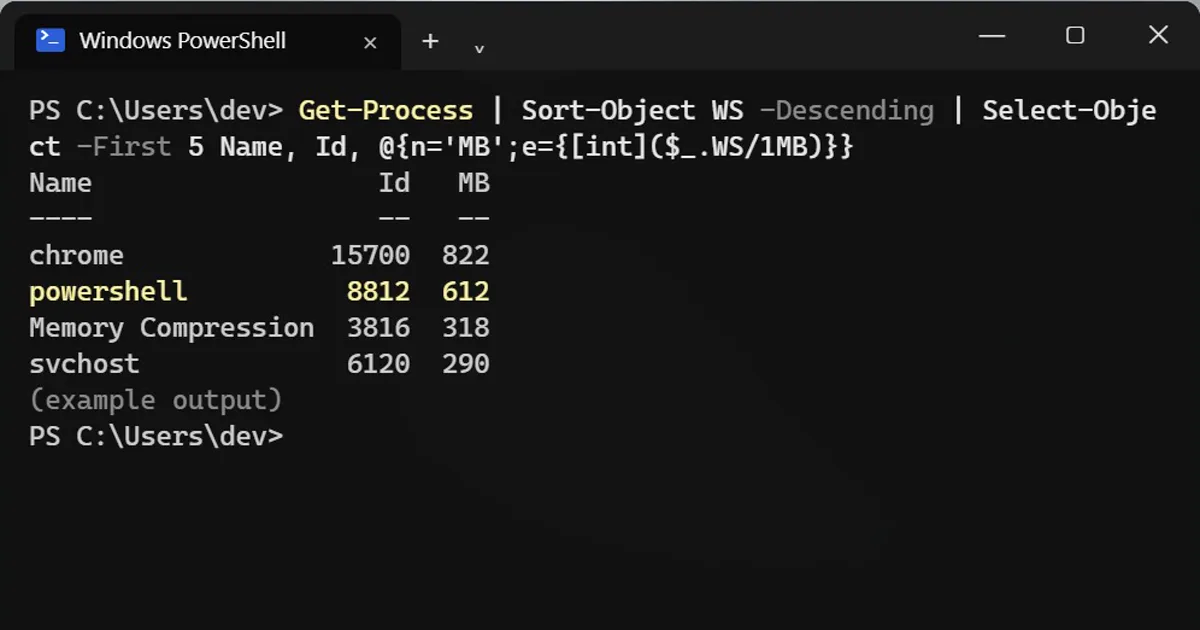
Get-Process | Sort-Object WS -Descending | Select-Object -First 5 Name, Id, @{n='MB';e={[int]($_.WS/1MB)}}Name Id MB ---- -- -- chrome 15700 822 powershell 8812 612 Memory Compression 3816 318 svchost 6120 290
Browsers are normal. Memory Compression is Windows packing your RAM, also normal. A powershell, cmd or unknown name using lots of memory when you did not open it is worth a look.
Step 2: Read the full command line
Use the Id from the list (8812 in the example):
Get-CimInstance Win32_Process -Filter "ProcessId=8812" | Select-Object ParentProcessId, CommandLine
ParentProcessId : 1896
CommandLine     : powershell.exe -WindowStyle Hidden -File C:\Users\dev\AppData\Local\Temp\sync.ps1
The example shows a hidden window running a script from the Temp folder, which is the classic odd line. Open the script in Notepad to read it, and do not run it. Then search the file name.
If CommandLine is blank, you need PowerShell as administrator. Windows hides the full command of system processes from normal users.
Step 3: Which service is inside svchost?
svchost.exe is a container that runs many Windows services. Find out which one:
tasklist /svc /fi "pid eq 6120"
Image Name                     PID Services
========================= ======== ==========
svchost.exe                   6120 wuauserv
wuauserv is Windows Update. Search any service name you do not know.
Hidden is not proof
Many legitimate apps run PowerShell in the background: backup tools, sync clients and developer tools. A hidden window by itself says nothing. Look at the script path, the parent process and the name before you decide.
If you are sure it is unwanted
Stop-Process -Id 8812
This ends the process immediately and loses anything unsaved in it. If the app comes back at the next start, check the startup list and scheduled tasks.
More quick tips
More prompts on this topic
- Process flow infographicGemini · ChatGPT · Midjourney
- Turn a process into a step-by-step SOPChatGPT · Gemini · Claude



Comments
No comments yet. Be the first to share what worked for you.