Fix a group photo with AI: closed eyes, missing people and collages
Published
Short answerName the one person and the one problem, such as "the man on the far left has closed eyes", rather than asking the AI to improve the whole photo. A group photo has more faces to protect than any other kind, so the fewer things you ask it to touch, the safer the rest of the group is.
A group photo is the hardest kind of photo to edit with AI, for one simple reason: there are more faces that could change by accident. A portrait edit risks one face. A group photo of twelve people risks twelve. The single most useful habit is to name exactly one person and exactly one problem, and tell the AI everyone else is off limits.
This guide covers the most common group photo fix, someone's eyes are closed, plus turning a group photo into a farewell card, a team poster, or a collage of several photos at once.
Fixing closed eyes without touching anyone else
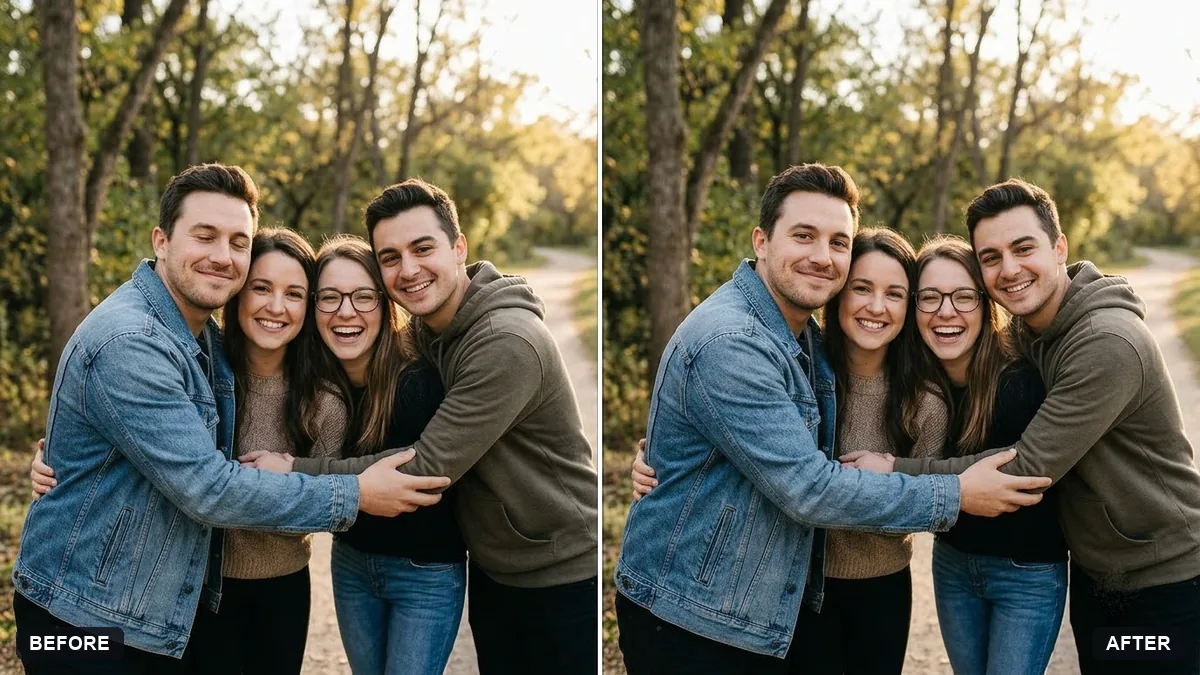
This is the fix people search for most, because it's the one flaw that ruins an otherwise perfect group shot. The fix closed eyes in a group photo prompt:
Fix this group photo. [PERSON, e.g. the man on the far left] has closed eyes. Open his eyes naturally using his real eye shape and colour.

Keep every other face, pose, clothing and background exactly the same. Do not change anyone else. Make no other edits apart from a gentle brightness balance.
The phrase "using his real eye shape and colour" matters because without it, the AI sometimes opens the eyes but gives them a slightly generic shape, which makes that one person look subtly unlike themselves while everyone else looks fine. If you have a second photo from the same moment where that person's eyes are open, upload both and ask the AI to combine them, which gives it a real reference instead of a guess.
If more than one person has their eyes closed, fix them one at a time rather than together. It's slower, but it's much easier to check a single face than to check twelve at once.
Turning a group photo into a farewell card
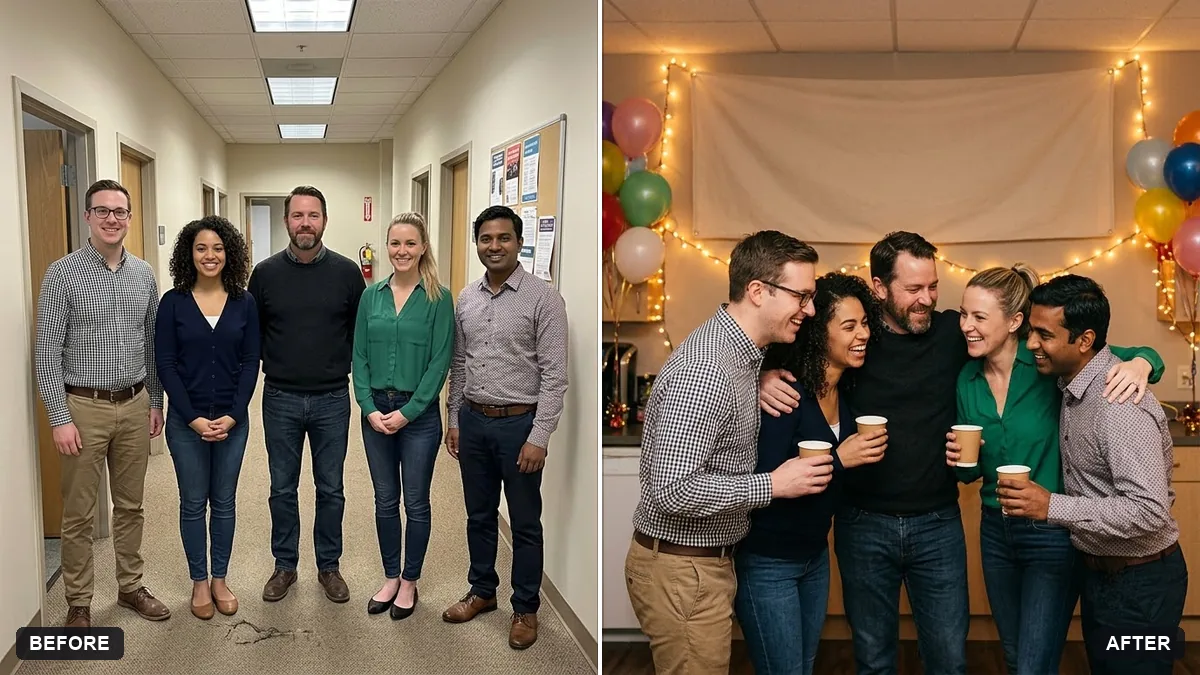
Office and school leaving parties are one of the most common reasons people reach for this kind of edit. The farewell group photo with a backdrop prompt:
Turn this group photo into a farewell memory. Keep every person's face and features exactly the same.

Add a warm office-party background with soft string lights and a banner reading "[FAREWELL MESSAGE]". Balanced colour, a gentle vignette, everyone looking happy. Do not change anyone's clothing.
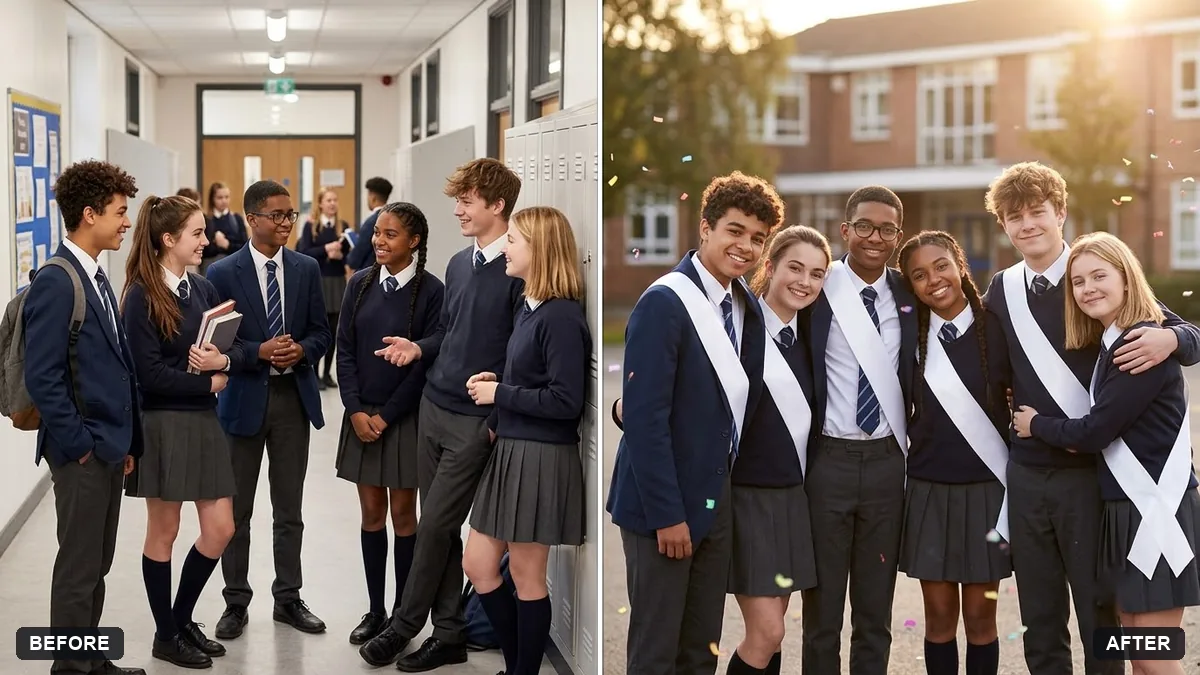
The school farewell group photo prompt follows the same structure but adds matching sashes and a blurred school building, for a yearbook-style look instead of an office one. In both, the message on the banner is the one thing worth proof-reading carefully before you share it, since text in AI images can come back misspelled even when the rest of the photo is right.
A poster for a sports or college team
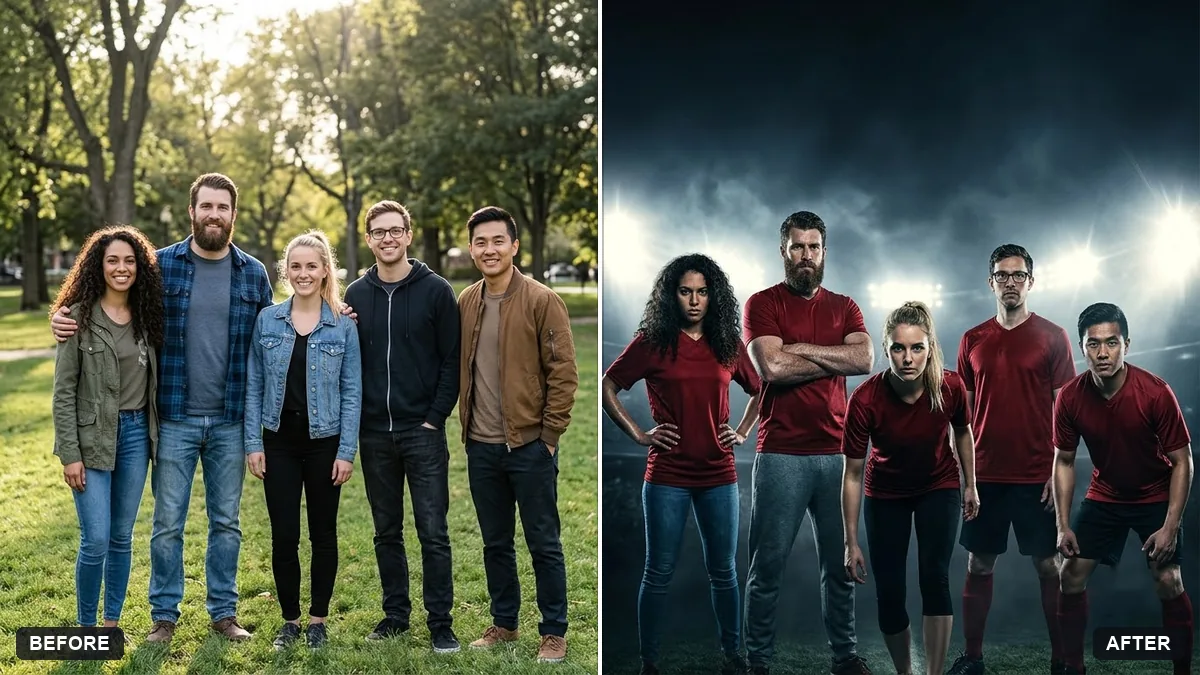
The same "keep every face, change the setting" idea works for a more playful result. The sports team poster prompt:
Turn this group photo into a sports team poster. Keep every face exactly the same.

Everyone wears matching [COLOUR] jerseys with the invented team name "[TEAM NAME]", dramatic stadium lights behind, a moody cinematic colour grade, bold space at the top for the title.
Use an invented team name and jersey design rather than a real club's branding, both to avoid a confusing result and to stay clear of using someone else's logo.
Combining several photos into one collage
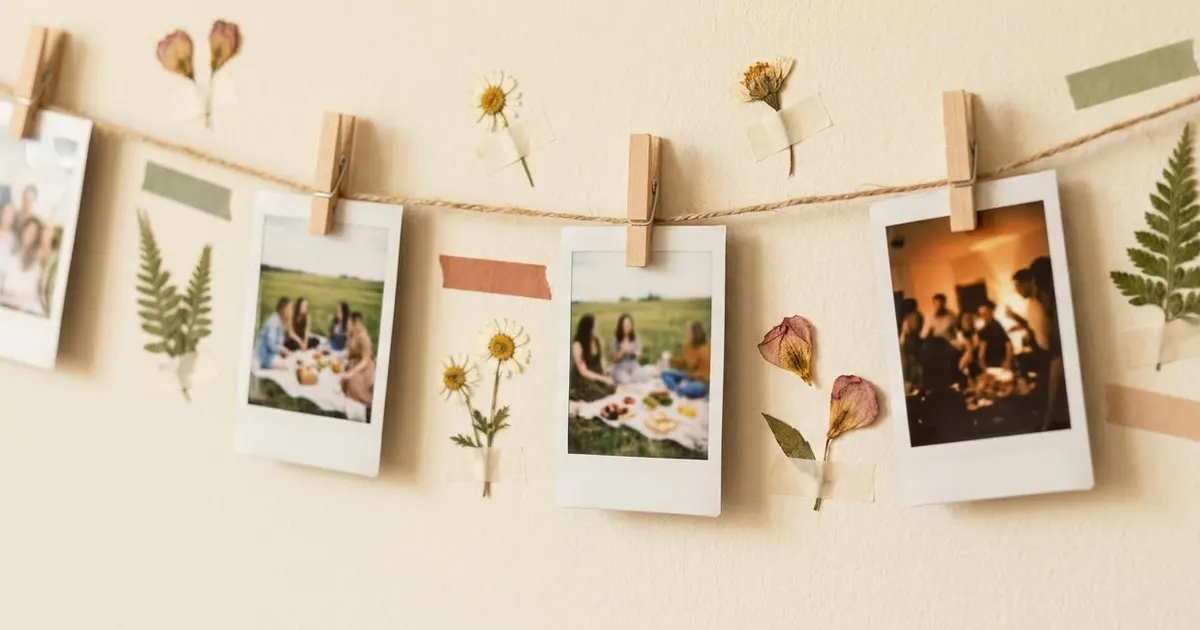
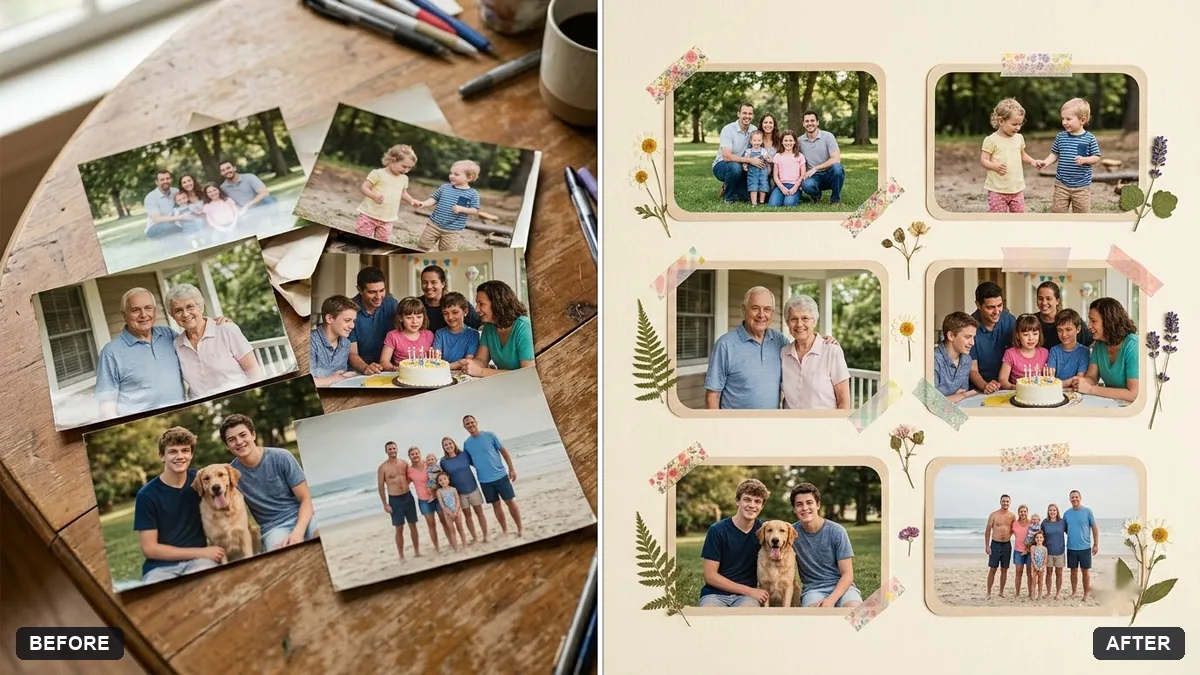
If the "group" you want isn't all in one photo, such as relatives who live far apart, or photos taken across a whole year, a collage solves it without trying to merge people into a single fake scene. The memory wall collage prompt:
Combine these photos into a memory wall collage with soft rounded frames, small handwritten captions such as "[CAPTION 1]" and "[CAPTION 2]", pressed flowers and washi tape, on a [CREAM / PASTEL] background.

Keep every photo's people exactly the same.
Upload up to six photos and pick one theme colour, rather than leaving the palette open, for a collage that looks planned instead of random. Keep the captions short: long handwritten text in an AI image is one of the more likely things to come back with a spelling slip, so check it before you print or send anything.
Fixing the common problems
- A face other than the one you named also changed. Reply: "You changed [PERSON]'s face too. Put it back exactly as it was, and only fix [THE ORIGINAL PERSON]."
- The lighting looks uneven after the fix. Ask for "a gentle, even brightness balance across the whole photo," which is the one global change worth allowing.
- Text on a banner or caption is misspelled. Keep it under a handful of words, and ask it to "match the text exactly as written, letter by letter."
- The collage looks cluttered. Reduce it to four photos instead of six, and name one background colour instead of leaving it to choose.
Where to go from here
Group photos share a lot with AI family portraits, which covers the same "count the people, protect every face" approach for festive and everyday family photos. More group photo fixes, including team and farewell looks, are in the photo editing prompts collection, and the prompt builder can write a version for your exact group and occasion.
Quick checklist
- Name one person and one problem at a time, not the whole group.
- Say everyone else should stay exactly the same, in a separate line.
- Fix multiple closed-eye faces one at a time, not together.
- Check any text on a banner or caption before you share the result.
- For photos from different times or places, use a collage instead of trying to merge people into one scene.
Prompts to try
More prompts on this topic
- Fix red-eye in flash photosGemini · ChatGPT
- Year in review photo collageGemini · ChatGPT
- Fix glowing eyes in pet flash photosGemini · ChatGPT
- Photo collage grid for social postsGemini · ChatGPT

Comments
No comments yet. Be the first to share what worked for you.