Windows can remember your last 25 copies
Published
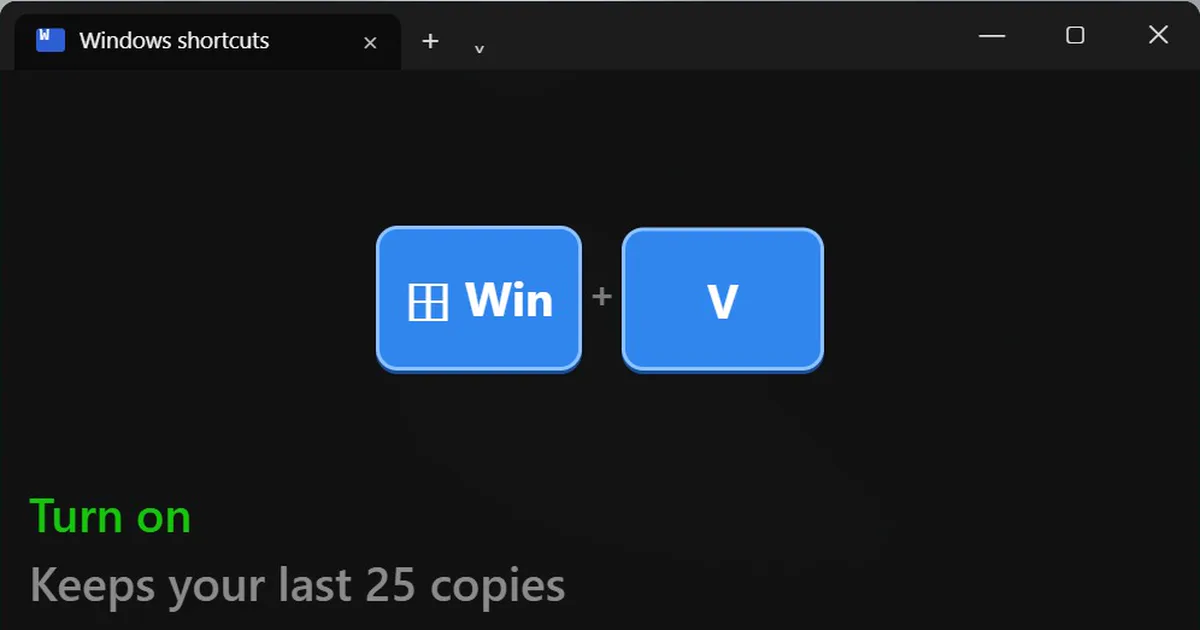
Short answerPress the Windows key and V, then click Turn on. Windows then keeps your last 25 copies, and pressing Windows + V again lets you paste any of them. The list clears when you restart, but pinned items stay. Windows + period opens emoji, and on Windows 11 also GIFs and symbols.
Normally your clipboard holds one thing. Copy something new, and the last thing is gone. Windows can keep a history instead, and most people never turn it on.
Step 1: Turn it on
Press the Windows key + V. The first time, a small window asks you to turn on clipboard history. Click Turn on.
You can also turn it on in Settings, then System, then Clipboard, then Clipboard history.
Step 2: Paste from the history
From now on, Windows keeps your recent copies: text, links and screenshots. Press Windows key + V in any app, then click the item you want to paste.
Microsoft's help page says the history holds up to 25 items, and each item can be up to 4 MB.
Pin what you paste every day
Restarting your PC clears the history, except for pinned items. Open the history and click the pin icon next to an item (on Windows 10 it is in the ... menu). Good things to pin: your address, your email signature, a phone number you type all the time.
Avoid pinning passwords. Anyone using your PC can open the clipboard history.
The emoji panel
Press Windows key + period (.) and an emoji panel opens in almost any app, even Notepad. On Windows 11, the same panel has tabs for GIFs, kaomoji and symbols, including currency signs like ₹.
Sync between your PCs
In Settings, System, Clipboard, turn on Clipboard history across your devices. Copy on one PC, paste on another that is signed in with the same Microsoft account.
Clear it
Press Windows key + V and click Clear all, or use Clear clipboard data in the Clipboard settings. Pinned items stay until you unpin them.
More quick tips
More prompts on this topic
- Explain a period of history as a timelineChatGPT · Gemini · Claude
- Emoji-style 3D avatarGemini · ChatGPT
- Panda emoji setMidjourney · Gemini · ChatGPT



Comments
No comments yet. Be the first to share what worked for you.