How to copy text from any picture or screenshot
Published
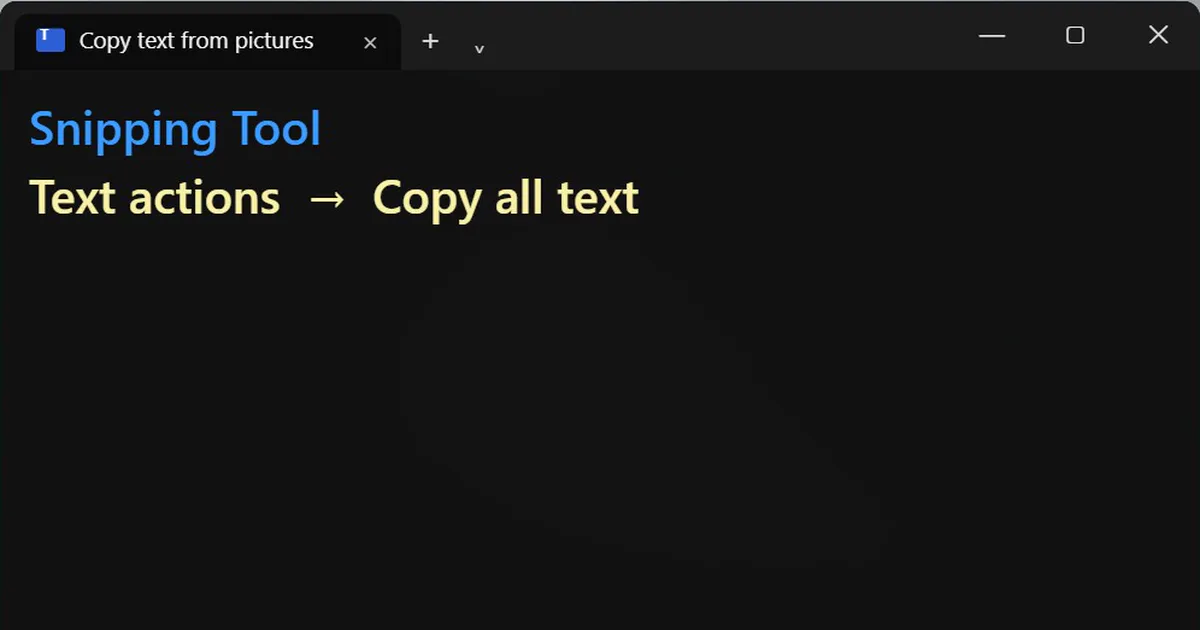
Short answerOn Windows 11, press Windows, Shift and S, snip the area, then use Text actions and Copy all text in Snipping Tool. On iPhone, press and hold on the text in a photo. On Android, use Google Lens, tap Text, then Copy. Check what you paste, because text recognition is not perfect.
Retyping a code, an address or a paragraph from a screenshot is slow and full of typos. Your computer and your phone can read the text in a picture and copy it for you.
On Windows 11
- Press Windows key + Shift + S and drag over the area.
- Open the snip in Snipping Tool. The notification at the bottom right opens it.
- Click Text actions, then Copy all text.
This needs Windows 11 with a recent version of the Snipping Tool. If you do not see Text actions, update the Snipping Tool from the Microsoft Store.
On iPhone
Open the photo and press and hold on the text. Select what you need and tap Copy. This also works in screenshots and in the camera view.
On Android
Open Google Lens, point it at the picture or choose one from your gallery, tap Text, then Copy. The menu names can vary a little between phones.
It works on paused videos too
Pause a tutorial, snip the code or text on screen, and paste it. This saves typing out long commands from a video.
Always check the result
Text recognition is good, but it is not perfect. The letter O and the number 0 get mixed up, and so do l and 1. Read the result before you use it, and be extra careful with passwords, codes and numbers.
Clean it up with an AI chatbot
If the pasted text has odd line breaks or small mistakes, paste it into a chatbot with this:
Fix the line breaks and obvious recognition errors in this text copied from a screenshot. Do not change the meaning, and tell me which characters you were unsure about. Text: [PASTE THE TEXT HERE]
Do not paste private or sensitive documents into any chatbot you do not trust with them.
More quick tips
More prompts on this topic
- Write Google Ads copyChatGPT · Gemini · Claude
- Fix a layout bug from a screenshotClaude · ChatGPT · Claude Code
- Screenshot on a laptop mockupGemini · ChatGPT



Comments
No comments yet. Be the first to share what worked for you.