Set a shutdown timer on your PC with one command
Published
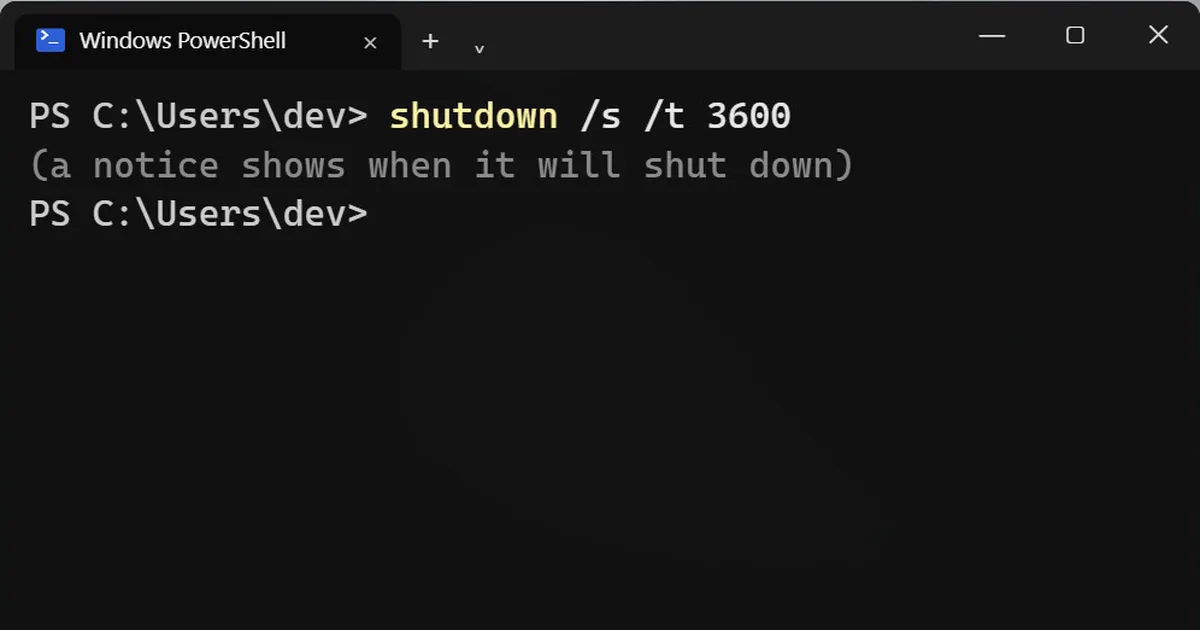
Short answerOpen a terminal and type shutdown /s /t 3600 to switch the PC off in one hour (the number is seconds). shutdown /a cancels it. Save your work first, because Windows closes your apps when the timer ends, even ones with unsaved changes.
Watching a movie in bed, or leaving a big download running at night? You do not need an app to switch the PC off later. Windows has a timer built in.
Step 1: Set the timer
Open PowerShell, Terminal or Command Prompt and type:
shutdown /s /t 3600
/s means shut down, and /t is the wait in seconds. Windows shows a notice saying when it will shut down.
| Wait | Type |
|---|---|
| 30 minutes | shutdown /s /t 1800 |
| 1 hour | shutdown /s /t 3600 |
| 90 minutes | shutdown /s /t 5400 |
| 2 hours | shutdown /s /t 7200 |
Save your work first
When the timer ends, Windows closes every app, including ones with unsaved changes. Windows' own help for the command says that any wait longer than zero forces apps to close. Save documents before you set it.
Step 2: Cancel it
Changed your mind? This cancels the timer:
shutdown /a
To change the time, cancel it and set a new one.
Restart straight into the BIOS
Need the BIOS or UEFI settings? Instead of pressing F2 or Delete at just the right moment, open the terminal as administrator (right-click Terminal, then Run as administrator) and run:
shutdown /r /fw /t 0
The PC restarts right away, so save everything first. This works on modern PCs with UEFI firmware. It will not work on older PCs without UEFI.
On a Mac
This shuts down in 60 minutes. On a Mac the number is minutes, not seconds, and it asks for your password:
sudo shutdown -h +60
More quick tips
More prompts on this topic
- End-of-day shutdown routineChatGPT · Gemini · Claude



Comments
No comments yet. Be the first to share what worked for you.