Move all your apps to a new PC with one command
Published
Short answerOn the old PC, run winget export -o apps.json. Copy apps.json to the new PC and run winget import -i apps.json --ignore-unavailable. It installs every app on the list that winget can find, newest versions first. Files, settings and sign-ins do not move.
Setting up a new laptop usually means a day of finding download pages and clicking through installers. winget, the app installer built into Windows 10 and 11, can save a list of your apps on the old PC and install the whole list on the new one.
Step 1: Save your app list on the old PC
Open PowerShell or Terminal and run:
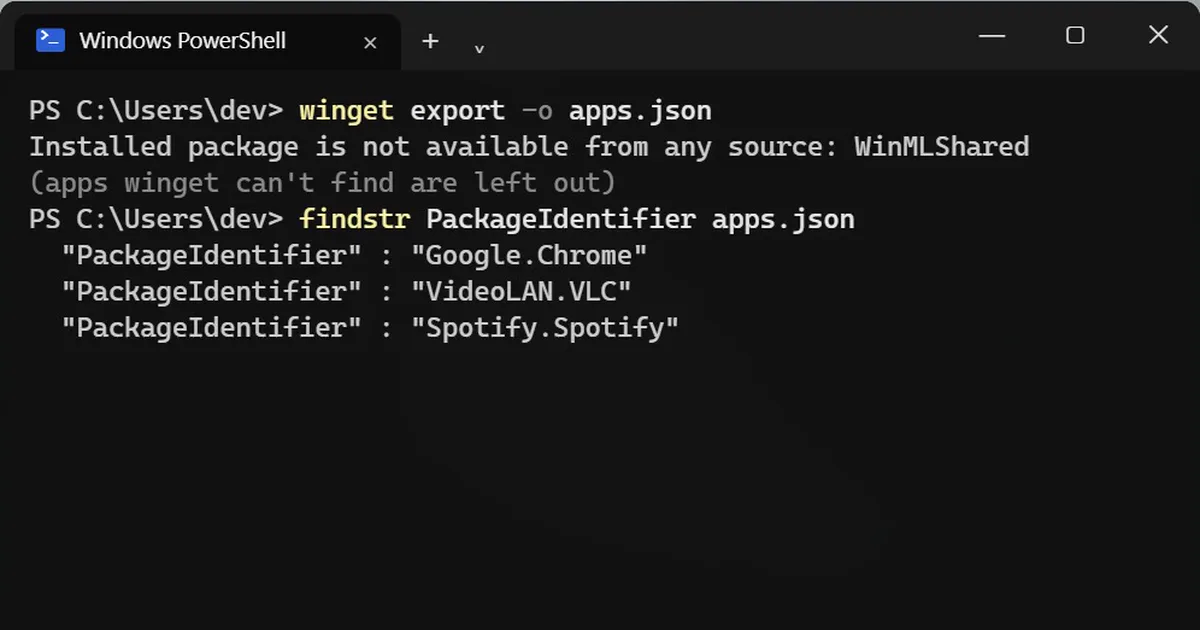
winget export -o apps.json
It saves apps.json in the folder you are in. You may see lines like this for apps winget does not know about:
Installed package is not available from any source: WinMLShared
Those apps are left out of the list. Write their names down if you need them, and install them by hand later.
Step 2: Look at the list
The file is plain text. This shows every app in it:
findstr PackageIdentifier apps.json
Example output (yours will list your own apps):
"PackageIdentifier" : "Google.Chrome"
"PackageIdentifier" : "VideoLAN.VLC"
"PackageIdentifier" : "Spotify.Spotify"
"PackageIdentifier" : "Zoom.Zoom"
You can open it in Notepad and delete any app you do not want on the new PC.
Step 3: Install everything on the new PC
Copy apps.json to the new PC with a pen drive, OneDrive or email. Open PowerShell in the folder where you saved it and run:
winget import -i apps.json --ignore-unavailable
--ignore-unavailable skips apps it cannot find instead of stopping. winget then installs the apps one after another. Some installers still ask for admin permission, so stay near the PC while it runs. To skip the licence prompts, add --accept-package-agreements --accept-source-agreements.
Why you get the newest versions
By default, the export does not save version numbers, so the new PC gets the latest version of every app instead of the old ones you had. If you need the exact same versions, export with --include-versions.
Keep it as a backup
Save a fresh apps.json in OneDrive every few months. If your laptop ever dies, one command brings all your apps back on the next one.
What does not move
Only the apps winget can find move over. Your files, app settings, saved passwords and sign-ins stay on the old PC, so back those up separately before you wipe or sell it.
On a Mac
With Homebrew, this saves a list called Brewfile:
brew bundle dump
On the new Mac, run this in the folder with the Brewfile:
brew bundle
More quick tips
More prompts on this topic
- Build a small command-line toolClaude · ChatGPT · Gemini



Comments
No comments yet. Be the first to share what worked for you.