Find every duplicate file on your PC in one line
Published
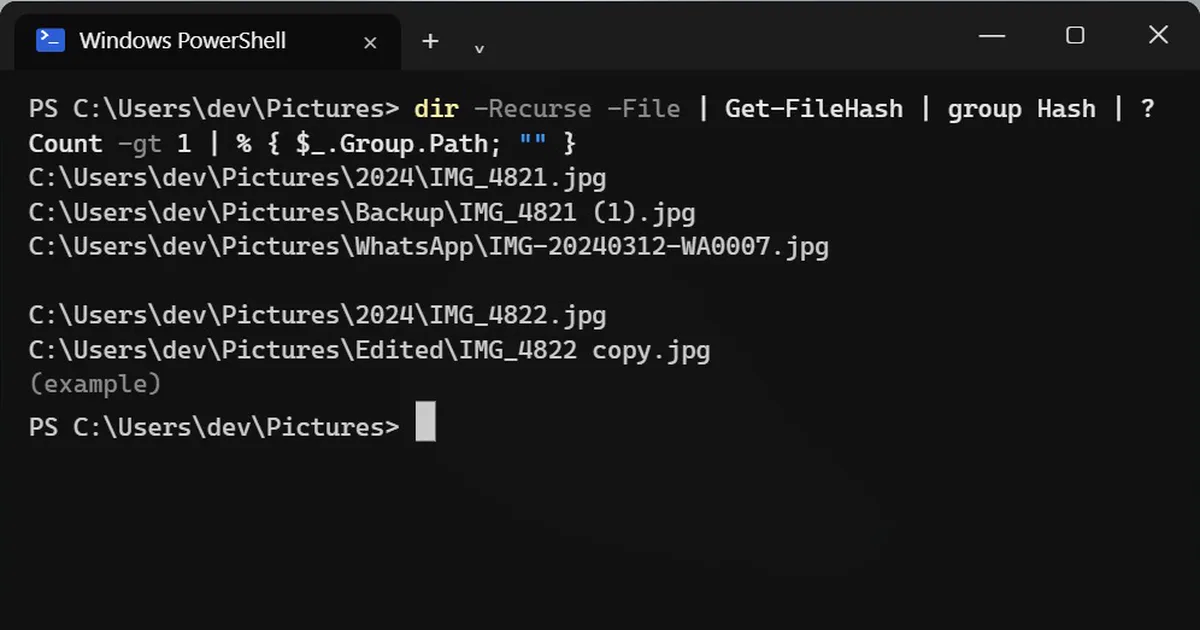
Short answerOpen PowerShell in the folder and run dir -Recurse -File | Get-FileHash | group Hash | ? Count -gt 1 | % { $_.Group.Path; "" }. Each block it prints is one set of identical files, even if their names are different. It only lists them; you decide what to delete.
WhatsApp copies, phone backups, "photo (1).jpg" downloads: the same file ends up on your PC three or four times. Duplicate finder apps exist, but PowerShell, which is already on your PC, can do it in one line.
Step 1: Open PowerShell in the folder
Open the folder in File Explorer, click the address bar, type powershell and press Enter. A PowerShell window opens in that folder. Your Pictures folder is a good place to start.
Step 2: Find the duplicates
Paste this line and press Enter:
dir -Recurse -File | Get-FileHash | group Hash | ? Count -gt 1 | % { $_.Group.Path; "" }Each block it prints is one set of identical files. Example output:
C:\Users\you\Pictures\2024\IMG_4821.jpg
C:\Users\you\Pictures\Backup\IMG_4821 (1).jpg
C:\Users\you\Pictures\WhatsApp\IMG-20240312-WA0007.jpg

C:\Users\you\Pictures\2024\IMG_4822.jpg
C:\Users\you\Pictures\Edited\IMG_4822 copy.jpg
How it works
dir -Recurse -Filelists every file in the folder and all folders inside it.Get-FileHashreads each file and makes a fingerprint (a hash) of what is inside it.group Hashputs files with the same fingerprint together, and? Count -gt 1keeps only the groups with more than one file.
Same fingerprint means the exact same contents, even when the names are completely different. That is why it catches the WhatsApp copy above.
Faster for big folders
Reading every file takes a while. Two files can only match if they are the same size, so this version compares sizes first and only fingerprints the files that could match:
dir -Recurse -File | group Length | ? Count -gt 1 | % Group | Get-FileHash | group Hash | ? Count -gt 1 | % { $_.Group.Path; "" }It gives the same answer with less reading, which helps a lot on big folders.
How much space the copies waste
This adds up the space you would get back by keeping one file from each group:
dir -Recurse -File | group Length | ? Count -gt 1 | % Group | Get-FileHash | group Hash | ? Count -gt 1 | % { (Get-Item -LiteralPath $_.Group[0].Path).Length * ($_.Count - 1) } | Measure-Object -Sum | % { "{0:N1} MB" -f ($_.Sum / 1MB) }To save the list of duplicates to a file instead of the screen, add > duplicates.txt to the end of the first command.
Before you delete anything
- It never deletes files. Check each group and keep one copy.
- It only finds exact copies. An edited, cropped or resized photo counts as a different file.
- If the folder is in OneDrive with files that are online only, reading them downloads them. Run it on a folder that is on your PC, or expect it to download.
More quick tips
More prompts on this topic
- Find dead code and safe things to deleteClaude · ChatGPT · Claude Code
- Build a small command-line toolClaude · ChatGPT · Gemini



Comments
No comments yet. Be the first to share what worked for you.