See what every website knows about you, and check if your VPN works
Published
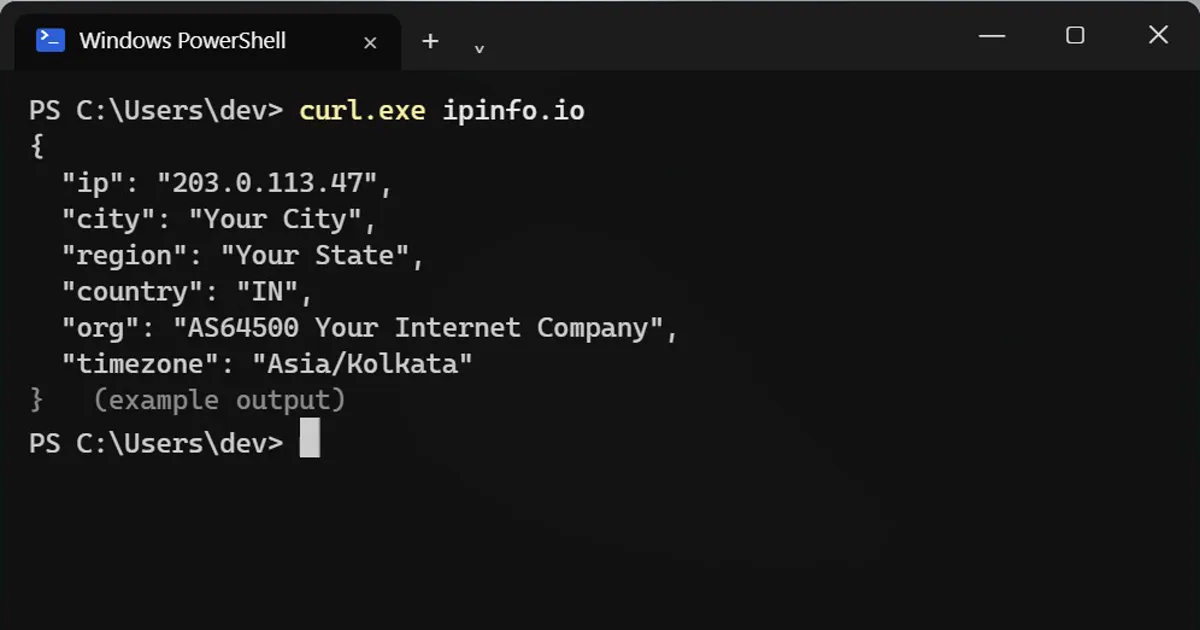
Short answerRun curl.exe ipinfo.io to see your public IP address, approximate city and internet company, which every website can see. Run it again with your VPN on; if the city and company stay the same, the VPN is not hiding you.
You don't need cookies to be located. Every website you open gets your public IP address, and from it a good guess of your city and your internet company. One line shows you exactly what they see.
Step 1: See what websites see
Windows has curl built in. In PowerShell, type curl.exe (with .exe):
curl.exe ipinfo.io
{
  "ip": "203.0.113.47",
  "city": "Your City",
  "region": "Your State",
  "country": "IN",
  "org": "AS64500 Your Internet Company",
  "timezone": "Asia/Kolkata"
}
The location is a guess from your IP address. It is usually right to the city, rarely to your street.
Step 2: Check your VPN
Switch your VPN on and run the same line again.
  "ip": "198.51.100.23",
  "city": "Amsterdam",
  "org": "AS64501 Some VPN Hosting",
- City and company changed: the VPN is hiding your IP.
- Still your city and your internet company: the VPN isn't working for this connection. Reconnect it, or check its "kill switch" setting.
Just one value
Add the field name to the address:
curl.exe ipinfo.io/ip
curl.exe ipinfo.io/city
curl.exe ipinfo.io/org
Why curl.exe and not curl?
In Windows PowerShell 5, curl is a shortcut for a different command (Invoke-WebRequest) that prints a lot of extra text. curl.exe runs the real curl.
On a Mac
Drop the .exe: curl ipinfo.io.
Don't post the result
Your real IP and city are personal. Screenshots of this command shouldn't go online unless you blur them.



Comments
No comments yet. Be the first to share what worked for you.