How to see what's really using your RAM on Windows
Published
Short answerGroup Get-Process by name and add up WorkingSet64 for each app to see how many processes and how many MB each app really uses, then check free memory with Win32_OperatingSystem. Turn on Memory Saver in Chrome or Sleeping tabs in Edge.
PC slow, and nothing in Task Manager looks big? The hog is probably split into dozens of small pieces. Chrome, Edge and many other apps run every tab, extension and helper as its own process.
Step 1: Add each app up
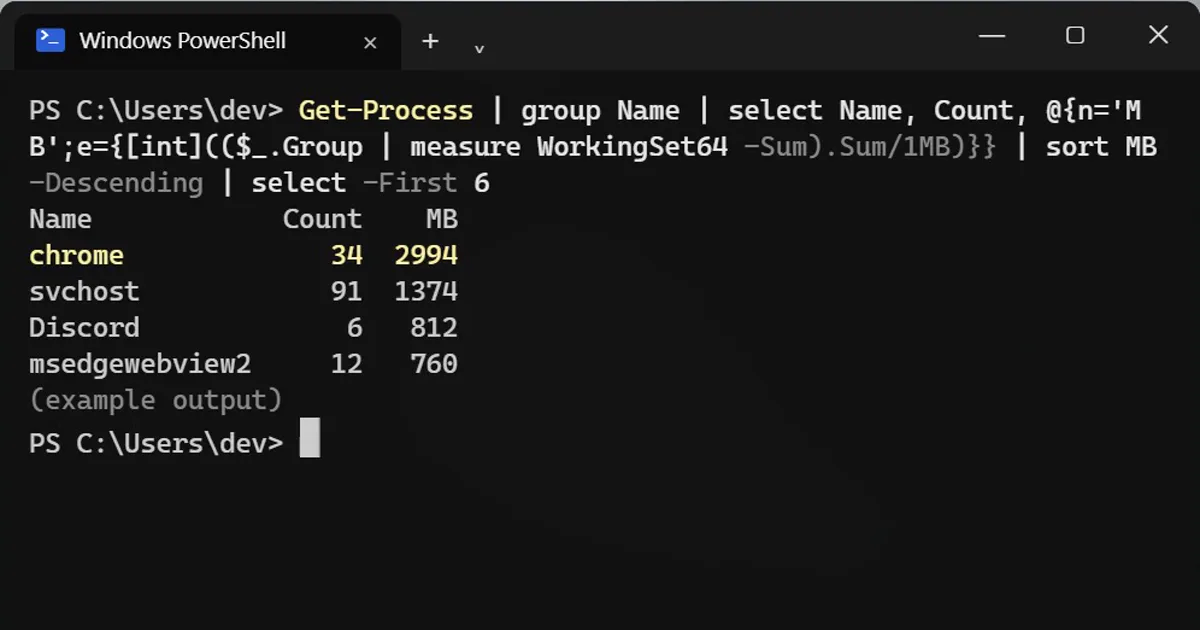
Get-Process | group Name | select Name, Count, @{n='MB';e={[int](($_.Group | measure WorkingSet64 -Sum).Sum/1MB)}} | sort MB -Descending | select -First 6Name Count MB chrome 34 2994 svchost 91 1374 Discord 6 812 msedgewebview2 12 760
It groups every process by name, counts them, and adds up their memory. Chrome: 34 pieces, about 3 GB. The totals are rough, because pieces share some memory, but the order is right.
What the names mean
- svchost: many small Windows services. A big total here is normal.
- msedgewebview2: not the Edge browser. It's other apps built on Edge, such as Teams, Widgets and Outlook.
- Memory Compression: Windows squeezing memory to fit more in. Normal.
Step 2: How much is left?
Get-CimInstance Win32_OperatingSystem | % { '{0:N1} GB free of {1:N1} GB' -f ($_.FreePhysicalMemory/1MB), ($_.TotalVisibleMemorySize/1MB) }1.7 GB free of 15.6 GB
Under about 10% free while you work, the PC starts using the much slower disk instead.
Fix it without closing tabs
- Chrome: Settings > Performance > Memory Saver.
- Edge: Settings > System and performance > Sleeping tabs.
Both park the tabs you aren't using and wake them when you click.
On a Mac
Open Terminal and type top -o mem to sort by memory (press q to quit), or open Activity Monitor > Memory.



Comments
No comments yet. Be the first to share what worked for you.