How to close every "Not responding" app at once on Windows
Published
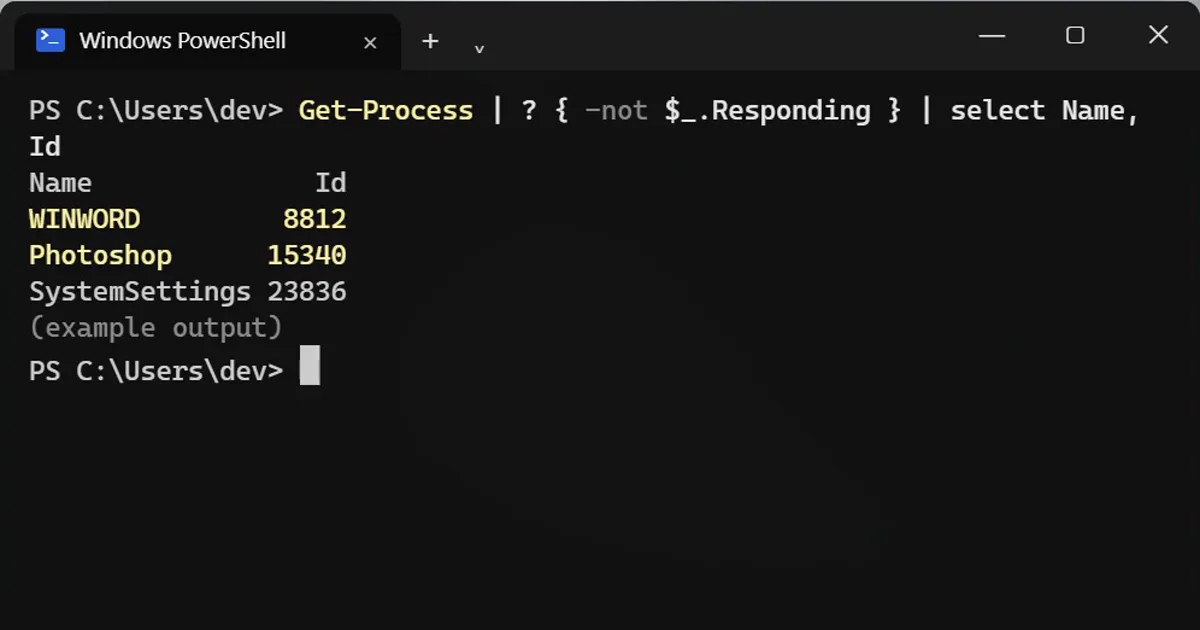
Short answerRun Get-Process filtered on Responding to list frozen apps, then pipe the same list to Stop-Process -Force to close them all. Restart a frozen taskbar with Stop-Process -Name explorer, or Ctrl+Shift+Esc > Run new task > explorer.
Three windows frozen, "Not responding" everywhere, and Task Manager is slow to open? Two lines find and close them all.
Step 1: See which apps are frozen
Get-Process | ? { -not $_.Responding } | select Name, IdName Id SystemSettings 23836
Windows asks every app with a window if it is still answering. The ones that aren't are listed.
Settings, Photos or other Store apps can show up even when nothing is wrong: Windows pauses them in the background to save power. Closing them is harmless.
Step 2: Close them all
Give frozen apps a minute first. Sometimes they are just busy. Then:
Get-Process | ? { -not $_.Responding } | Stop-Process -ForceAnything unsaved in those apps is lost. Apps running as administrator can only be closed from PowerShell opened as administrator.
Taskbar or Start menu frozen too?
Restart Explorer, which draws the taskbar, Start menu and File Explorer:
Stop-Process -Name explorer -Force
Windows normally starts it again within a few seconds. If the taskbar doesn't come back, press Ctrl+Shift+Esc, choose Run new task, type explorer and press Enter.
No PowerShell open?
Press Ctrl+Shift+Esc for Task Manager, select the app and click End task. If the whole screen is frozen, see Fix a frozen or black screen.
On a Mac
Press Option + Command + Esc to open Force Quit. Frozen apps are marked "(Not Responding)".
More quick tips
More prompts on this topic
- Bullet-time frozen momentSeedance · Kling



Comments
No comments yet. Be the first to share what worked for you.