How to make a truly random password with one PowerShell line
Published
Short answerFill 18 bytes from .NET's RandomNumberGenerator and convert them to Base64 for a 24-character password. Pipe it to Set-Clipboard to copy it without showing it, save it in a password manager, then clear it from Win+V clipboard history.
People are bad at making up passwords: a name, a year, an exclamation mark. Attackers try those patterns first. Your PC has a random number generator built for encryption keys, and one line turns it into a password.
The one-liner
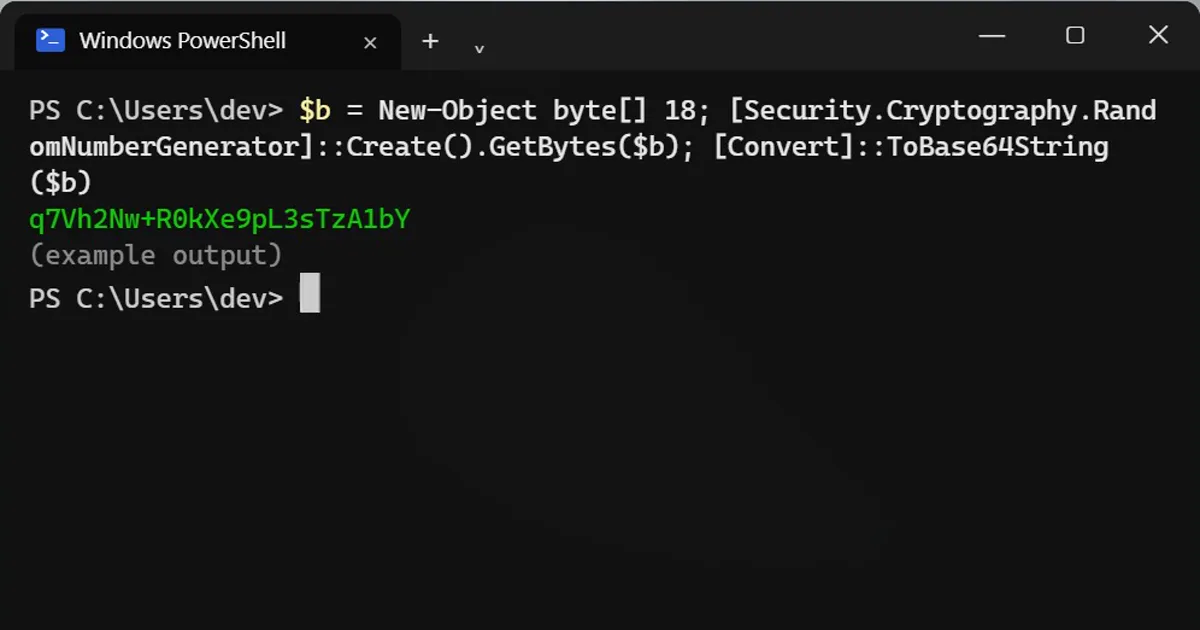
$b = New-Object byte[] 18; [Security.Cryptography.RandomNumberGenerator]::Create().GetBytes($b); [Convert]::ToBase64String($b)
q7Vh2Nw+R0kXe9pL3sTzA1bY
It takes 18 random bytes and writes them as 24 letters, numbers and symbols (+ and / can appear). Run it again and you get a completely different one. Don't use the example above: it's published now.
Copy it without showing it
Add | Set-Clipboard to the end. The password goes straight to the clipboard and never appears on screen:
$b = New-Object byte[] 18; [Security.Cryptography.RandomNumberGenerator]::Create().GetBytes($b); [Convert]::ToBase64String($b) | Set-Clipboard
Paste it into the site and into your password manager at the same time. Nobody remembers 24 random characters, and you shouldn't have to.
Clean up the clipboard
If clipboard history is on, Windows keeps a copy. Press Win+V after you paste and delete it from the list (the three dots, then Delete).
Why not Get-Random?
Get-Random is made for games, dice and picking samples. RandomNumberGenerator is the generator .NET uses for encryption keys, so its output can't be predicted.
Site doesn't accept + or /?
Some sites allow only letters and numbers. This version removes the symbols, and it's still more than 20 random characters:
$b = New-Object byte[] 18; [Security.Cryptography.RandomNumberGenerator]::Create().GetBytes($b); [Convert]::ToBase64String($b) -replace '[+/=]',''
On a Mac
One line in Terminal does the same and copies it:
openssl rand -base64 18 | pbcopy
The built-in Passwords app and Safari also suggest strong passwords for you.



Comments
No comments yet. Be the first to share what worked for you.