How to check if your password leaked, without sending it anywhere
Published
Short answerHash the password with SHA-1 on your PC, send only the first 5 characters of the hash to the Pwned Passwords service, and compare the returned list on your PC. A number printed means the password is in leaks that many times.
Hackers share lists of leaked passwords. You can check whether yours is on them without ever sending the password. This uses the free Pwned Passwords service from Have I Been Pwned.
The one-liner
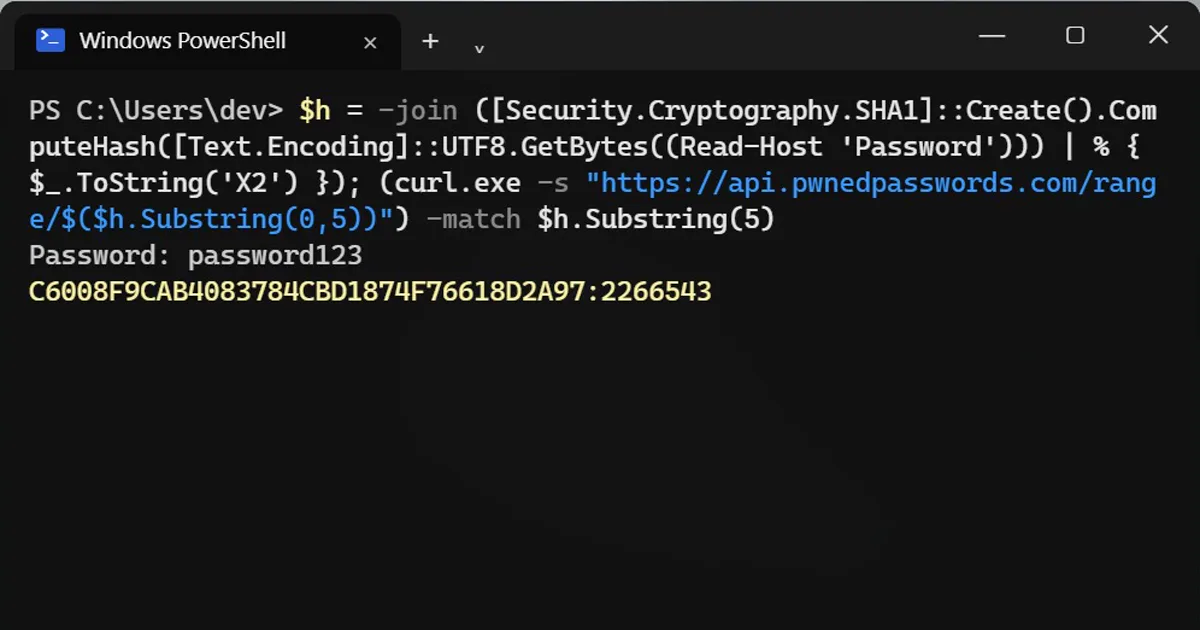
$h = -join ([Security.Cryptography.SHA1]::Create().ComputeHash([Text.Encoding]::UTF8.GetBytes((Read-Host 'Password'))) | % { $_.ToString('X2') }); (curl.exe -s "https://api.pwnedpasswords.com/range/$($h.Substring(0,5))") -match $h.Substring(5)It asks for the password. Type it and press Enter. Do this when nobody is looking at your screen, because the letters show as you type.
C6008F9CAB4083784CBD1874F76618D2A97:2266543
The number at the end is how many times that password showed up in leaks: over two million for password123.
Why the password never leaves your PC
- Your PC turns the password into a SHA-1 hash, a 40-character fingerprint.
- Only the first 5 characters of that hash are sent, for example
CBFDA. - The service sends back every leaked hash that starts with those 5 characters, about two thousand of them.
- Your PC compares the rest of the hash itself.
The service never sees your password or even its full hash. This method is called k-anonymity.
What the result means
- A number printed: the password is in leaked lists. Change it on every site where you used it, and never use it again.
- Nothing printed: it's not in the known leaks. That doesn't make it strong, only not leaked yet.
PowerShell saves the command to its history but not what you typed at the Password prompt.
No terminal?
Password managers run the same check for you: Google Password Manager > Password Checkup, and on Apple devices Passwords > Security. You can also check your email address at haveibeenpwned.com.
On a Mac
The easiest way is the built-in Passwords app: open Security to see which of your saved passwords appeared in leaks.



Comments
No comments yet. Be the first to share what worked for you.